


Table of contents
- Overview
- Eligibility for the beta migration
- What is changing with CAD billing
- What you need to do
- Step-by-step migration process
- What happens after the migration
- FAQs
- Support and feedback
- The takeaway
Overview
[Beta] This article is for Canadian GotPhoto customers who are part of an early group selected to migrate their accounts from USD billing to CAD (Canadian Dollar) billing.
This migration ensures that your billing is aligned with your local currency, improving transparency and reducing currency conversion fees. As a beta participant, your feedback will help us refine the experience before a wider rollout.
Eligibility for the beta migration
- Your account was created before May 14, 2025, and you are currently billed in USD.
- You are using GotPhoto's new admin design and not the legacy one.
- We’ve selected your account for the initial beta phase in April 2026, and you’ve agreed to participate.
What is changing with CAD billing
This section explains what will change in your billing and Stripe setup.
- Your Stripe account is currently under the European company entity Fotografen Online Service GmbH. During the migration, you will create a new Stripe account tied to GotPhoto’s North American entity, GotPhoto Inc. This allows us to bill your account in CAD.
- All main fees, including service fees, payment fees, and plan fees, will be charged in CAD.
- If applicable, editing fees and Entagged subscription fees will also be charged in CAD.
- [Exception] Sports Graphics by Next Gen fees are still charged in USD (if applicable).
- Your future invoices will be issued in CAD instead of USD.
[Beta] Some features or invoice details may still be refined during the beta phase.
What you need to do
This section outlines the actions you need to complete before and during migration.
- Ensure you have no unpaid orders in your account. If needed, send a payment reminder. Any unpaid orders must be settled before migration. Orders left unpaid will be canceled automatically by the system.
- Wait for the migration banner to appear in your account after you are added to the beta rollout group.
- Complete the Stripe onboarding flow when prompted.
- [Required] Your saved credit card will be removed during the migration as we need to disconnect it from the European entity. Please re-add your credit card after the migration here (User name > Finances > GotPhoto Balance > Credit cards). This way, it will be connected with our North American entity.
In the first month after your migration, you will receive two invoices: one from the European entity (billed in USD) for the period before your migration, and one from the North American entity (billed in CAD) for the period after your migration.Invoices from the European entity will be charged to your previously saved European credit card, while invoices from the North American entity will be charged to your newly added North American credit card. No action is required on your end.
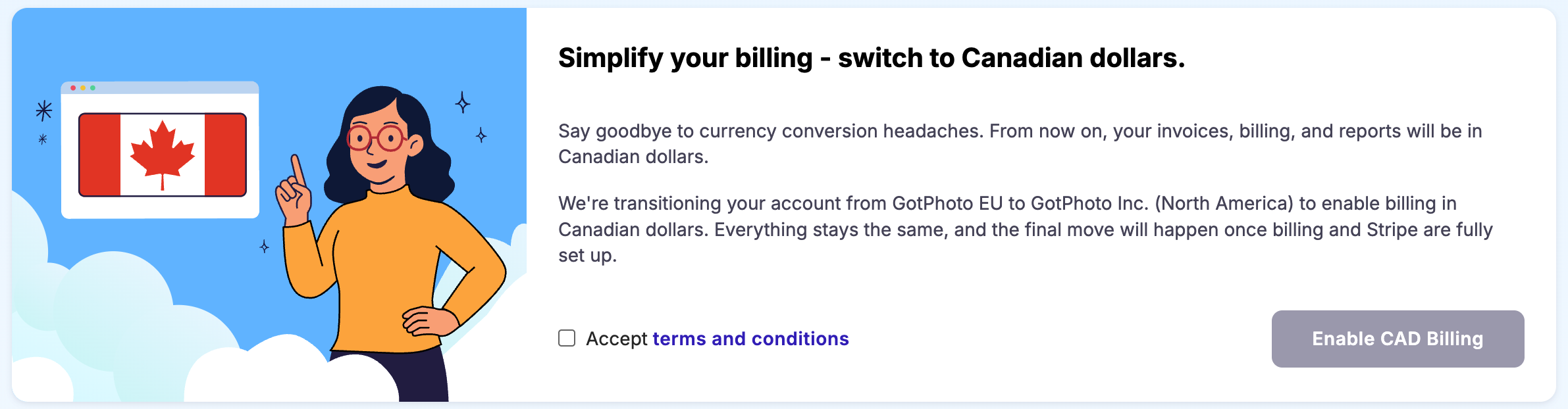
Once you have been added to the beta rollout group, a prominent migration banner will appear in your account.
Step-by-step migration process
This section walks you through the full migration flow.
1. Start the migration
- Accept GotPhoto's terms and conditions.
- Click Enable CAD billing.
Nothing changes immediately for your billing or your customers at this point. Clicking Enable CAD billing only starts the migration process. Your current setup remains unchanged until the later steps are completed.
In case you accept the Terms and Conditions, but missed clicking the Enable CAD Billing button, a yellow banner in your account will remind you to take that step.

2. Create a new Stripe account
Next, you will review important migration details and begin creating your new Stripe account.
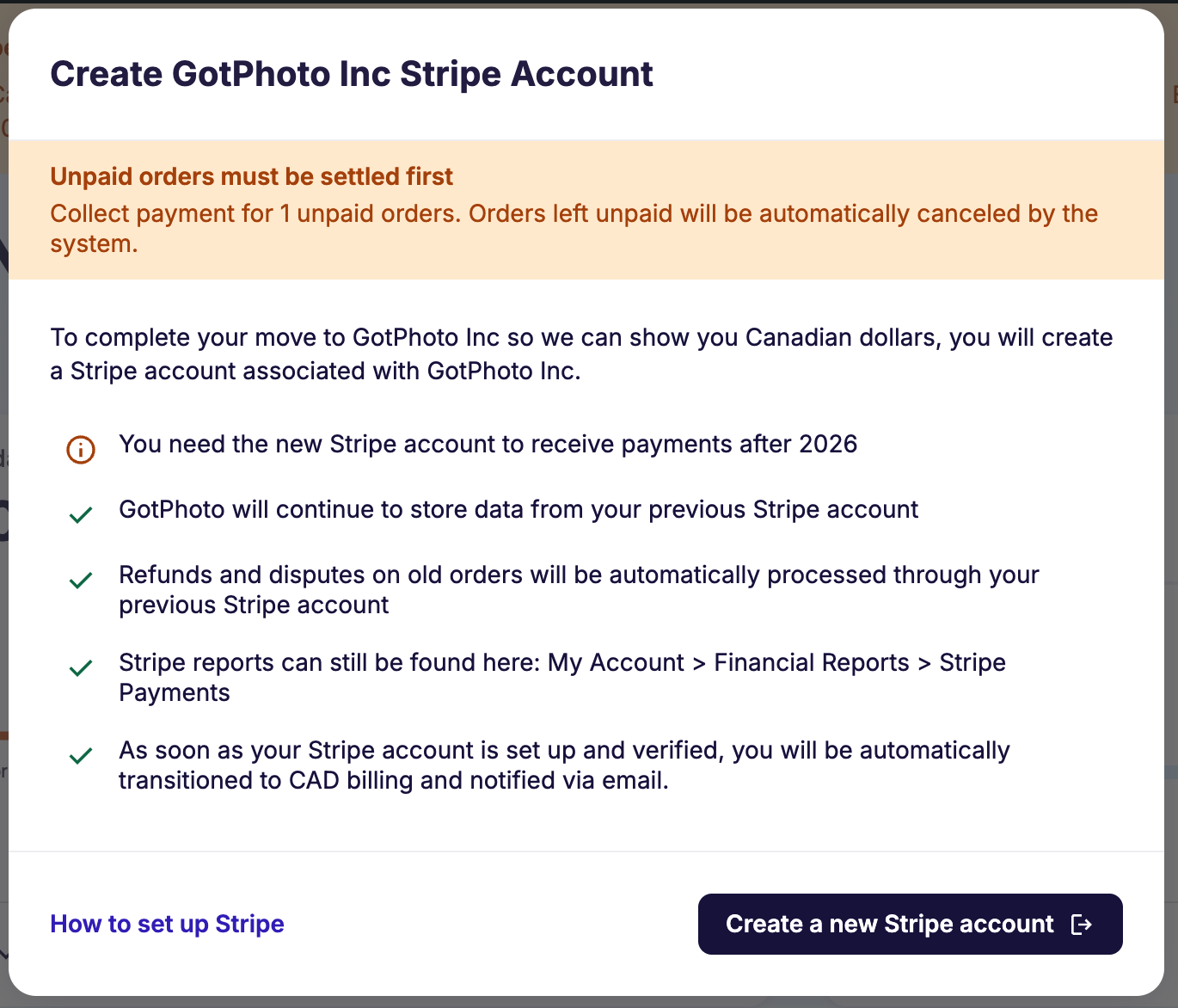
- There is no service interruption during the migration.
3. Complete Stripe onboarding
You will be redirected to Stripe’s official website to set up your new payment account.

Stripe may ask you for:
- Business information
- Personal identification
- Bank account details for payouts
- Any required verification documents
For a smooth registration process, review these resources:
You need to:
- Complete all steps in Stripe’s onboarding flow.
- Submit your information for verification.
After completing the Stripe setup, you are automatically redirected to your GotPhoto Dashboard.
4. Wait for Stripe verification
After you return to the dashboard, you will see a green success banner confirming that your Stripe onboarding was submitted.

What happens next:
- Stripe reviews the documents and information you submitted.
- This typically takes a few minutes to a few days.
- No action is required from you during this step. Verification is handled by Stripe and typically takes anywhere from a few minutes to a few days.
5. Complete the migration
Once Stripe approves your new account, the migration happens automatically. You will be automatically transitioned to CAD billing and notified by email. The next time you visit your dashboard, you will see the following celebration dialog.
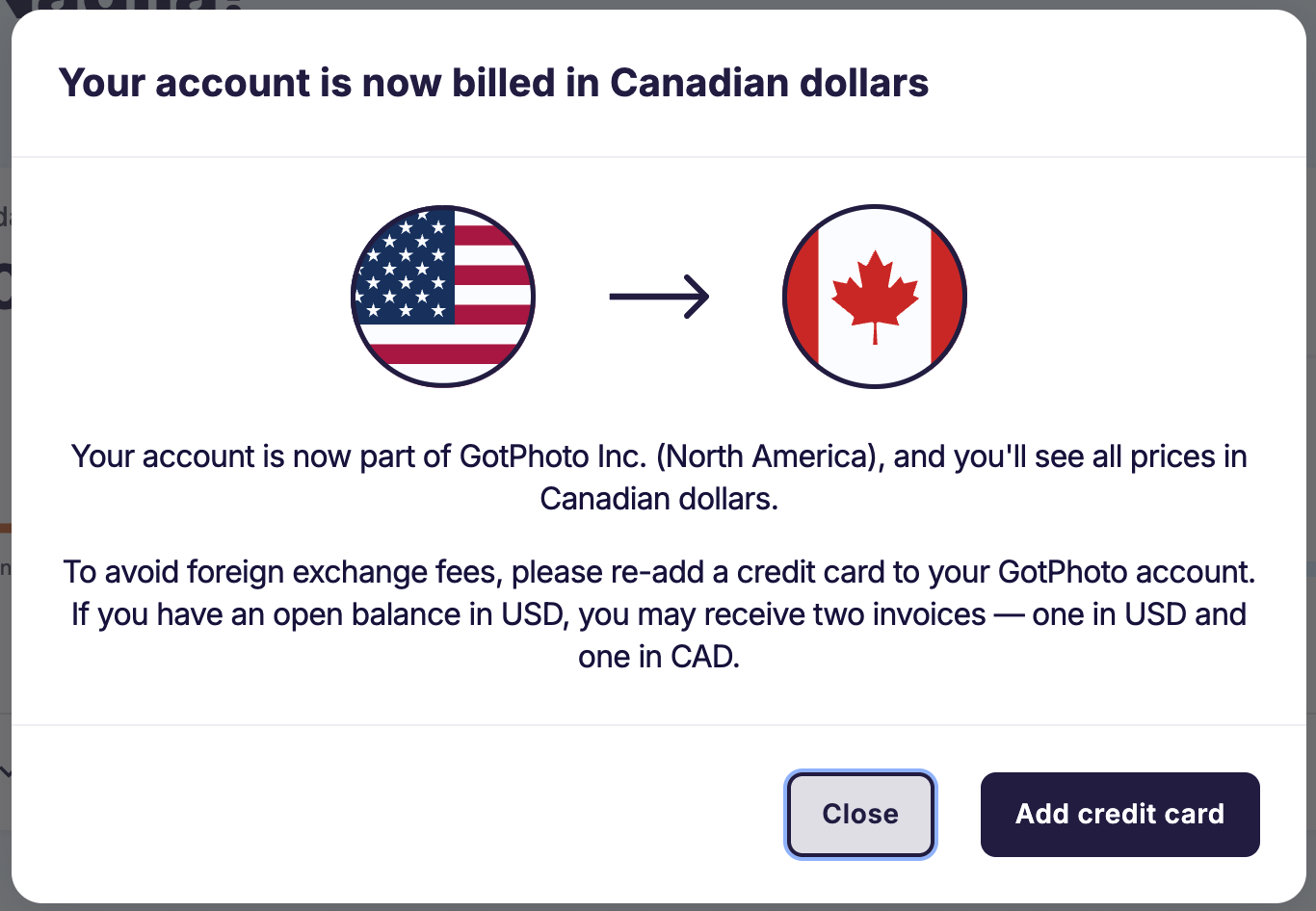
You can then:
- Click Add credit card to re-add your credit card.
- Alternatively, click Close to dismiss the dialog for now.
What happens after the migration
This section explains what changes after migration, including your billing experience, refunds, payouts, disputes, and reporting.
Your billing and invoices
This subsection explains what you will notice in your billing after migration.
- Your billing currency will switch to CAD on your next billing cycle.
- Your GotPhoto plan and, if applicable, your Entagged plan will continue without interruption.
- If you have an open balance in USD, you may receive two invoices in the month following your migration: one in USD and one in CAD.
- Historical invoices will remain unchanged.
Your old Stripe data
Your previous Stripe account data remains safe and available after migration.
- All previous Stripe payment data is preserved.
- Nothing is lost during migration.
- Your old Stripe account is deactivated for new payments, but remains available to handle past transactions.
Refunds after migration
Refunds continue to work seamlessly after migration. You do not need to do anything differently.
How refunds work:
- If a customer requests a refund for an order placed before migration, the refund is processed automatically through your old Stripe account linked to Fotografen Online Service GmbH.
- If a customer requests a refund for an order placed after migration, the refund is processed through your new Stripe account linked to GotPhoto Inc.
- The system automatically knows which Stripe account to use based on where the original payment was made.
Key things to know:
- Your old Stripe account remains available for refunds on past orders.
- The refund experience in your dashboard looks and works the same as before.
- You can still request refunds for previous orders.
Payouts after migration
After migration, your payouts come from your new GotPhoto Inc. Stripe account in Canadian dollars.
How payouts work:
- Your new Stripe account receives payments from orders placed after the migration.
- Payouts from this account are in CAD and go to the bank account you set up during your initial Stripe onboarding.
- You can request manual payouts or set up an automatic payout schedule, just like before.
Key things to know:
- After migration, only your new account is used for payouts.
- There is no mixing between old and new accounts for payouts.
- Your old Stripe account payout schedule is automatically switched to daily during migration so that any remaining balance is paid out automatically.
- If the automatic payout schedule change fails for any reason, GotPhoto Support can help resolve it.
Disputes after migration
Disputes (chargebacks) continue to work after migration. The system automatically routes each dispute to the correct Stripe account based on when the order was placed.
How disputes work:
- When a customer opens a dispute, the system looks up the original payment across both your old and new Stripe accounts.
- The dispute is processed through the Stripe account used for the original payment.
- If a dispute is resolved in your favor, the funds are automatically returned to the correct account.
- Open disputes remain visible on your dashboard, no matter which account they belong to.
Stripe reports after migration
After migration, the Stripe Reports page in My Account > Financial reports > Stripe Payments lets you view reports from both your old and new Stripe accounts.
What changed:
- A new Stripe Account dropdown appears on the Reports page, allowing you to switch between accounts.
- Your new Stripe account is labeled GotPhoto Inc..
- Your old Stripe account is labeled Fotografen Online Service GmbH (Deactivated).
How reporting works:
- Select the Stripe account you want to view from the dropdown.
- Choose your report type, date range, and download option as usual.
- The available date range changes depending on the selected account.
Key things to know:
- Reports are shown per account, not combined.
- You can still download reports from your old deactivated account to view historical payment data.
After the migration, reports in My Account > Financial Reports > Stripe Payments will display data from your selected Stripe account.
FAQs
Will my billing change immediately when I start the migration?
No. Billing only switches to CAD after your Stripe account is fully set up and verified.
Will there be any downtime during migration?
No. There is no service interruption at any stage of the migration.
Do I need to set up Stripe again?
Yes. You will create a new Stripe account under GotPhoto Inc. as part of the migration.
Can I use the same email I used in my previous Stripe account?
Yes, you can use the same email for your new Stripe account.
What happens to my old Stripe data?
Your old Stripe data is preserved and remains available for refunds, disputes, and reporting.
Do refunds still work after migration?
Yes. Refunds continue to work automatically, and the system routes each refund through the correct Stripe account.
How can I participate in the CAD billing migration?
The beta is currently limited to a small group of selected customers. We’re gradually expanding access and will be happy to include more testers soon. Please let us know if you want to be included.
Support and feedback
Your feedback is especially valuable during this beta phase.
- Please report any issues directly to the team that monitors the beta rollout.
- Share feedback on billing clarity, invoices, or pricing display.
- Minor inconsistencies may occur as we finalize the rollout. These will be monitored closely and resolved quickly.
[Beta] We may reach out proactively to gather insights about your experience.
The takeaway
[Beta] This article is dedicated to the beta phase of the migration from USD billing to CAD billing. The change improves billing transparency and reduces currency-related friction. You will need to complete a few setup steps, including creating a new Stripe account, and your payments, refunds, disputes, and reporting will continue to work seamlessly throughout and after the migration. As a beta participant, your feedback will play an important role in helping shape the final rollout.
Related articles