

Table of contents
- Overview
- Toggling photo effects (filters) on or off
- The customer selection in your online shop
- Disabling photo effects
- FAQs
- The takeaway
Overview
You can offer customers the option to apply photo effects — called filters in the online shop — to their ordered photos. Photo effects are enabled by default and are managed per price list, not in general Online Shop settings. This guide shows you how to change and disable photo effects and how to expand galleries using automatic photo effects.
Please note that photo effects can only be applied to JPGs, not PNGs.
Toggling photo effects (filters) on or off
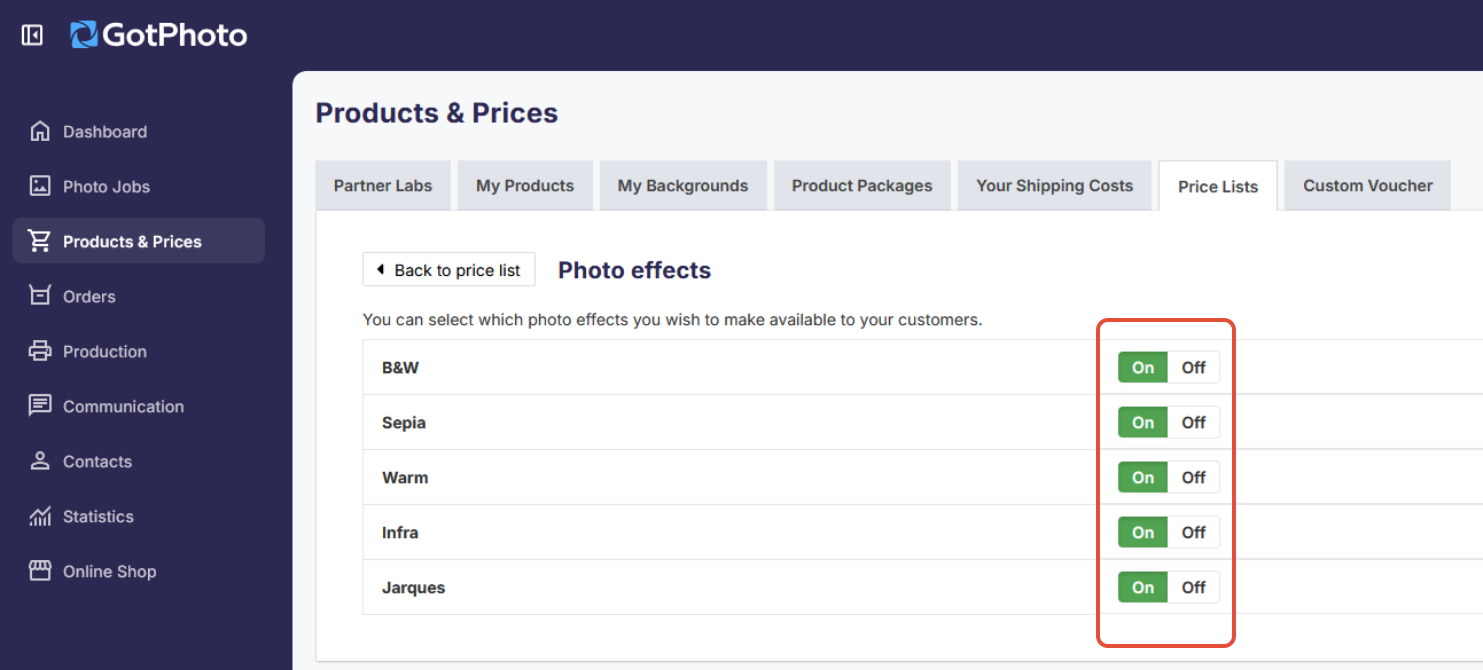
Turn specific effects on or off for a given price list.
- Head to your Price Lists tab (Products & Prices > Price Lists) and open the price list you want to adjust.
- Select Actions → Photo effects.
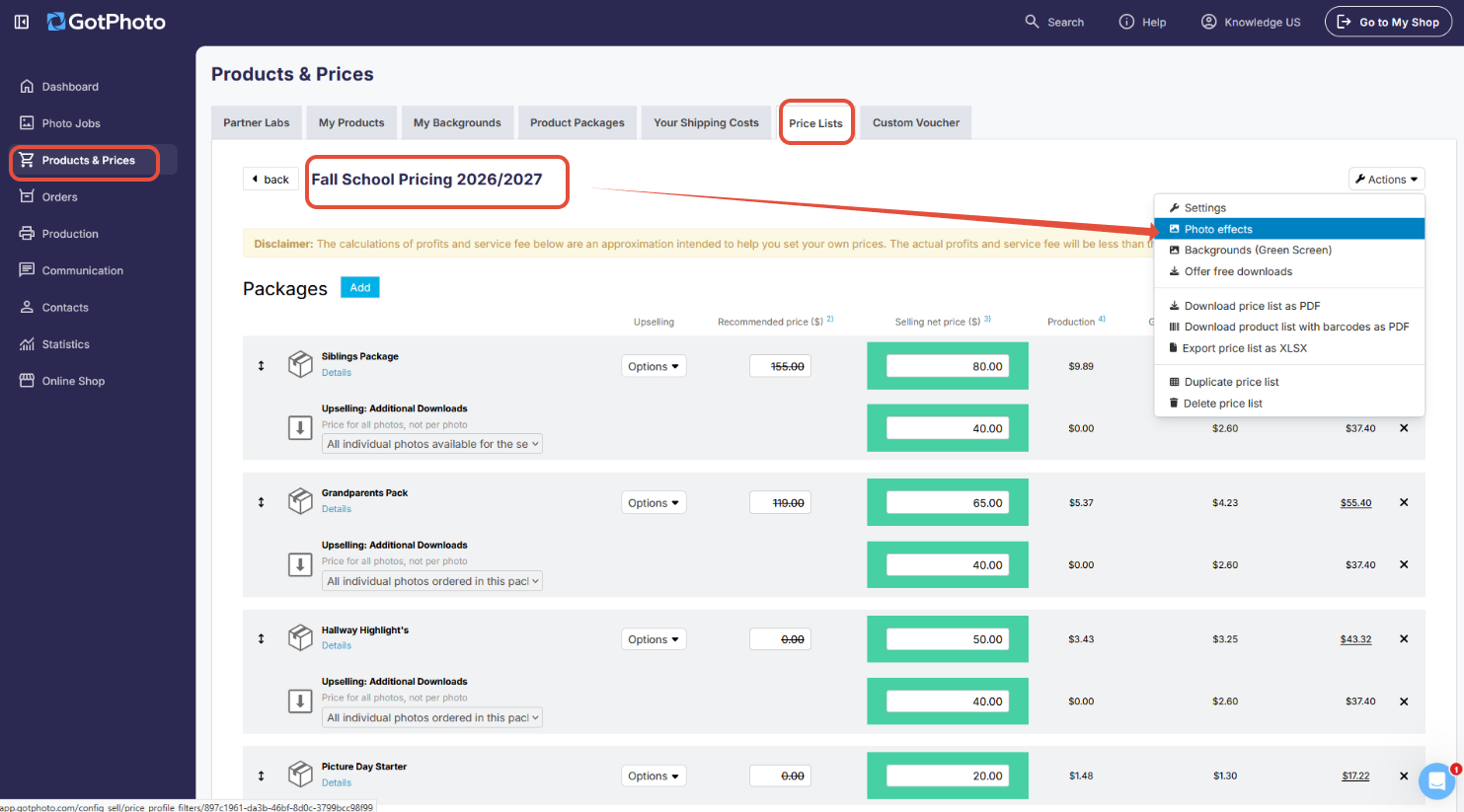
- Use the ON/OFF toggles to enable or disable individual effects as needed.
The customer selection in your online shop
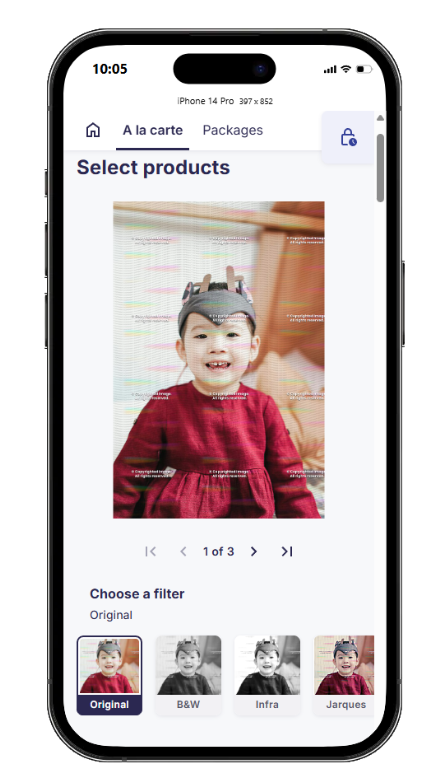
In the shop, customers see these settings as filters. Customers can:
- Single products / À la Carte: select and preview different filters on the À la Carte page as well as in the cart view.
- Package products (including the Download All package): apply filters to package products in the cart view.
Filters are not supported in the following areas:
- The packages view (pre-cart flow)
- "Download All" products (pre-cart flow)
Disabling photo effects
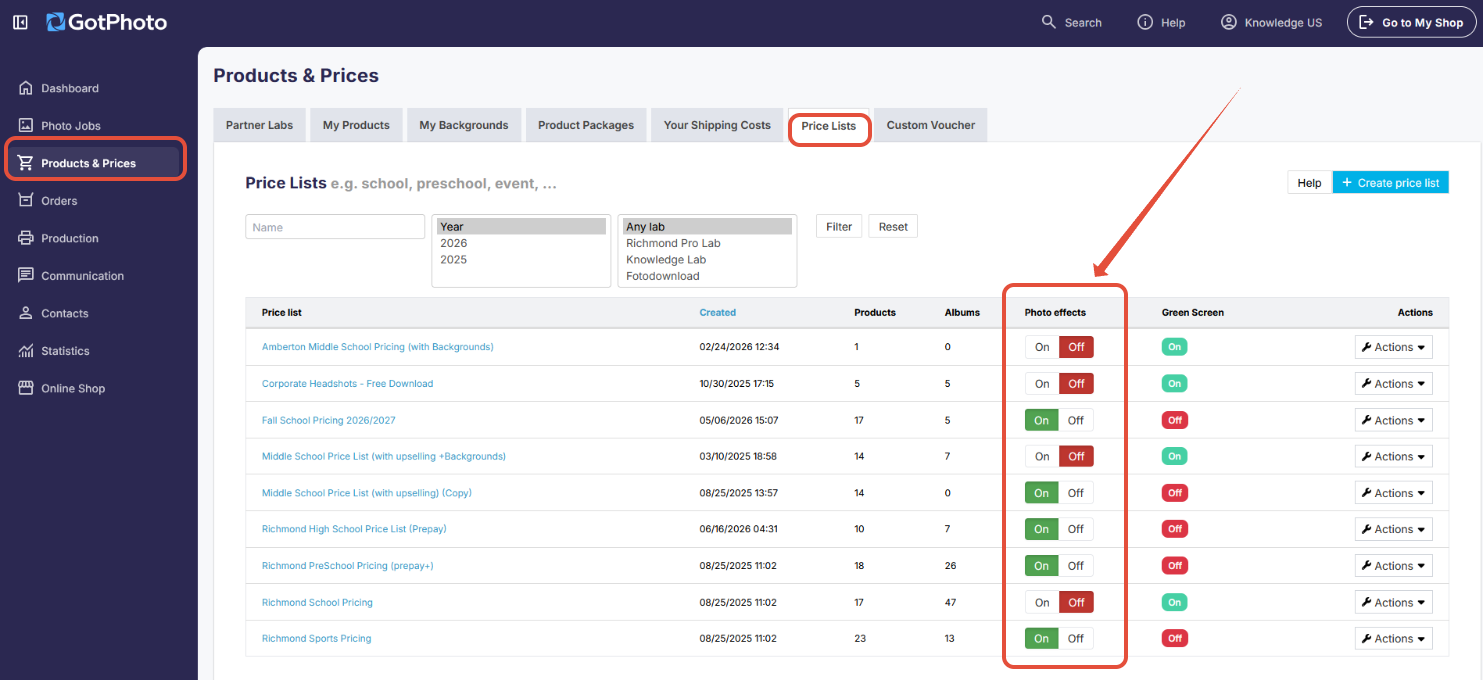
Turn off all photo effects (filters) for a price list at once.
- Open the price list page.
- Toggle the ON/OFF switch in the Photo effects column to disable effects for that list.
FAQs
Where can I change the shop's photo effect / filter settings?
This is not in general Online Shop settings. Open the relevant price list (Products & Prices > Price Lists), then use Actions → Photo effects for per-effect toggles. Use the Photo effects column toggle on the price list overview to disable all effects for that list at once.
Do photo effects (filters) work with green screen PNGs?
No. Effects apply to JPGs only. For green screen workflows, export/apply effects on JPG outputs, not PNGs.
Does the new shop support photo effects (filters)?
Yes, photo effects/filters in the cart are supported in the new online Shop.
Are automated photo effects available in the new shop?
No, they are currently not supported in the new shop.
The takeaway
Photo effects — called filters in the shop — are enabled by default and managed per price list, not in general Online Shop settings. Toggle individual effects, or disable them completely if needed.