

Overview
In GotPhoto, an “organization” refers to your client (e.g., a school or league). Creating an organization helps you manage recurring clients, access job statistics, and enable features like the School Portal. This article explains how to create, view, and add organizations to Photo Jobs.
Table of contents
Navigation
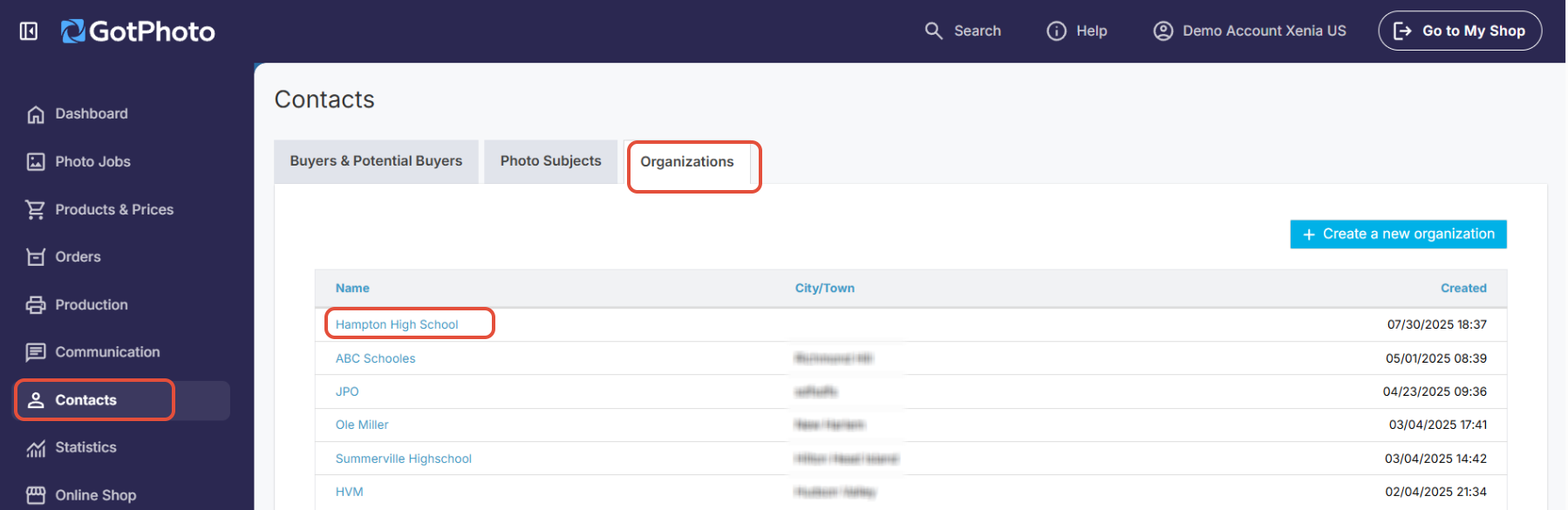
To access the Organizations tab, go to the Contacts tab and click Organizations.
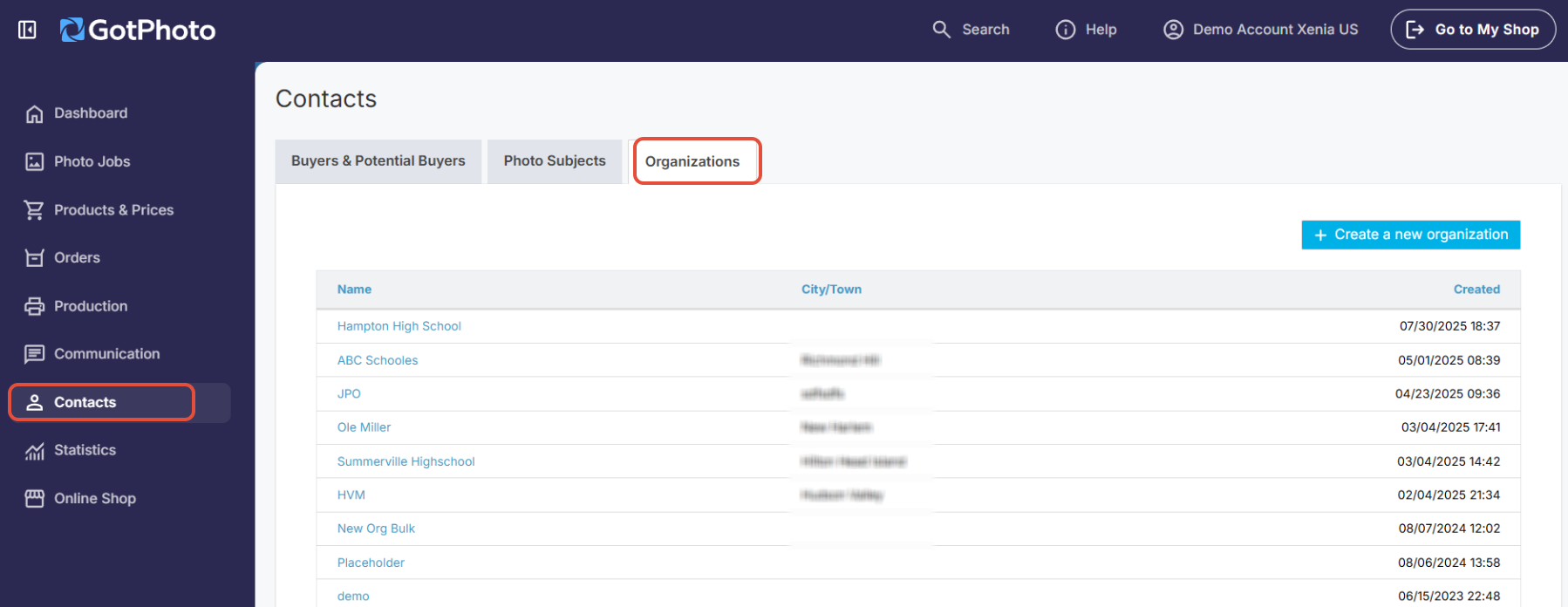
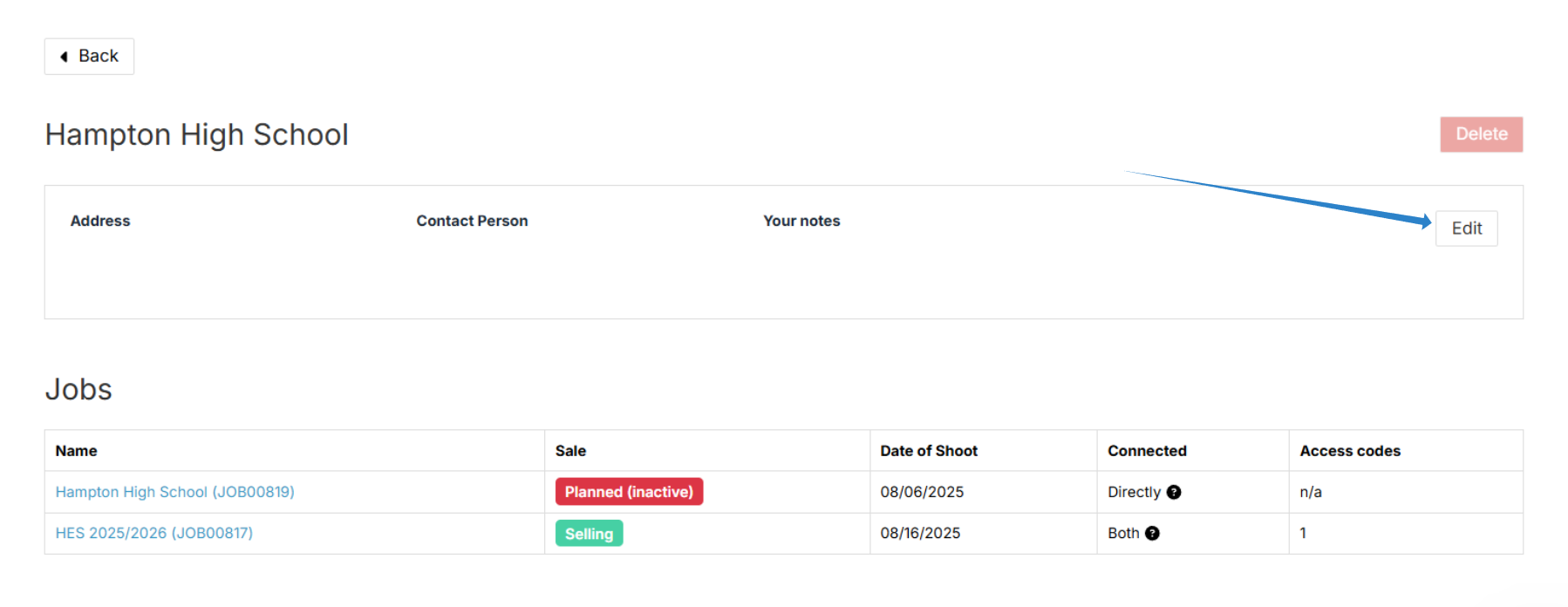
Click an organization’s name to view its contact information, connected jobs, and statistics.
Create and add an organization to a Photo Job
Option 1: From the Organizations tab, click + Create a new organization.
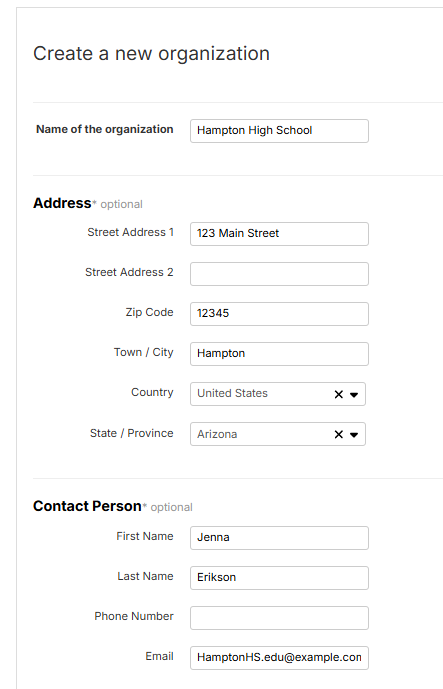
Fill in the basic information for the organization:
- Name of the organization (e.g., school, daycare, or league)
- Address
- Contact details of the main contact person
[Optional] Enable the School Portal and assign access rights
Activate the School Portal to give representatives of the organization access to statistics and orders.
The following permissions are available:
- Access to statistics of all connected jobs
This includes current, past, and future jobs where the organization is assigned in the job settings. - Access to all orders of a job
- Access to data (UK information; US/CA information) This feature is only available upon request for users on paid plans.
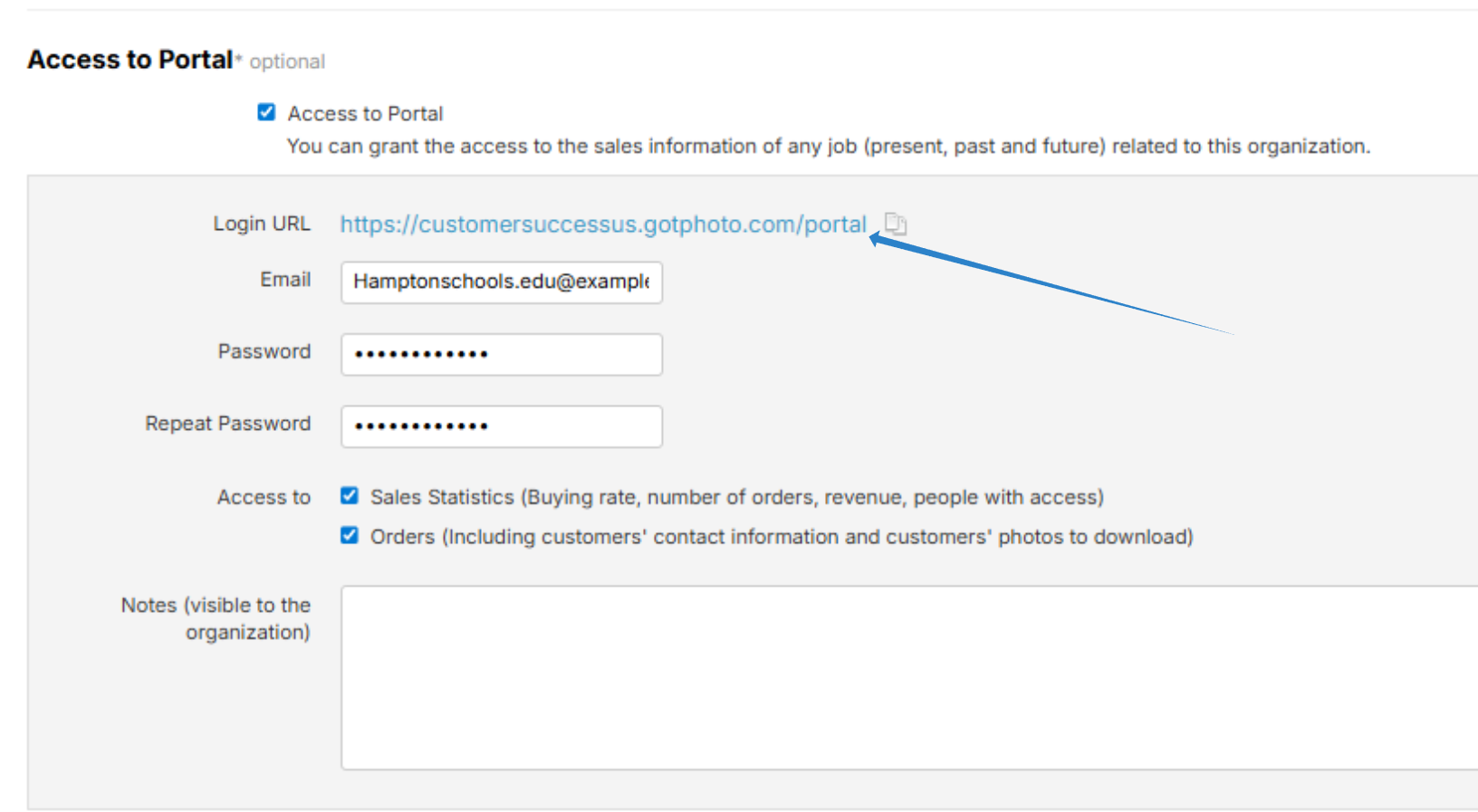
Important: The organization does not log in through your GotPhoto account.
Access is provided through the School Portal:
- The portal URL consists of your shop URL + /portal.
- You can find your individual portal URL in the Access to Sales Information section.
- Set a password and share it together with the portal URL with the organization.
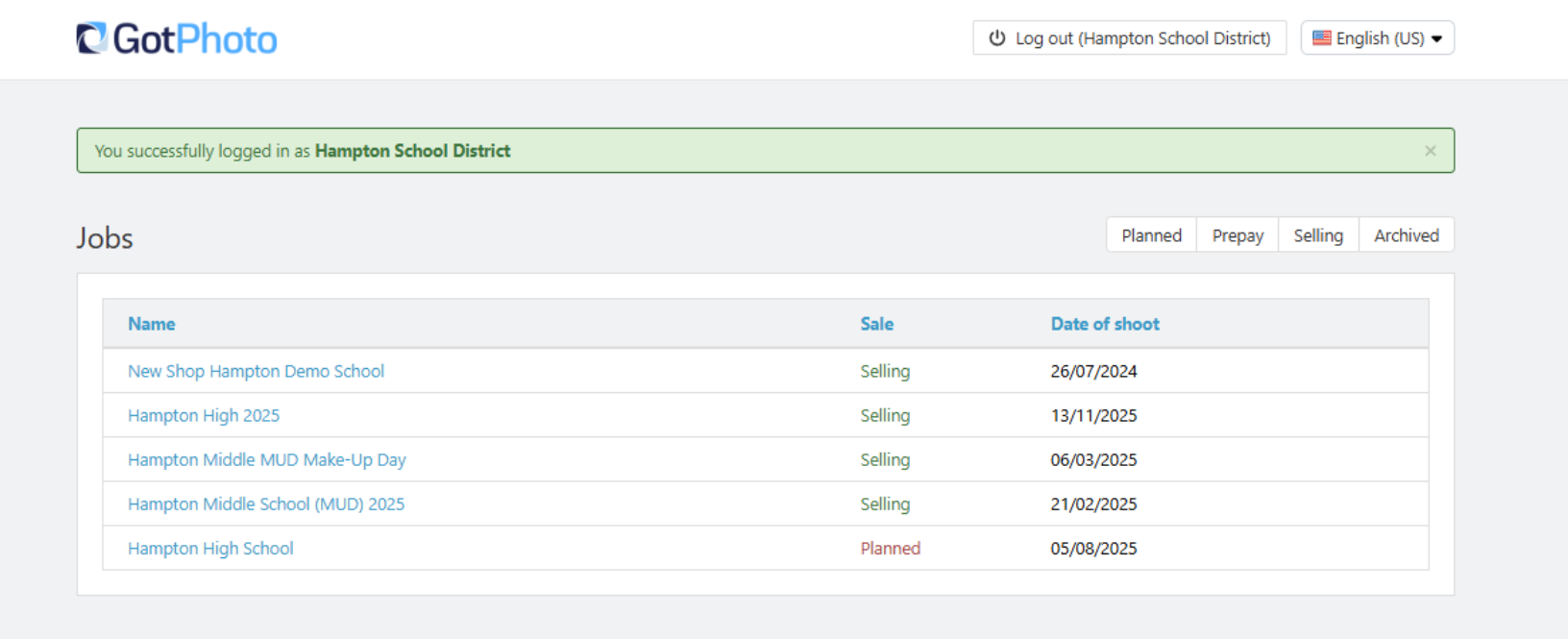
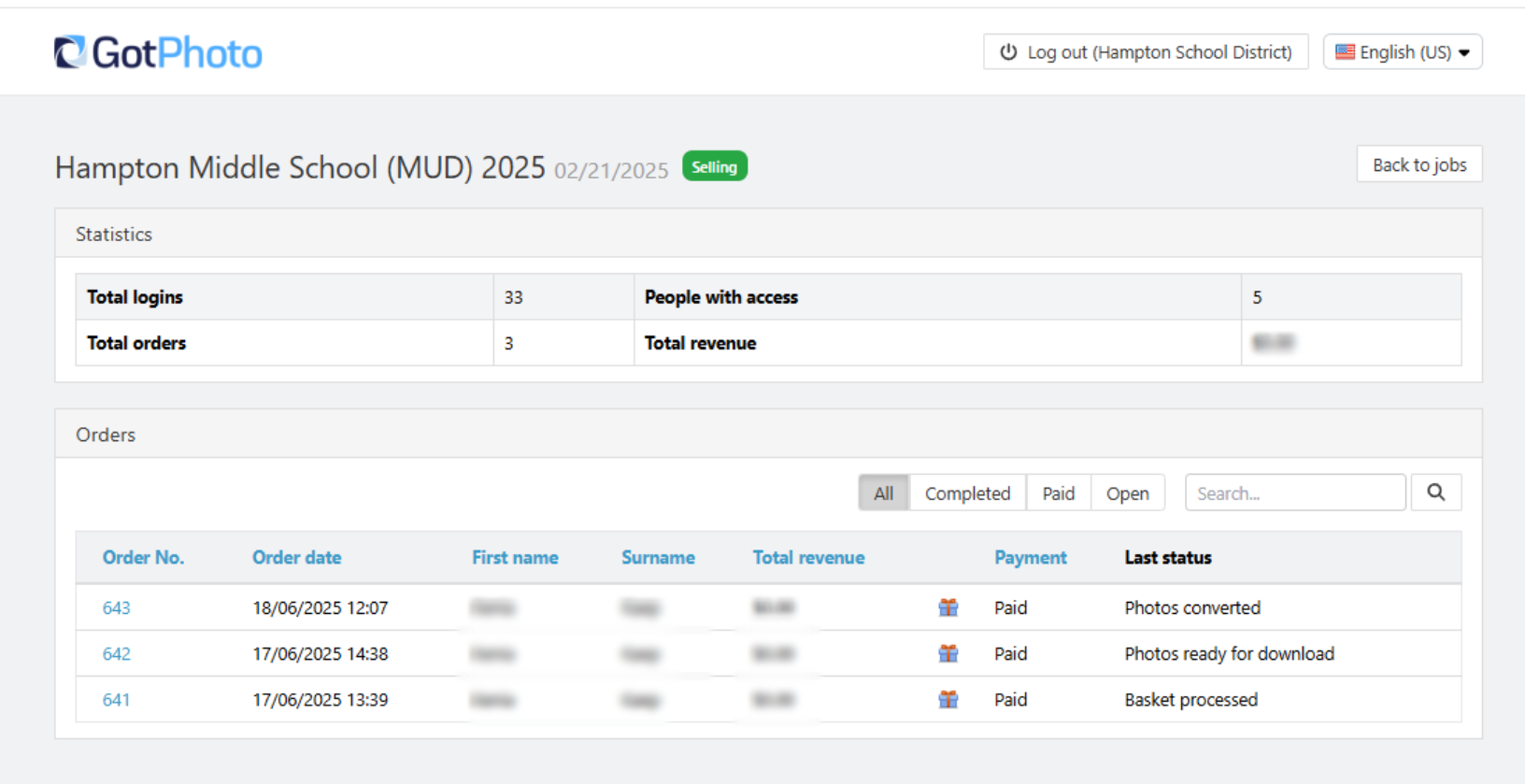
Example views of the School Portal:
Start page
Job details view
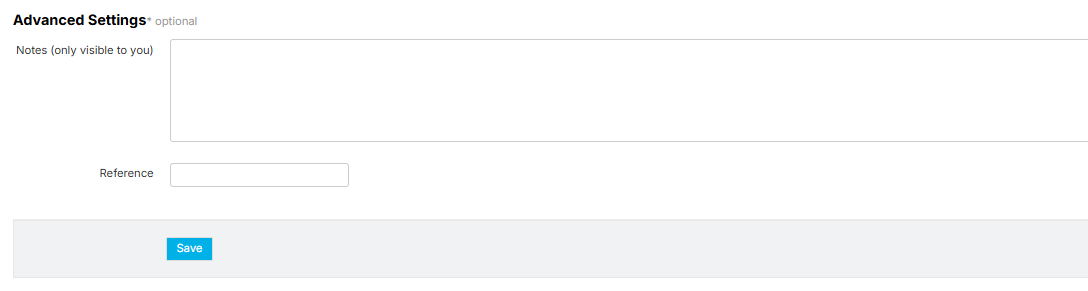
[Optional] Use advanced settings
Add internal notes for the organization if needed.
These notes are only visible to you.
Save the organization
- Review all entered information.
- Click Save.
The new organization has now been successfully created.
Option 2: You can also create a new organization while setting up a Photo Job.
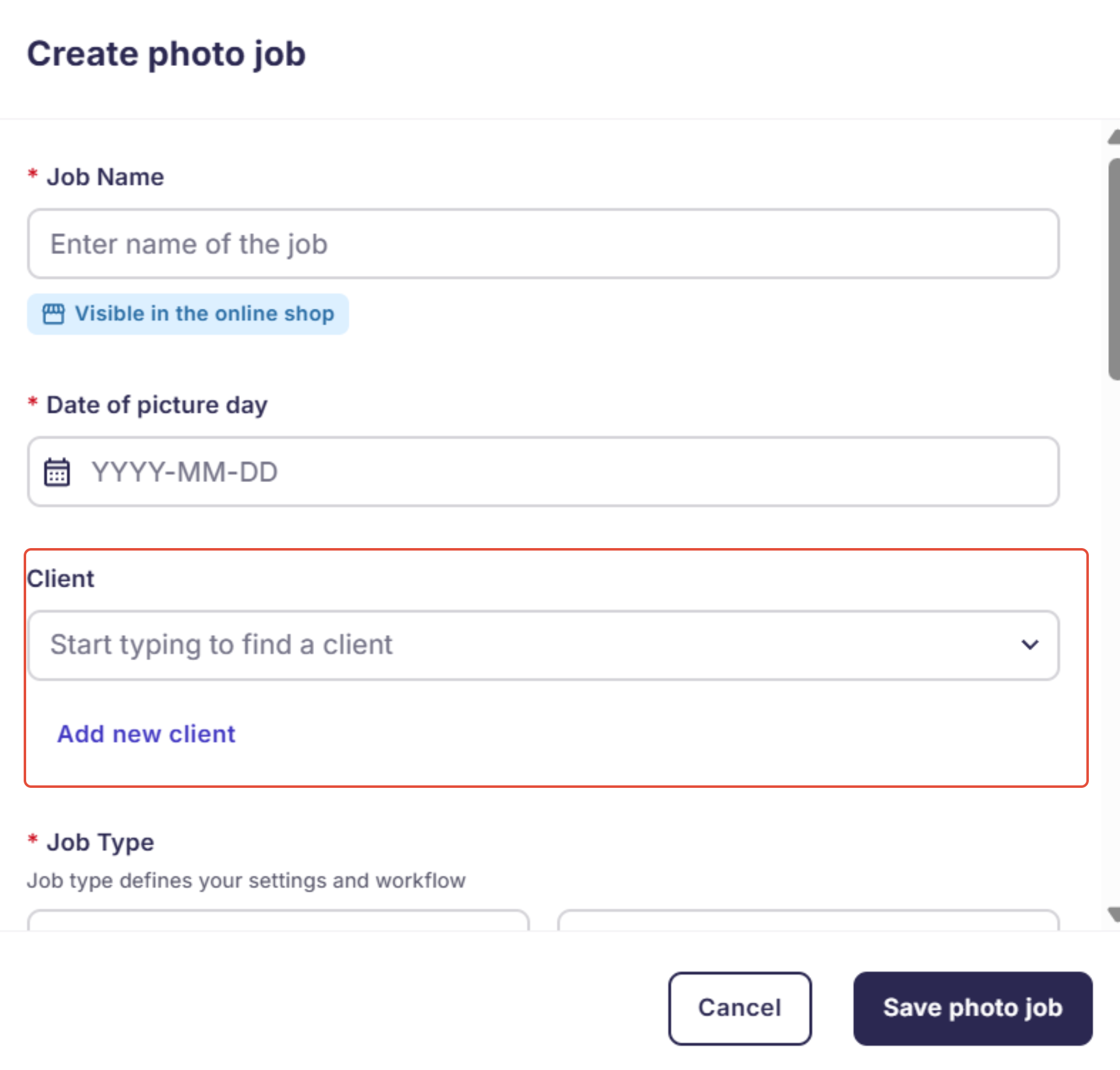
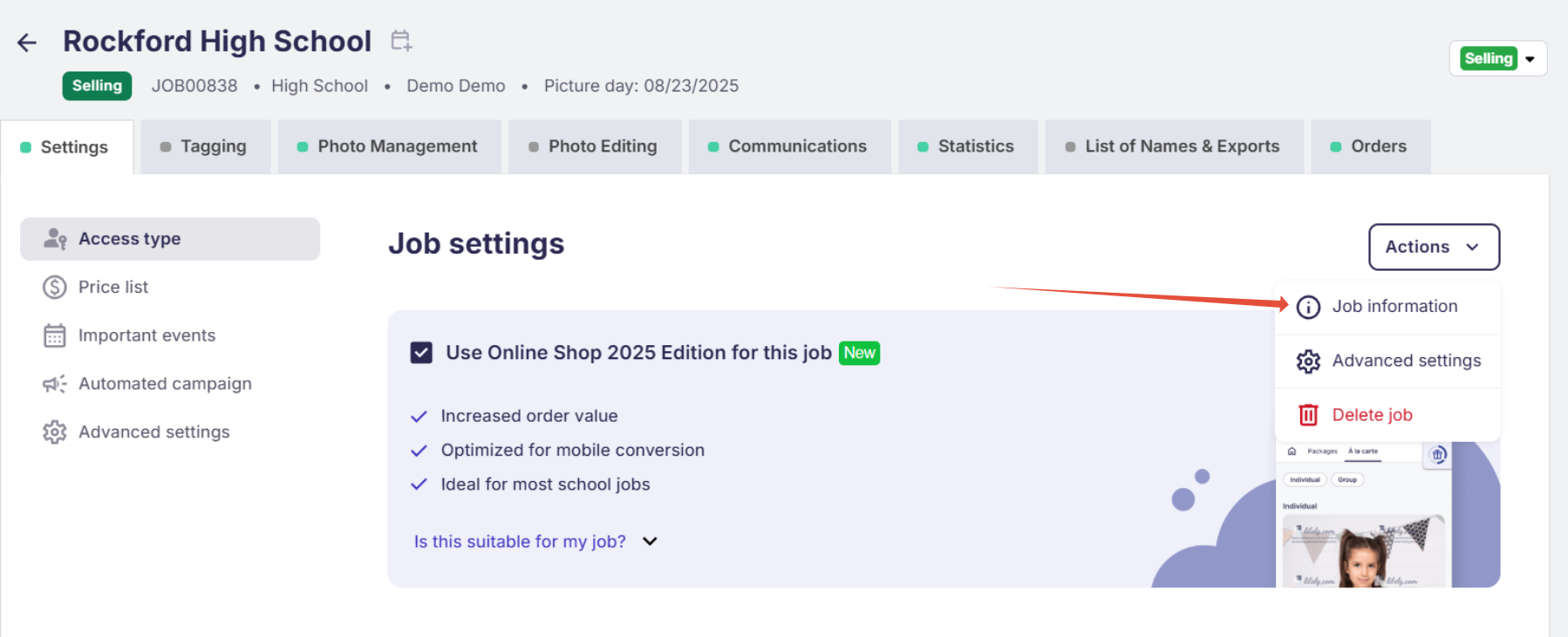
Once saved, choose your organization from the dropdown. You can also update this later by selecting Edit Job Information under the Actions dropdown on the Photo Job Main Settings page.
Edit an existing organization
To edit a client/organization, click its name on the Organizations tab.
Then click the Edit button to update its details. You can also click Delete to remove the organization permanently.
The takeaway
Use GotPhoto’s Organization feature to manage recurring clients efficiently. Create and maintain organization records, assign them to Photo Jobs, and control access to job statistics and orders through the School Portal. This centralizes client information, helps you track performance across multiple jobs, and streamlines collaboration with schools and other partners.