
Overview
If your job includes a names list, you can allow customers to select their favorite photo - ideal for yearbook or student ID selections.
By default, the index photo is the first image following the QR card or the first image in a barcode or metadata-tagged job. If enabled, customers can choose their preferred image instead.
Table of contents
- Overview
- How to enable yearbook / favorite / ID card photo selection
- Customer experience in the shop
- Pro tip: restrict to qualified photos
- Set a photo selection deadline
- Export student data with selected images
- FAQs
- The takeaway
How to enable yearbook / favorite / ID card photo selection
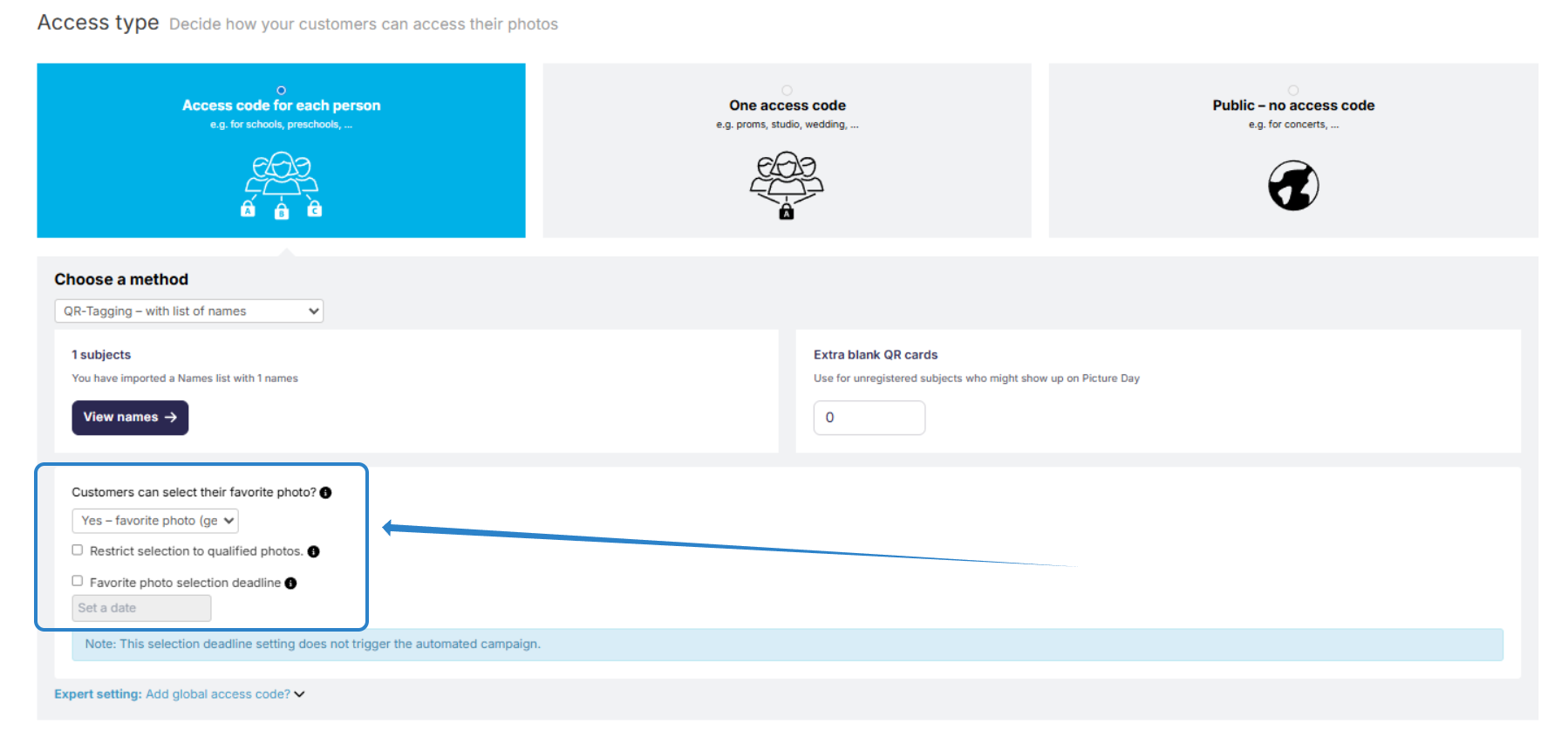
- Go to Job Settings
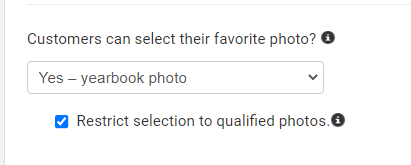
- Select Customers can select their favorite photo
- Choose Yes, yearbook photo (or Favorite photo / ID card photo if needed)
Note: A names list is required for this feature to be available.
Customer experience in the shop
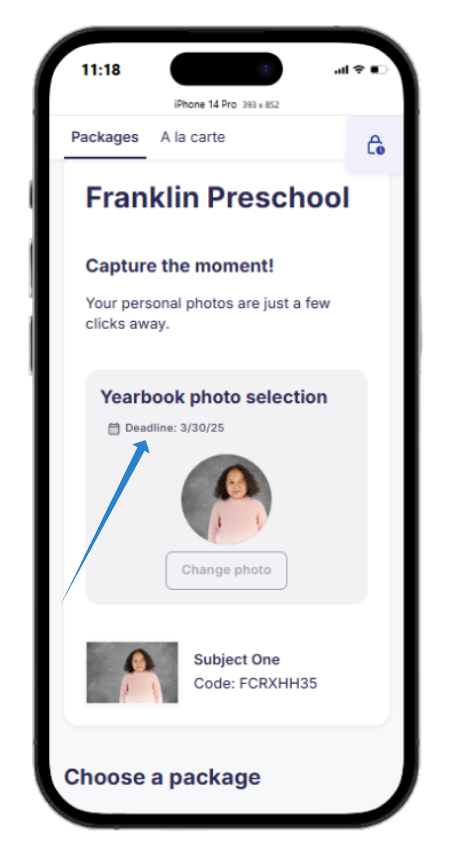
When customers log in, they'll see the option to select a favorite photo:
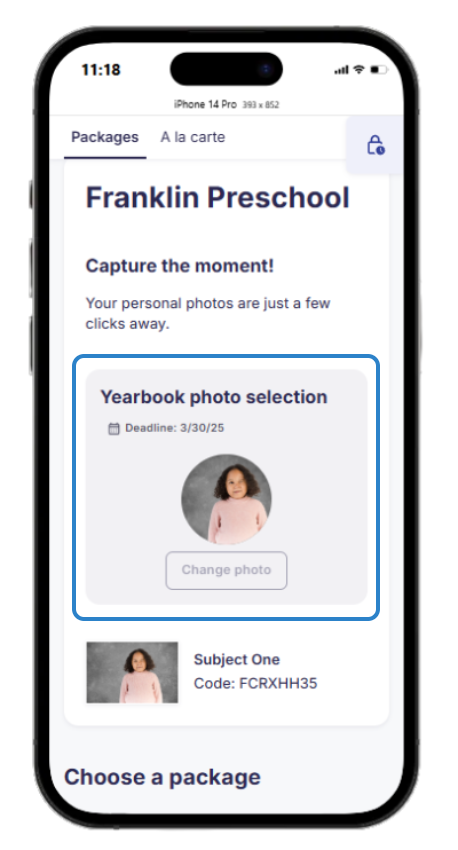
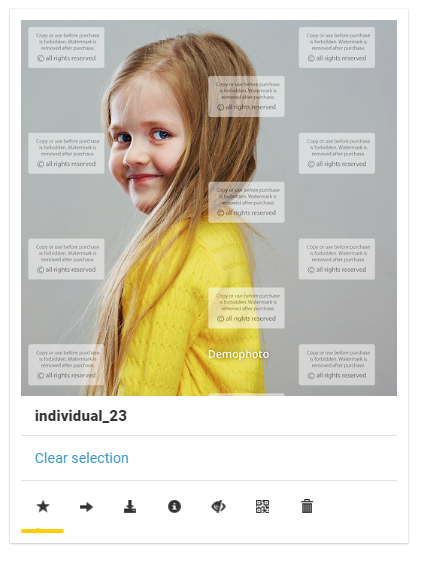
Customers can change their selection anytime before the deadline. You can also set the index image manually in Photo Management by selecting the desired image and clicking the star icon.
Your selection takes priority, but if a customer selects a different image, it will be indicated with a heart icon and override yours.
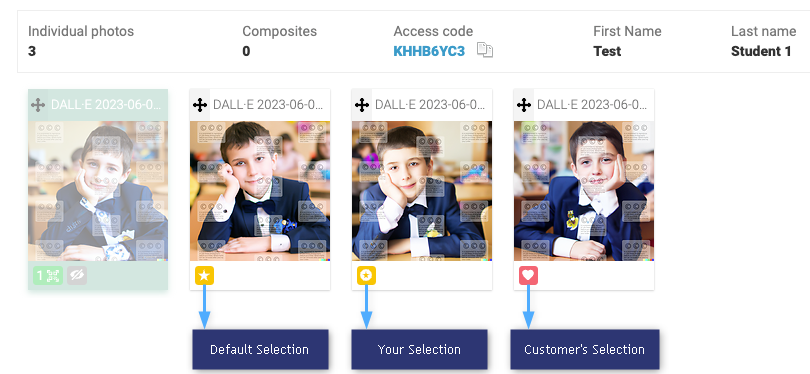
You can save time by ensuring the first photo taken is already the preferred image.
Pro tip: restrict to qualified photos
To limit which photos can be selected, tick the box Restrict selection to qualified photos in Job Settings.
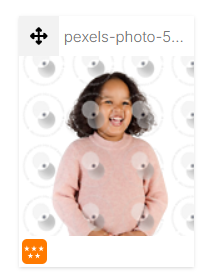
Apply a 5-star rating in your editing software to all yearbook-ready images. The first 5-star image is used in student data exports. In the gallery, these images show an orange 5-star icon.
Set a photo selection deadline
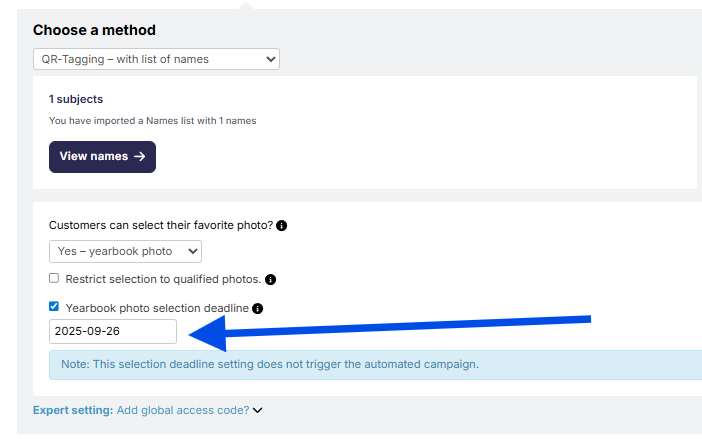
You can set a deadline for the photo selection. This is shown to customers in the shop but is not used as a communication trigger.
After the deadline, parents will no longer be able to change their selection.
Export student data with selected images
- Go to the job's subject tab within the photo job
- Click Student Data Export
- Select Create export
- Choose the format (e.g., PSPA, SIMS or Custom)
- [Optional] Choose a file name pattern
- Click Proceed to Preview to review and override selections

Click here for a detailed step-by-step guide on creating a student data export (US/CA).
A SIMS export guide is available here (UK).
FAQs
Why is the wrong image used as an index image for my student data export?
The wrong image may be used as the index image due to auto-selection rules, gallery structure, sort order, or outdated/migrated data. Troubleshooting steps:
If the wrong image is being chosen, manually set the desired index image. If siblings or buddy images are in the same gallery, reorganize the gallery so the intended index image appears first. If another file moves to the top due to manual or default sorting, adjust the sort order or manually set the index image.
The takeaway
Allowing students and parents to choose their favorite image helps personalize the yearbook process and improves satisfaction. Enable this feature in your job settings and streamline it using ratings and deadlines.