

Table of contents
- Overview
- New online shop features
- Data insights
- Sample gallery
- Explore the customer experience in the new shop
- Shopping with multiple access codes that are using the same job
- Shopping across multiple jobs
- Customer registration
- Supported shop languages
- Personalized Products
- Additional shop features
- Wishlist
- Photo effects (filters)
- One Access code: Grant customers access to all photos of a job
- Global Access code: Grant organizations access to all photos of a job
- Content protection feature (optional)
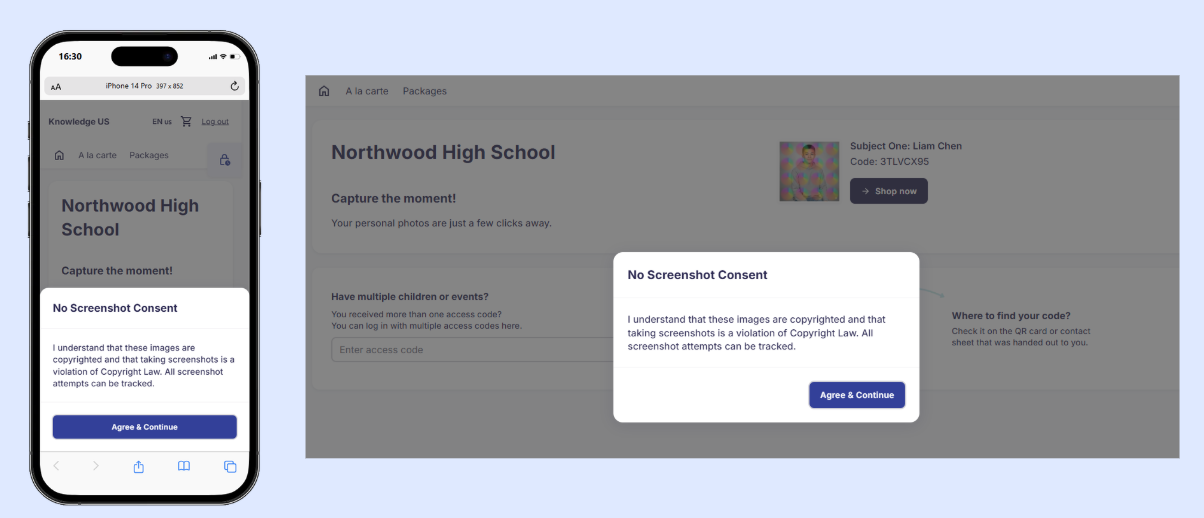
- Screenshot Awareness Modal (optional)
- Mobile and desktop content protection in the new shop through our SnapShield integration (optional)
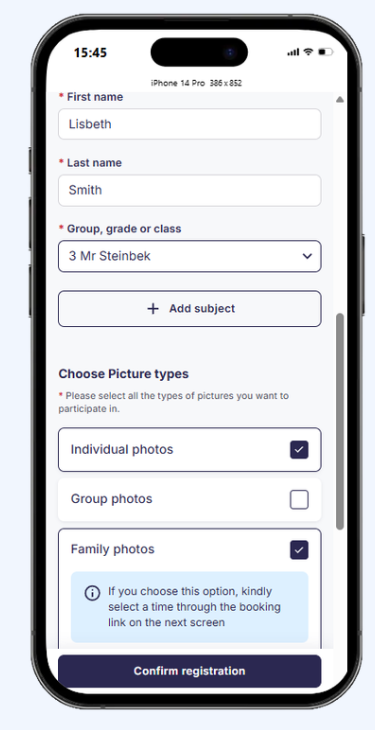
- The Registration for Picture Day page
- Feature availability and alternatives
- The takeaway
Overview
The legacy GotPhoto Online Shop has been retired. All jobs now use the New Shop, GotPhoto's current online shop: a mobile-optimized shopping experience with exclusive features designed to increase sales, better protect your images, simplify workflows, and deliver a better shopping experience for your customers.
New online shop features
- Favorite photo/ID card photo/yearbook photo selection deadline: Set a deadline in the admin area to create a sense of urgency for photo selection.
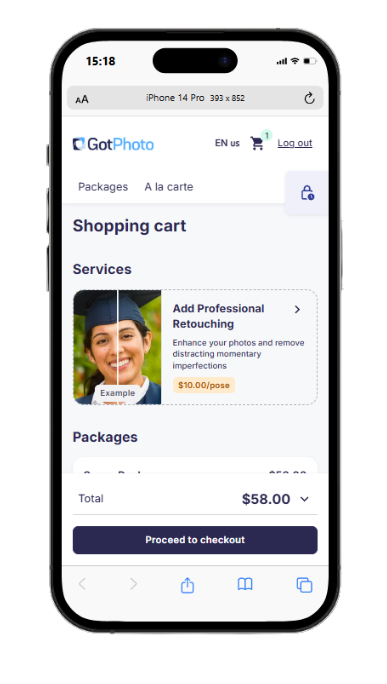
- The retouching service product: Highlight the retouching service as an add-on to customers right before they check out. You have the choice between handling the retouching yourself or using GotPhoto's time-saving AI-retouching service.
Data insights
The new shop delivers substantial performance improvements over the old version, powered by enhanced data insights:
- 10% average sales increase (measured by GMV per activated access code).
- 44% higher mobile conversion rate, as 80% of shop traffic comes from mobile devices.
- Up to 20% higher sales for school and nursery jobs.
Sample gallery
See the new shop in action by accessing the sample gallery link in your admin area or scanning a QR code below.
Explore the customer experience in the new shop
The new shop features a clean, modern design to guide customers smoothly through their purchase journey.
Entering the shop

Package selection
Customers can switch between Packages and A la carte (called Individual products in the UK)
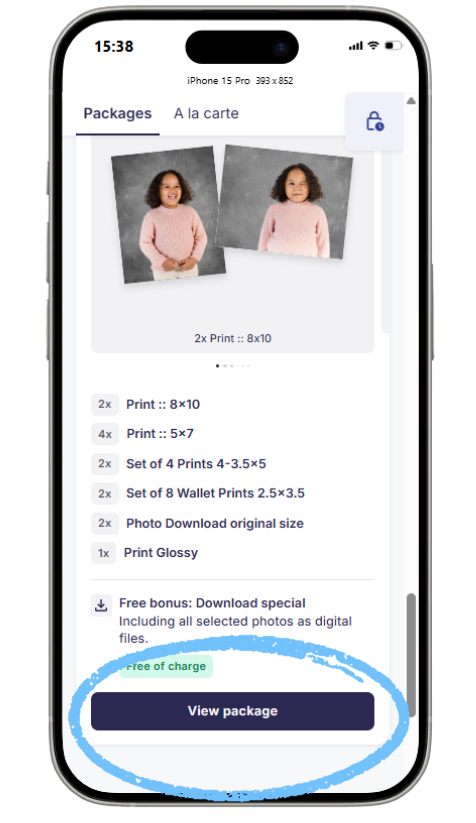
To see what's included in a package, select Packages and click View package.
In the next step, customers can:
- Select the pose for each product (if it’s a multi-pose package)
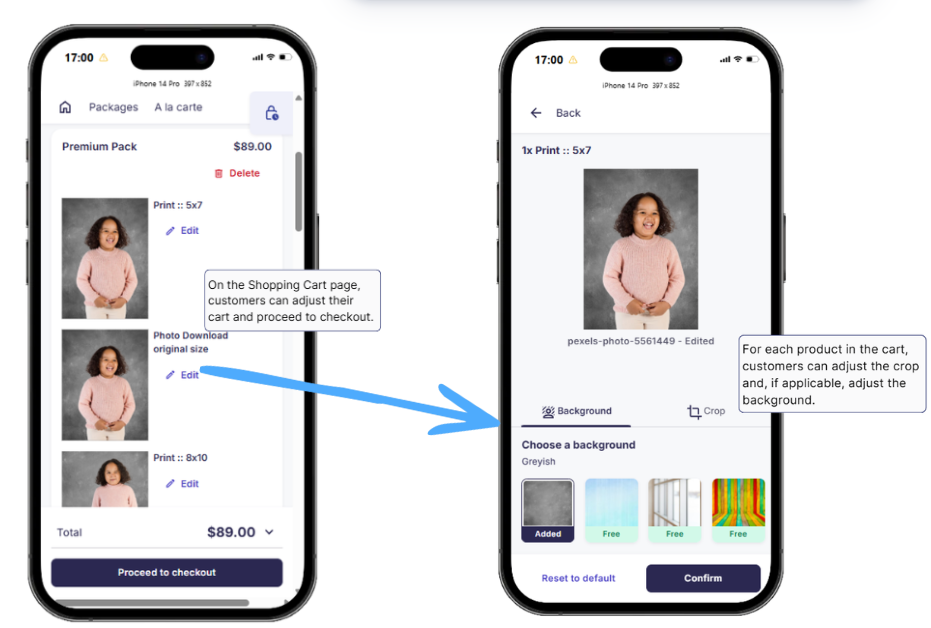
- Select the background for each image (if applicable)
- Review and adjust the crop
To help customers notice background customization, an extra button is shown. If they miss it, they will receive a prompt before adding the package to the cart.

In the Select & edit screen, they:
- Select their pose
- Select a background (if applicable)
- Review and adjust the crop
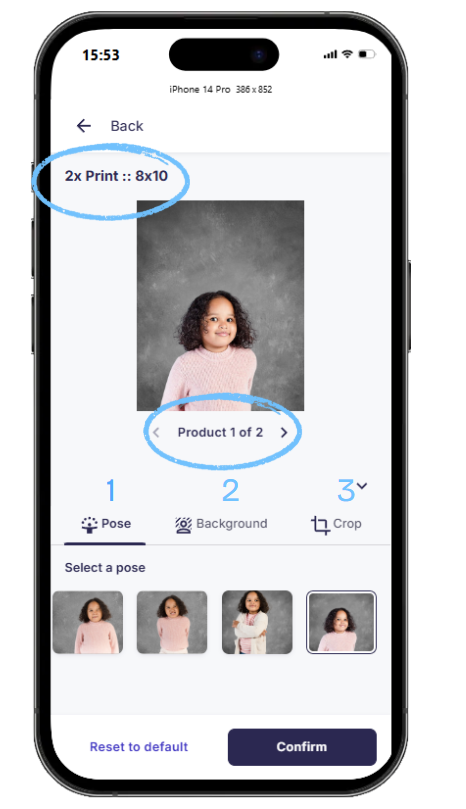
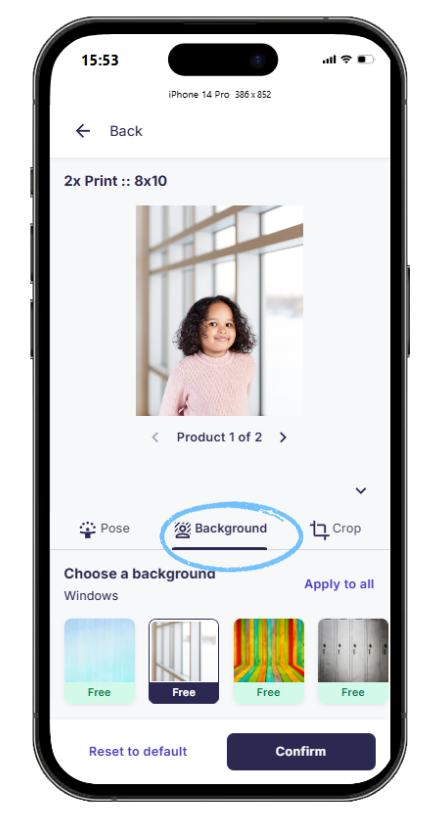
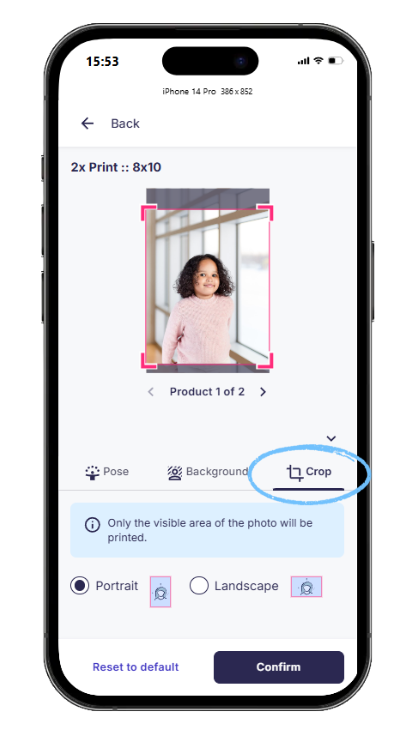
Once finished, they swipe to the next product and repeat the steps. When all selections are done, they confirm and proceed to the next product in their selected package.

After selecting all poses/backgrounds and reviewing the crop, customers can add downloads (if offered), next, they click Add to cart.
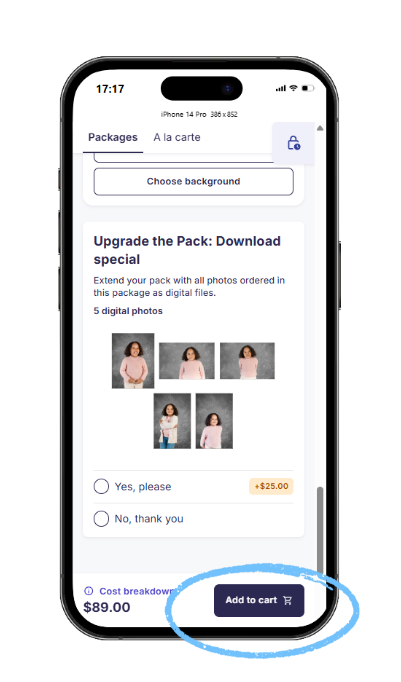
A reminder will appear for the background selection to ensure customers don't miss the option to change the default background. Afterward, the package can be added to the cart.
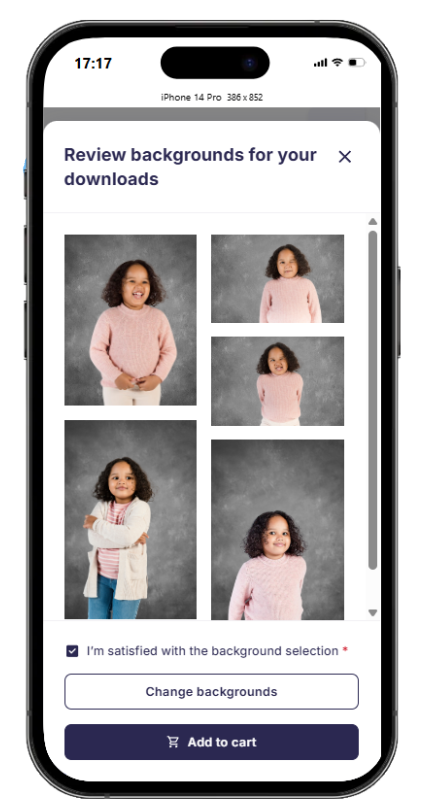
[Note] The ability to restrict a package to a single background is not yet supported.
Download all (PNGs): Customers selecting the “Download All” package can choose backgrounds for the first 20 images, then continue for the rest.
Individual products (à la carte) selection

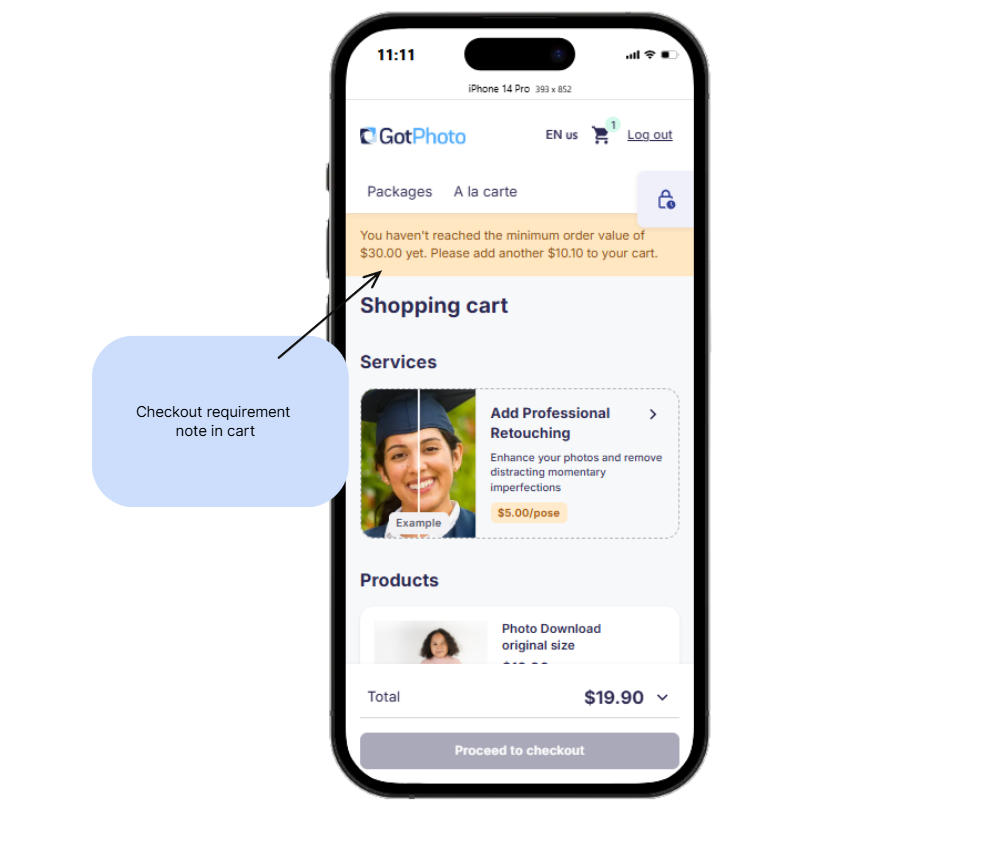
Price list (checkout) restrictions
1. Mandatory package
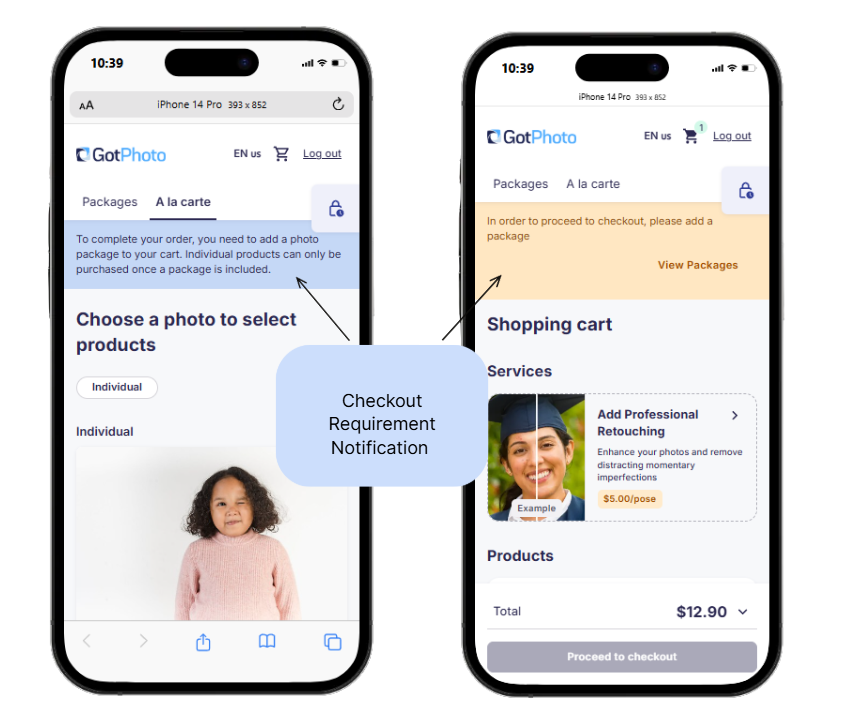
2. Minimum order value
Shopping cart
Shopping with multiple access codes that are using the same job
Customers with access codes for multiple children in the same job can access both galleries.
- If the customer has shared their email and received job communications, they can use the email login link to view both galleries.
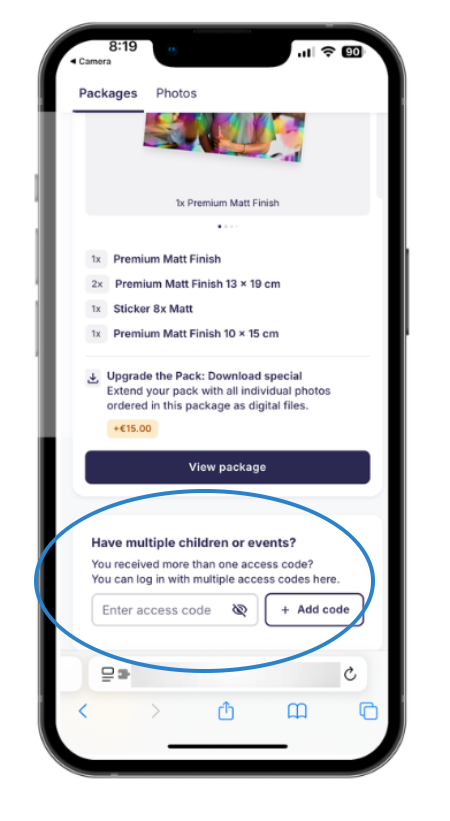
- They can also manually enter all access codes on the shop access page or during the shopping session.

Shopping across multiple jobs
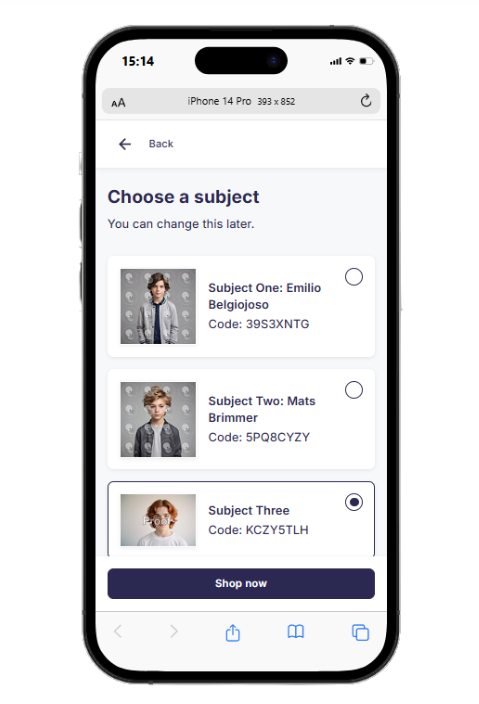
The new shop fully supports ordering across multiple jobs. Shoppers can access the shop either via the direct login link or by entering their access codes at any time during their shopping session. Once inside, they can add products from up to five different access codes in a single shopping session, making it easy to combine items from multiple jobs into one cart before checking out.
[Note] Pricing and product availability may differ between jobs.
Combining photos across photo jobs in a package that is not restricted to one access code (e.g., siblings package):
Whether a customer can mix and match photos from multiple photo jobs in a single package depends on the price list assigned to each gallery.
- Same price list across photo jobs: Customers can freely combine photos from different photo jobs within one package.
- Different price lists across photo jobs: Customers can only select photos from the photo job that matches the package they are ordering. Photos from other photo jobs will not appear - even if the same package is available at the same price across multiple photo jobs.
Best practice: To allow customers to mix and match photos from different photo jobs in a single package, make sure all relevant photo jobs use the same price list.
[Shop Video walkthrough]
Customer registration
The new registration form is now embedded directly on the page to prevent pop-up blocker issues. If set as [Optional], customers can dismiss it by clicking the 'X' icon.

Supported shop languages
The new shop currently supports these languages:
- English
- German
- French
- Spanish
- Turkish
- Polish
- Russian
You can add these languages in your shop settings.
Personalized Products
The new shop supports products with personalizable text fields, enabling customers to add custom information such as names, teams, or other individual details to each item. This feature applies to users in the US and Canada who offer lab products with customer text personalization.
Package view
Below is the shop view displaying a package that includes customizable trader cards.
A customer first clicks "View package" to make their selections for each product of the package.
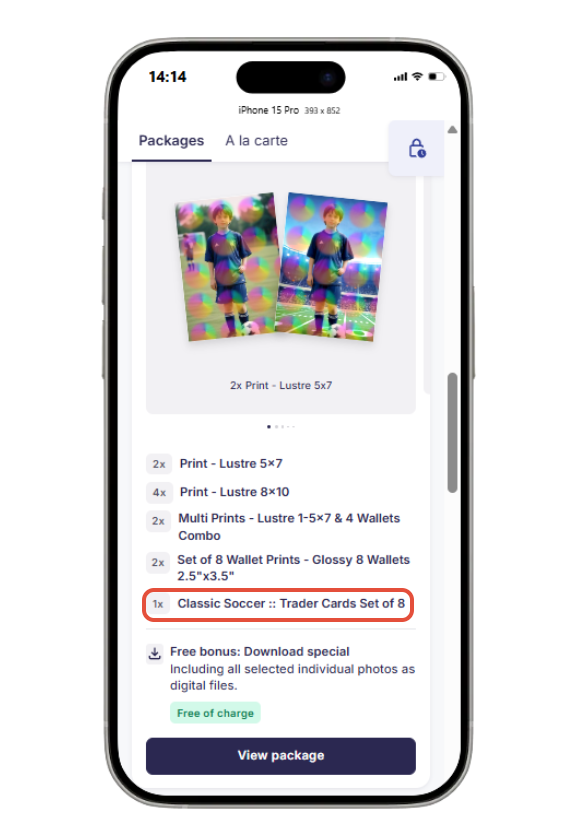
Next, within the package, your customers can scroll through the items, select their preferred pose, and choose cropping and background options for each product via the "Edit" button. When they reach a customizable item, they click “Select & edit photos” just like they did for the previous items.
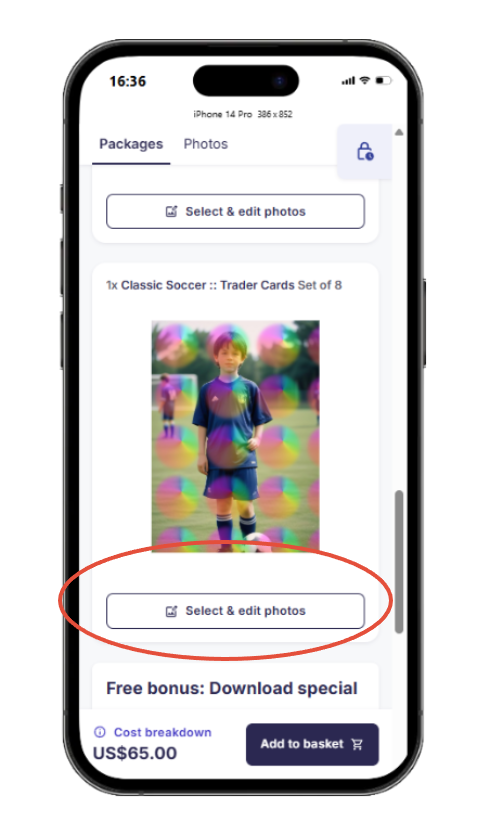 In addition to selecting their pose and adjusting the crop and background (if applicable), customers will also be prompted to enter their custom text.
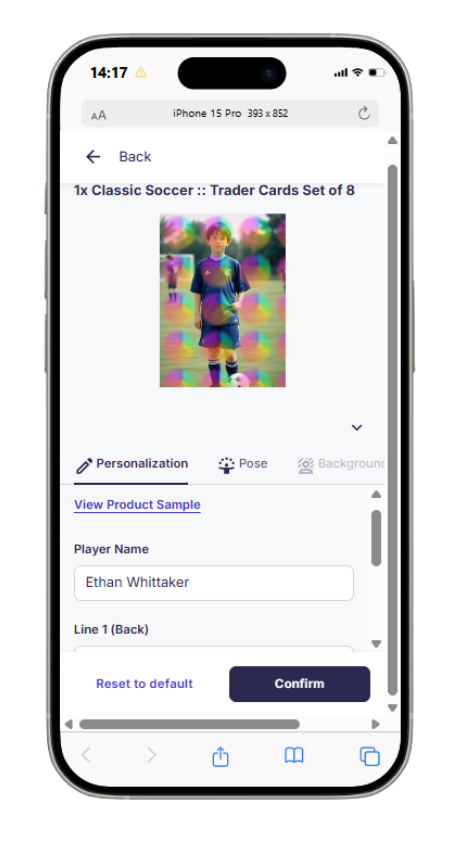
Customers can only confirm their selections and add the package to their cart after all required text fields have been completed. The same rule applies when adding a personalized item from the à la carte section. A note will appear, reminding customers to add the personalization.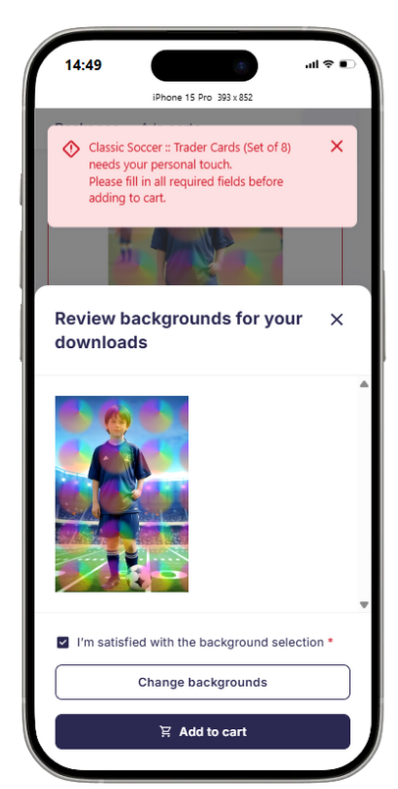
In the cart, customers have one final opportunity to review their custom text. If they wish to make any changes, they can remove the package or à la carte item and add it again with the updated text. The option for customers to edit the cart is planned for a future update and is currently on our roadmap.
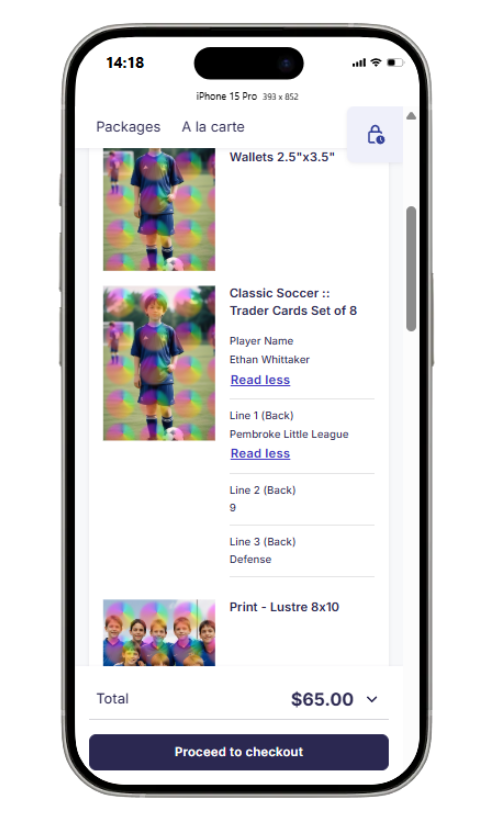
A la carte view
In the À la carte section of the shop, customers will see a “Customize photo” button, which prompts them to enter their specific requirements. 
Additional shop features
Wishlist
The wishlist feature in the new shop allows customers to save their favorite photos and easily purchase matching individual products later.
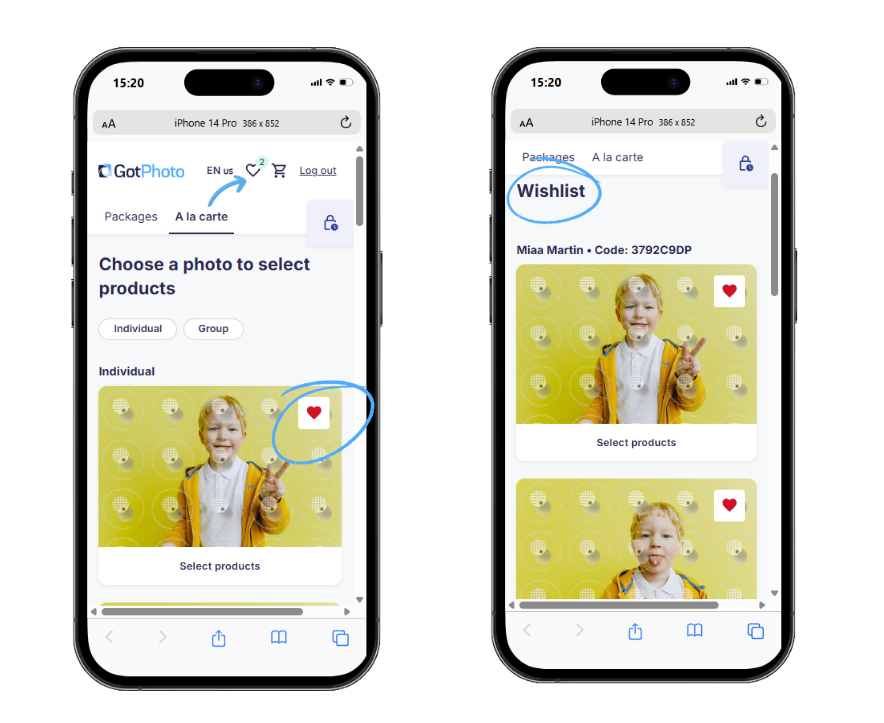
The wishlist feature in the new shop currently supports individual products only.
Customers can
- favorite pictures
- manage and update their wishlist
- order individual products directly from the wishlist without needing to reselect their images.
Please note that the following features are not yet available in the new shop and are planned for future updates:
- Support for packages
- Shared wishlists
- Saving wishlists for later for signed-out customers
- Deleting an entire wishlist
- Creating multiple wishlists
Photo effects (filters)
The photo effect feature in the new shop lets your customers apply visual effects to their photos, giving them more creative control over their orders.
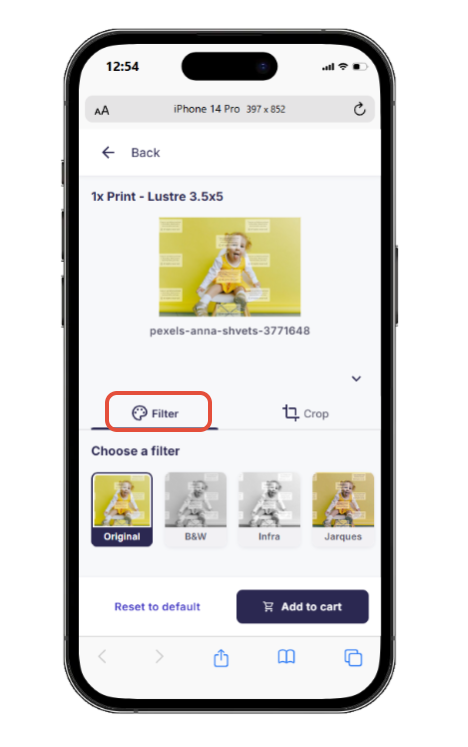
Customers can
- Single products / À la Carte: select and preview different photo effects on the À la Carte page as well as in the cart view.
- Package products: apply photo effects to package products in the cart view.
Photo effects are not yet supported in the following areas
- The packages view (pre-cart flow)
- "Download All" products (pre-cart flow)
- Photo uploads
You can adjust and disable photo effects in your price list settings.
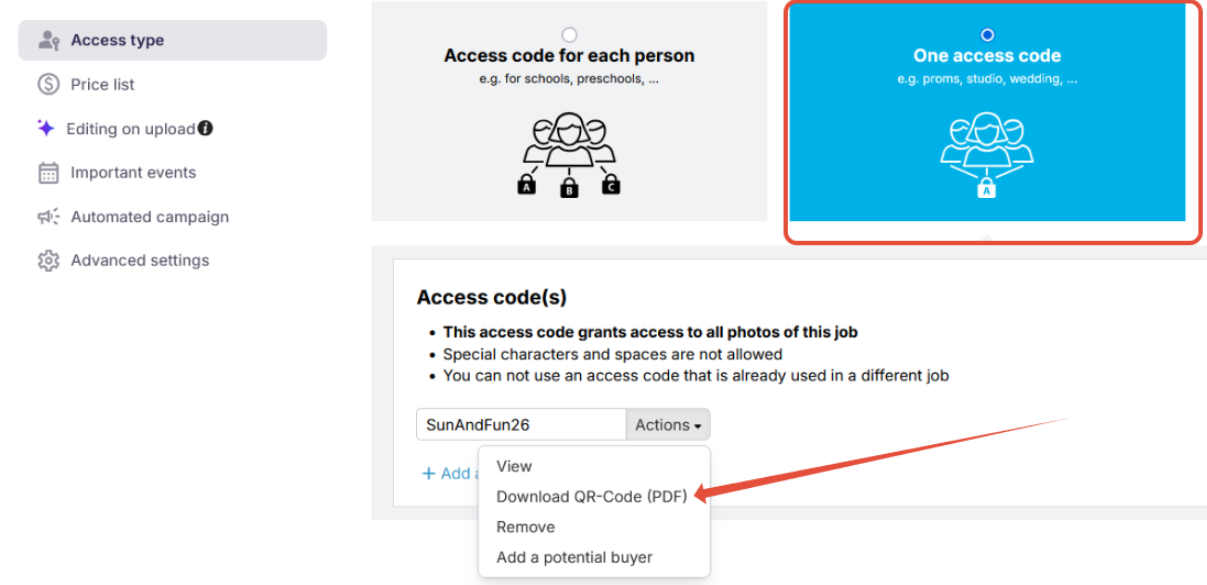
One Access code: Grant customers access to all photos of a job
You can use the job type One Access Code for event jobs, allowing you to create an event gallery that everyone can access using the same code. This makes it easy to share one code with all participants instead of using individual access codes. Learn more here: One Access Code workflow for event galleries
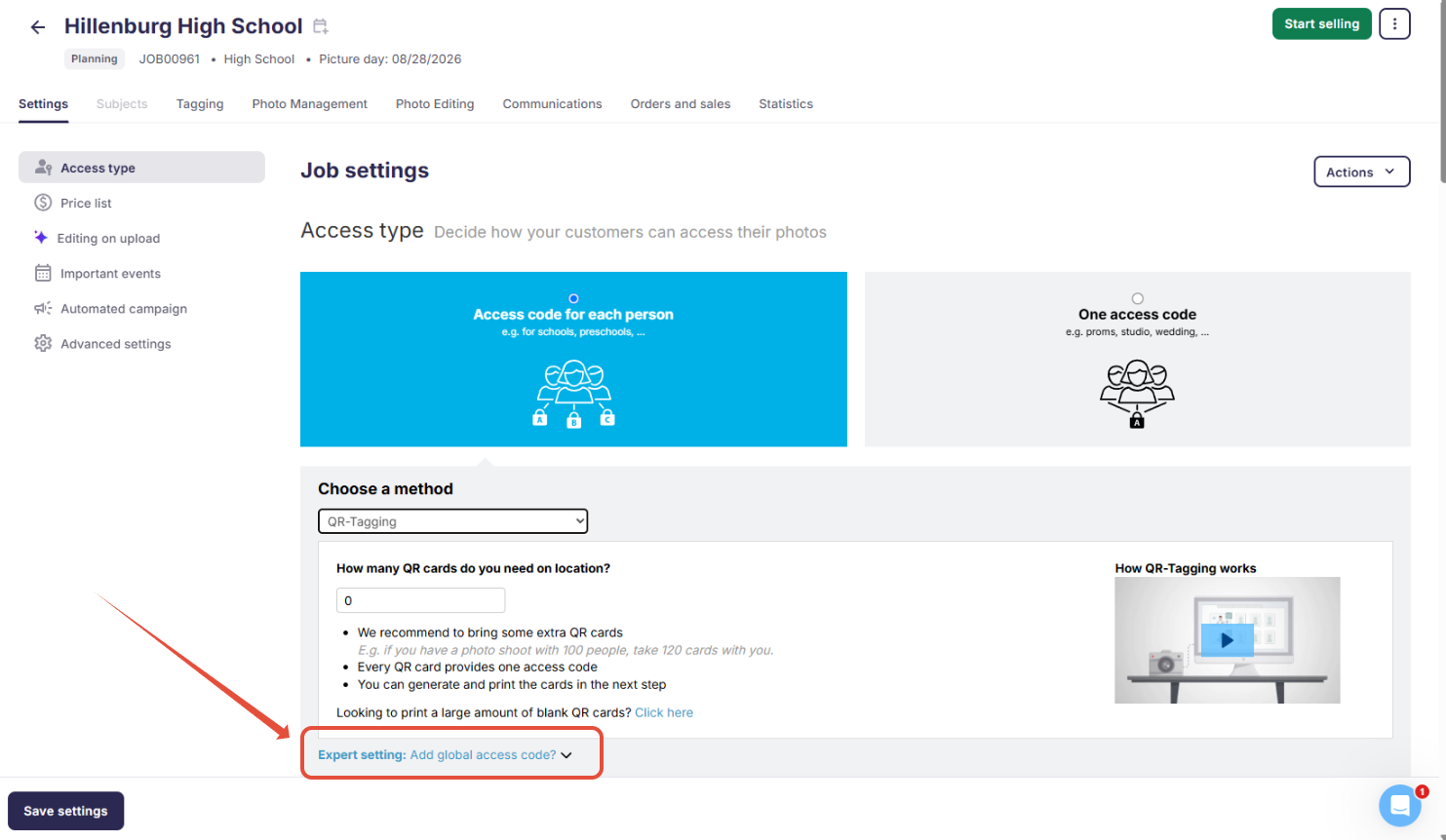
Global Access code: Grant organizations access to all photos of a job
The Global Access Code enables principals, directors, and organizers within your organizations (e.g., schools or sports leagues) to access all participant photos efficiently and securely.
The album view is available for one-access-code jobs and for jobs that use a global access code.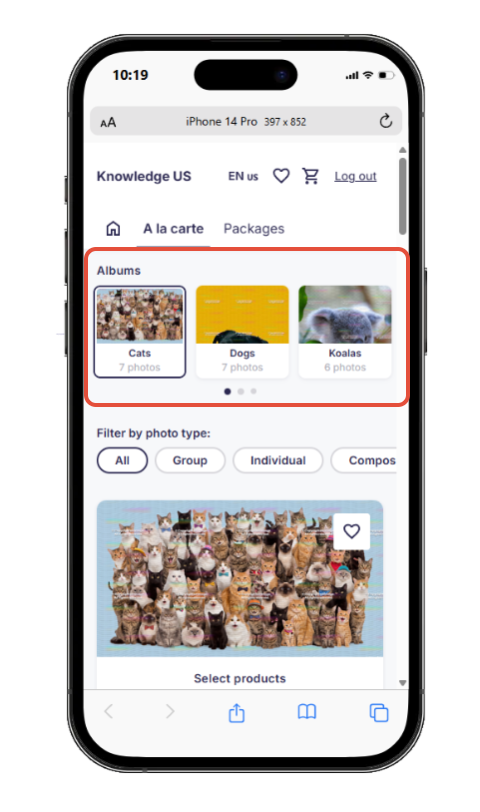
Global Access Code FAQs:
Is the wishlist available with the global access code?
Yes, the wishlist feature is available for all job types.
Can customers access both one-access-code jobs and individual-access-code jobs within the same session?
Yes, if both a job code and an individual access code are used in the same session, your customer can access both jobs in the same session.
Are there any limitations when a global access code or one-access-code is used in the shop?
Customers can order the Download All Package when using a global access code or one-access code. However, if a job contains more than 199 photos, the “Additional prints” upselling option will not be displayed in the shop, even if it is configured. In addition, any other packages won't show upselling options.
Are the features Global Connection Code and Find your access code supported in the new shop?
No, these legacy features are not available in the new shop.
Content protection feature (optional)
This new feature is designed to protect your images when viewed on desktop devices. It replaces the original image with a protected version that clearly indicates copying - including screenshots - is not permitted and actively blocks common methods used to bypass these protections.
Additionally, right-click functionality on desktop and long-press actions on mobile devices are disabled to further discourage copying or saving the images.
Our in-built content protection features for the new shop can be enabled or disabled- you have the choice, learn more here: Content protection: Prevent screenshots and reduce image theft in your GotPhoto shop.
Screenshot Awareness Modal (optional)
The Screenshot Awareness Modal appears when customers access the shop and informs them about screenshot restrictions before they proceed. This adds an extra layer of protection to help safeguard your work.
Mobile and desktop content protection in the new shop through our SnapShield integration (optional)
Learn more about the SnapShield integration in this article: How to prevent screenshots and reduce image theft in your GotPhoto shop. It is supported in the old and new shops.
The Registration for Picture Day page
The Registration for Picture Day page was upgraded for the new shop. You will now find a Quick-Login Link in the job settings that will save parents time. Learn more here: Set up pre-registration for picture day
Feature availability and alternatives
The following features are currently no longer available or not yet available:
- For platform security reasons, the Public job type has been removed. Please use the one-access-code job option instead.
- Free Download product: You can still offer individual downloads free of charge by setting the price of the Individual Download to zero. Please review this article for more details: How to offer free prints, downloads, or packages)
- The ability to restrict a package to a single background: We plan to add this functionality in the future; however, there is currently no confirmed ETA.
- We’re planning to add an option for customers to delete their account directly from My Account in a future update
- Album view in the shop for jobs using individual access codes. The shop album view for One-Access-Code and Global Access Code jobs is supported
- Google Analytics tracking: We currently disabled the setting in the admin area until we support this option in the new shop
- Custom HTML adjustments (Your Code Settings): We currently disabled the setting in the admin area until we support this option in the new shop
The takeaway
The new GotPhoto online shop provides a modern, mobile-first experience designed to boost sales, protect your images, and simplify the customer shopping process.
With the right setup, you’ll be able to take full advantage of increased conversion rates, like multi-job shopping, and a more intuitive user journey - especially on mobile devices.