

Table of contents
- Overview
- Configure content protection
- 1. No protection
- 2. GotPhoto native - Built-in screenshot protection
- 2.1. Screenshot protection
- 2.2. Content Protection Dialog (No Screenshot Consent)
- 3. SnapShield - Third-Party Protection
- 4. Overview: Content protection availability
- Takeaway
Overview
Image theft cannot be fully eliminated, but it can be meaningfully reduced through a layered approach that balances protection, customer usability, and sales performance.
GotPhoto uses a layered content protection strategy to help safeguard your work while keeping the buying experience fast and seamless. Instead of relying on a single solution, multiple deterrents are combined, such as hybrid, hard-to-remove watermarks and clear copyright communication.
This approach helps:
- Reduce misuse
- Increase friction for theft
- Protect revenue
- Maintain conversion rates
This article focuses on ways to prevent customers from taking screenshots in the shop.
Configure content protection
You can configure screenshot and download protection settings in:
Online Shop → Shop Settings → Content protection
Select one of the following protection options from the dropdown menu:
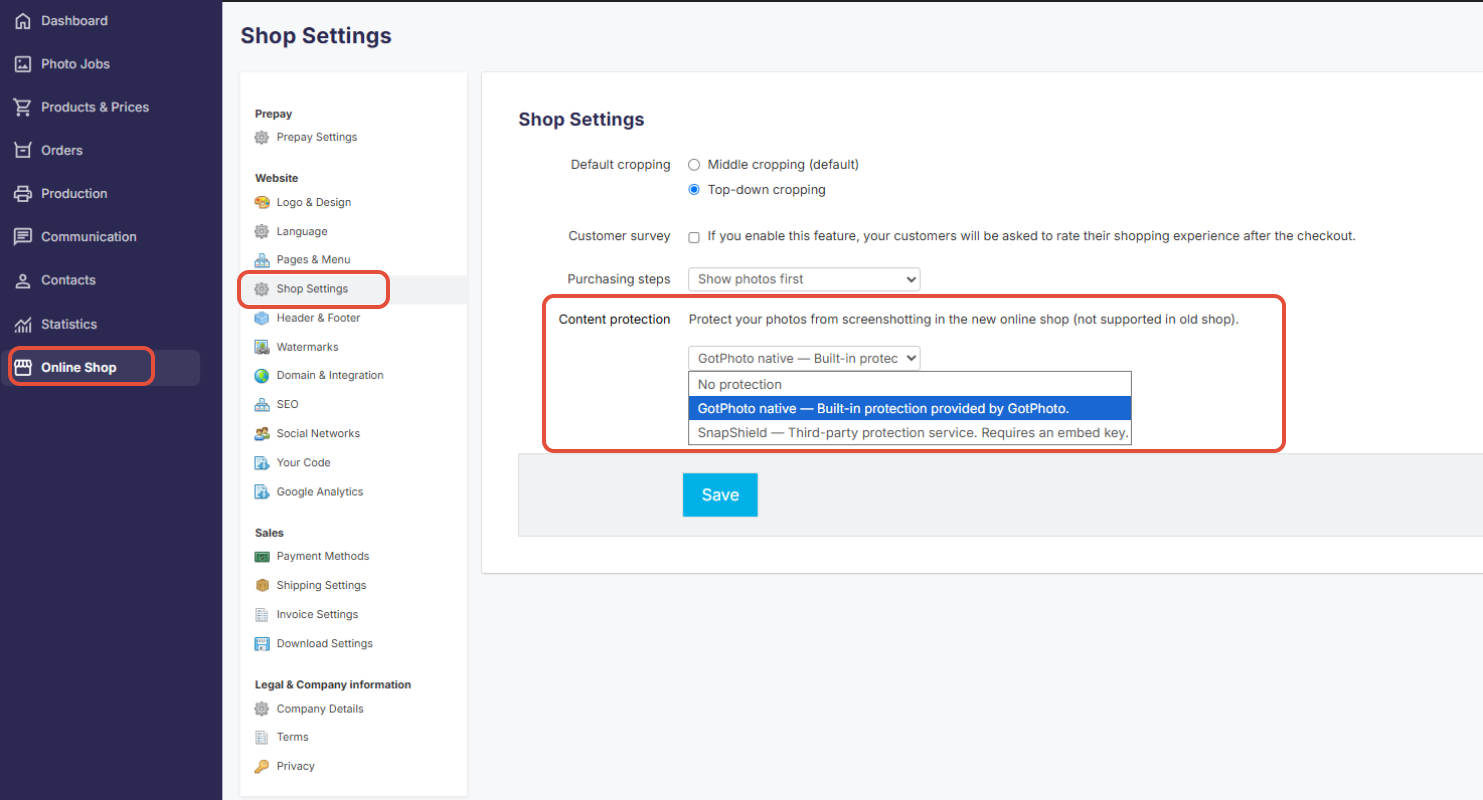
You have the choice to select from three options:
1. No protection
Disables screenshot and content protection features in the online shop. In this case, your watermark is the only content protection.
2. GotPhoto native - Built-in screenshot protection
2.1. Screenshot protection
- Enables GotPhoto’s free built-in screenshot protection features for the new shop:
This feature protects your images on desktop devices. Instead of displaying the original image, a protected version is automatically shown when the browser window loses focus or when common screenshot keyboard shortcuts are used on Windows PCs or Macs. This protected version clearly indicates that copying, including screenshots, is not allowed.
In addition, common methods for bypassing these protection measures are blocked. Customers can make the images visible again at any time by pressing the ESC key.
- Additionally, right-click functionality on desktop and long-press actions on mobile devices are disabled to further discourage copying or saving the images.
FAQs: GotPhoto's native built-in screenshot blocker
Is the screenshot blocker free, and do I need to activate it?
Yes, it is free. You can enable it in your Shop Settings: Online Shop > Shop Settings > Content protection
Does it block screenshots on mobile?
For now, it disables long-press actions on mobile, but native screenshot functionality cannot be fully prevented. Future improvements are planned.
Does it prevent image theft completely?
No. However, it significantly reduces misuse by increasing friction, raising awareness, and discouraging casual copying while maintaining a smooth buying experience.
- Raises awareness through clear messaging
- Provides real-time feedback on restricted actions
- Increases the effort required to capture images
- Reduces casual misuse
- Supports a layered protection strategy
Which screenshot methods are blocked on macOS?
Our screenshot protection blocks the most common screenshot methods in supported browsers, including:
- Standard macOS screenshot keyboard shortcuts
- Browser's print function
This helps prevent screenshots taken using the typical browser-based methods.
Please note that the native macOS Screenshot application operates at the operating system level. Because web applications cannot control operating system tools, screenshots taken with the macOS Screenshot utility cannot be blocked. This is a limitation shared by all web-based applications.
2.2. Content Protection Dialog (No Screenshot Consent)
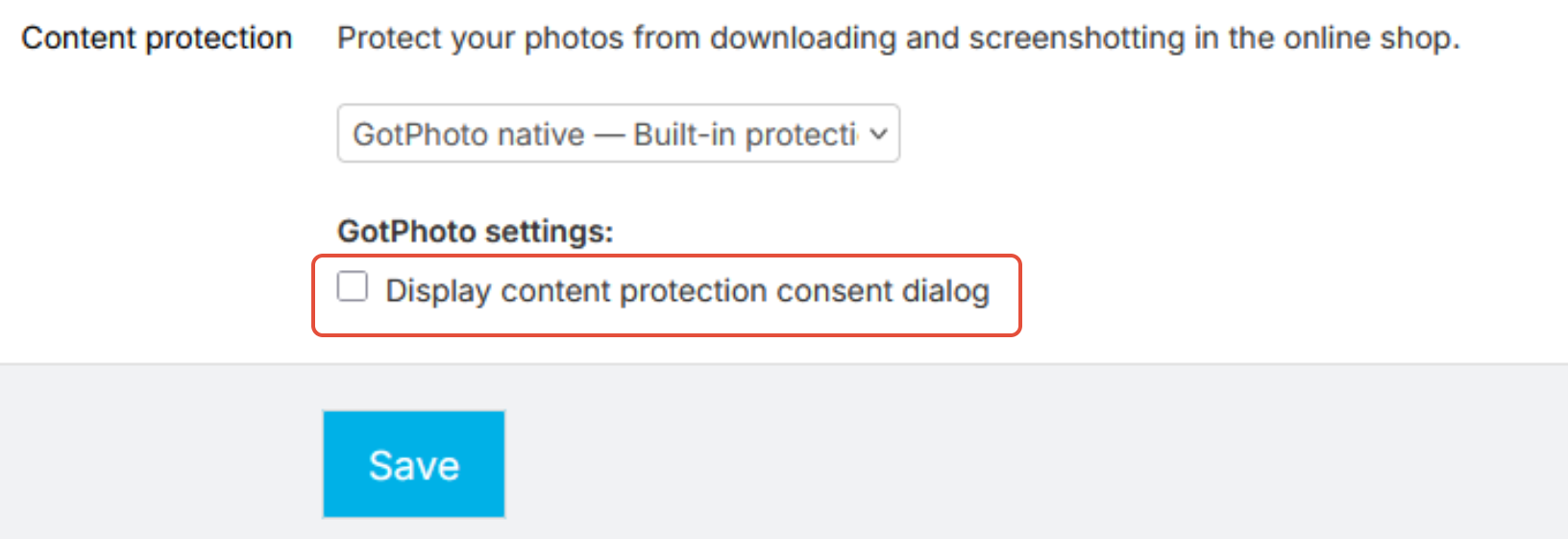
[Optional] You can also enable the optional content protection consent dialog:
- Display content protection consent dialog - Shows a consent modal informing customers that screenshots are not permitted before entering the shop ("No Screenshot Consent")
How it works
The screenshot awareness consent modal is displayed in the following cases:
- When a customer enters the shop for the first time
- When a customer accesses the shop from a new device
- When a customer logs out or clears their browser cache
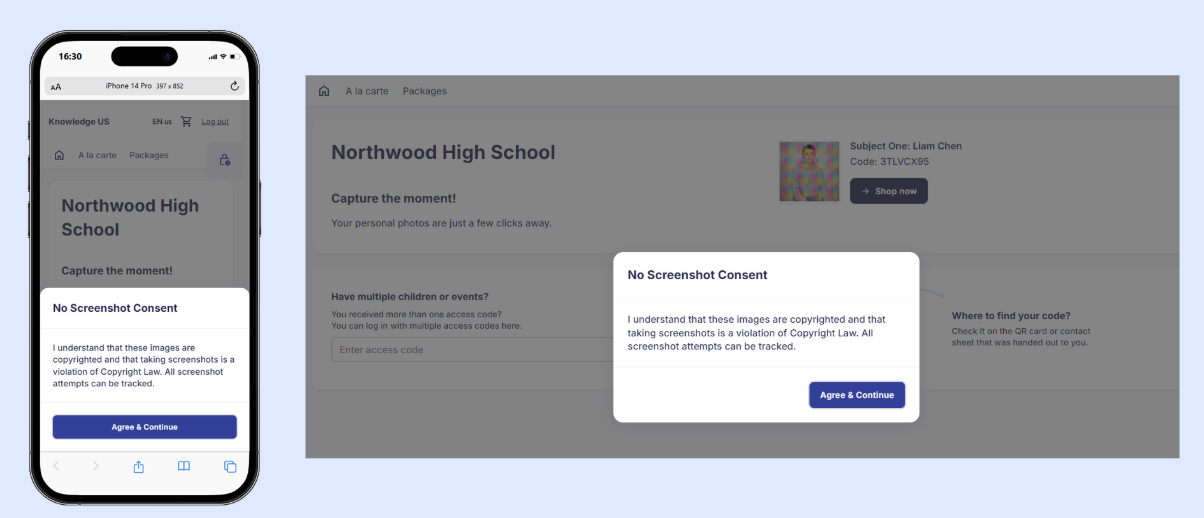
The modal informs customers about copyright protection and screenshot restrictions with the following message:
“I understand that these images are copyrighted and that taking screenshots is not permitted. All screenshot attempts are logged.”
How to proceed
To continue into the shop, the customer must:
- Review the consent message
- Click Agree & Continue
Once clicked, the modal is dismissed, and the customer gains access to the shop.
After accepting, the modal will not appear again during the same session or when using the same access code.
The modal will reappear if:
- The customer logs out
- The browser cache is cleared
- The shop is accessed from a different device
Shop view (mobile and desktop): If enabled, customers will see the dialog below in the new shop.
3. SnapShield - Third-Party Protection
Uses SnapShield’s external screenshot protection service. SnapShield is a paid third-party solution offering advanced protection, including tracking and mobile deterrence. To learn about their service, please visit the SnapShield website.
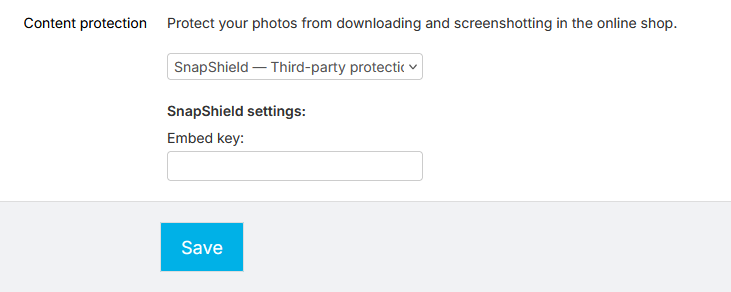
To activate SnapShield:
- Select SnapShield from the dropdown menu
- Enter the Embed key provided by SnapShield
- Click Save
Important:
- In the shop, only one protection method can be active at a time
- If SnapShield is enabled, GotPhoto’s native screenshot protection and consent dialog will not be displayed
- These settings apply at the account level for all jobs
- Works on desktop and mobile devices
FAQs: SnapShield
Where do I find both the keys for the new shop in my SnapShield account?
Simply log into your SnapShield account and navigate to the Generate section, where you’ll find both the old and new keys for your GotPhoto shop. Copy each key and paste it into the corresponding field in GotPhoto to complete the setup.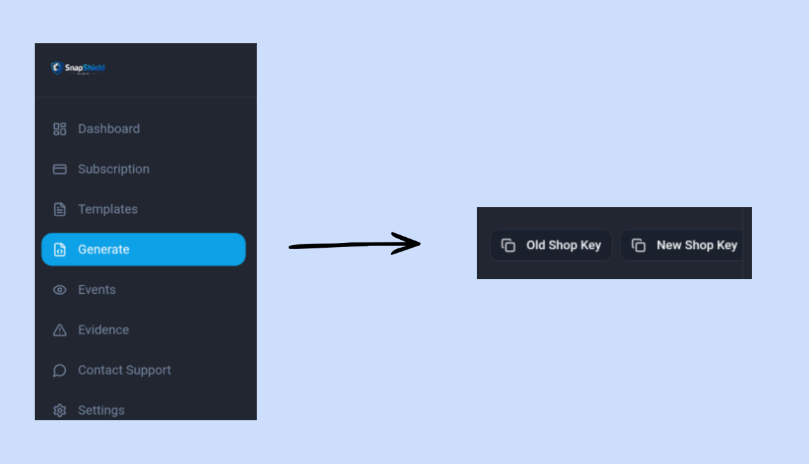
Can I use both GotPhoto protection and SnapShield in the GotPhoto shop?
No. You must choose one solution based on your needs.
Where can I learn more about SnapShield?
Please contact SnapShield directly for details on features, implementation, and support.
Do I need to update my privacy policy?
SnapShield may involve additional data processing. Review their documentation and consult legal advice if needed.
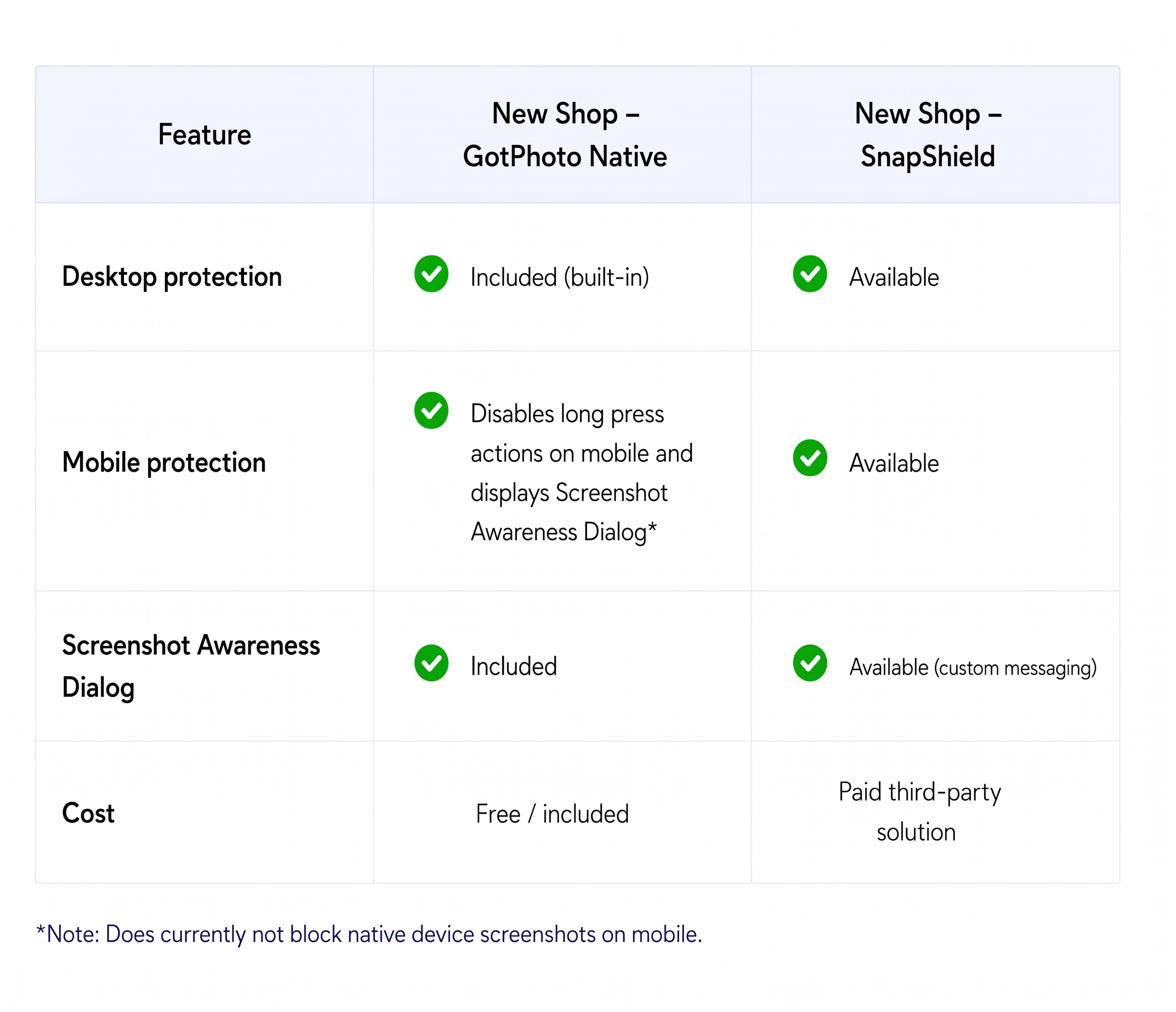
4. Overview: Content protection availability
Takeaway
There is no single solution that fully prevents image theft. The most effective approach is to combine multiple layers of protection.
- Use GotPhoto’s built-in screenshot blocker for seamless, automatic protection in the new shop
- Use the built-in Content Protection dialog to clearly communicate copyright and deter misuse
- Reinforce protection with GotPhoto's latest hybrid watermarks and clear copyright messaging
This layered approach reduces misuse while maintaining a fast, smooth, and conversion-friendly buying experience.
Related articles