

Table of contents
- Overview
- Video walkthrough
- Navigation
- How customers can submit a request
- Responding to a complaint
- Submitting a complaint on behalf of a customer
- The takeaway
Overview
Complaints are an inevitable part of business. GotPhoto’s complaints management feature helps restore trust and resolve issues efficiently. It centralizes order data, complaint history, and lab feedback to streamline resolution.
Video walkthrough
Watch the video below for a quick explanation on using the complaints feature:
Click here to open the video in full screen.
Navigation
GotPhoto keeps all complaint details—from original order to resolution—in one place. This includes lab-related issues, which are automatically allocated to the lab by the system.
To view customer complaints, go to Orders → Requests.
How customers can submit a request
Customers can report a complaint from their order status page by clicking Report feedback/complaint.

This opens a screen where the customer must complete these steps:
- Select the product(s) the complaint is about
- Choose the reason(s) for the complaint
- [Optional] Attach a file (e.g., a photo of the issue)
- Enter detailed comments about the complaint

After sending, the complaint appears on their order page, marked as Open or Closed based on the response status.

Responding to a complaint
Photographers can access and manage incoming customer feedback directly from the admin dashboard.
- Go to the Orders page.
- Select the Requests tab.
- Click Open the order to view the specific complaint details.

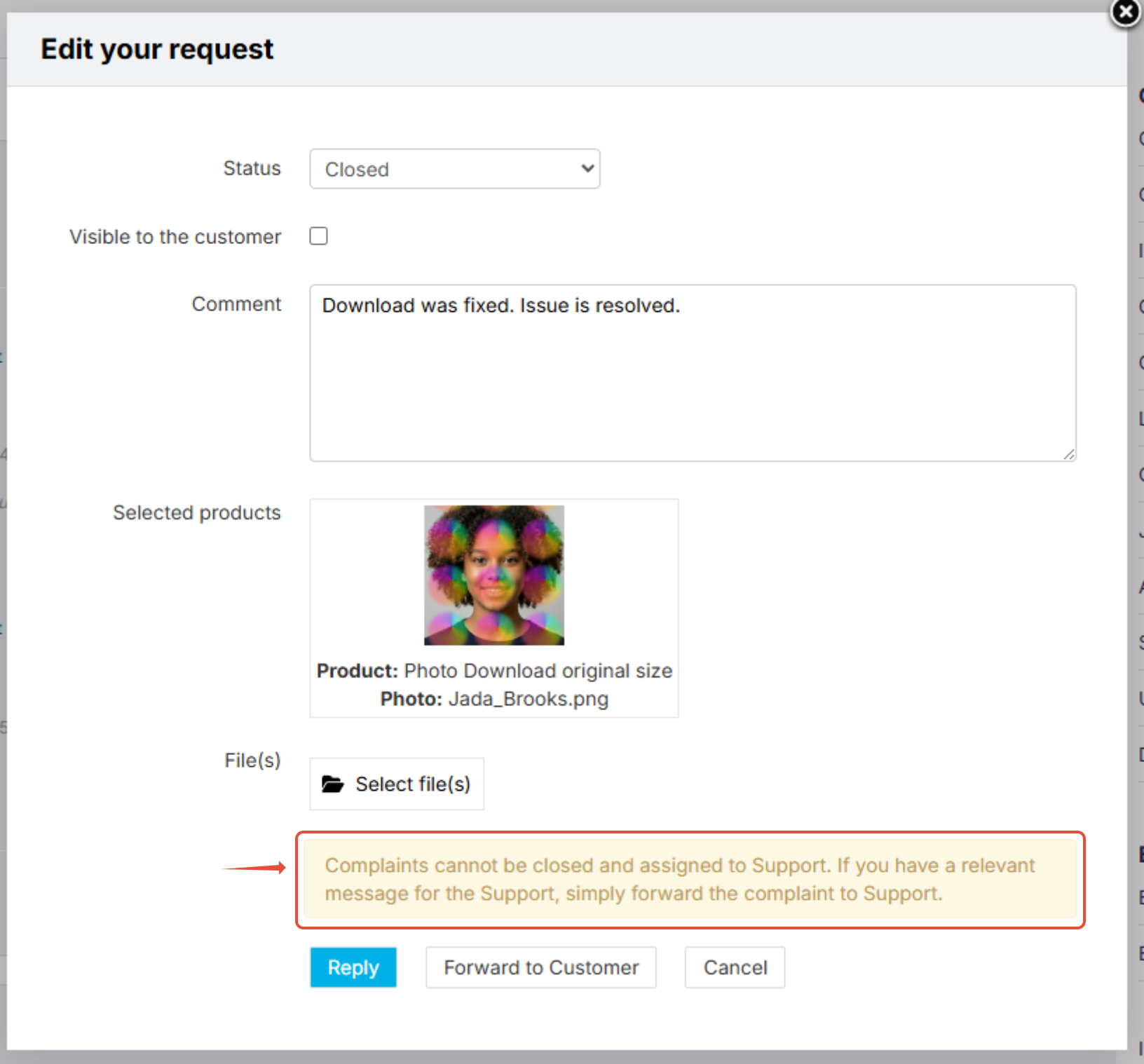
In the order overview, click Edit feedback/complaint to respond. Use the available fields and functions to address the ticket:
- Status: Switch between Open or Closed. If the issue is resolved, update the complaint status to Closed.
- Visible to the customer checkbox: Check this box if you want your customer to see your typed response message.
- Comment: Type your written reply message to the customer or Customer Care team here.
- File(s): Add any attachments or reference photos by clicking the "Select file(s)" button.
- Leave another comment button: Use this to log a message.
- Forward to Support: Select this option if you are trying to reach out or respond to Customer Care team for technical support.
- Forward to Customer: Select this option if you are trying to reach out or respond directly to your customer.
- Cancel: Abort the current editing window. This does not close, save, or finalize the request updates.

Your reply will be visible to permitted users instantly.
Closing a complaint
Follow these steps to permanently close out an issue once it has been fully resolved:
- Switch the primary status dropdown from Open to Closed.
- Leave a clear comment indicating that the issue is fully resolved.
- [Optional] Decide if you want to make that resolution comment visible to your customer by using the visibility checkbox.
- Click Reply or Leave another comment to lock in the final change.
Note: You may see a warning in a yellow text box stating: "Complaints cannot be closed and assigned to Support. If you have a relevant message for the Support, simply forward the complaint to Support." You can safely disregard this message; you can still successfully close the request by clicking on reply or leaving another comment but just ensure the status is changed to Closed.
Submitting a complaint on behalf of a customer
If a client asks you to file a complaint on their behalf:
- Gather complete details from the client
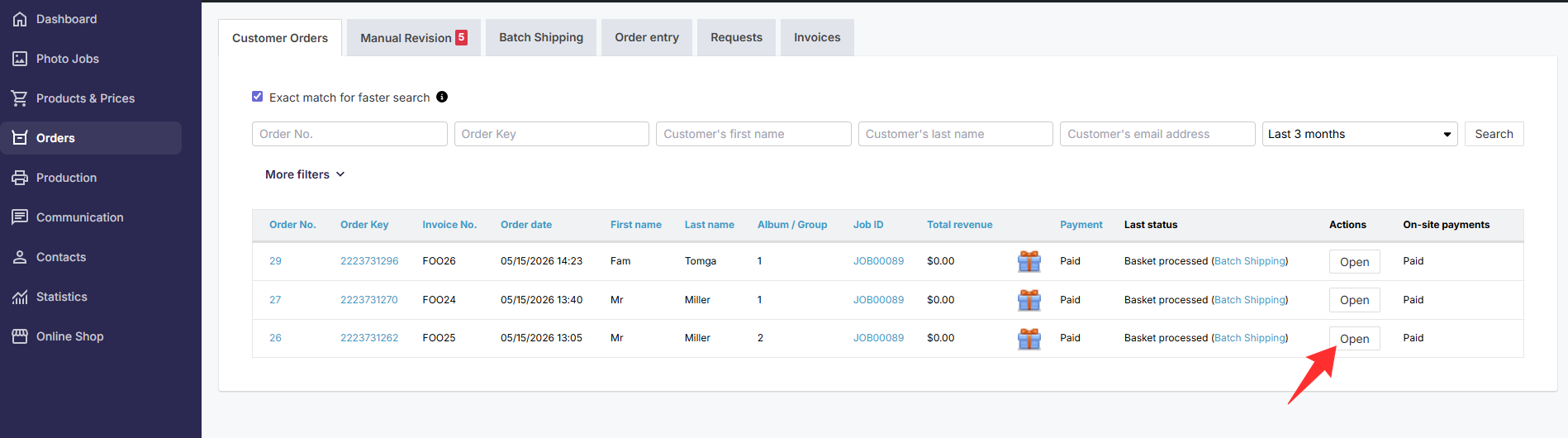
- Log into GotPhoto, go to Orders, and open the client’s order
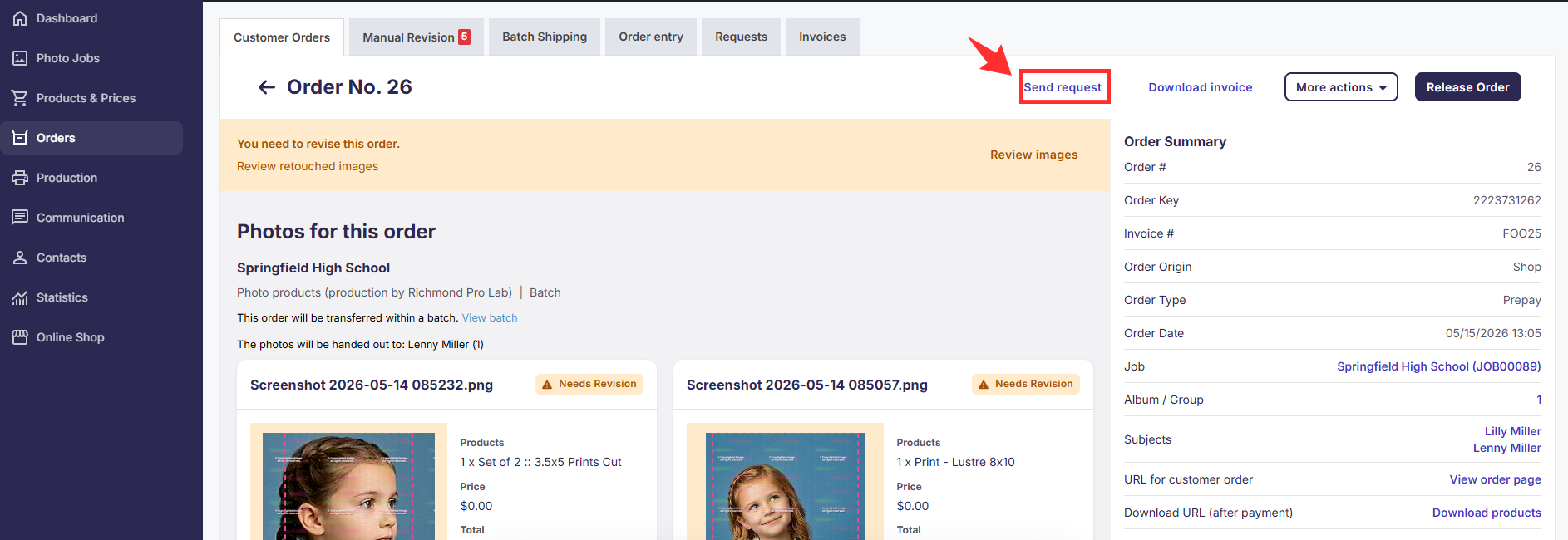
- Once the Order Page opens, Click the Send Request button
- Fill out the form and click submit
The takeaway
Managing complaints efficiently reinforces customer trust. GotPhoto’s centralized complaints system helps teams resolve issues quickly and transparently—building long-term customer satisfaction.