

Table of contents
- Overview
- Key benefits
- These job settings that are carried over
- Where to find the Duplicate Job option
- Duplicate a job
- These settings will not be duplicated
- FAQs
- The takeaway
Overview
The Duplicate Job feature helps you quickly recreate a proofing job by copying key settings from an existing job. Please note that the feature is not supported for Prepay jobs.
Key benefits
- You save time because you don’t have to rebuild every job from scratch.
- You keep your setups consistent across similar or recurring sessions.
- You and your entire team reduce the risk of setup mistakes by reusing existing configurations.
- You work more efficiently, especially when managing multiple or repeat shoots.
These job settings that are carried over
- Job type & category
(e.g., School and Preschool > Elementary School) - Access method & tagging method
(e.g., individual access code, QR tagging) - Price list
- Discount tiers
(up to three possible discount levels) - Automated campaign
- Shop version
(new shop) - Shipping method(s) (Direct/Batch/Both)
- Batch shipping address (if applicable)
- Manual Revision settings
- General job description (read-only, collapsible)
- Archive job (yes/no)
- Registration settings
- Switch price list on a specific day (additional feature)
Where to find the Duplicate Job option
Walkthrough
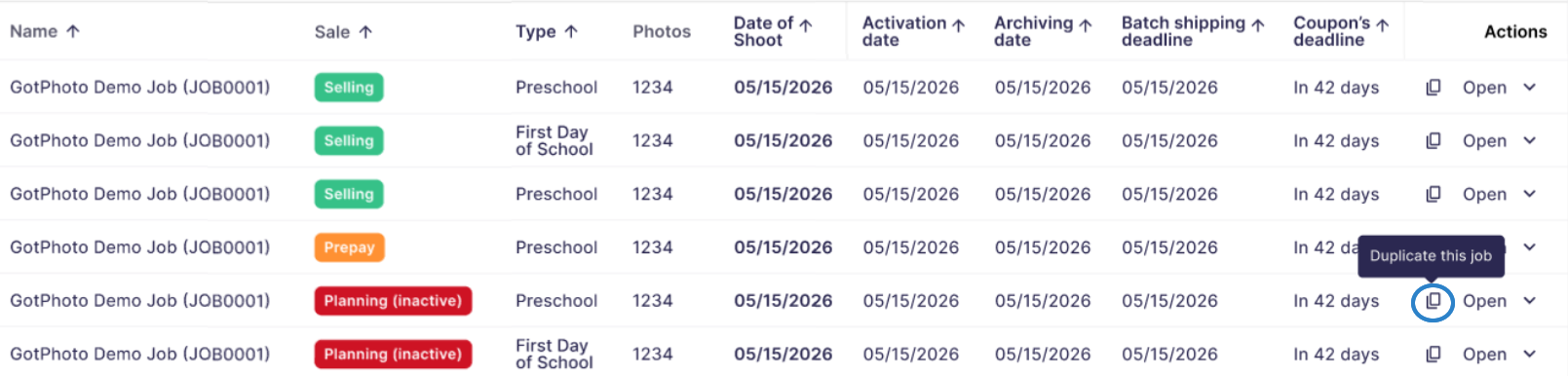
You can duplicate a job directly from the Photo Jobs tab.
- Locate the job you want to copy.
- Press the duplicate icon in the respective row.
- Select Duplicate job from the dropdown menu.
Duplicate a job
On the pop-up screen that will appear, you'll see an overview of the settings that are duplicated to the new job:
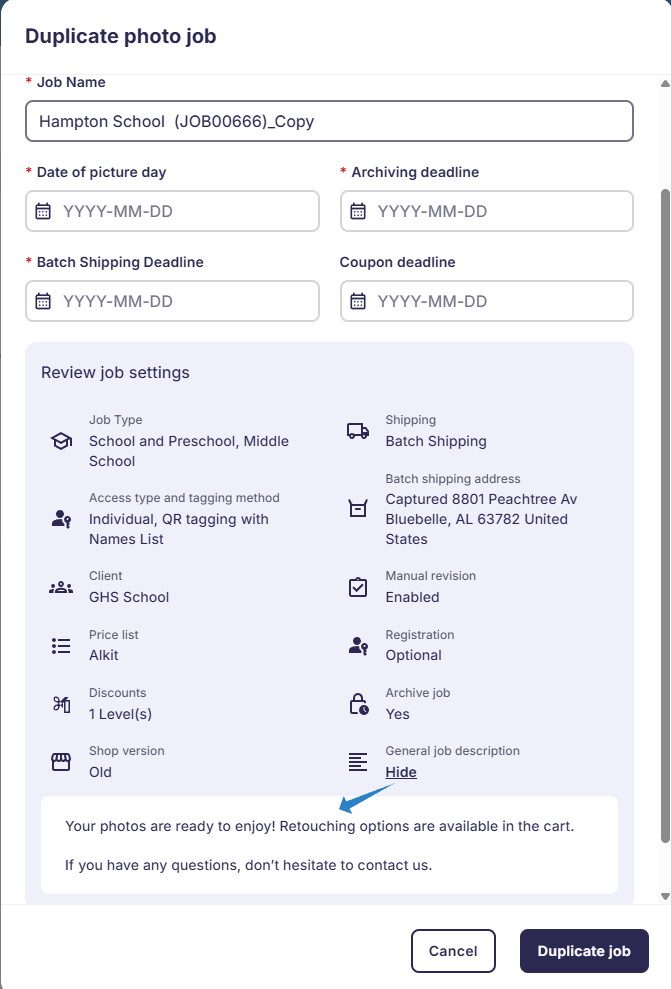
1. Update the job name
The system automatically appends “_Copy” to the original job name. Rename the job to better match your new session. The job name is visible in your shop, so you may want to remove "copy" for customer-facing clarity.
2. Enter the picture day date (required)
This information is not copied from the original job. Click the calendar icon and choose the correct picture day for the new job. You can update this later if unknown.
3. Enter all relevant deadlines
Update batch shipping, coupon settings, and archiving settings if applicable.
4. Review the duplicated job settings
In the Review job settings section, you'll see the following copied from the original job.
Make sure these settings fit the needs of your new job.
5. Create your duplicated job
When everything looks good, and you've selected all required dates, click Duplicate job at the bottom right. To cancel, click the cancel button.
Once the job is successfully duplicated, you'll see a confirmation screen.
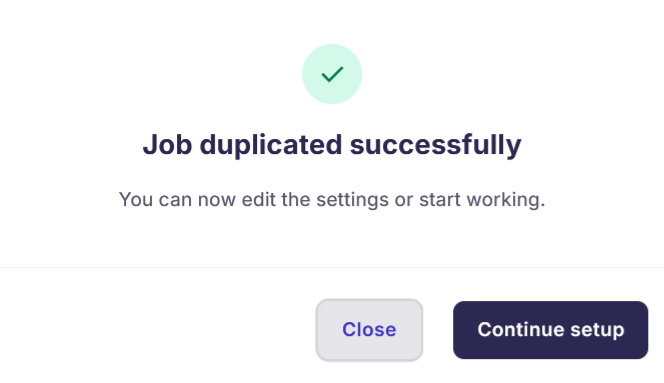
You can either close the window or click Continue setup to adjust the job settings further.
These settings will not be duplicated
- The following settings within the advanced job settings:
- Show photo metadata
- Enlarging photos
- Social media
- Different price list for Prepay shop and Order entry
- Custom automated campaign text
- Photo Management settings
- Photos, subject, and customer data
- Prepay jobs: The duplicate button will appear but remain disabled
- Any makeup job a job may have (US/CA feature), only the main job will be duplicated.
FAQs
I use the same settings for all of my jobs. Is a bulk duplicate option planned?
For 2026, we’re planning on adding more features that will allow you to perform more bulk actions.
Why do I not see the shipping settings on the review page?
Your job will be set to direct shipping. We only show the shipping settings if batch shipping is activated too.
Will the same watermark be used in the duplicated job?
Yes. The job type is duplicated, and if a specific watermark was used, our logic will reapply it based on the job type.
The takeaway
Duplicating jobs in GotPhoto saves time and ensures consistent configurations across sessions. Just remember to update unique details like the job name, dates, and deadlines before finalizing your duplicated job.