

`Table of contents
Overview
Exporting a job's metadata creates a CSV file containing information about the job's subjects and photos. The export is emailed to the main user and can also be downloaded later from the Statistics section.
Export job metadata
Follow these steps to generate a metadata export.
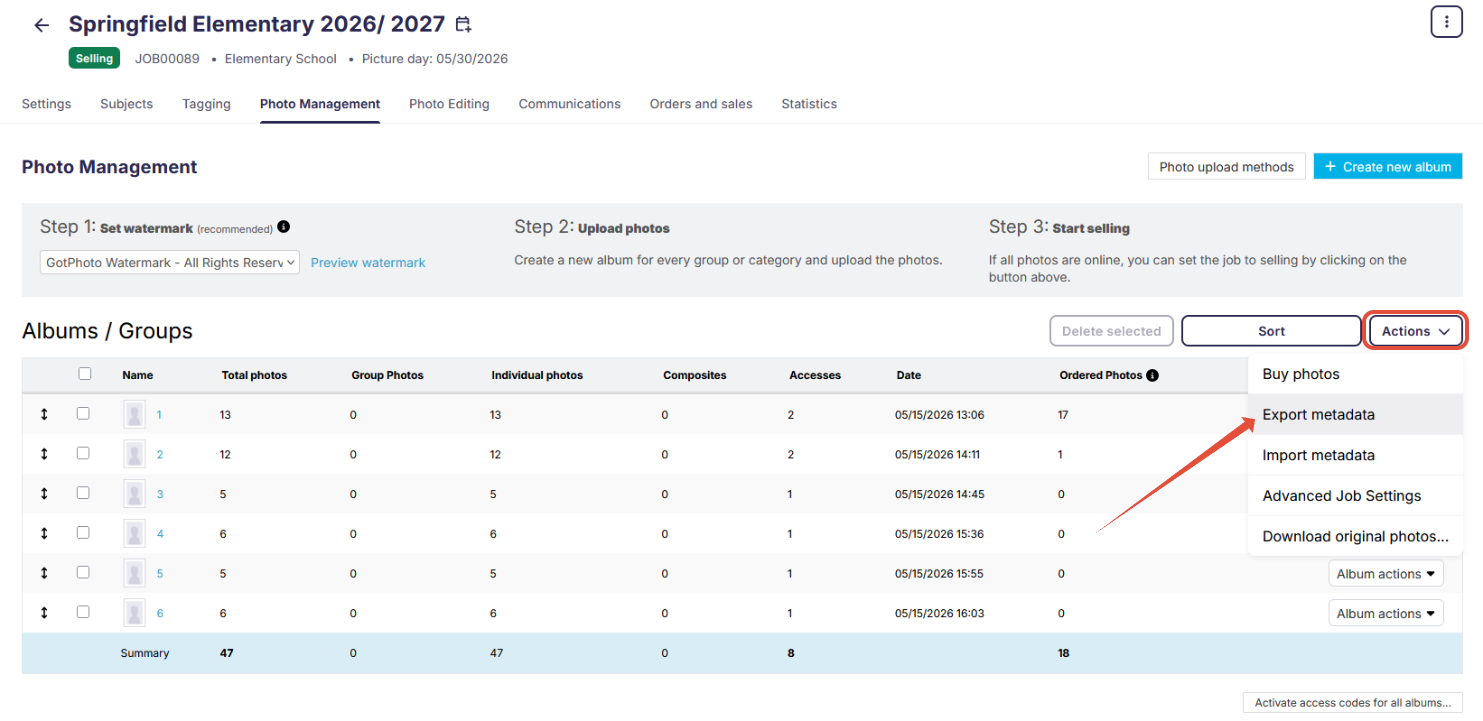
- Open Photo Management.
- Select Actions > Export metadata.
- Wait for the export to be generated.
The completed metadata export is automatically sent to the main user's email address. Additional users with the appropriate permissions can choose to receive it either at the main user's email address or their own account email.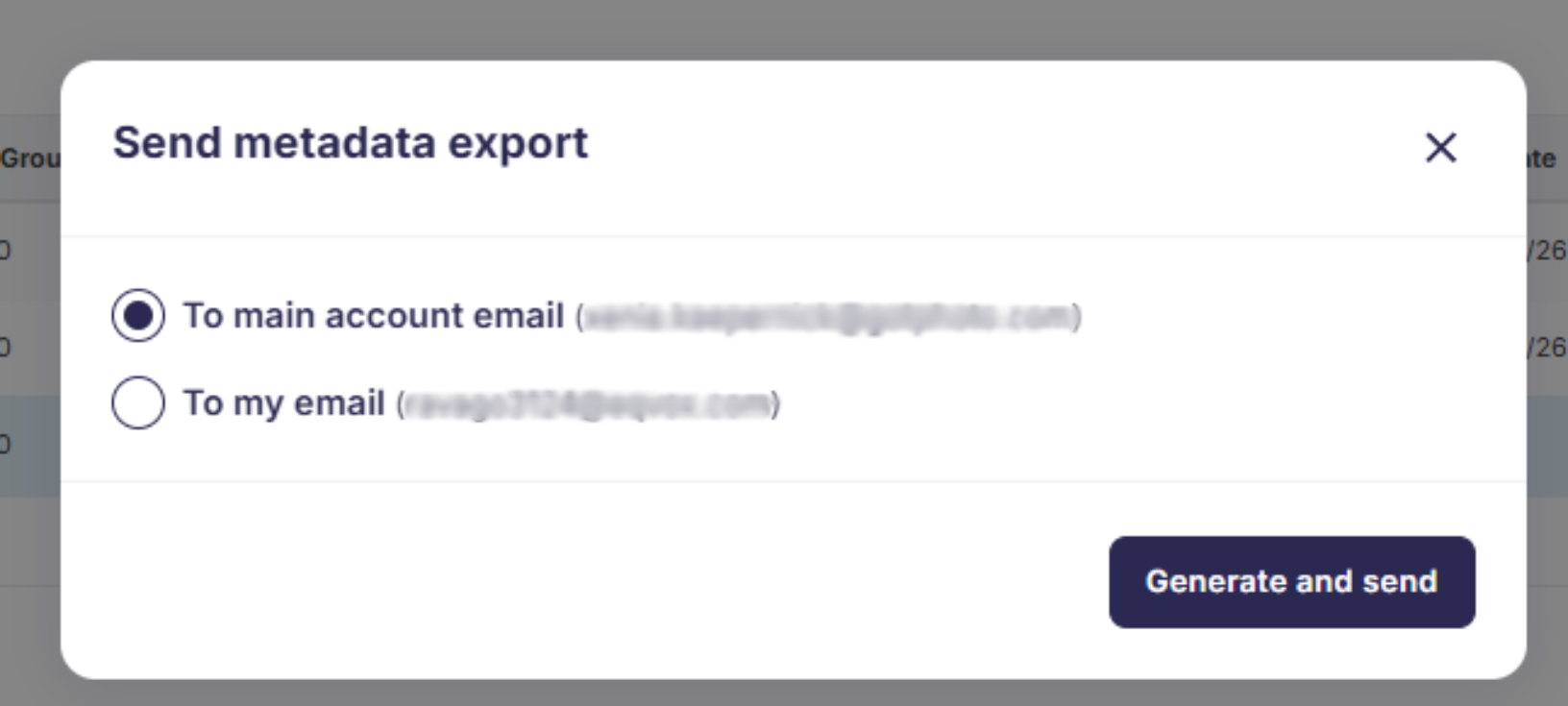
View the metadata export file
You can also download the completed export from the Statistics > Statistic Export tab.

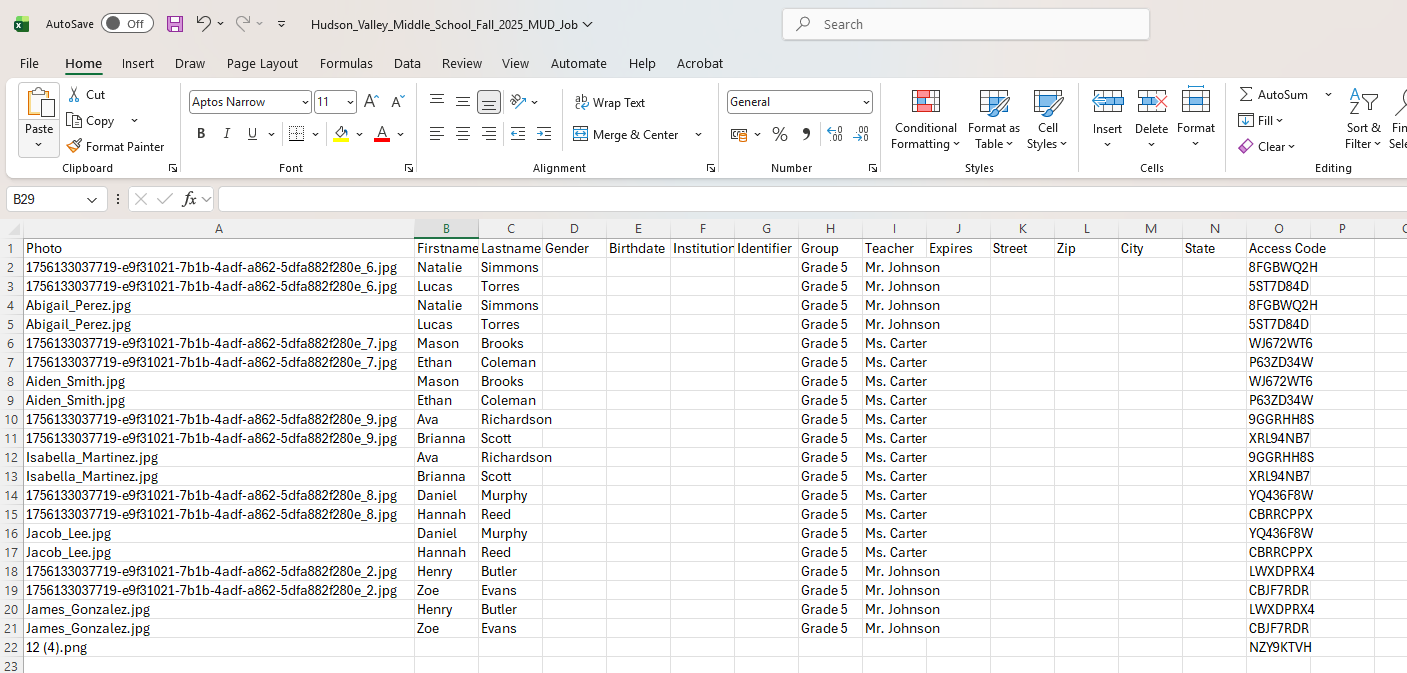
Sample metadata export
The exported CSV file contains metadata for the selected photo job.
Export the original photos
If you also need the original images, export them separately from Photo Management. Metadata and photo exports are generated independently.
The takeaway
Export job metadata from Photo Management. By default, the metadata export is sent to the main user's email address. Additional users with the appropriate permissions can choose to receive it either at the main user's email address or their own account email. You can download completed exports later from the Statistics section. Original photos must be exported separately from Photo Management.