

Table of contents
Overview
Graphics are an integral part of sports photography. Whether you're creating memory mates or team photos, we're here to provide suggestions for simple GotPhoto integrations to save you time and effort.
In this article, we review the basics of three available options - QMate, Pixnub export, and Team Photo Composite.
Using QMate
Use QMate to create memory mates and sports graphics using team and individual photos.
QMate allows you to create beautiful memory mates and sports graphics. You will need a team photo and individual athlete photos to begin this process.
Download QMate
QMate is currently only supported for Windows.
You can download and test the software here. We also recommend regularly checking the page for updated versions.
A yearly license can be purchased here.
You can download a User Guide for QMate here.
Please note: While not included in the guide, under the output preview, you can now select whether you would like to save your graphics as memory mates. When saved as memory mates, the images will automatically be tagged as composites, and your composite pricing will be applied.
You can also check out our QMate Walkthrough of the software:
Click here to learn more about designing your own templates in QMate.
Click here to view our QMate Webinar from August 2023.
Tagging and file name requirements for QMate
- Using manual tagging will hide individual galleries in QMate. Please use other tagging methods if you plan on using QMate in a job.
- File name requirements: Avoid using symbols like
/, \, :, *, ?, ", <, >, |, &, %, #, spaces, or multiple periods in file names. These can break file paths, and images will not import into QMate. Use only letters, numbers, underscores (_), and hyphens (-) for compatibility.
Troubleshooting: Photos won’t import into QID or QMate
QMate FAQs
Can I use QMate on a Mac?
While QMate is only supported on Windows, you can bridge that gap by using a tool like Parallels, which lets you run Windows - and therefore QMate - on your Mac.
Using Pixnub EZ composites export (US/Canada)
You can use Pixnub as an external graphics creation tool with automated CSV export from GotPhoto.
Pixnub EZ Composites export for Pixnub users
GotPhoto's new Pixnub EZ Composites export creates a Pixnub-compatible CSV (EZCOMP format) in one click. It uses your existing job data and grouping, so no additional setup is required. The file can be used directly in Pixnub without further modification.
Where to find it
The feature is currently rolled out gradually; if you don't see it in your account yet, it will be available soon.
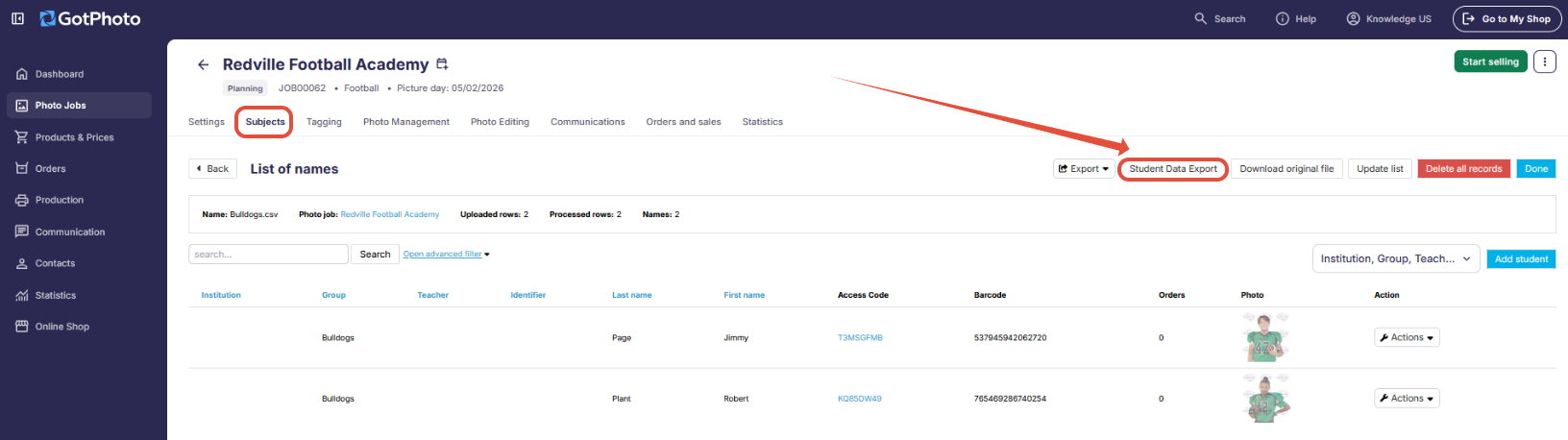
In your job, click the Subjects tab > click Student data export.
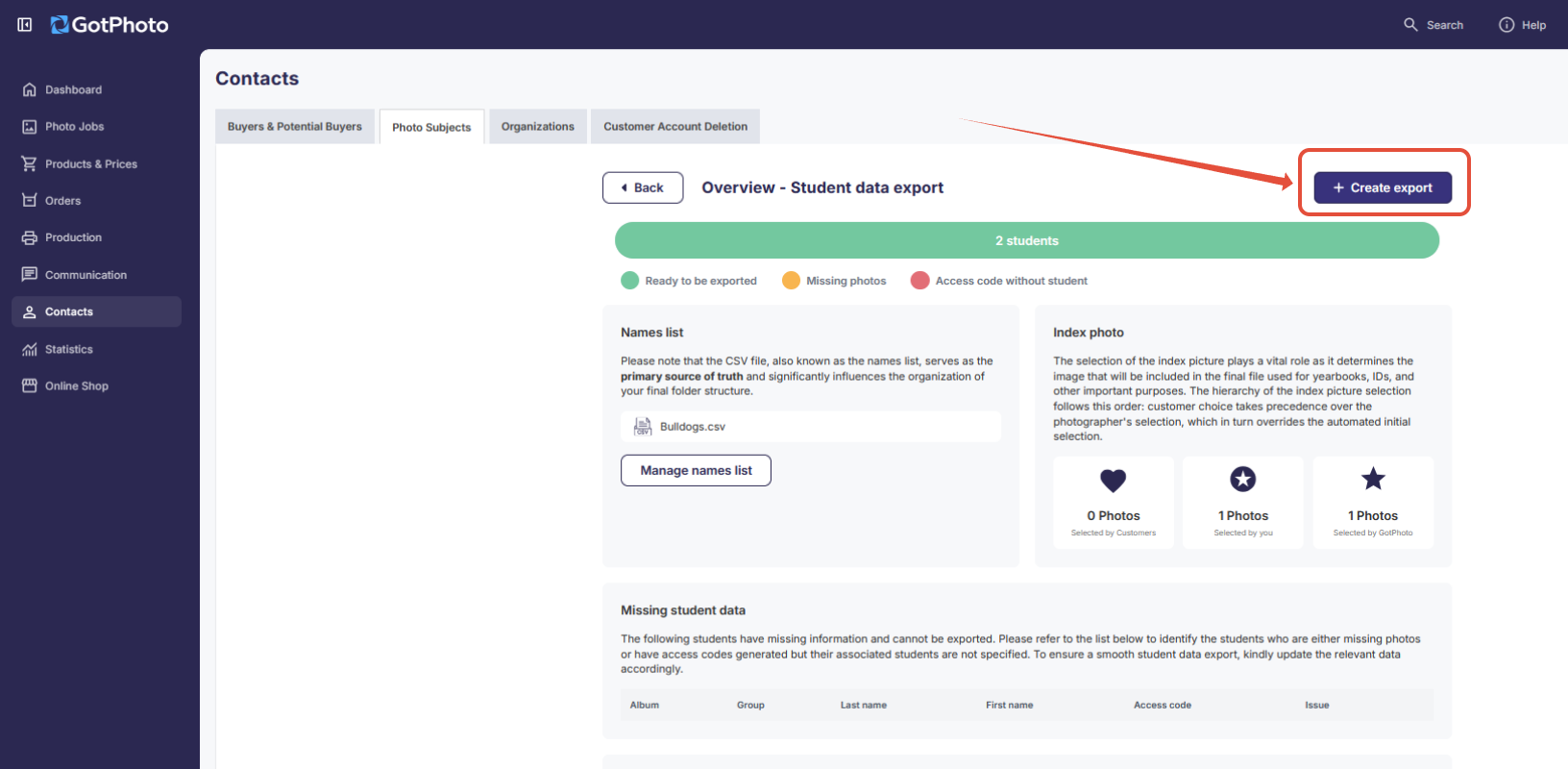
Next, click Create export.
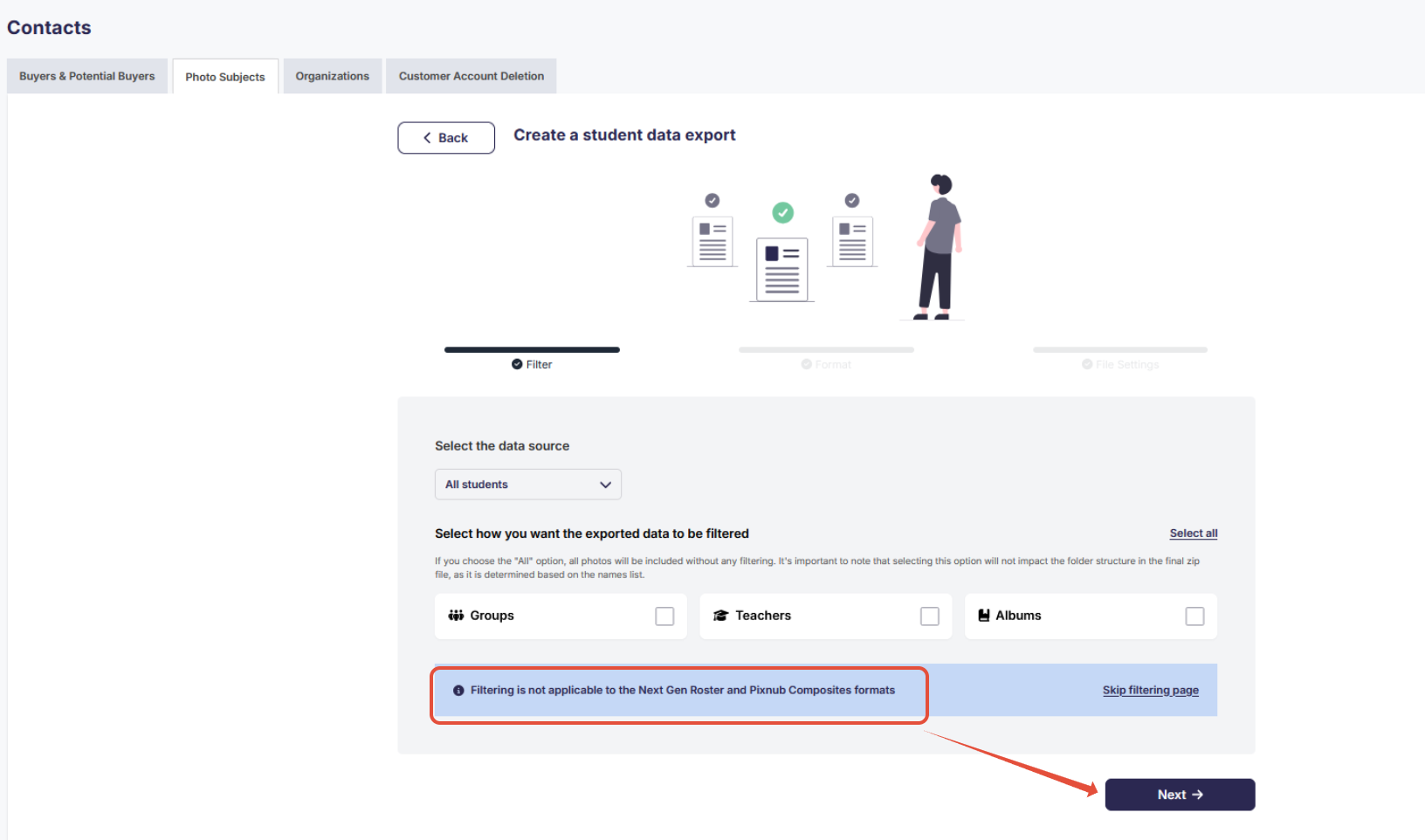
On the next screen, ignore the filter options, as they are not applicable for the Pixnub Composite export.
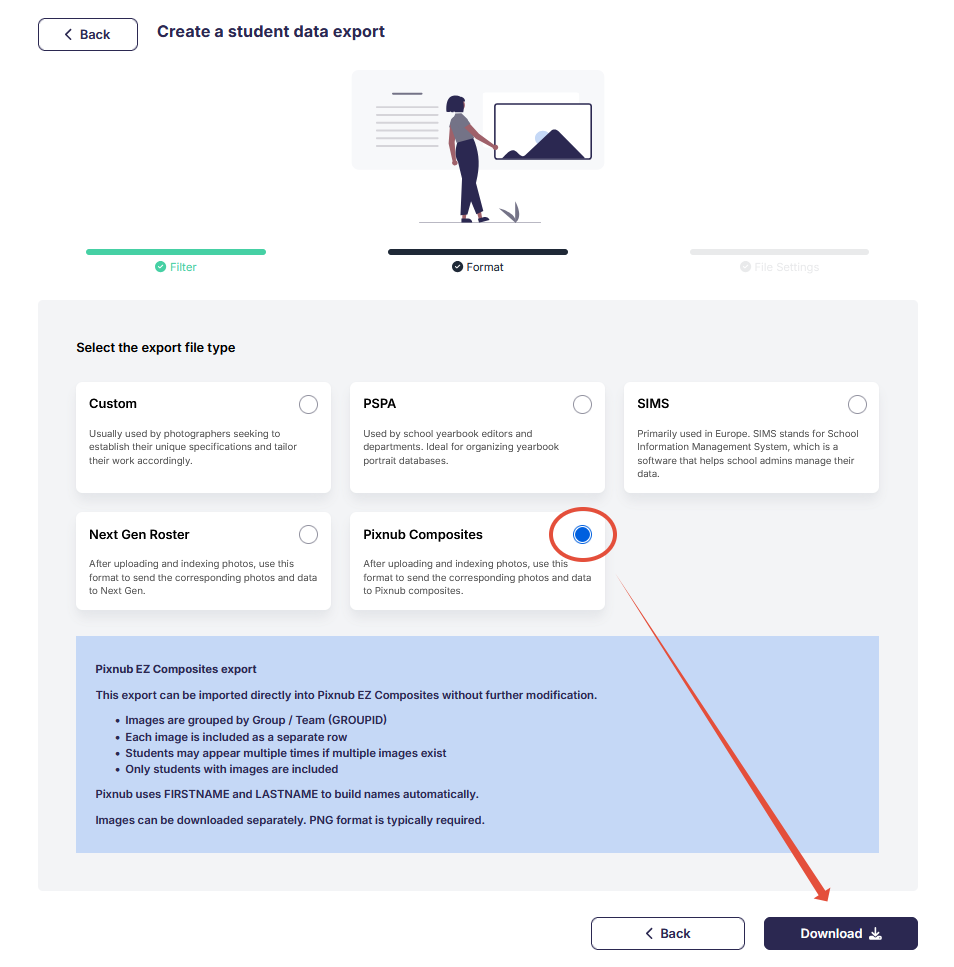
In the Format step, select the export type Pixnub Composites and press the Download button.
Why use this export?
Preparing Pixnub files often requires manual CSV formatting or third-party tools. This export removes those extra steps, reduces the risk of formatting errors, and simplifies the workflow before working in Photoshop.
Please note:
- The export is a data-only export. Images must be downloaded separately in Photo Management.
- One row per image
- The GROUPID is based on the existing job grouping
- The export is not customizable
Requirements
- Available in North America
- The job must contain student image data
- Only students with at least one image are included
- Grouping must be in the names list group column
- PNG format is typically required
Export structure
The export generates a CSV file in Pixnub EZCOMP format.
- Image filename
- First name
- Last name
- Group ID (GROUPID)
- Group text
Sample export:

Using Team Photo Composite
Use Team Photo Composite to generate full team photos from individual athlete photos.
Download Team Photo Composite
You can download and test the software for Windows or Mac.
A yearly license can be purchased here.
You can find more information about using Team Photo Composite here. Please note that GotPhoto does not support this external tool; please reach out directly to the provider.
You can also check out our Team Photo Composite Webinar for a full walkthrough of the software:
The takeaway
Enhance your sports photography offerings with QMate, Pixnub, and Team Photo Composite integrations.
- Use QMate for memory mates and automated graphics
- Use Pixnub for CSV-driven Photoshop workflows
- Use Team Photo Composite for team images from individual photos
If you prefer focusing on growing your business and reducing the time you spend creating sports graphics, Next Gen may be exactly what you're looking for. Click here for more information on Next Gen.
Related articles