

Table of contents
- Overview
- Shop language settings
- Translate packages and pages
- Admin dashboard language
- Email campaign translations
- FAQs about languages and translations
- The takeaway
Overview
This guide explains how to configure your shop’s language settings and translate content such as product packages and page names. It also highlights which languages are supported and what requires manual translation.
Shop language settings
Set up the languages available in your shop and define the default language for visitors.
Access the language settings
- Go to the Online Shop page
- Select Language under Website in the left-hand navigation menu
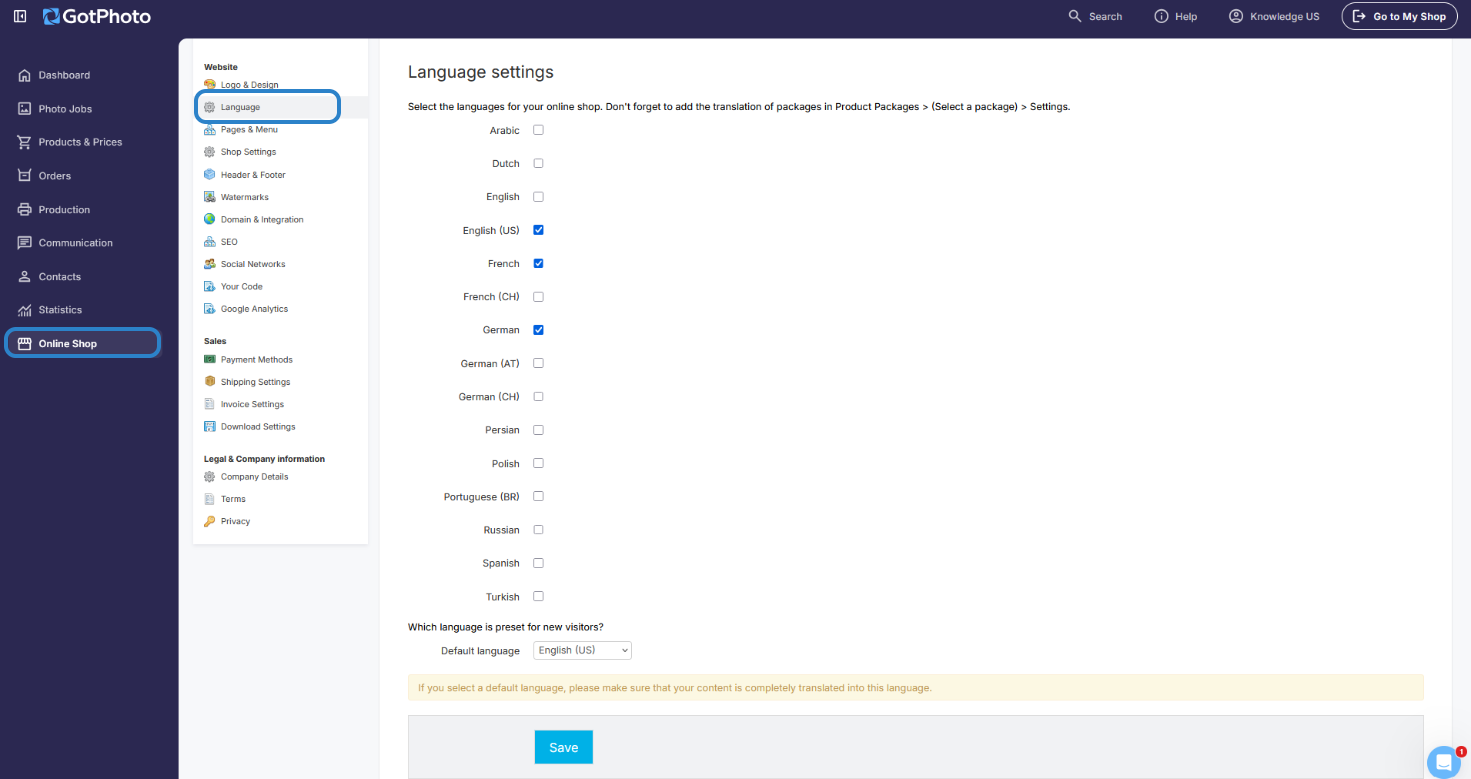
Choose supported languages
Select the languages you want to offer in your shop and define the default language new visitors will see.
The new shop supports: English, German, French, Spanish, Turkish, Polish, Russian.
Please note that Dutch, Persian, and Portuguese are not yet supported.
Translate packages and pages
After enabling additional languages, translate your shop content to match those languages.
⚠ Important: Product packages and page names must be translated manually.
Identify translatable fields
Look for the European flag icon to find fields that support translation.

Translate product packages
Update package details in different languages from the package settings.

Translate shop page names
Modify shop page names and navigation labels in multiple languages.
- Go to the Pages & Menu settings page (Online Shop > Pages & Menu)
- Select the language tab you want to edit
- Add translated text
- Click Save to apply changes


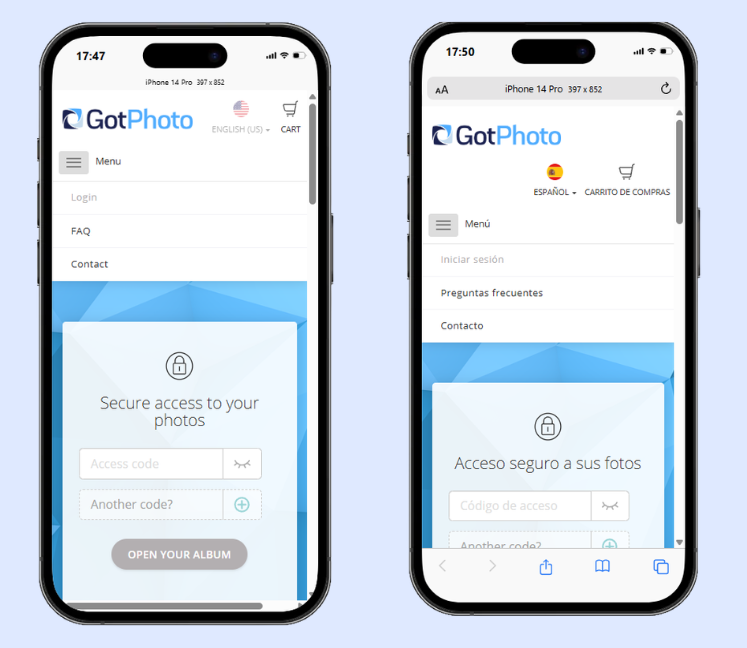
Example of translated navigation
This example shows how translated navigation elements (such as Login, FAQ, and Contact) appear in different languages.
Admin dashboard language
Your admin dashboard is available in British English, American English, French, and German. You can set your default language using the language selector located in the bottom-left corner of the dashboard.
Email campaign translations
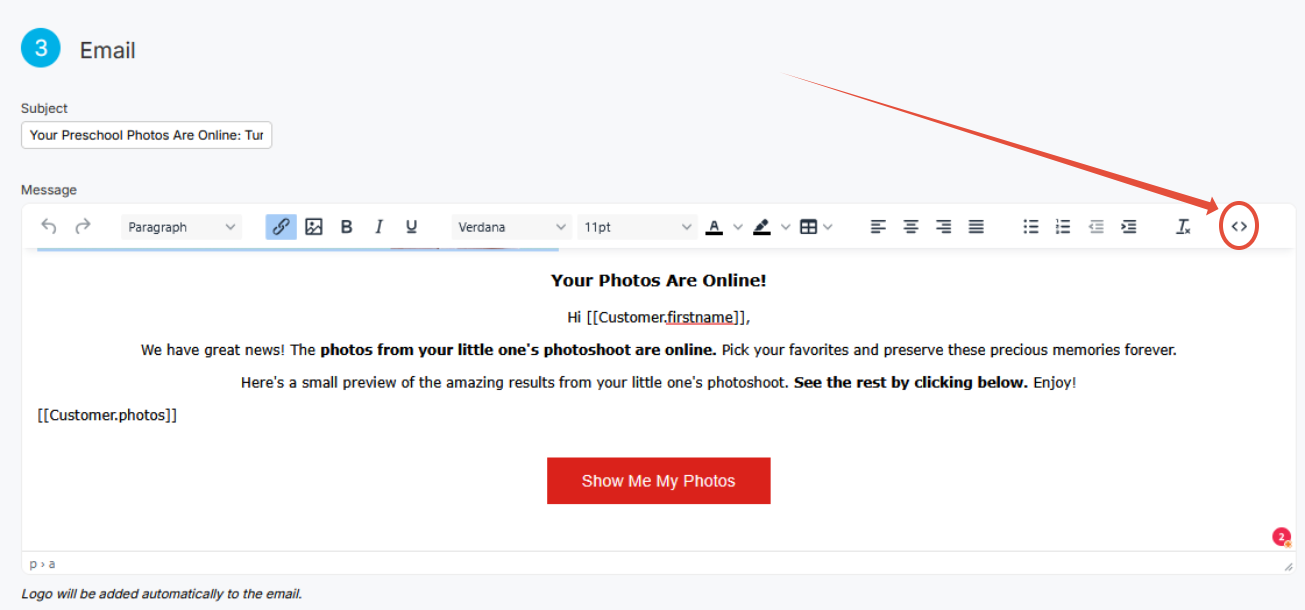
Communication campaigns come preloaded in English, but you can copy the source code of templates, translate it using an AI tool, and then create a new campaign in your desired language.
Email template
 Source code view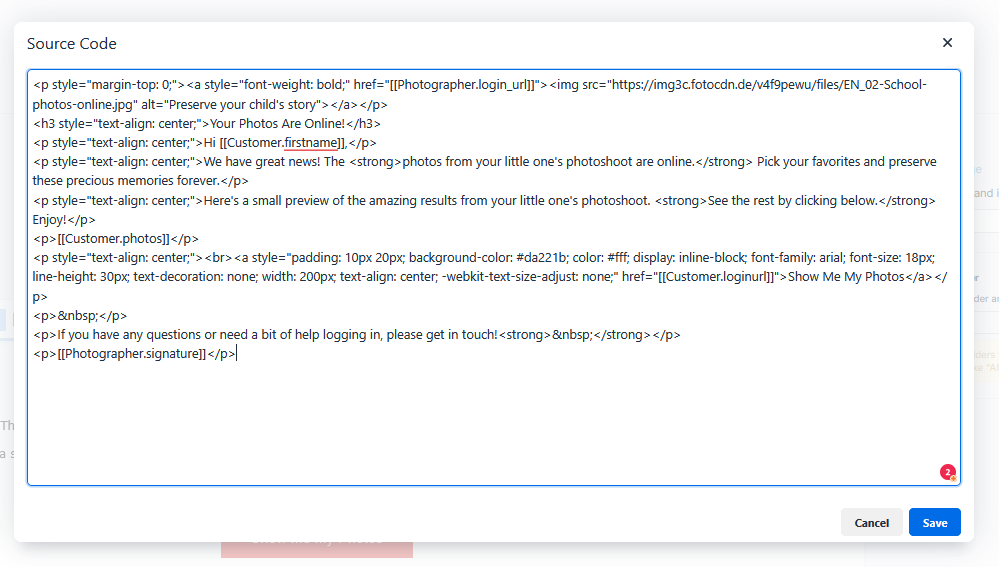
FAQs
Do customers automatically see the correct language?
Customers will see the default shop language unless their browser language matches one of your enabled languages.
Are translations applied automatically when I add a new language?
No. Adding a new language only enables it. All content must be translated manually. Only the shop navigation will be translated automatically.
What happens if a translation is missing?
The shop will display the default language for any missing translations.
Does changing the admin language affect my shop language?
No. The admin language only affects your dashboard and does not change the customer-facing shop.
Can I send automated emails in multiple languages?
Yes, but you must create separate campaigns for each language.
Do email campaigns change based on the customer’s language?
No. Email campaigns do not automatically adapt to the customer’s language.
Can each team member, with their own user access, set their own admin language?
Yes. Each user can independently select their preferred admin dashboard language.
The takeaway
- Enable multiple languages from the Online Shop → Language settings
- Set a default language for new visitors
- Manually translate all packages and page names after enabling new languages
- Use language tabs and flagged fields to manage translations efficiently
- Always save your changes to apply translations