
Table of contents
Overview
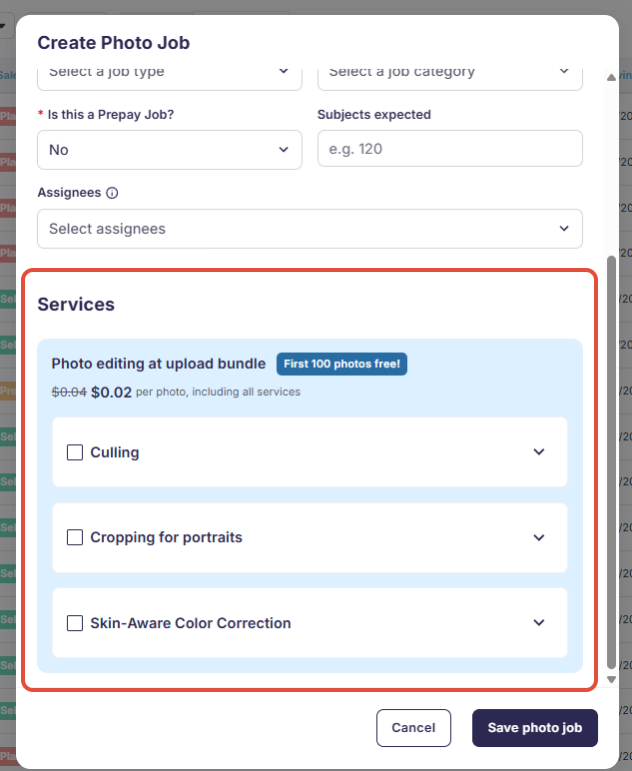
Save time by letting GotPhoto handle your culling, cropping, and color correction automatically when you upload photos to a job. It only takes a few minutes and works with all supported upload methods.
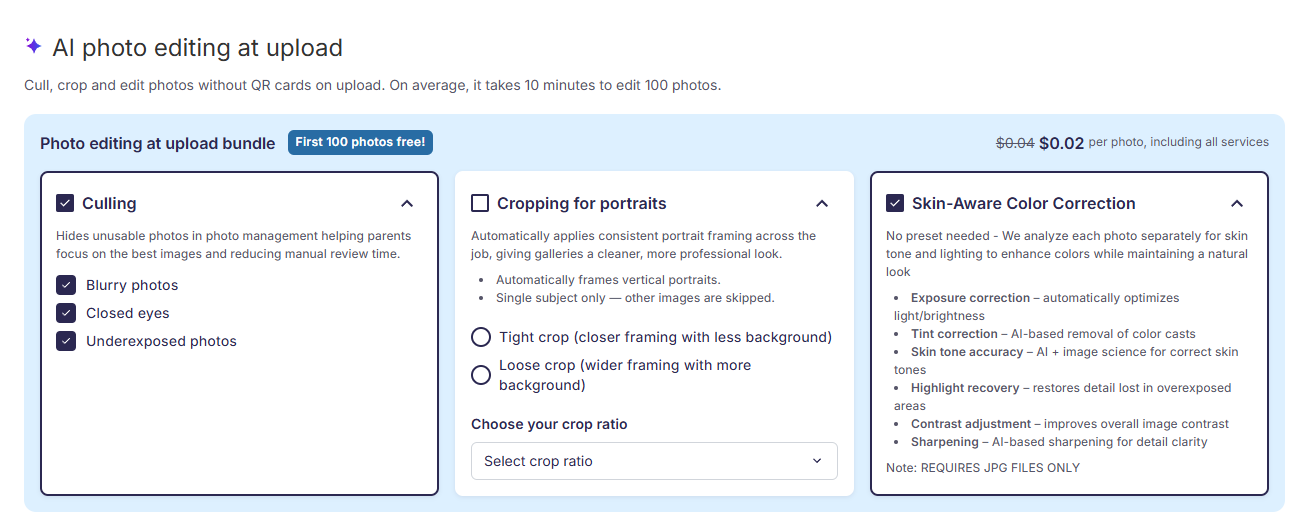
The Photo Editing at Upload bundle brings three AI-powered services together in a single step: automatically cull weak shots, crop for a clean portrait frame, and apply skin-true color correction, all without leaving GotPhoto.
The bundle is designed specifically for school portrait sessions (single-subject, vertical frames).
The editing at upload bundle
The Photo Editing at Upload bundle includes three services applied automatically during upload:
1. Culling
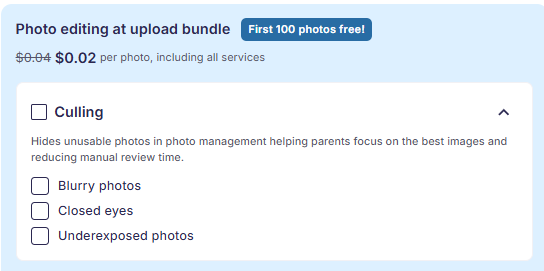
AI automatically detects and hides low-quality shots so only your best photos reach the gallery. You can choose which types of issues to catch:
- Blurry (out of focus) photos
- Closed eyes
- Underexposed photos
Culled photos are never deleted. They are hidden from the gallery and show the reason for the flag, for example, "Photo hidden: Eyes closed". After the upload, you can unhide any photo individually with a single click at any time.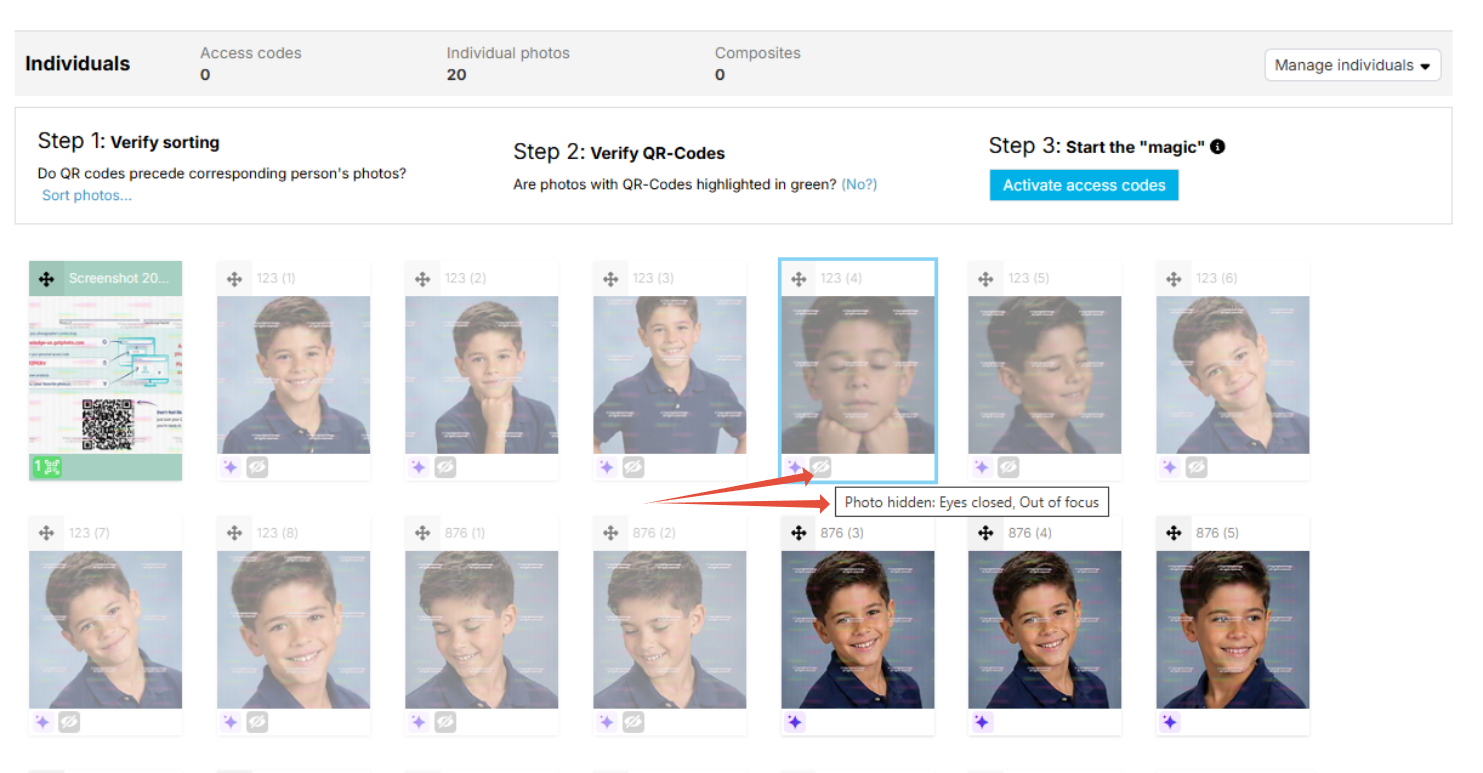
The hidden images will remain hidden after you activate the galleries.
2. Cropping for vertical portraits
Each photo is automatically cropped for a clean, consistent vertical portrait frame. When enabling the bundle, you choose a preset per job:
- Tight - closer framing with less background
- Loose - wider framing with more background, safer for print sizes
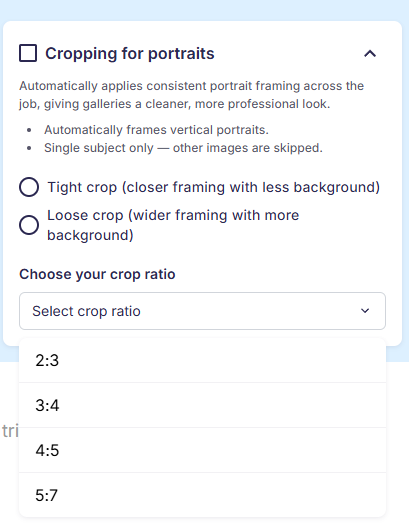
Supported crop ratios: 2:3, 3:4, 4:5, 5:7
For both the Loose crop and the Tight crop, the default crop ratio is 4:5. However, you can adjust it to your needs.
Image below: Comparison of all available cropping options
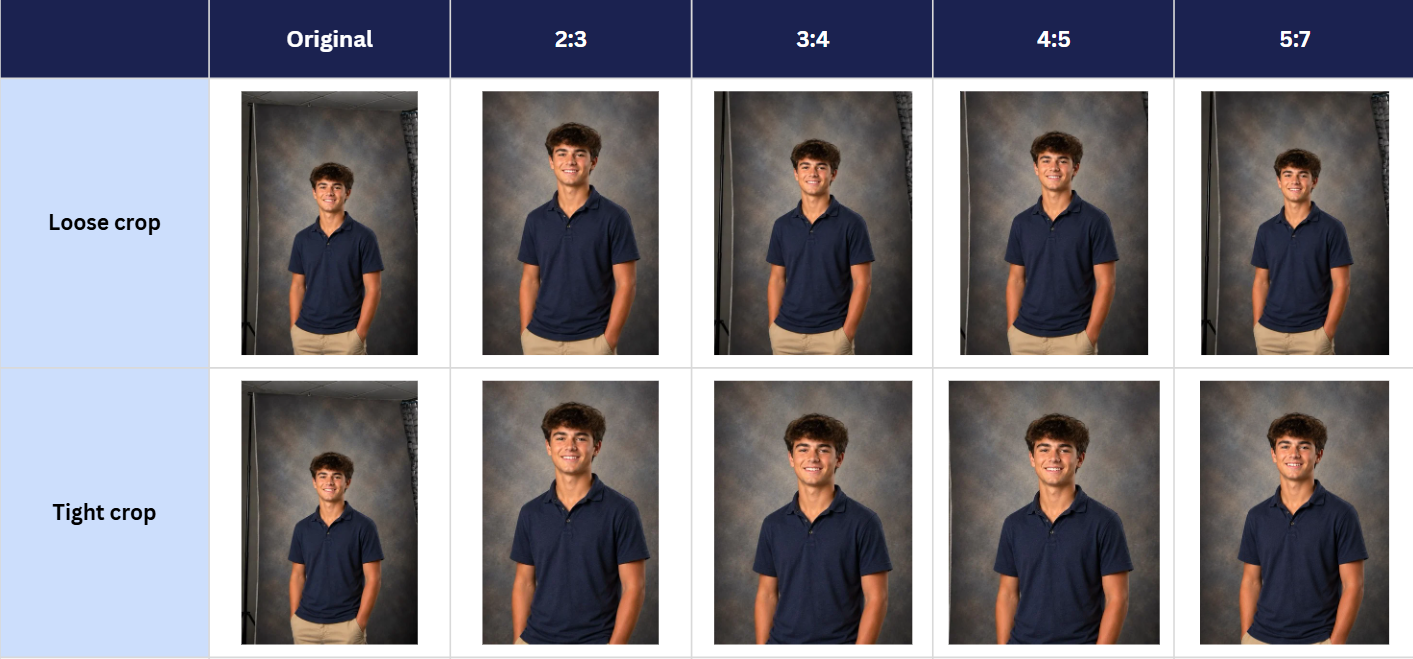
- All original camera metadata (EXIF) is preserved.
- Group photos are automatically skipped to avoid cutting anyone off.
Please note: The crop always produces a 3/4-length portrait, framed from just above the head to around mid-thigh. This applies to every preset and crop ratio. If your photos are full length (head to feet), the lower legs and feet will be cut off. For jobs with full-length photos, don't use the cropping service.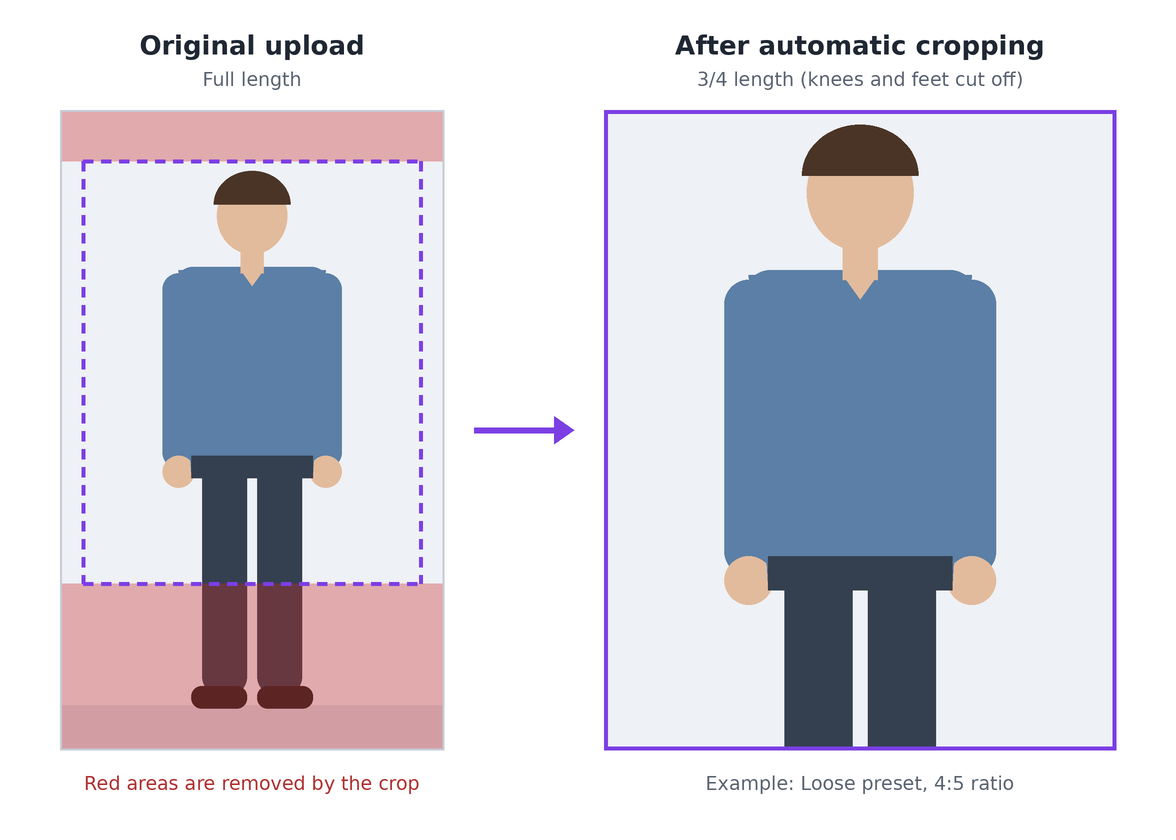
3. Skin-Aware Color Correction
Perfectly Clear's AI-powered color correction analyzes each photo individually for skin tone and lighting to enhance colors while maintaining a natural look.
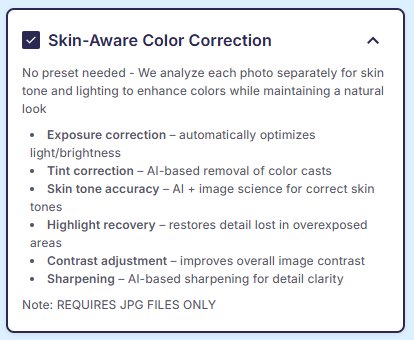
The video below shows some before-and-after samples.
Supported files:
- JPEG and PNG files in RGB or RGBA format.
- For best results, images should be no more than 3500 px on the long edge.
- Photo handling: Original photos in the albums are replaced with the edited images in the same size and format. EXIF metadata is always preserved.
QR cards and QR code images are automatically recognized and skipped during editing, and you won't be charged for them.
Please note:
- Because each image is color-corrected individually, variations may occur between images. Therefore, this service should not be used if you plan to use our Sports Graphics service by Next Gen.
Turnaround time
For 100 images, the turnaround time is about 10 minutes.
Pricing and billing
The introductory price for the Photo Editing at Upload bundle is 0.02 per photo, regardless of which services you select in the bundle. This applies across all supported currencies:
- US & Canadian customers billed in USD: $0.02 per photo (excl. tax)
- Canadian customers billed in CAD: C$0.02 per photo (excl. tax)
- UK customers: £0.02 per photo (excl. tax)
Standard Rate (starting October 1, 2026): $0.04 / C$0.04 / £0.04 per photo for all selected services.
Fees are billed through your monthly GotPhoto invoice. The first 100 photo edits are free!
How it works
- Enable the Photo Editing at Upload bundle. You have two options:
- When creating a job, scroll down to the Photo Editing at Upload bundle section and configure your settings. Choose which culling categories to enable and select your crop preset (Loose or Tight). You can change these settings at any time in your job settings.
- Please note that the system remembers your previous selections for jobs with the same job type. For example, if you used Photo Editing at Upload for a previous Baseball job, the same services will automatically be selected the next time you create a Baseball job. However, you can disable or change them at any time.
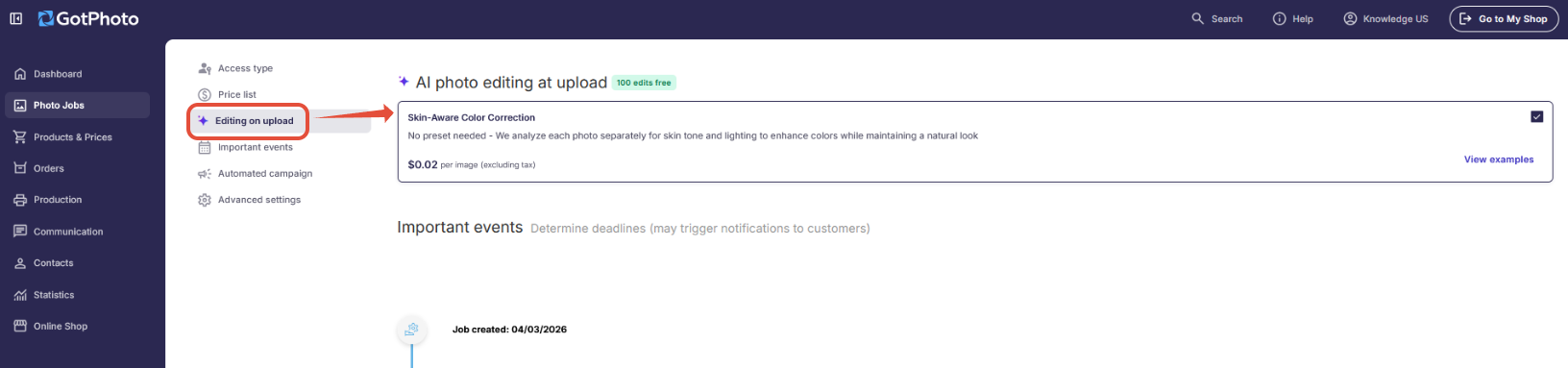
- Alternatively, enable the Photo Editing at Upload bundle in your job settings and configure your culling and crop preferences. Make sure to save your job settings at the bottom left of the page.
- Upload your images via your preferred upload method.
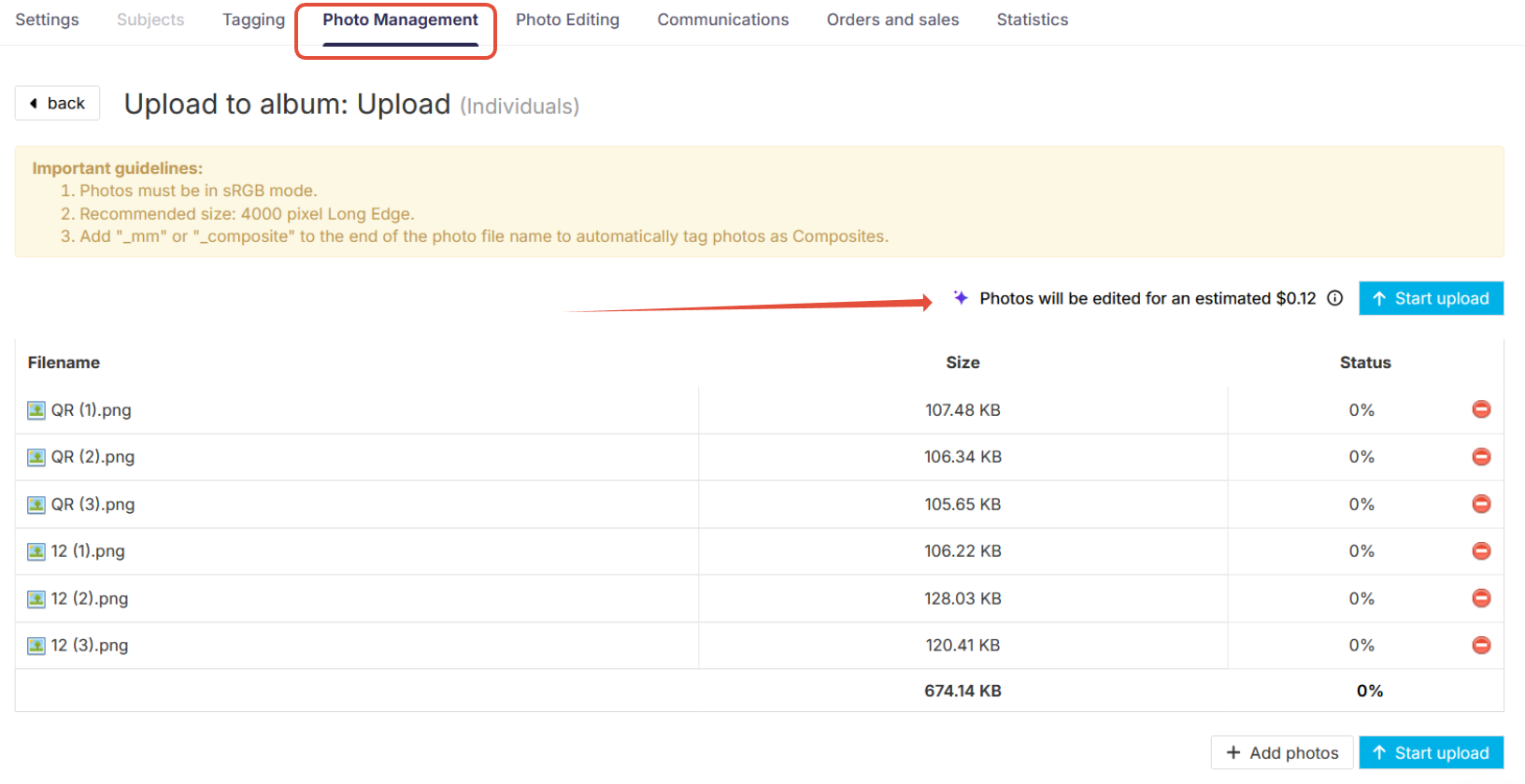
If you use the web upload, please note that the initially displayed estimated processing costs in Photo Management also include QR card photos. At this point, the system does not yet recognize these photos as QR cards.
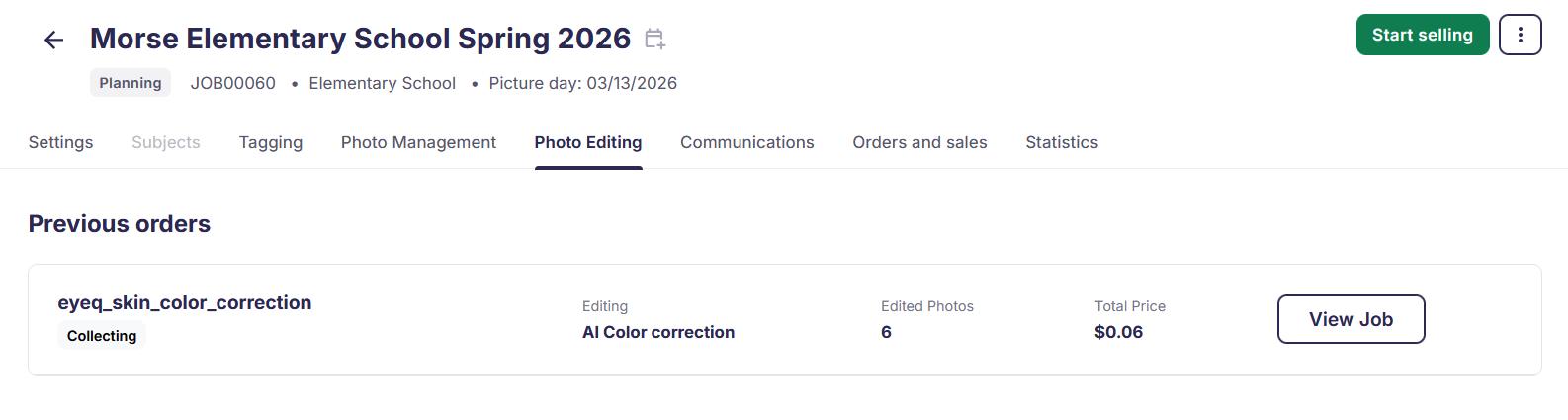
The actual amount will be shown after the upload in the Photo Editing tab.
Example: If 6 photos are uploaded, 3 of which are QR card photos, the estimated price displayed in the Photo Management tab will be $0.12 / £0.12 / C$0.12.
After the upload, the correct total cost ($0.06 / £0.06 / C$0.06) is displayed in the job's Photo Editing tab.
- Wait until all images have been fully uploaded and processed. This may take a moment.
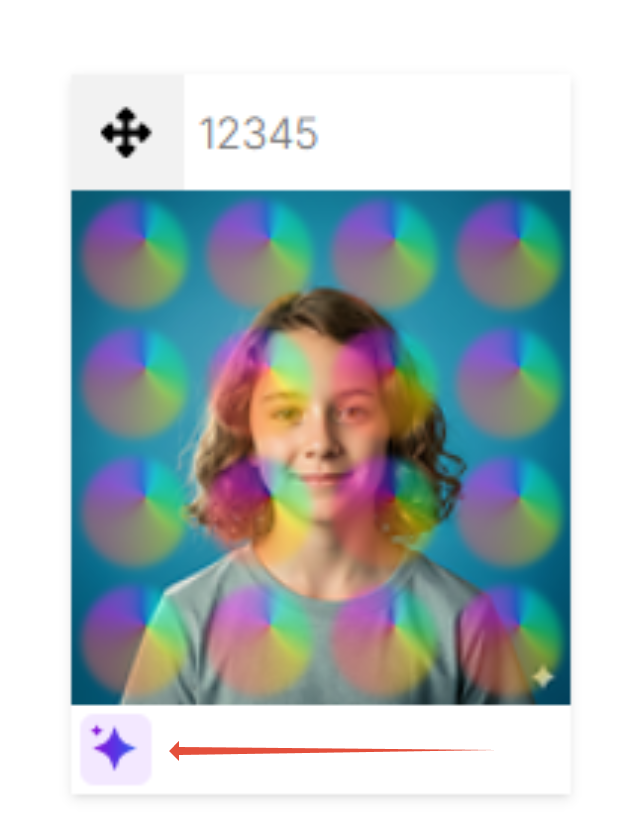
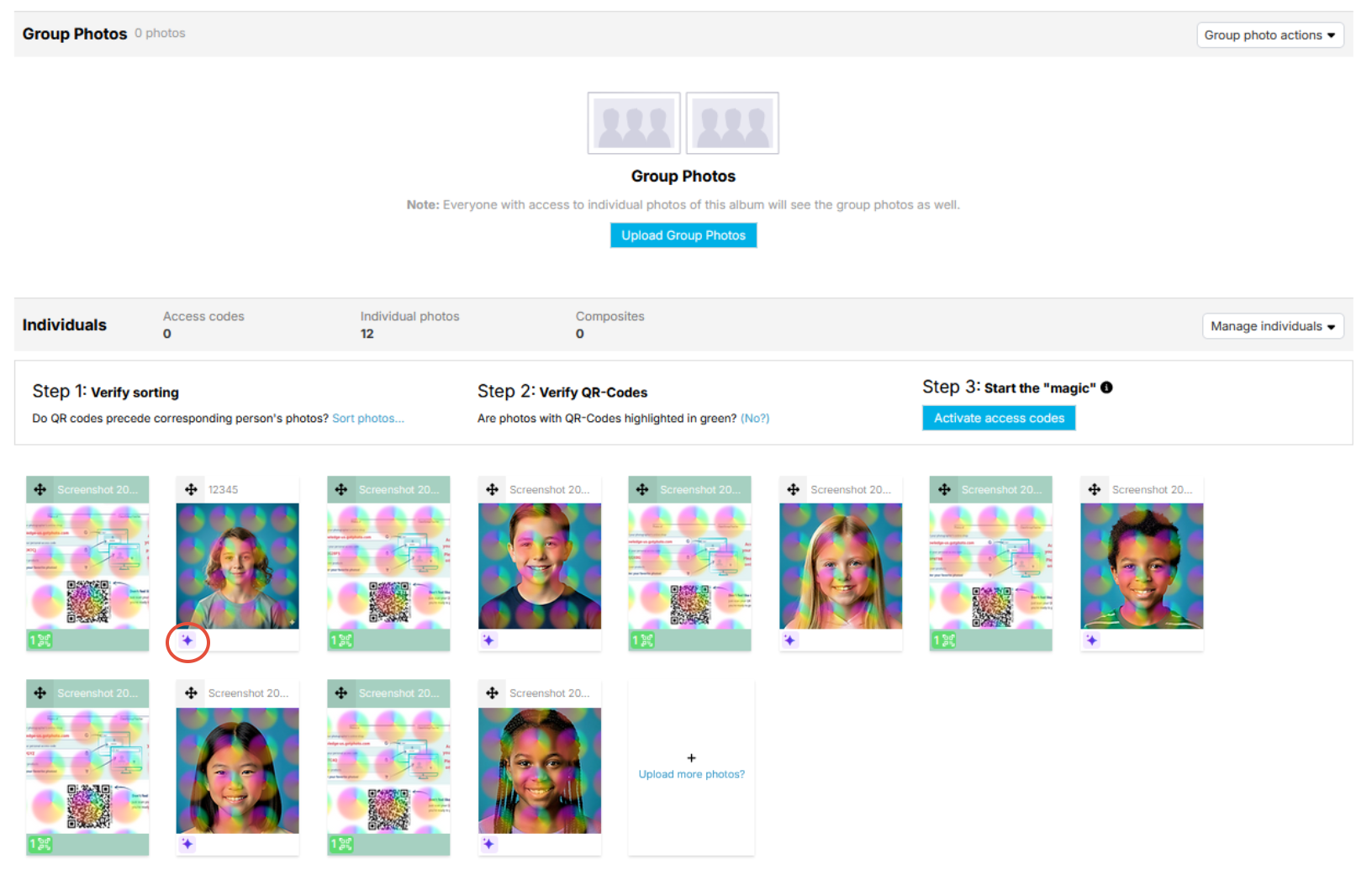
All processed images are marked with a purple sparkle icon. If not all photos show the icon, reload the page. Depending on the number of photos and services selected, processing can take a few minutes.
- If you used QR card tagging, you can now continue sorting your images, for example by filename, and ensure all QR card images are highlighted in green before activating the access codes. If you used Entagged, you're all set.
FAQs
What happens to photos that are culled - are they deleted?
No. Culled photos are hidden from the gallery, not deleted. Each hidden photo shows the reason it was flagged. You can review and unhide any photo individually with a single click at any time.
Can I choose which types of photos get culled?
Yes. When configuring the bundle, you can independently enable or disable culling for blurry photos, closed eyes, and underexposed photos.
Which crop preset should I choose?
Choose Tight for a closer portrait frame with less background, or Loose for wider framing that gives more flexibility for different print sizes. Both presets support the same crop ratios (2:3, 3:4, 4:5, 5:7).
Can I apply the bundle only to individual photos in a job?
Yes. Turn the bundle off in your Job Settings and save before uploading group or composite images. You can re-enable it for individual portrait uploads.
Can I use the bundle with Entagged or SpotMyPhotos?
Yes, it works with all tagging methods.
What if I want to upload more photos to the job later?
You can simply upload again. As long as the bundle is saved in your job settings, it will be applied automatically to any new uploads.
I previously used AI Photo Editing at Upload - what's changed?
The previous service offered skin-aware color correction at $0.02 per photo. The new Photo Editing at Upload bundle adds culling and cropping at the same introductory price of $0.02 per photo. If you still have the old setting active, you'll see a prompt in your job settings to disable it and switch to the new bundle.
Why does it say "Collecting" in my Photo Editing tab after the editing was done?
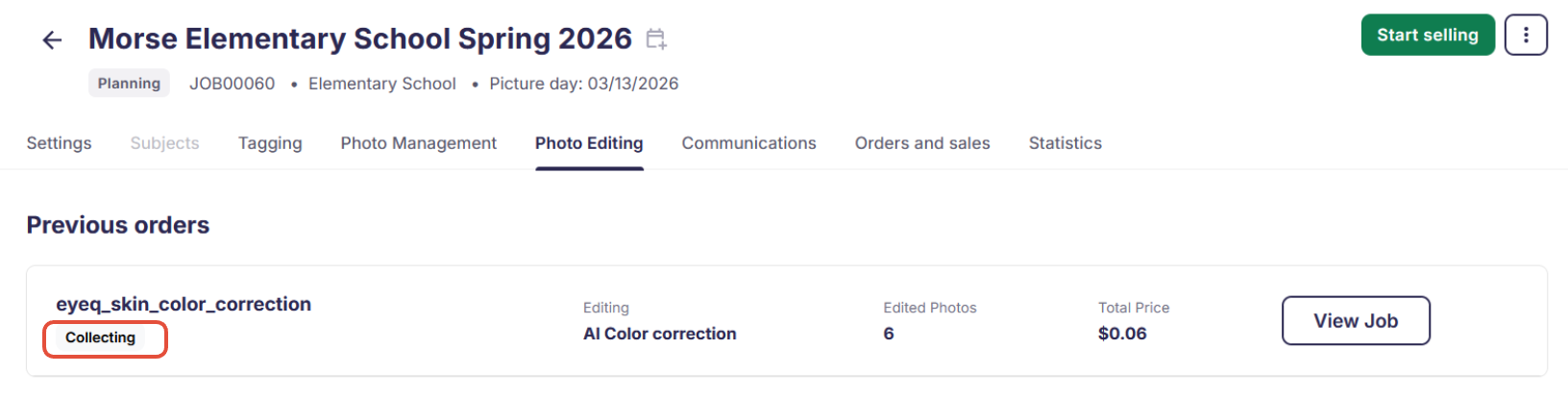
This is intentional. To avoid cluttering your Photo Editing tab, we keep the order "open" until you switch the job to selling, or for up to three days if no action is taken. After that, the order will be shown as "completed."

The takeaway
GotPhoto's Photo Editing at Upload bundle handles culling, cropping, and color correction automatically during photo upload - no separate tools needed. Enable it when creating a job or in your job settings, configure your preferences, upload your images, and let the system do the rest.
Related articles:
Offer the Professional Retouching add-on in GotPhoto