

TABLE OF CONTENTS
Overview
A public photo job in GotPhoto is accessible to anyone with the job’s public link. It was created for large events where participants have consented to being photographed and understand that their images may be publicly available.
Please note that the public access type is only available for jobs using the Legacy Shop, which will be retired soon.
New event workflow in the New Shop: Use the access type One Access Code
Once all your jobs have been migrated to the New Shop, use the One Access Code access type instead. It provides an additional layer of protection by requiring visitors to enter a shared access code before they can view the gallery. Although the code is the same for all participants, it helps prevent unauthorized access because the gallery is no longer accessible through a public link alone.
Can I share a link that allows customers to access all photos in a One Access Code job?
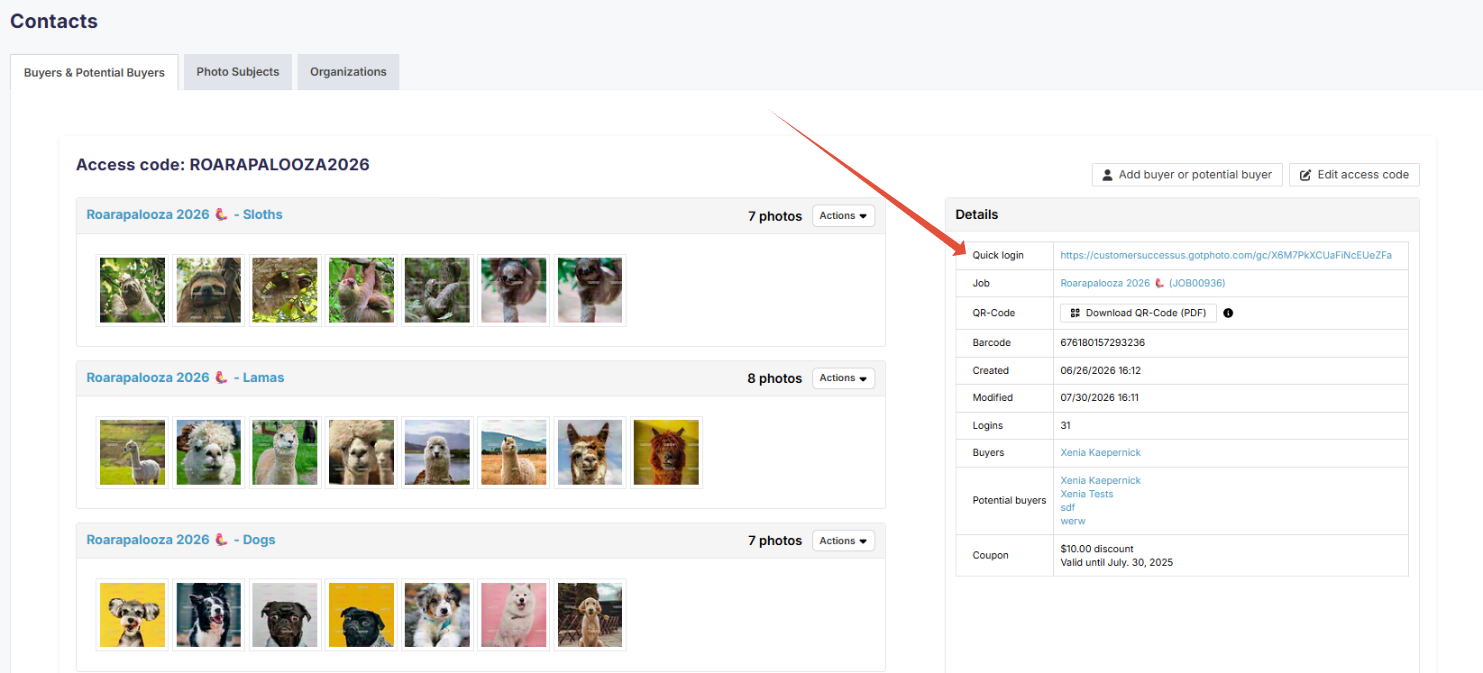
Yes. Use the search tool on your dashboard and enter the access code you created for the job. On the Access Code Overview page, copy the Quick Login link and share it directly with the organization or at the event. You can also download the QR code, which links to the same gallery. It is ideal for printing on flyers, posters, or event signage so attendees can quickly access the gallery by scanning the code.
Customers can also register at the event to be notified once the gallery is live.
How can I collect contact information from people I photographed at my event?
Enable the registration form in your Advanced Job Settings and configure it to appear after every login. Otherwise, it will only be shown to the first visitor who uses the job’s access code or Quick Login link.
The collected data is automatically linked to each visitor and can be used for automated campaigns and abandoned-cart reminders.
Legacy Shop Workflow
As of July 28, 2026 (US/CA) / August 3, 2026 (UK), creating new public jobs will no longer be possible. The steps below are kept for reference only.
Prepare Your Public Job
1. Create a new job.
2. Under Access Code Settings, select Public – No Access Code.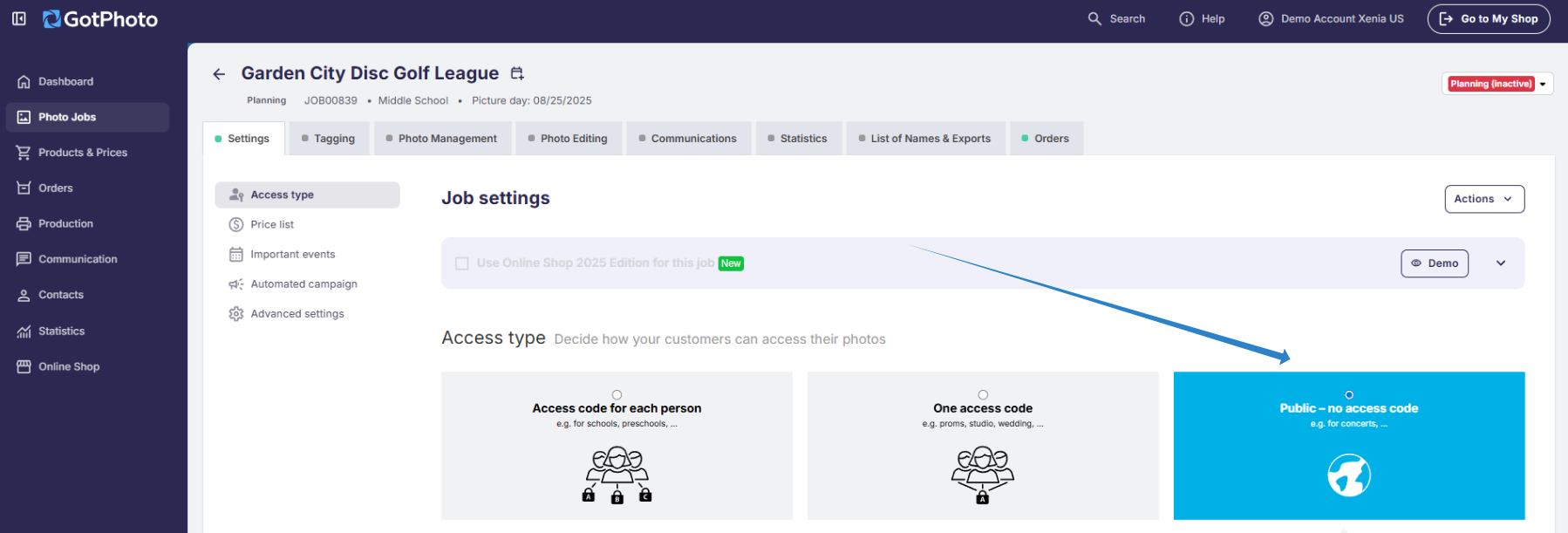
Next, select an existing web page from the drop-down menu or create a new web page for your online shop.
 Name the new web page after your event.
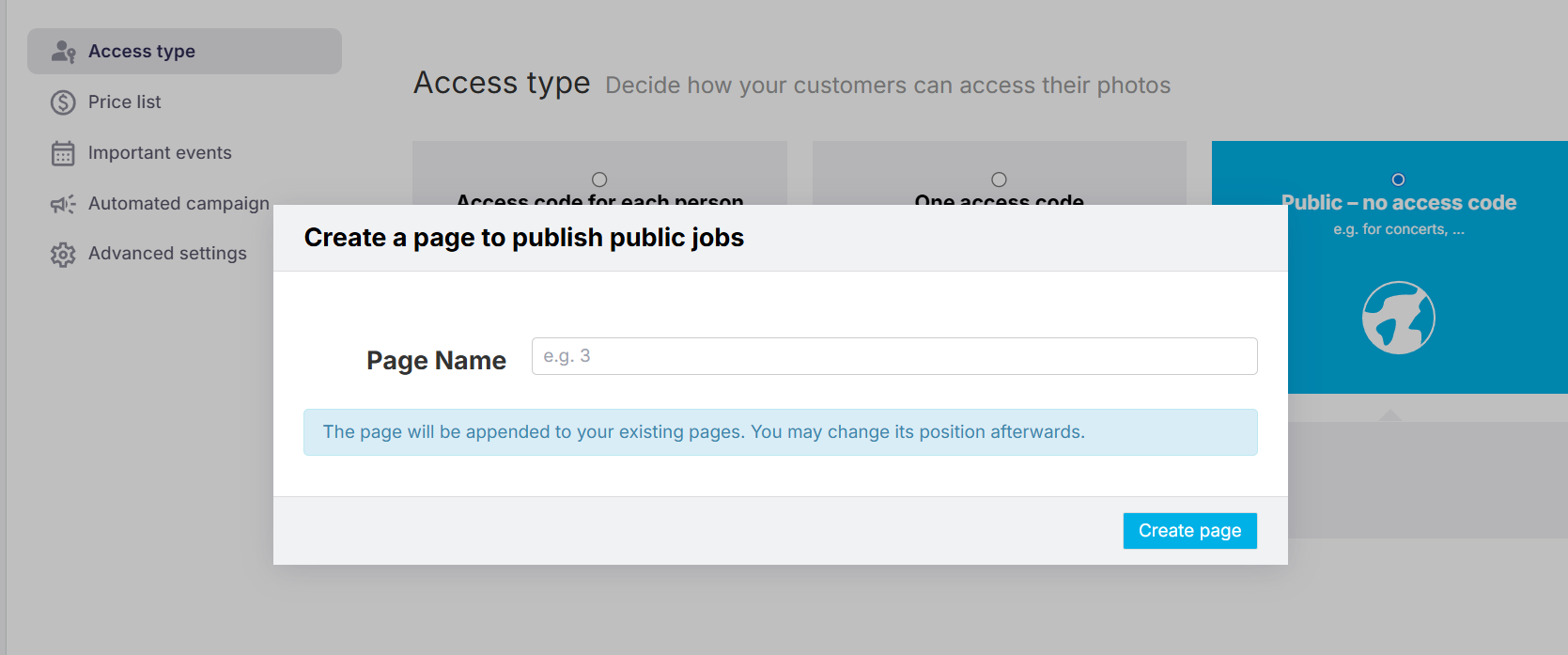
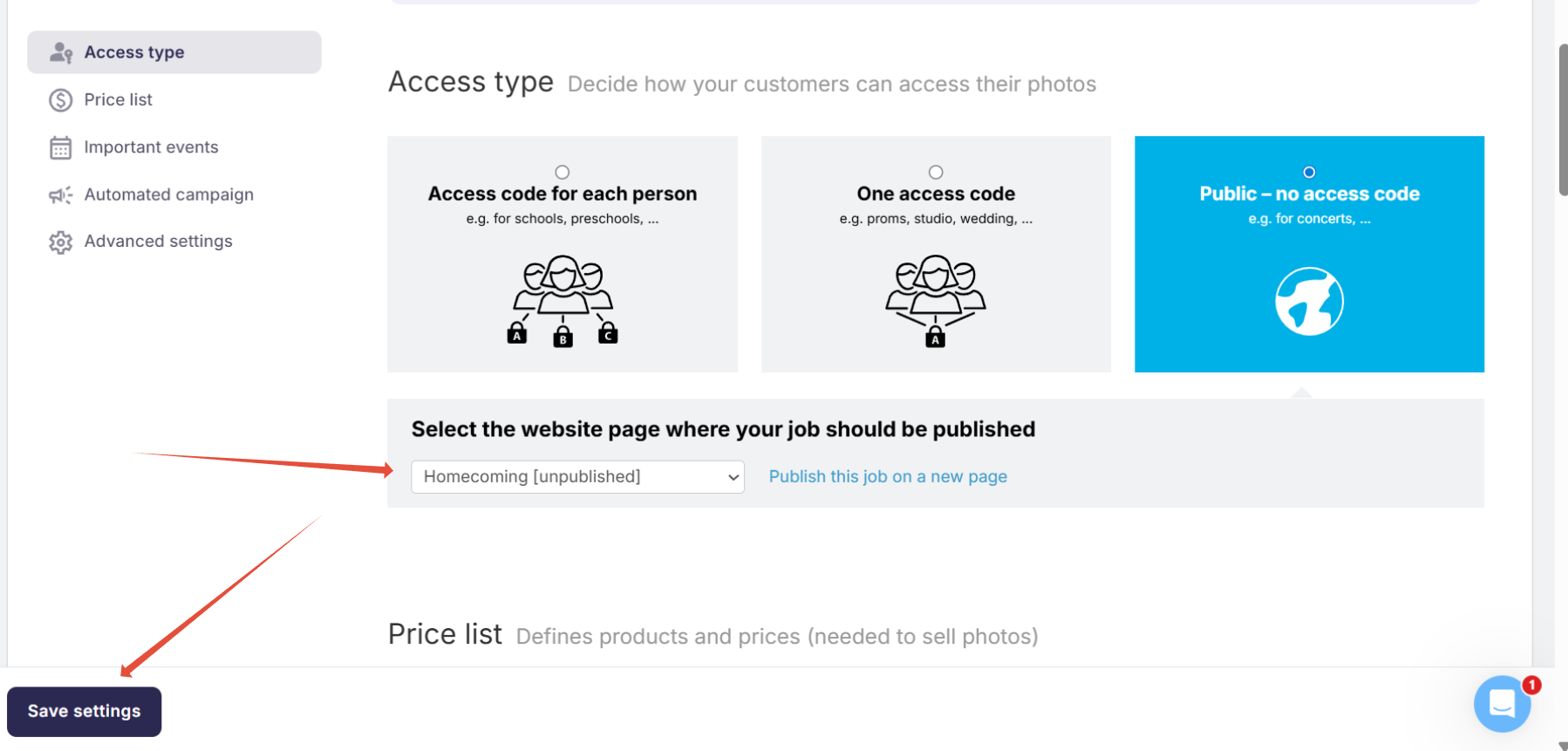
After creating the new page, select it from the Page Name drop-down menu and save the settings. The newly created web page will initially appear as unpublished.
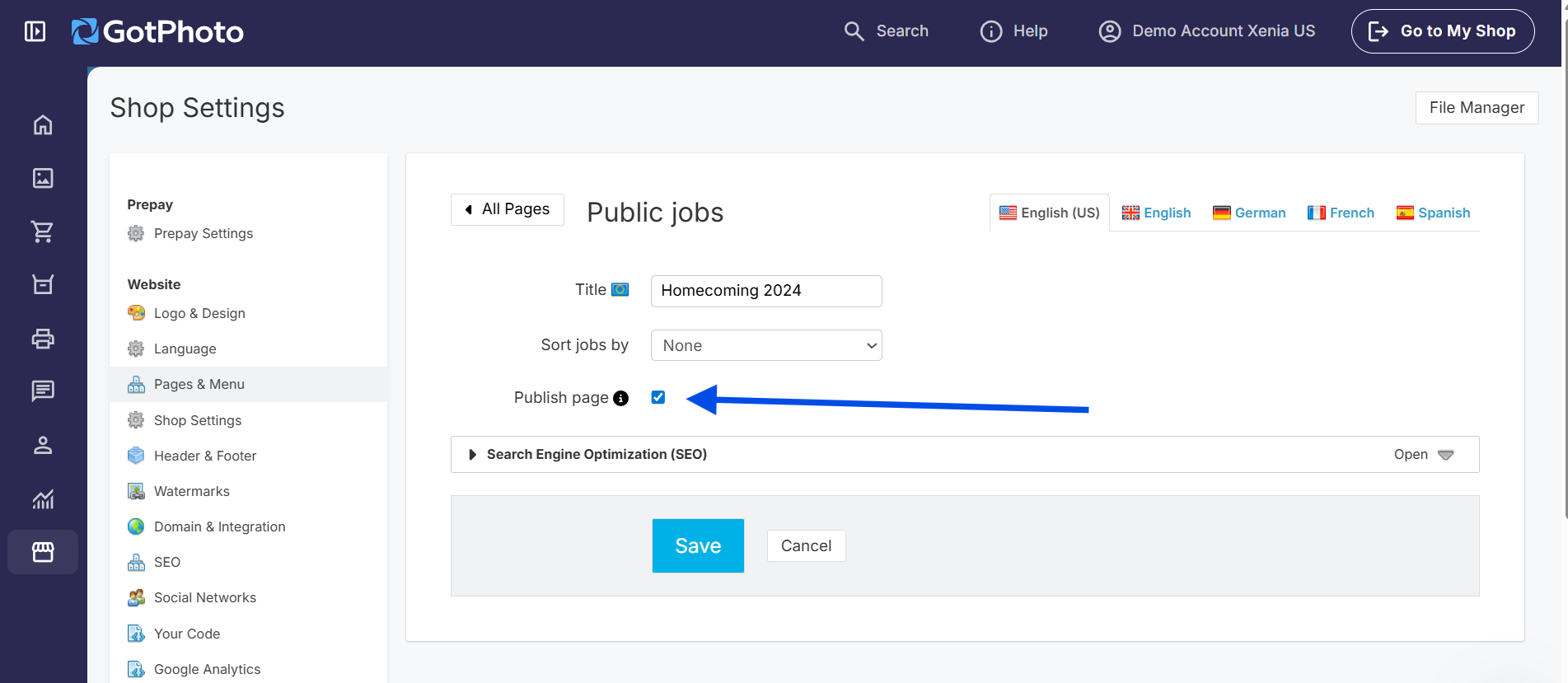
To publish the job, open the web page settings:
- Navigate to Online Shop > Pages & Menu.
- Locate your public job’s page and click Edit next to it.

- Enable the Publish Page option by selecting the checkbox.
⚠ Note: Your public jobs page can display a maximum of 20 jobs. If you need to display more jobs, create another page or archive jobs you no longer need to make space for newer jobs.
3. Add your Price List to the job.
- Public jobs do not have access codes. This means packages restricted to a single access code will not be visible in the shop and may cause customer-facing issues. Only offer unrestricted packages.
- The Download All Photos package is not available for public jobs because it is restricted to a single access code by default. As an alternative, offer individual downloads or create packages containing a specific number of individual downloads.
- Upselling download options marked as Available for selected code are not supported.
4. Configure Coupon Settings
Job coupons are not supported for public jobs. As an alternative, you can create a customer voucher. Make sure the voucher is not restricted to one use; otherwise, only the first customer will be able to redeem it.
5. Configure your Shipping and Archiving Settings.
6. Automated Campaigns: Automated campaigns are not supported for public jobs because automated notifications require access codes. Customers will only receive system-generated communications directly related to their orders.
Because potential customers can access a public job without a login barrier, registration forms are not supported. If you want to collect information from all shop visitors, consider using the One Access Code access type instead.
Picture Day
You do not need to apply a tagging method. Take your individual and group photos, then upload them to GotPhoto.
Did you take too many photos? To save time and avoid manual culling, use our integrated culling service, which is available from your job’s editing tab.
To make it easier for customers to find their event photos, organize uploads into separate albums based on timestamps and event segments. For example, for a graduation ceremony, you could create the following albums:
- Pre-Ceremony Moments: Candid photos of graduates arriving, adjusting their caps, and taking group photos.
- Speeches & Awards: Keynote speeches, diploma presentations, and special recognitions.
- Stage Walks: Individual photos of graduates receiving their diplomas.
- Celebration & Recessional: Group celebrations, family hugs, and post-ceremony moments.
To add more information to the shop, use the job description in Advanced Job Settings or the album description in Album Settings. This allows you to provide customers with useful details while they browse your event photos.
Pro Tip: Preview Picture
By default, the shop displays a preview picture for the public job and automatically selects the first individual photo. You can override this selection by choosing a different cover image.

Once everything is ready, change your job’s status to Selling.
Shop View
By default, your latest public job appears as the last tab in your shop. You can change the display order of your public jobs at any time by navigating to Online Shop > Pages & Menu > Manage Pages & Menu. You can also unpublish jobs that you no longer want to display in the shop.
1. In the shop, customers click the relevant job name.
2. Customers click the job’s preview image to view all photos. The first example below shows a public job with one album. The second shows a job with multiple albums, which is recommended for larger events because it improves the customer experience.


Customers can then add photos to their wishlist and order products later, or immediately add à la carte products or a package to their cart.

The Takeaway
Public jobs are only available in the Legacy Shop, which will be retired soon. After migrating to the New Shop, use the One Access Code access type and share the Quick Login link or QR code with customers for easy access.