
Table of contents
- Overview
- Fixing "stuck" images (unassigned or unsorted photos)
- Fixing 'duplicated' images
- Correcting images for subjects who connected to the incorrect access code or subjects who connected to the wrong barcode
- FAQs
- The takeaway
Overview
Images can become "stuck" at the top of an album for several reasons, such as missing subject data, uploading to already activated galleries, or incorrect barcode tagging. This guide provides step-by-step instructions to clear these duplicates and ensure your photos sort and activate correctly.
Fixing "stuck" images (unassigned or unsorted photos)
Stuck images are photos that appear at the top of your album, sitting between your group photos and your individual galleries. They haven't moved into a subject's gallery because the system is "confused" by their data. 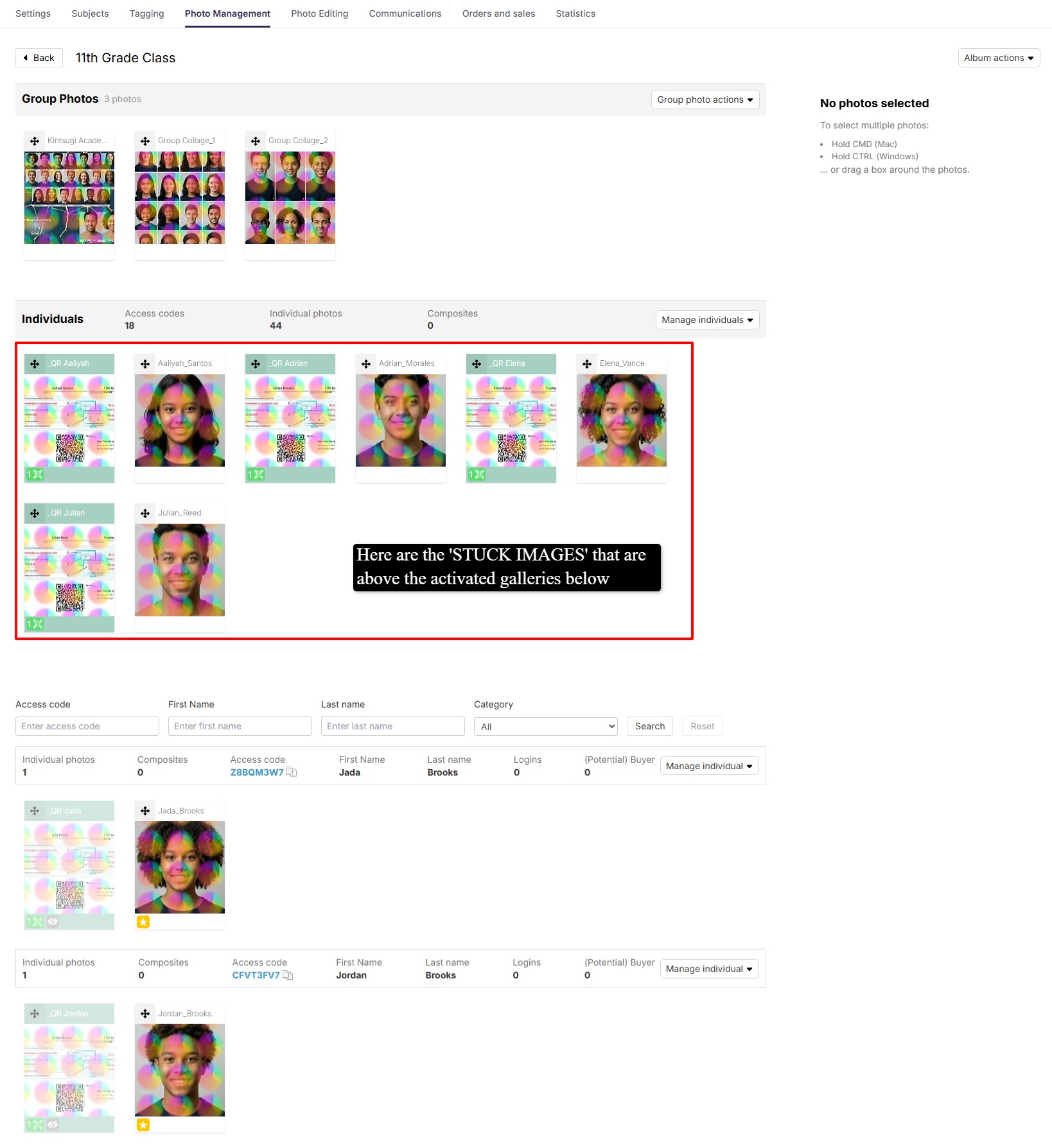
Common reasons this happens:
- Images fail to sort into galleries and remain at the top of an album for two main reasons: missing data or locked albums.
- Missing Data: The images were uploaded without a QR card, an access code, or a barcode attached ( Barcode is if you are using our Entagged workflow). Without this data, the system doesn't know which subject the photos belong to.
- Locked Albums: The destination album already contains activated galleries. To protect your data, the system will not auto-sort new uploads within an album that is already activated.
- The Golden Rule: If an album is already activated, you cannot upload more images to it and expect them to sort automatically. You must either upload them directly into a specific subject's gallery or use a separate empty album and activate them there first.
Follow these steps to resolve the issue:
- Navigate to Photo Management and create a new, empty album.
- Use the Move Photo tool to move all stuck images to this new empty album.
- If you used QR cards, please upload them with these images.
- If you did not use QR Cards, manually tag these images by assigning a random access code by manually tagging only the first photo of each subject, or generate blank QR cards to upload with these images. Any photos that follow it will automatically be grouped with that person until the next code on the next subject's first image.
- If you have a large group of images that you need to fix manually with random codes, use our bulk tagging method mentioned in our Manually tag photos and activate access codes without QR cards article
- Activate the images with the correct individual access codes.
- [Optional] Use the Move Photo to method to transfer the successfully activated images back to your original desired album.
Fixing 'duplicated' images
Duplicated Images are photos that appear more than once in your album. The images can be found in another subject's gallery or in the same space as the stuck images. If you select an image, it will select a duplicated image and delete it, it will affect the other image as well.
If you did the sibling or buddy images workflow, this is not the same as duplicated images, as similar images are expected in that workflow.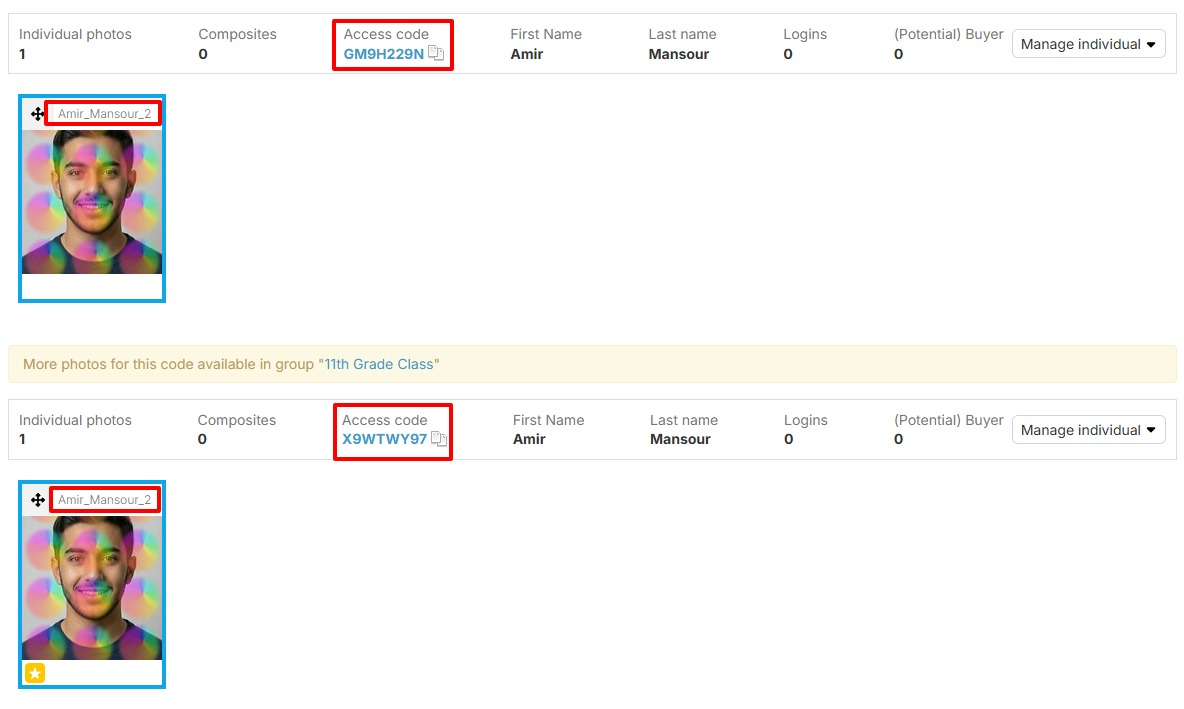
Common reasons for duplicated images:
- You reuploaded the same images into your album, but the images contain different barcode data (Entagged users).
- You used QR cards, reuploaded images in another album, activated the codes, and resorted the images.
- You used EasyUpload, loaded images into the job, but not the desired album.
- Your workflow uses multiple cameras, which can result in some images having the same filename
How to safely remove duplicated images from your album
- Create an empty album
- Locate the duplicate images that are either stuck at the top of the album or located in a subject's gallery
- Use the Move Photo to tool to move the images to the empty album
- Once you have confirmed that all the images that are duplicated are in the newly created album, you can delete that new album.
- After deleting the album, navigate to your Photo Jobs list and click the Trash icon (next to the "Create a Job" button) to purge deleted data and prevent it from being pulled back into the system.
Correcting images for subjects who connected to the incorrect access code or subjects who connected to the wrong barcode
This method applies if you accidentally tagged more than one subject to the same access code via QR Card, Manual Tagging, or Barcode Data (Entagged).
- QR Cards or Manual Tagging: The following steps apply if you have tagged multiple subjects to an incorrect Access code or, if you used a QR Card/Access code that was created in a different job. To resolve this issue, follow these steps:
- Create a new, empty album within Photo Management.
- Use the Move Photo tool to move all incorrect images and their connected subject galleries to this new empty album.
- Use the revert access code activation method.
- Begin manually tagging the first image for that subject's set of images with the correct access code, or, if you are using QR cards, ensure it is the correct QR card that is in front of your subject's set of images
- Activate the images and allow them to sort into galleries in that new album
- Move the photos to your primary album if desired, once the activation is confirmed.
- Incorrect Barcode Data (Entagged User): This method applies when the image has incorrect barcode data attached to the photo file. This can occur if you have forgotten to clear the last barcode from your camera or Entagged app at the end of your photoshoot. Please follow the directions in our My images aren't activating properly article to resolve the issue if your images are connecting to a barcode that is the wrong subject or if the barcode is coming from a different photo job. It's crucial not to revert the access code activation if your tagging method was Entagged, SpotMyphotos, or Metadata tagging.
FAQs
Is deleting the Entagged images necessary to correct metadata?
Yes. To ensure data integrity and proper sorting (especially for automated processes like Entagged), metadata should be corrected on the local file and re-uploaded to a clean environment.
Will moving photos delete the original gallery?
No, using the "Move Photo to" method transfers the image and its association to the new destination without deleting the underlying subject data unless you manually delete the album.
The takeaway
The most effective way to resolve stuck or duplicate images is to isolate them in a new album, correct the metadata at the source (your local drive), and re-upload them. Always remember to clear your "Trash" after deleting an album when dealing with cross-job barcode errors to ensure the system recognizes the updated data.