
Table of contents
- Overview
- Method 1: Bulk spreadsheet correction
- Method 2: QR regeneration and manual cleanup
- FAQs
- The takeaway
Overview
In GotPhoto, you may occasionally find cases where a student has multiple access codes or barcodes assigned to their name. This usually occurs if you made changes to your names list by uploading a new spreadsheet or use the link access code method in photo management with a random access code. Depending on your preference, you can fix this by either manipulating a data export or using the system's internal tagging and album tools.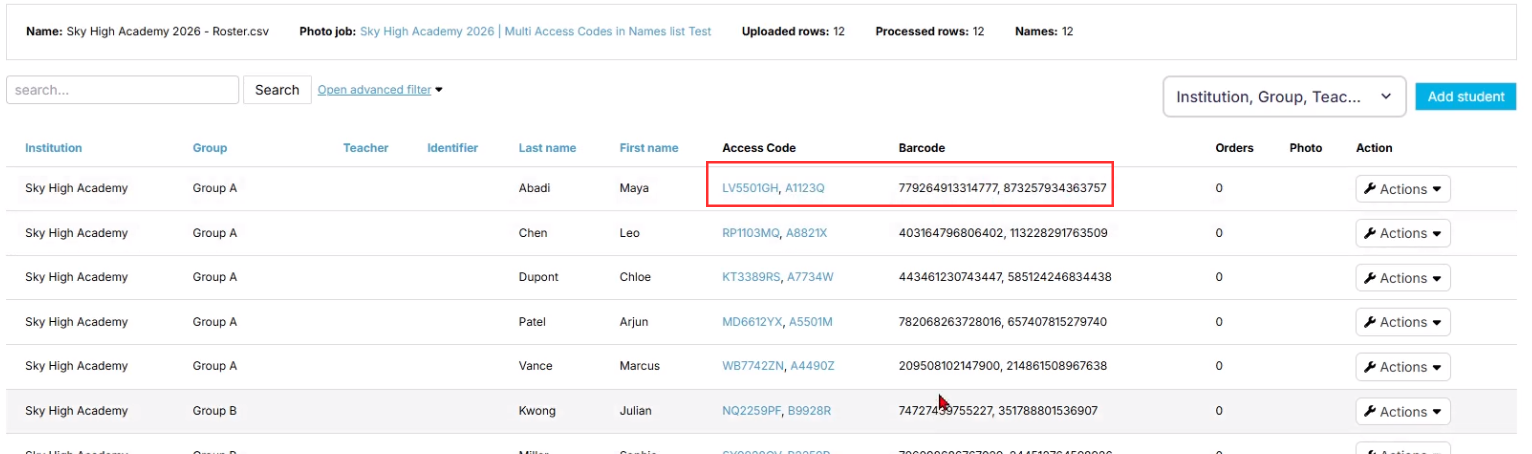
Method 1: Bulk spreadsheet correction
[Advanced] Use this method if you prefer working in Excel or Google Sheets to handle large volumes of data at once.
- Navigate to the Subjects sub-tab within your Photo Job and select the Export button to download your current list.
- Open the file and identify students with secondary codes in the "Access Code 2" column.
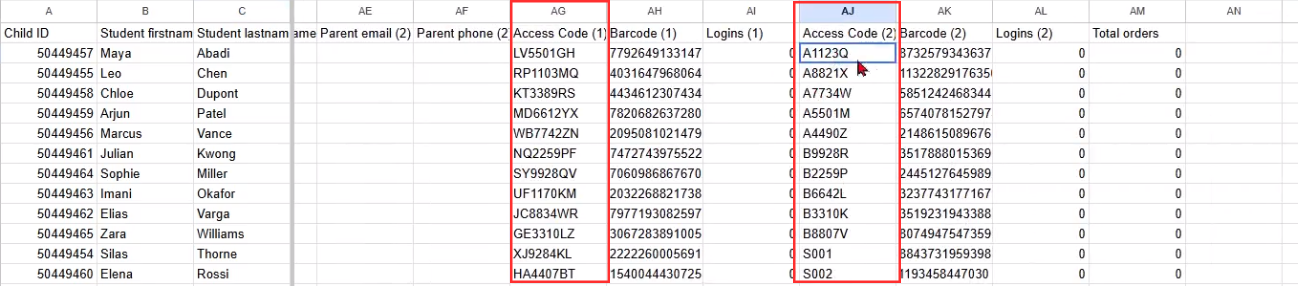
- Create a new row of spares under your first name column for the total number of subjects that need to be fixed. Locate the incorrect codes in the "Access Code 2" column and cut them. Paste and place these secondary codes into the "Access Code (1)" column for the spare names that you have created. Apply the same process for the entries in the Barcode (2) columns and move them to the Barcode (1) column.
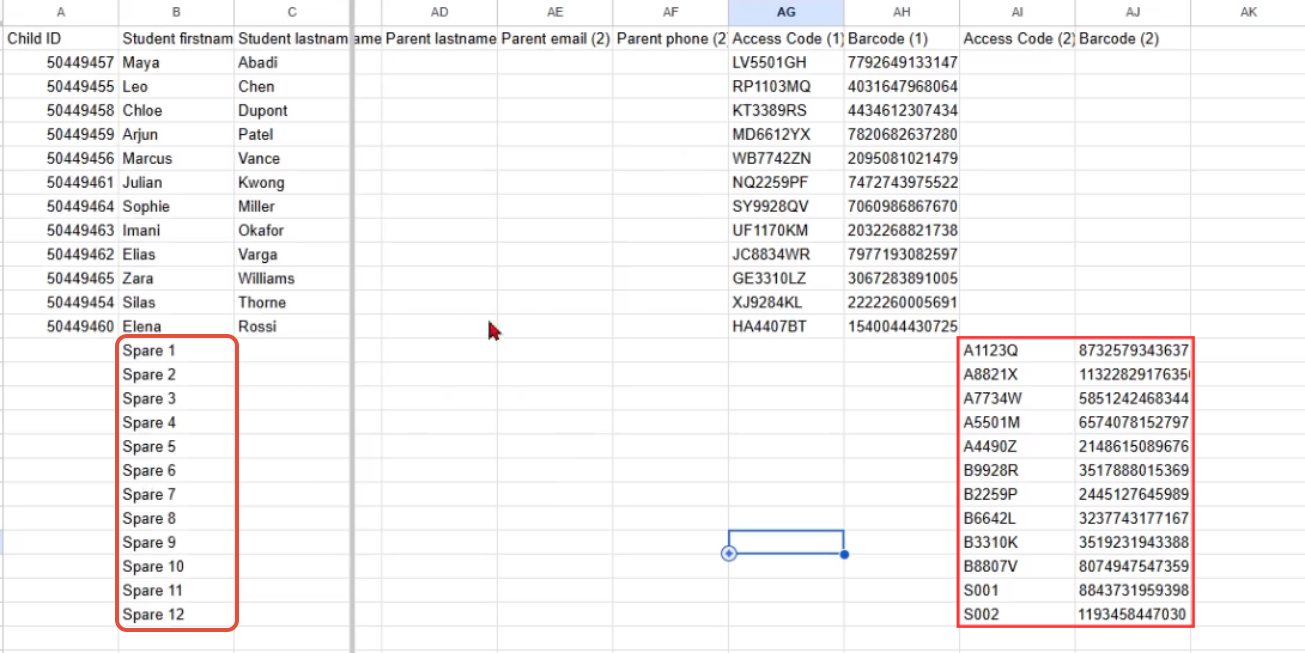
- Save the file with a new name and use the Update List button to upload the corrected data.
- You will see a Confirm Column page where you just need to make sure the access code dropdown has Access Code (1) or Access Code (2) listed.
- You will now be met with a Review Data page. It will state that there are codes already in use; this is normal. Verify that the system now shows individual entries for each unique code by reviewing this data. Your subjects should now show one access code, and you should have new entries for your spares with their own access codes.
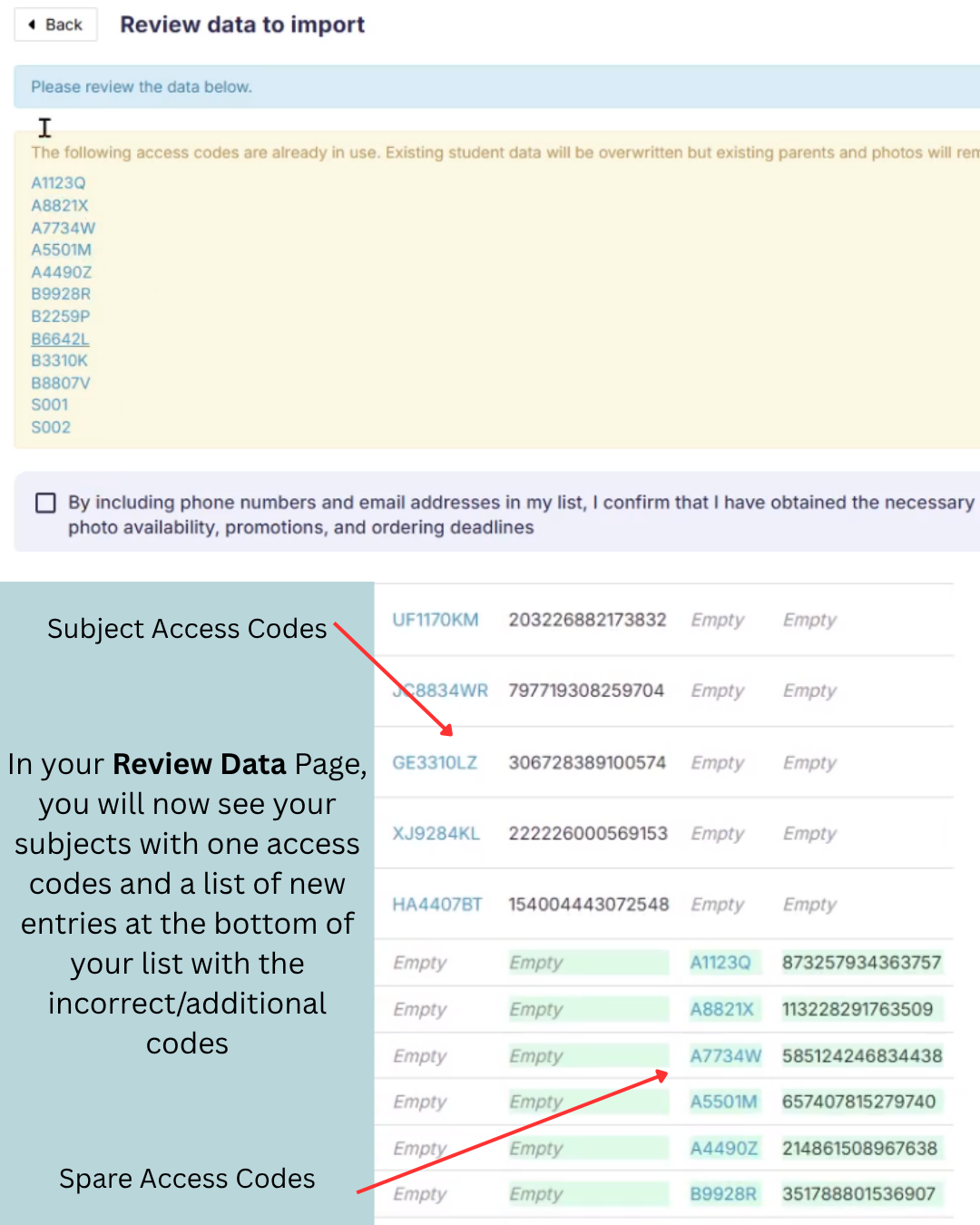
- Click Start Import. Your names list should now have the access codes properly separated, and you can delete the additional codes if desired.
- [Advanced]: If you want to mass delete or remove the additional codes from this job in one go. You can do the following:
- Export your spreadsheet from the job. Select Export to download your current list
- Delete all subjects EXCEPT the spares with the additional codes
- Ensure you are ONLY removing the subjects connected to your main job and that your access codes are properly separated from your main's job subjects
- Save the spreadsheet under a new name. Then, create a new job and upload the NEW spreadsheet
- After you have finished uploading your spreadsheet, the spares and additional codes will be removed from the original job.
- [Advanced]: If you want to mass delete or remove the additional codes from this job in one go. You can do the following:
Method 2: QR regeneration and manual cleanup
If you prefer to resolve the issue within the GotPhoto portal using the tagging system, follow these steps to regenerate and isolate the codes.
- Navigate to the Tagging tab within your Photo Job.
- If cards were already generated, delete them to start fresh. This step does not remove your access codes.
- Select Create QR cards to regenerate the cards.
- You will need to specifically isolate the incorrect access codes. Capture the incorrect QR codes by either taking a physical photo of the cards or using a PDF to JPG generator to convert the digital file.
- Create a new, temporary album in the Photo Management area.
- Upload the JPG versions of the QR codes into this new album and activate the galleries.
- Once the galleries are active, click the Manage individuals dropdown and click Delete access code. This is a manual way to delete the incorrect access codes one by one to clean up the student records if you feel unsure about the spreadsheet method.
When using this method, make sure any available customer contact details linked to the access code you're deleting are also added to the remaining access code if they aren't already associated with it.
FAQs
When should I choose the QR card method over the spreadsheet method? The QR card method is helpful if you want to visually verify the codes in a new album or if you are already in the middle of a tagging workflow.
Will deleting a QR card delete the student? No, deleting a QR card only removes the generated tag; the student record remains in your names list.
Do I have to delete the extra codes one by one? Currently, manual deletion is the only way to remove the extra codes to ensure you are removing only the redundant codes without affecting the primary student data. If you feel unsure about using the mass removal method.
The takeaway
Correcting multiple access codes ensures that students and parents can find their photos without confusion. Method 1 is best for high-volume jobs where data accuracy is the priority, while Method 2 is a useful alternative if you want to use the system’s native tagging logic to "break" the codes apart and verify them visually in an album.