
Table of contents
- Overview
- Option 1: Delete the potential buyer from the subjects gallery
- Option 2: Delete the access code from the customers page
- Link the correct potential buyer to the access code
- FAQ
- The takeaway
Overview
If a potential buyer has been linked to the wrong access code, you can manually unlink them and connect their details to the correct subject. This ensures that buyers only see the photos they should have access to.
Option 1: Delete the potential buyer from the subjects gallery
Follow these steps to remove a buyer from the incorrect access code from the subjects gallery:
- 1Navigate to the correct subject in Photo Management.
- 2Click on the number under Potential Buyer.

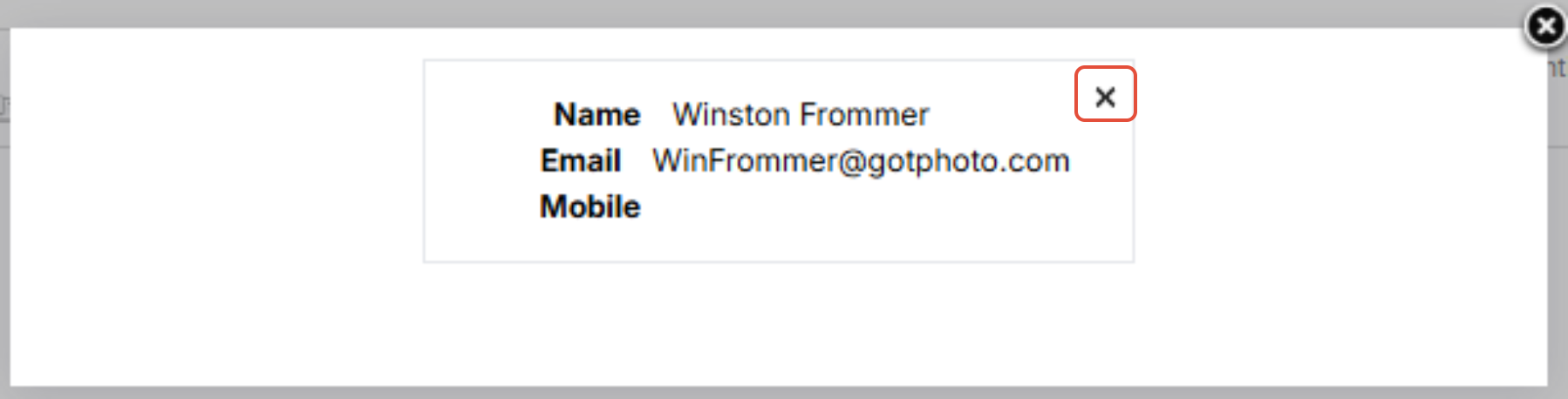
- 3In the pop-up window, click on X next to customer's name to remove them as a potential buyer.
Option 2: Delete the access code from the customers page
Follow these steps to delete access code from the customers page:
- 1Save the customer’s details (name, email, phone number) outside GotPhoto. You will need this information to reassign them to the correct access code.
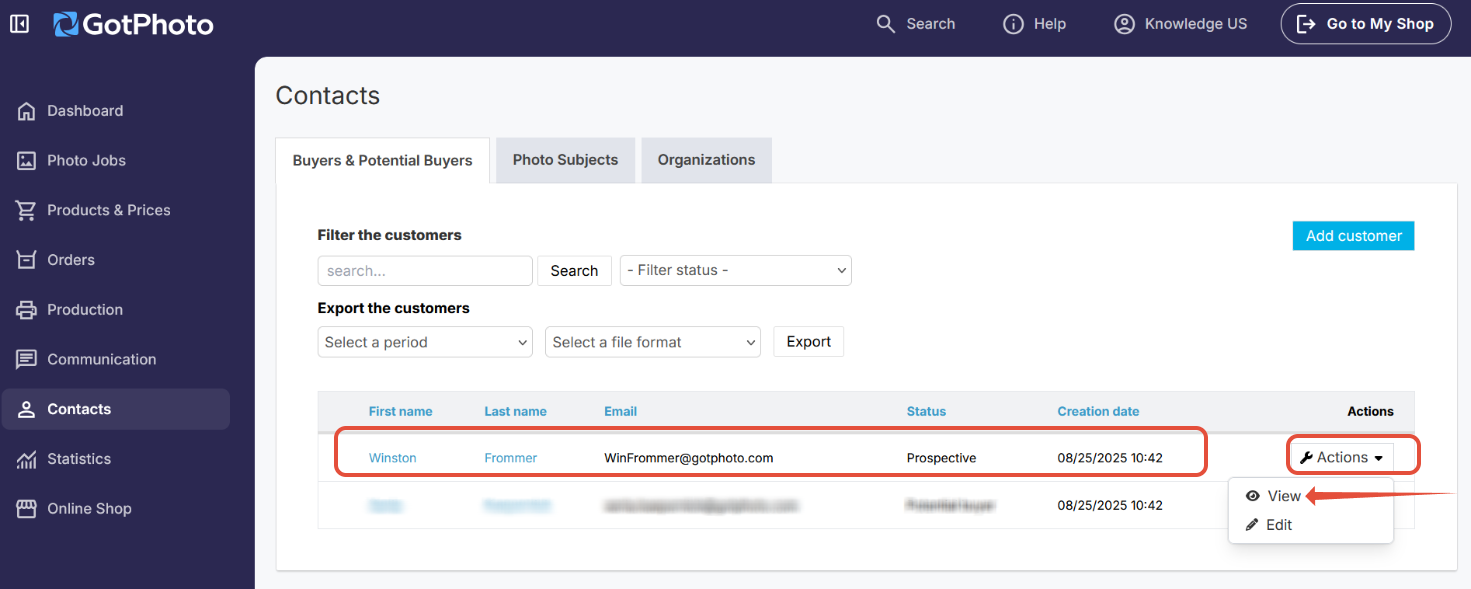
- 2Go to the Buyers & Potential Buyers tab in the Customers page. Find the potential buyer and select View from the Actions dropdown.
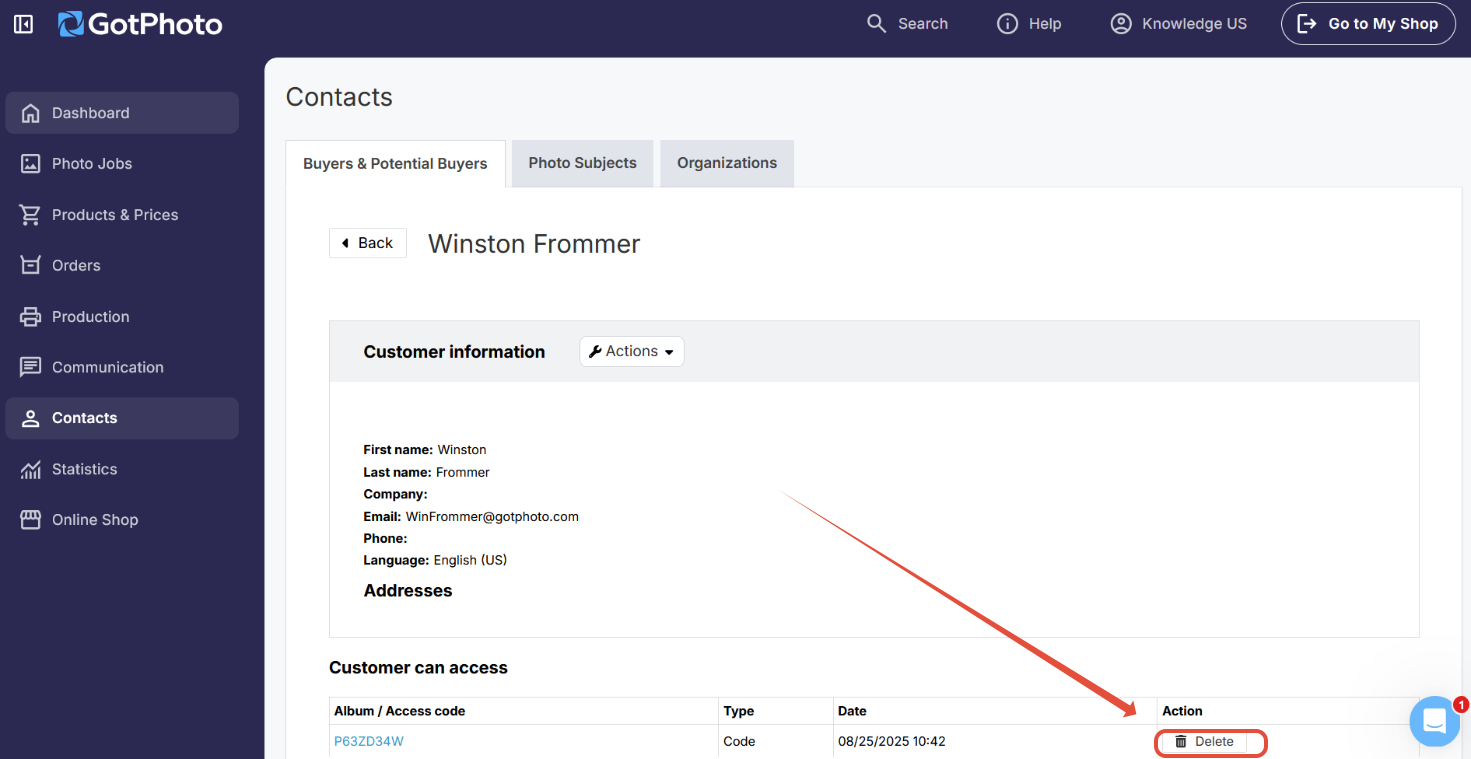
- 3On the buyer details page, locate the incorrect access code and click Delete under the Action column.
Link the correct potential buyer to the access code
Follow these steps to manually link the correct potential buyer to the access code:
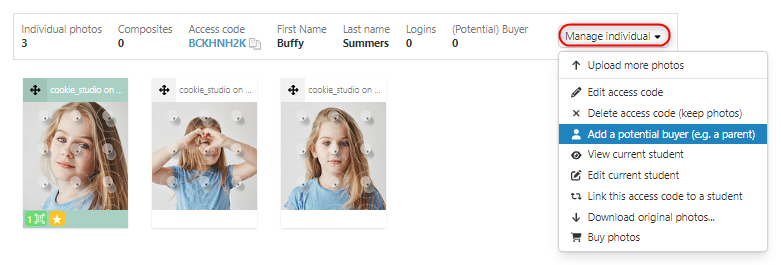
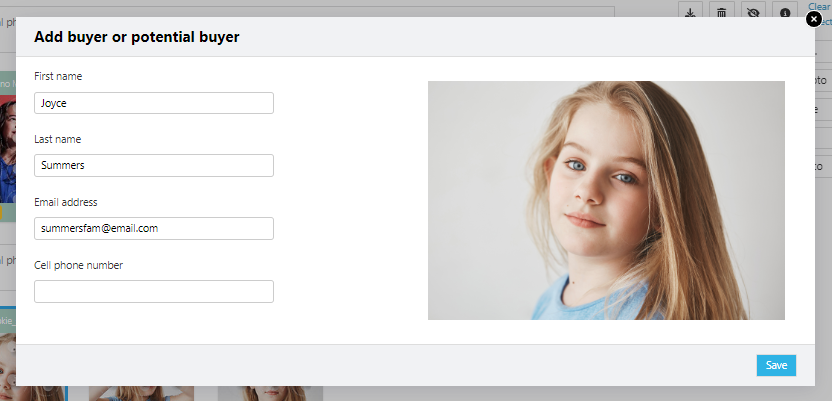
- 1Navigate to the correct subject. From the Manage Individual dropdown, select Add a potential buyer. Enter the customer details you saved earlier and click Save.
- 2[Optional]If a parent has already accessed the shop and reports seeing images of the wrong child, ask them to:
- Sign out of the shop
- Delete cookies
- Sign back in again
FAQ
Can I bulk update potential buyer information by updating the names list?
No. If you export the names list and reupload it using the Update list feature, it will add additional potential buyers to the access code rather than updating or replacing existing ones.
nal potential buyers to the access code rather than updating or replacing existing ones.
The takeaway
If a potential buyer is linked to the wrong access code, you must delete the incorrect link and reassign their details to the correct subject. Always confirm with the customer that they can now access the correct images, and advise them to clear cookies if issues persist.