
Table of contents
- Overview
- Find the Statistics page
- Monthly Statistics
- Job Statistics
- Product Statistics
- Sales Tax Reporting
This article reviews the Statistics page, which provides statistics for your overall account.
If you are looking for information about statistics for specific jobs, click here.
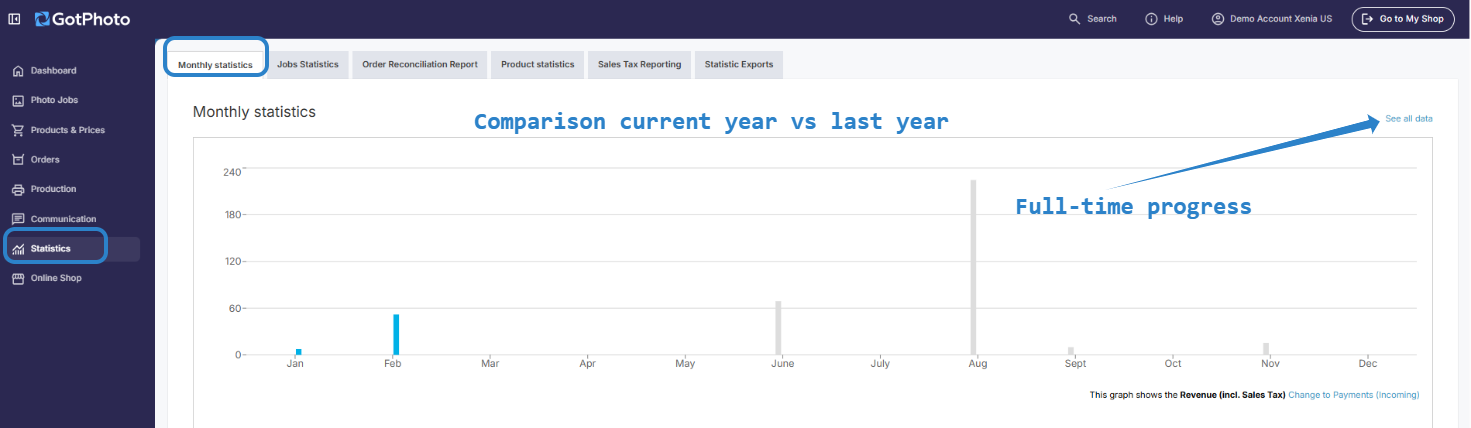
The Account Statistics page can be found by clicking on Statistics in the navigation toolbar.
Within the page, there are multiple tabs you can look through:
- 1Monthly Statistics: Toggle between Payments and Revenue to get a month-by-month overview of incoming payments and revenue (including sales tax and fees).
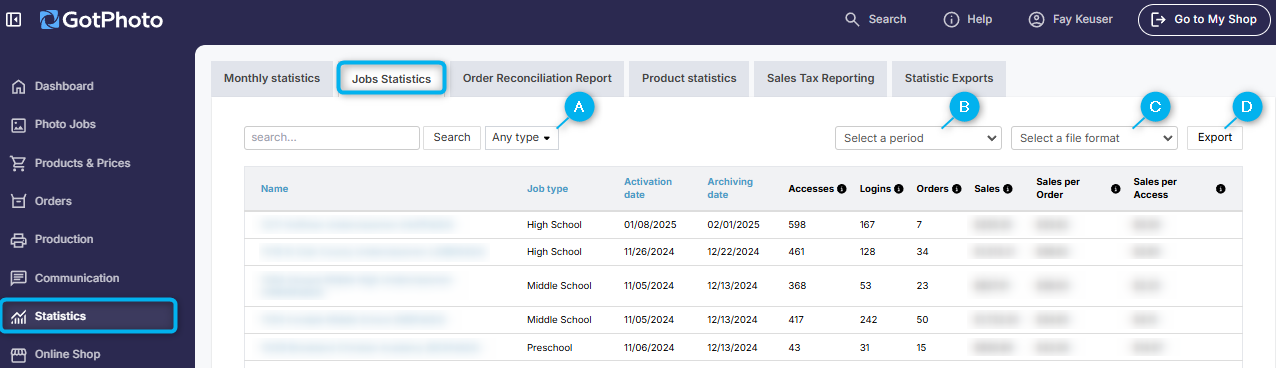
- 2Job Statistics: Compare job performance (logins, orders, sales, and sales per order) cumulatively or within a job type.
- Filter by job type (school, sports, etc.)
- Select a year
- Select a file format - CSV or XLS
- Export
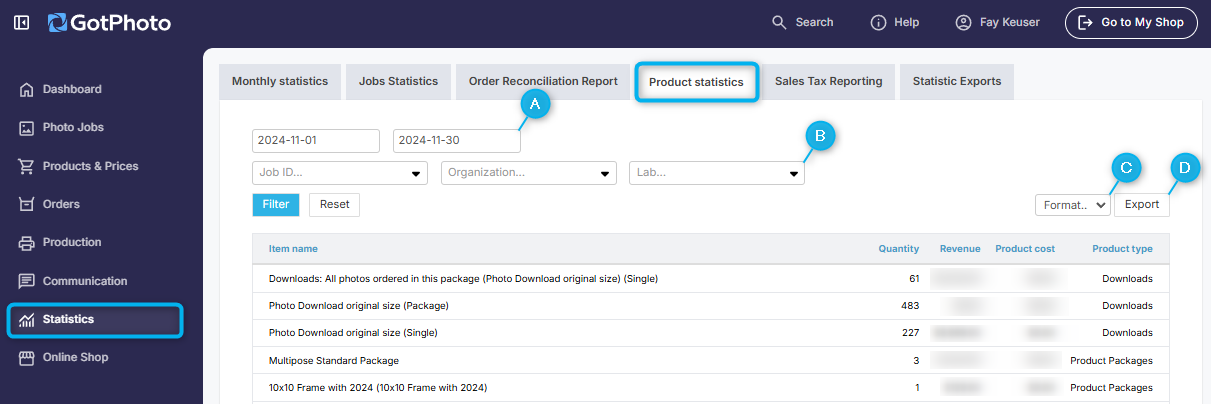
- 3Product Statistics: Understand which products are selling and generating the most revenue for a job, organization, or lab
- Select a date range
- Filter for a job, organization, lab - or all three.
- Select a file format - CSV or XLS
- Export
- 4Sales Tax Reporting: Get a complete breakdown of the sales tax your customers paid to your GotPhoto account.
- Select a date range
- Select a file format - CSV or XLS
- Export
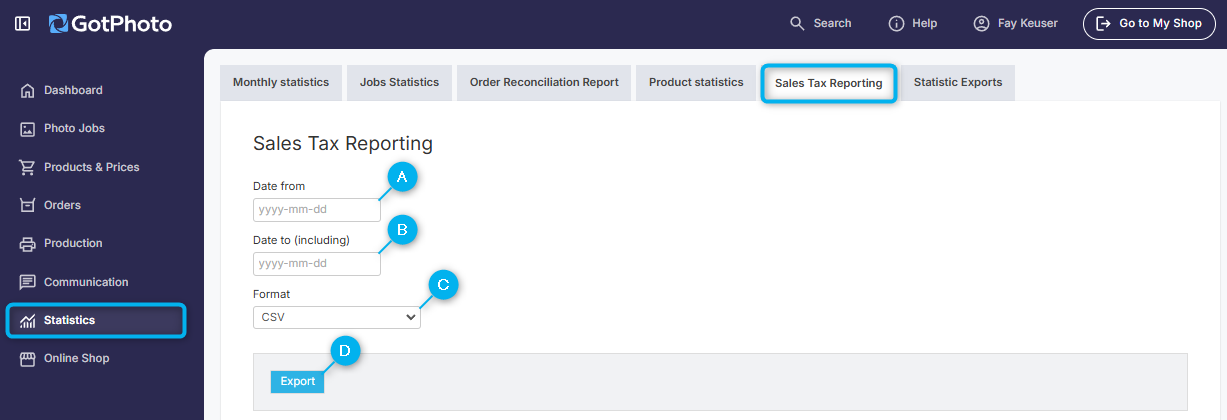 The completed export will show up at the bottom of the screen, under Generated report, or the Statistic Exports tab to the right.