
Table of contents
Overview
Seeing how things look from a customer’s perspective is essential before moving your photo job into the sales phase. This article walks you through two ways to test your price list:
- Use a demo job for a quick and simple preview
- Use your actual job for a more hands-on test
Each method is outlined step-by-step to help you confirm your setup before going live.
Test using a demo job (easy mode)
This method uses the "Demo Preschool" job in your GotPhoto account. While the images won’t be from your current job, the shop and price list will reflect your setup.
- Open the "Demo Preschool" job in your account.
- Assign your price list to the job via the Photo Job main settings page. Be sure to click Save Settings.
- Set the demo job to Selling.
- Open your shop:
- Click the Go to My Shop dropdown in the top-right corner.
- Select Shop as photographer.
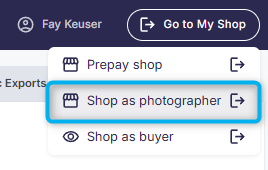
- Review your shop to confirm the price list, product names, and pricing appear correctly.
Test using your actual job (expert mode)
[Advanced] This method allows you to preview the price list in your real job. Be cautious- skipping any step could result in sending premature or missed customer notifications.
- On your Photo Job's Main Settings page, set the automated campaign to "No marketing emails/SMS..." and click Save Settings.
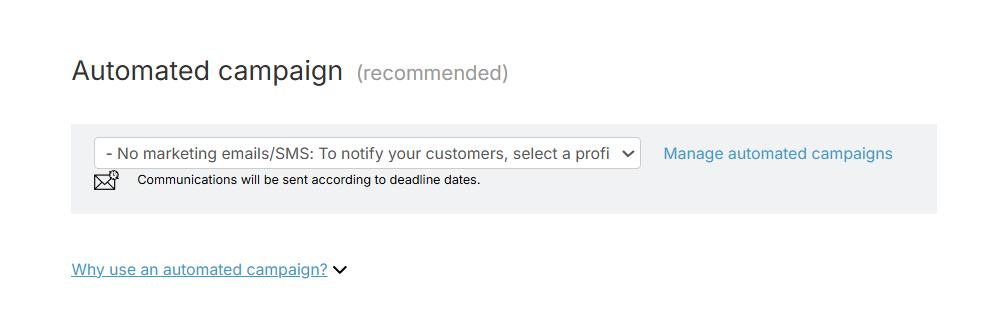
- Ensure you've assigned the correct price list to the job.
- Set the job to Selling.
Important: Once set to Selling, the job becomes accessible to anyone with a valid access code. Complete your review quickly and move on to the next step. - Open your shop:
- Click the Go to My Shop dropdown in the top-right corner.
- Select Shop as buyer
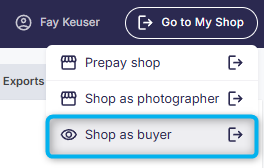
- Review your shop to confirm that products, pricing, and the overall layout look correct from a buyer's perspective.
- Set the job to Planning.
- On the Photo Job's Main Settings page, select your desired automated campaign and click Save Settings.
Following these steps ensures your customers only receive notifications when you're ready to launch.
The takeaway
You can test your GotPhoto price list in two ways: use the built-in Demo Preschool job for a quick, safe preview with no risk to real clients, or use your actual job with the expert-mode steps to preview your real setup while preventing accidental client notifications.