
 This article is relevant to UK customers only. If you are looking for information on setting up your invoices as a North American customer, click here.
Table of contents
Overview
When it comes to streamlining your billing process, completing your invoice settings is a key step. Whether you're establishing essential tax credentials or adding personalized details, this comprehensive walkthrough ensures you make the most of GotPhoto's invoicing features.
Invoice settings
The Invoice Settings page is divided into three tabs. Each tab requires input to ensure your invoicing setup is complete and compliant.
1. Invoice Settings
The invoice section is mandatory and must be completed before you can start selling to customers.
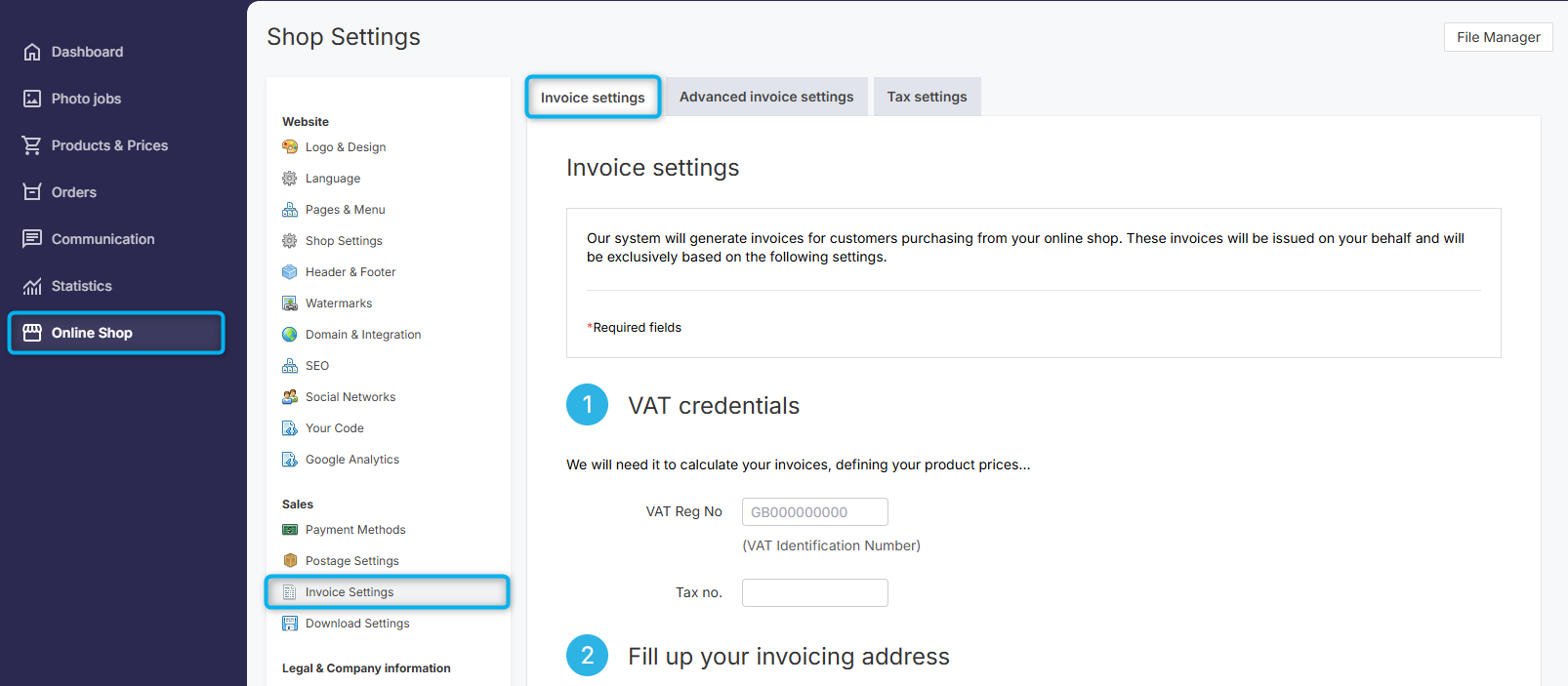
- 1VAT credentials: Enter your VAT registration number and Tax number.
- 2Invoicing address: Provide your address (required) and an optional phone number for customer invoices.
- 3Confirmation: Confirm all information is correct. GotPhoto does not offer tax advice—please consult your accountant if needed.
Click Save & Finish to proceed.
Advanced invoice settings
This section is optional, but highly recommended for adding professional and personalized elements to your invoices.
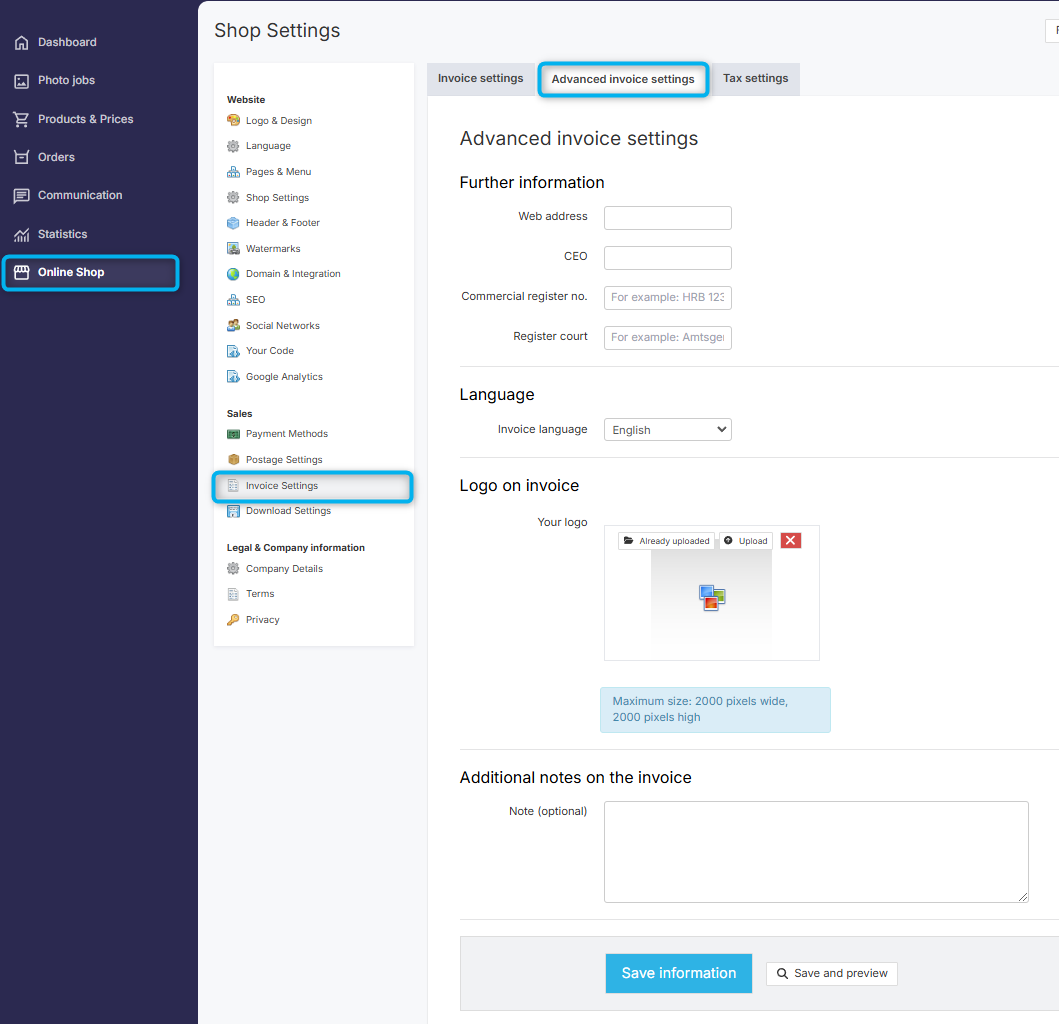
- 1Add additional information:Include optional details such as:
- Studio website
- CEO name
- Commercial register number
- Register court
- 2Choose your invoice language: Select an alternative to English if desired.
- 3Upload your logo: It will appear in the top-right corner of the invoice (max height: 3 cm, max width: 17 cm).
- 4Add a personal note: Enter any messages you'd like customers to see on their invoices.
Click Save and preview to generate a PDF preview. If everything looks good, click Save information.
Tax settings
The final step is to set your VAT rate under the Tax Rates tab of the Invoice Settings page.
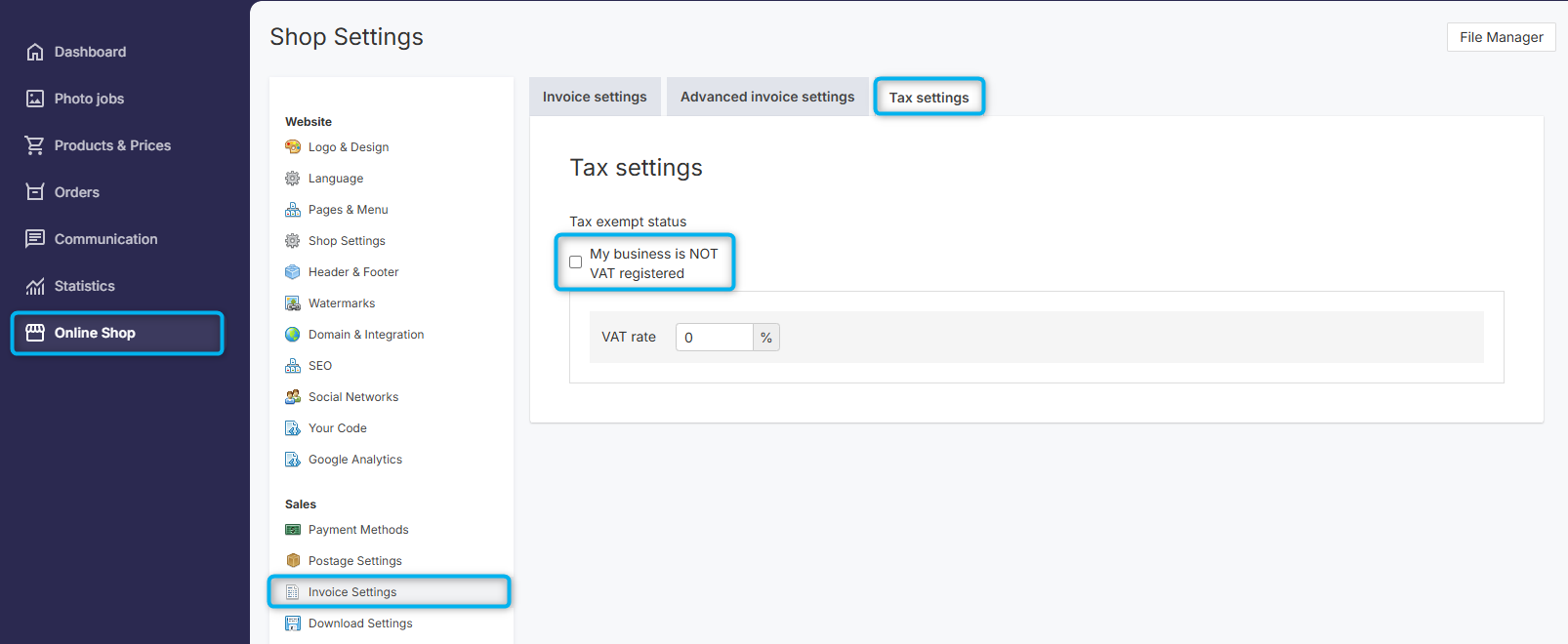
- 1Tax exempt status: Tick this box if you're tax-exempt. Documentation will be required.
- 2VAT rate: Enter your applicable VAT rate.
Please note: Shop prices will display as gross (including VAT).
This section saves automatically.
Need more help? Read this guide to VAT management for UK customers.
FAQs
Will my invoice address be visible to my customers?
Yes, it will be displayed on your customers' invoices.
The takeaway
Master your invoicing by completing the Invoice Settings, customizing through Advanced Settings, and setting your VAT rate correctly. These steps help ensure professional, compliant, and branded invoices tailored to your business.