

This article is relevant to North American customers only. If you’re a UK customer, click here.
Table of contents
Overview
Setting up your invoice preferences is a key step in optimizing your billing workflow. From entering tax credentials to customizing the final look of your invoices, this guide ensures you're fully equipped to take advantage of GotPhoto's invoicing tools.
The invoice settings page
To access the Invoice Settings page, go to the Online Shop page.
The page includes three key sections. Begin with the required Invoice Settings tab:
Access the mandatory settings section (required before selling). Download a sample invoice.
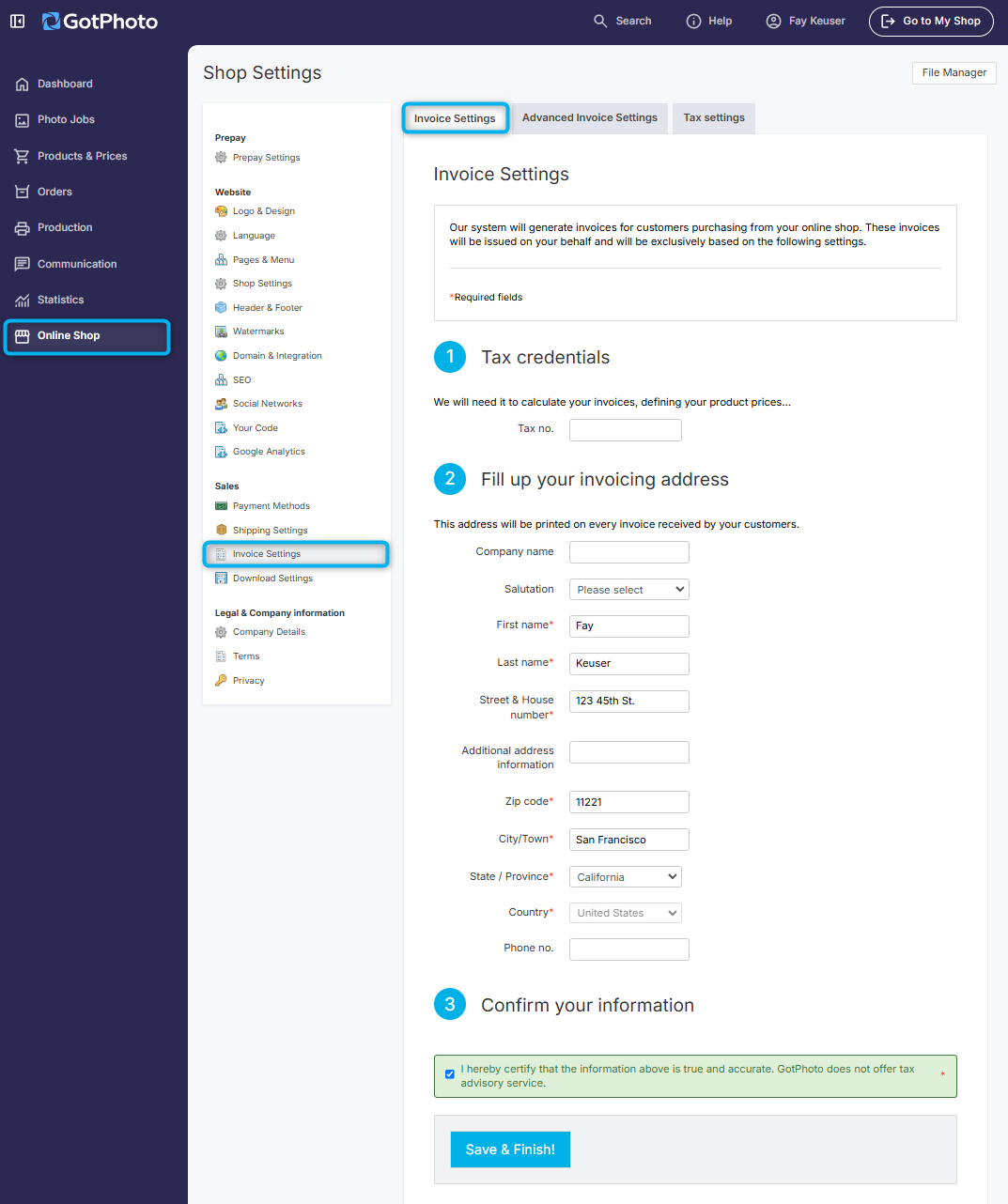
- 1Tax number: [Optional] Enter your business tax number if you want it shown on invoices.
- 2Invoicing address: Enter your address (required) and phone number (optional).
- 3Confirmation: Confirm the data you entered is correct. Consult a tax advisor for any legal concerns.
Be sure to click Save & Finish.
Advanced invoice settings
This section is optional, but highly recommended to personalize your invoices and preview how they'll appear to customers.
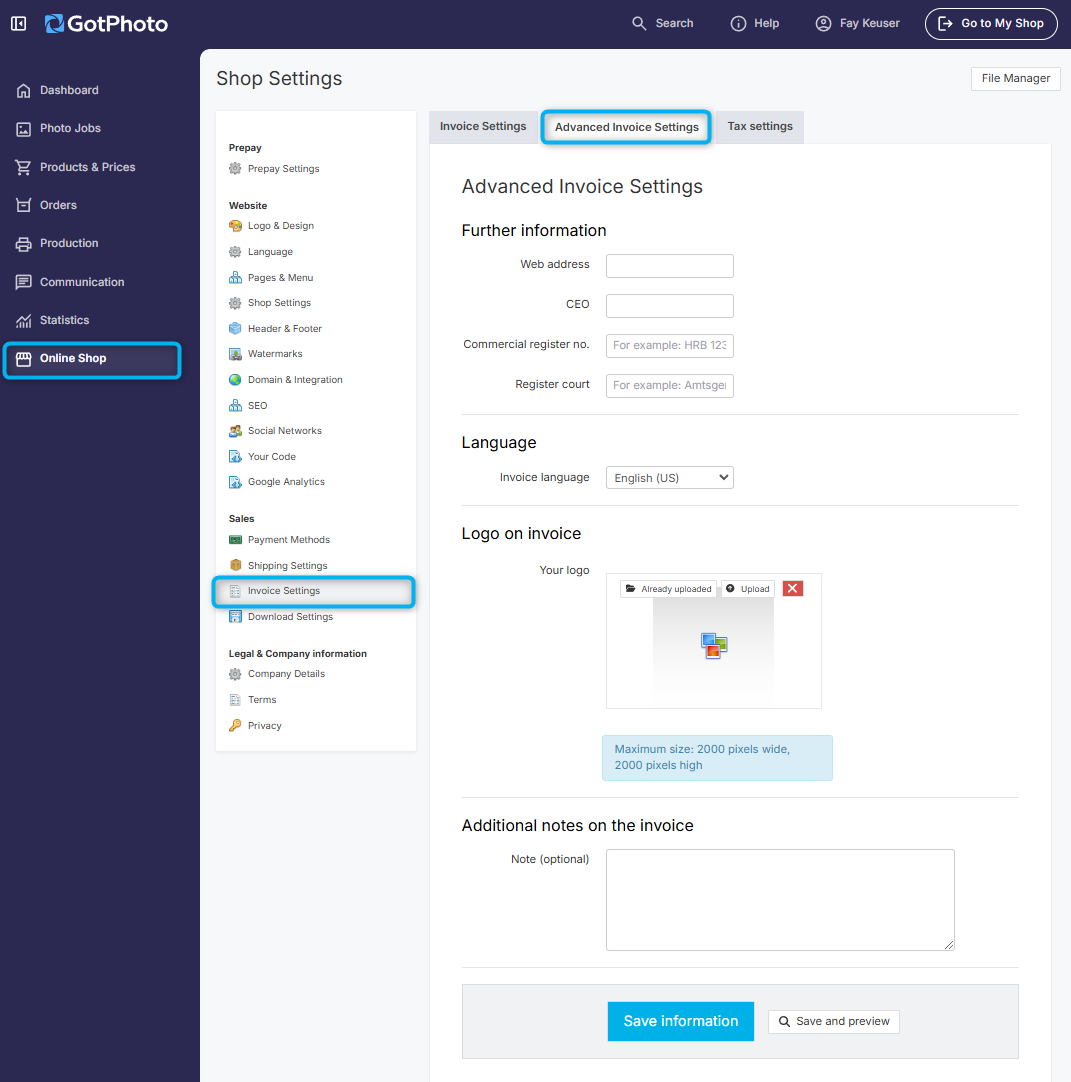
- 1Add optional info: studio web address, CEO name, commercial register no. (rarely used in US/CA), or register court
- 2Choose your invoice language: Select an alternate language if needed
- 3Upload your logo: Displayed at top-right (Max: 3cm height × 17cm width)
- 4Add a personal note: Share any messages or instructions on your invoice
Click Save and preview to review your invoice PDF. If you're happy, click the blue Save information button.
Manage tax settings
Go to the Tax Settings tab. Instructions differ slightly between US and Canadian users:
 | US customers: GotPhoto supports dynamic sales tax calculation and remittance. Learn more here. |  | Canadian customers: Set up your tax rates manually. Instructions here. |
Note: Prices shown in your shop are displayed as net prices.
FAQs
Will my invoice address be visible to my customers?
Yes, it will be displayed on your customers' invoices.
The takeaway
Mastering GotPhoto's invoice setup helps streamline billing and enhance your professional image. From entering tax info to customizing invoice layouts, these steps let you control how you present your business to customers.