
Overview
Enterprise accounts can send emails from their own domain by entering their email provider's SMTP server, port, username, and password under Email server settings in the communication settings, then setting a sender email address.
By default, customer emails are sent from no-reply@gotphoto.com because the platform cannot send on behalf of your personal address.
[Enterprise only] If you use your own email hosting provider, you can customize the sender email so your campaigns and newsletters come from your domain. To enable this feature, contact your account manager. This article explains how to configure your email server settings once the feature is activated.
Setup
[Enterprise only][Advanced] Configure your SMTP settings so GotPhoto routes outgoing emails through your server.
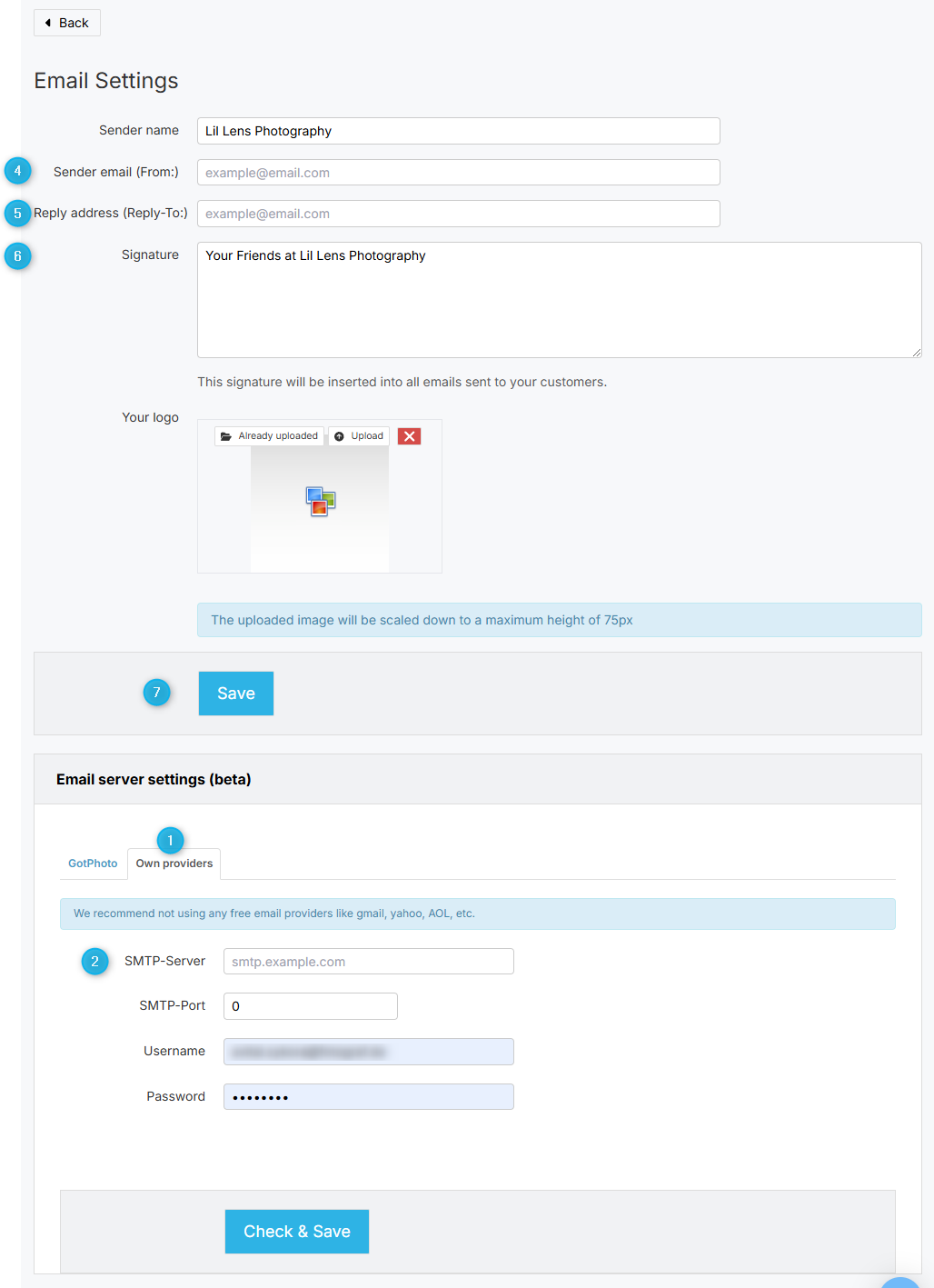
- Go to email settings. Scroll to Email server settings and choose Own providers.
- Enter your SMTP server and SMTP port.
- Enter the SMTP username and password.
- Click Check & save to validate the credentials.
- At the top of the page, set the sender email address (the From address shown to recipients).
- [Optional] Add a reply-to email address if replies should go to a different inbox.
- [Optional] Add your logo and email signature for consistent branding, then click Save.
This setup ensures emails from your automated campaigns (communication profiles) and newsletters pass through your email server before reaching customers, so the visible sender matches the address you set in your communication settings.
Not recommended with free email providers: Avoid using free providers (e.g., Gmail, Hotmail, Yahoo). They throttle bulk sends and prevent delivery tracking, which can delay campaigns and limit support options.
How do you keep emails from your own server out of spam?
[Advanced] To keep bulk emails out of spam, enable SPF, DKIM, and DMARC authentication for your sending domain. Yahoo, Gmail, and other major providers require proper authentication for bulk mail to fight spam and phishing, and their requirements may change over time.
Meet authentication requirements
- Ask your email host about enabling SPF, DKIM, and DMARC for your domain.
- Request their help to publish and validate the records correctly.
- Stay informed about provider updates, so your configuration remains compliant.
These measures help mailbox providers trust your messages and reduce the chance of being flagged as spam.
The takeaway
[Enterprise only] Routing messages through your own SMTP lets you show a custom sender address and control deliverability. Configure SMTP, set your sender and reply-to, and implement SPF, DKIM, and DMARC for reliable, secure sending. Avoid free email providers for bulk campaigns.