
Table of contents
Overview
You can add a call-to-action (CTA) button to your automated customer emails by copying the HTML from a preloaded automated campaign [communication profiles] and reuse it in your own profile, with optional customization for styling and text.
Instructions
Follow these steps to copy and customize a CTA button in your email notifications.
- Browse the preloaded automated campaigns in your account and find a CTA style you like.
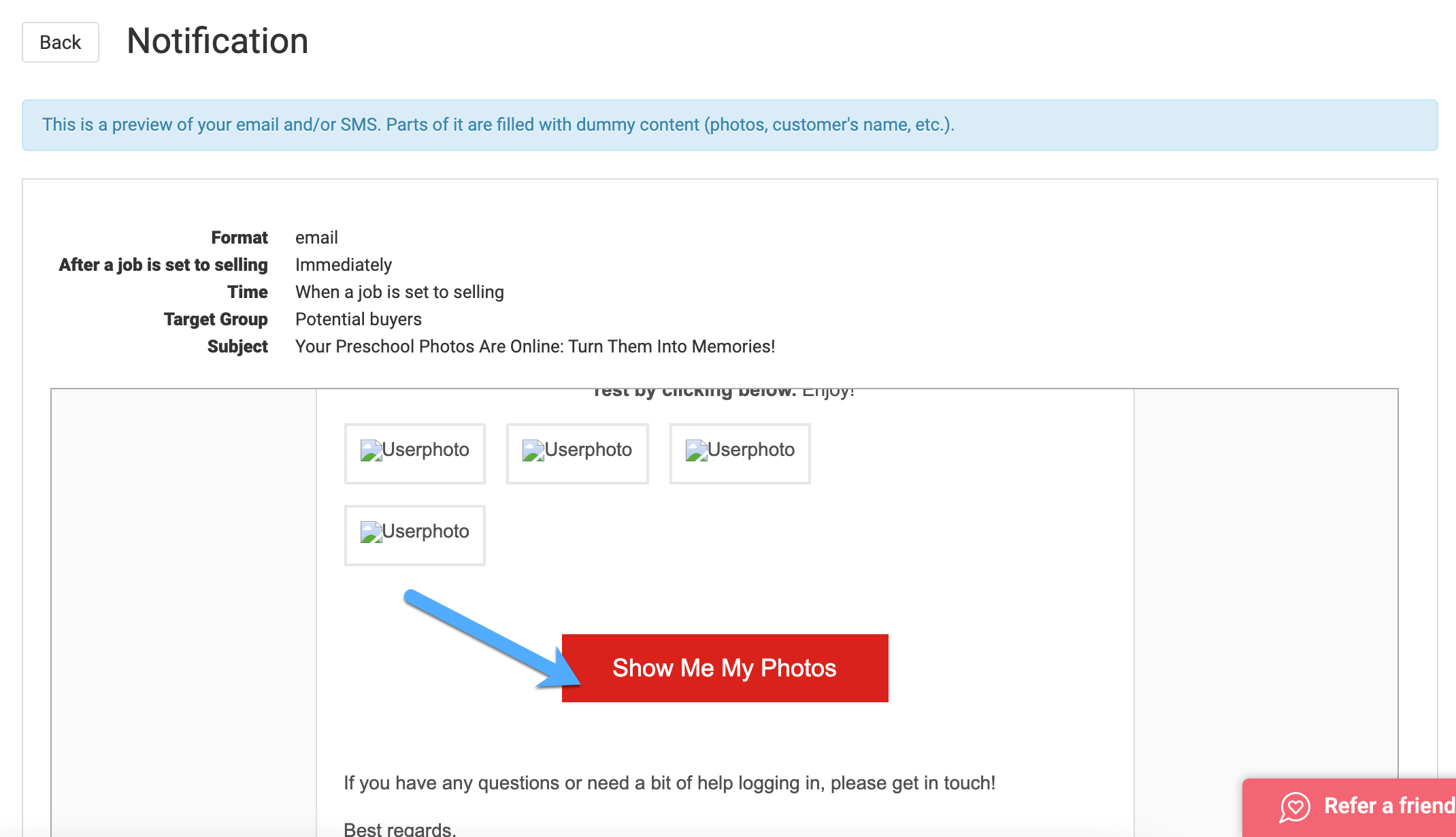
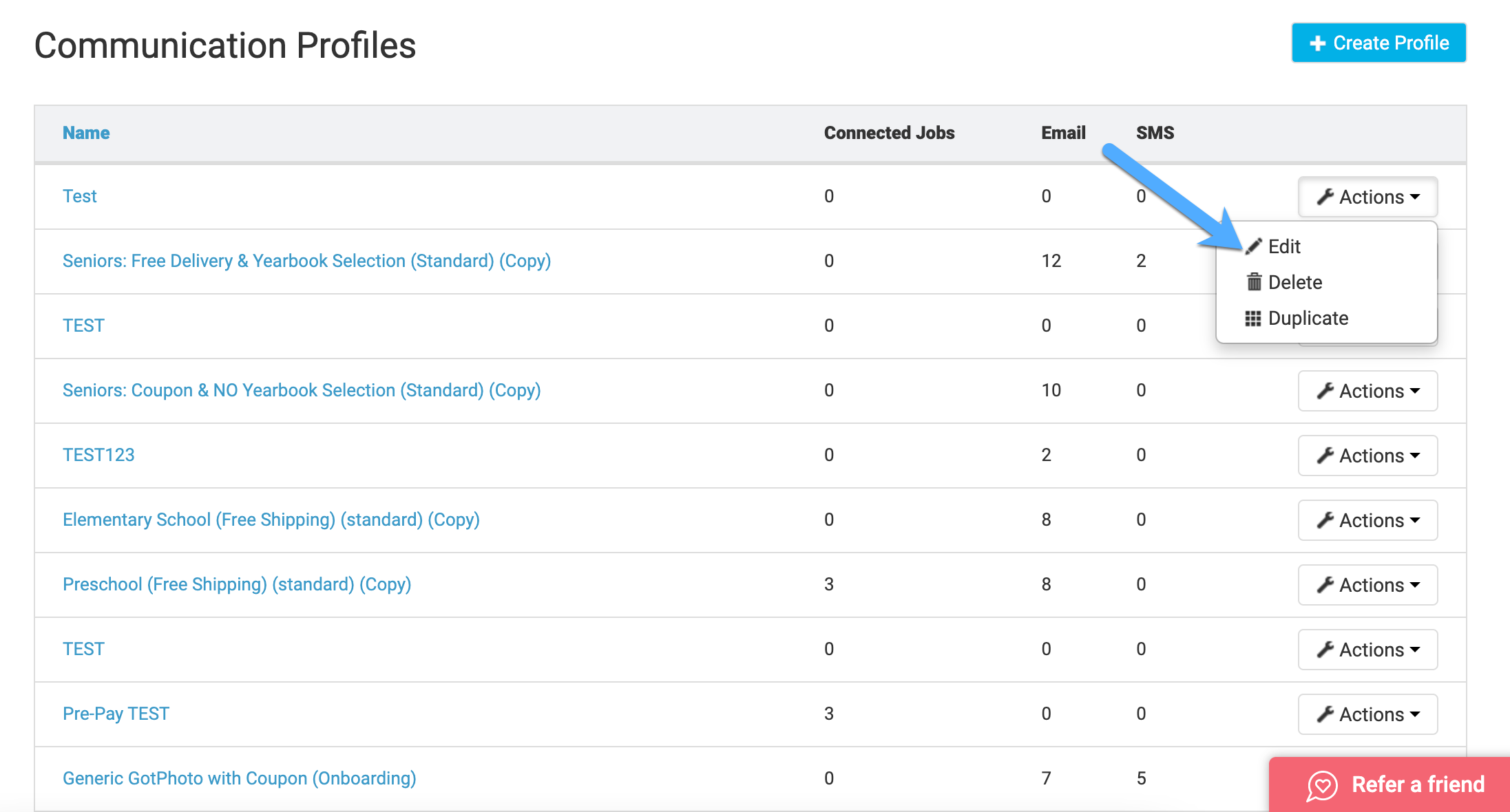
- Duplicate the automated campaign that contains your preferred CTA via Actions → Duplicate.
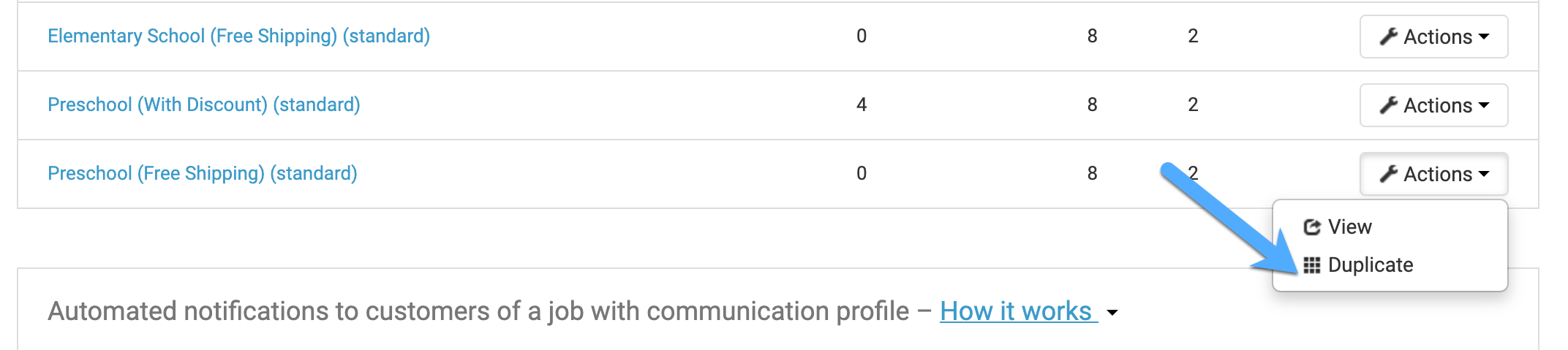
- Open the new automated campaign you just created.
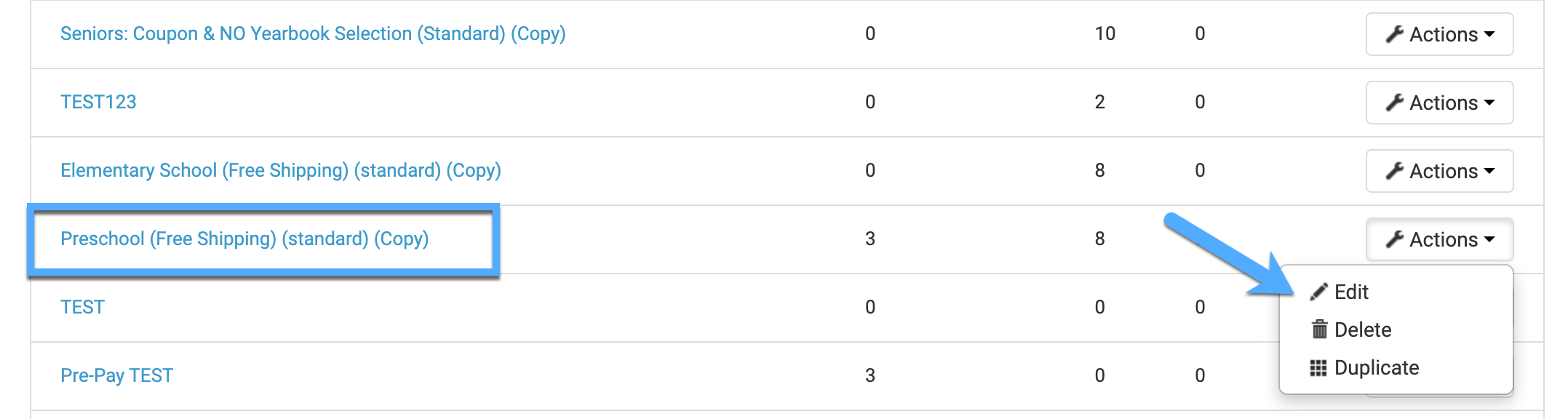
- Open the notification that contains the CTA button using Actions → Edit.
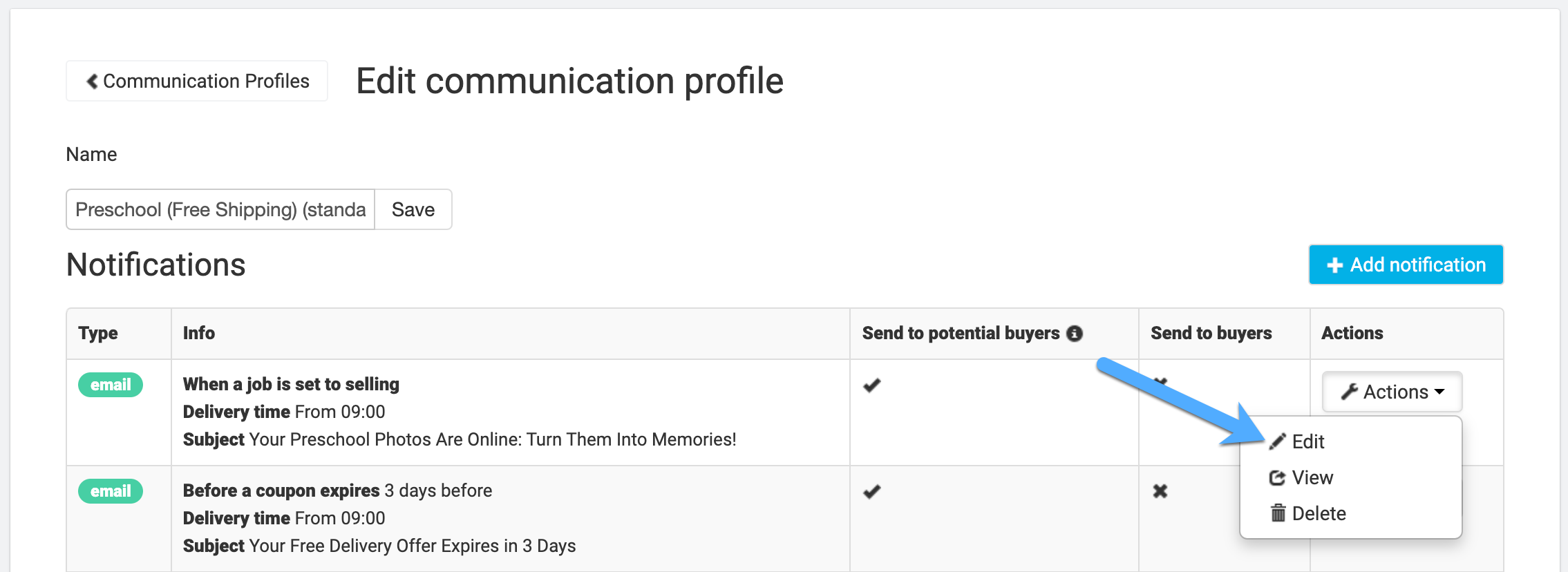
- Open the email source code by clicking the source code icon (
<>) in the editor toolbar.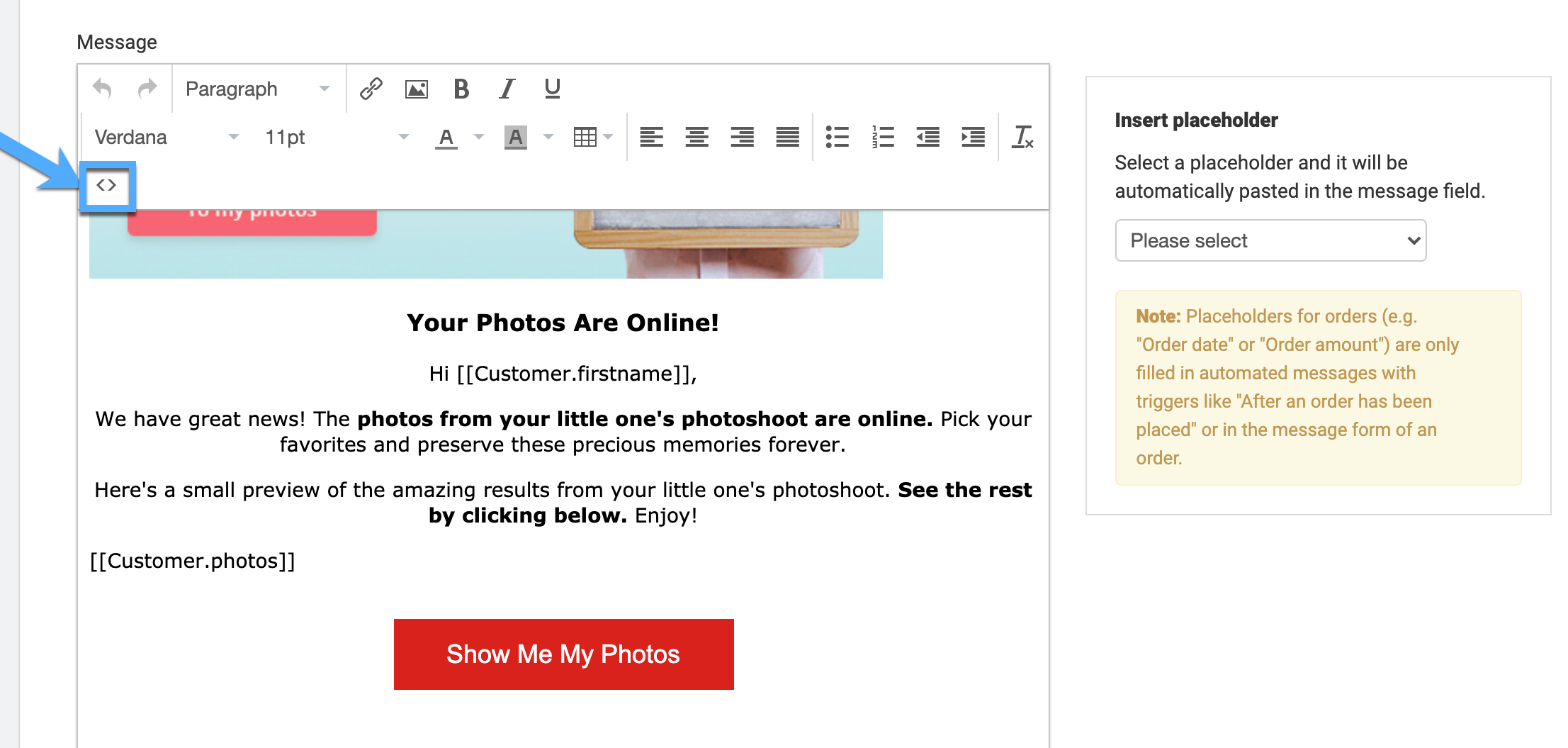
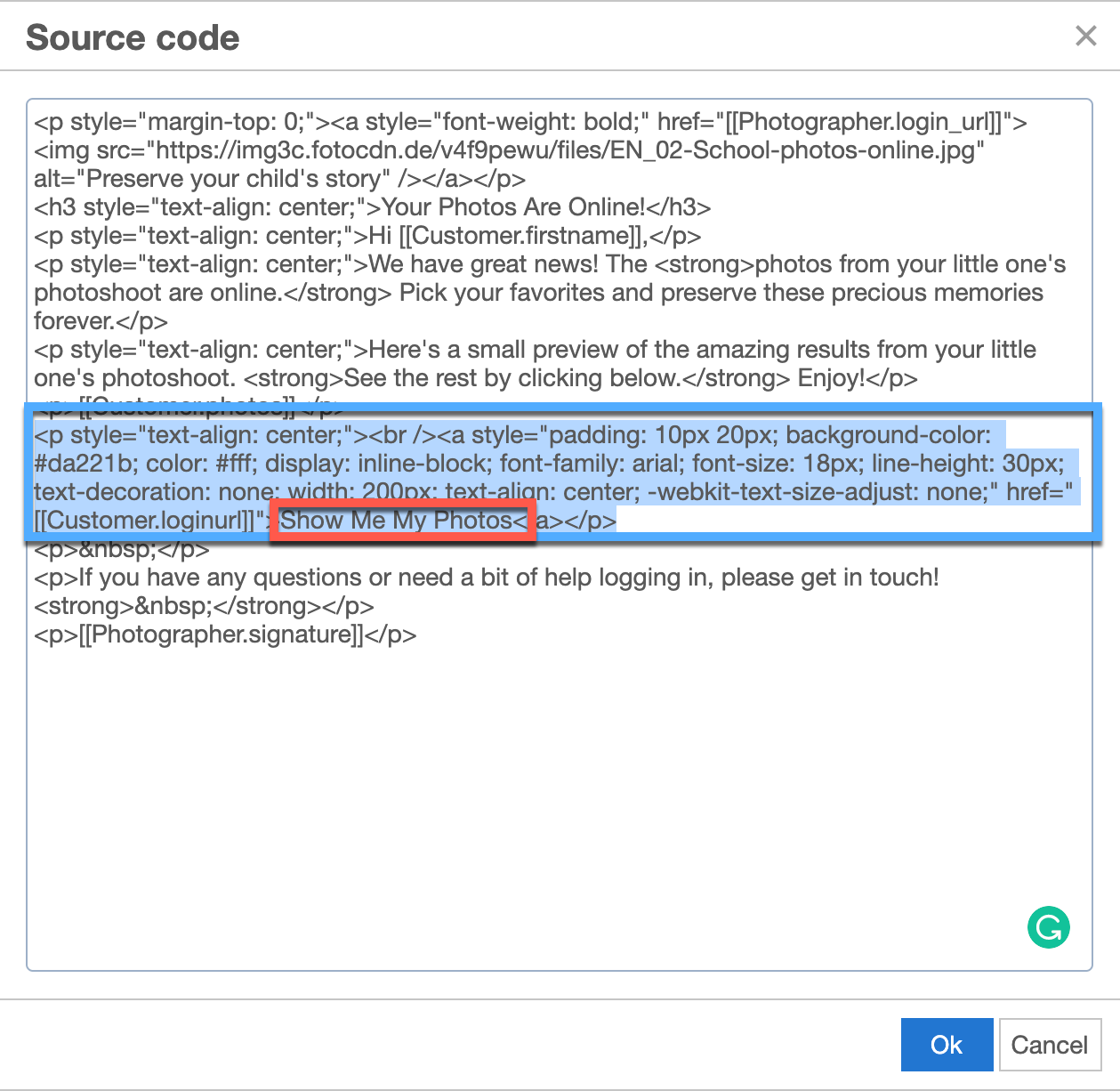
- Copy the CTA’s HTML block — select all the code from the opening tag of the CTA container element to its closing tag, which wraps both the button styling and the link.
- Open your own automated campaign where you want to add the CTA by clicking Actions > Edit
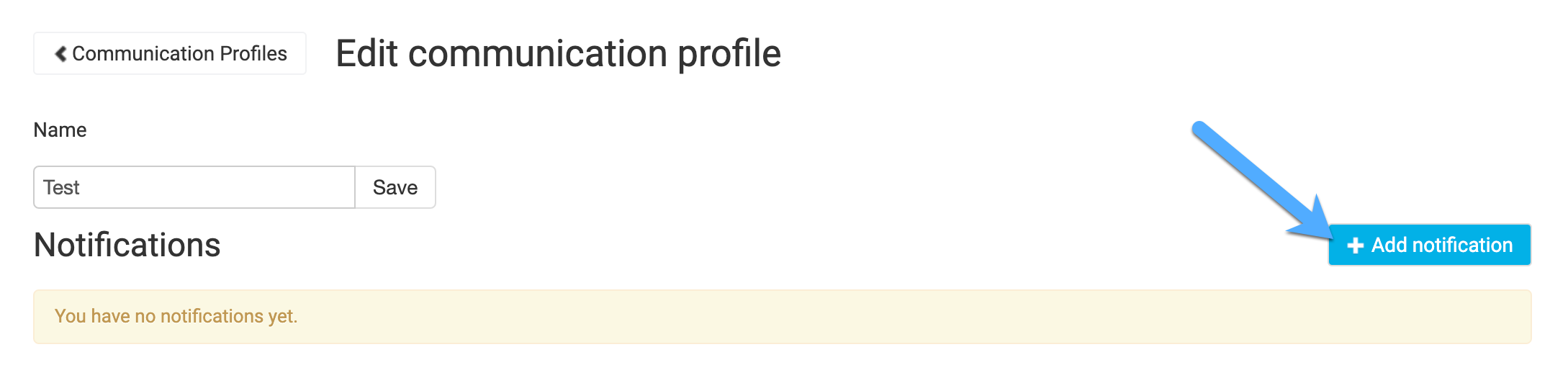
- Add a new notification (or edit an existing one) in that profile.
- Open the email source code in your notification’s editor (
<>) and prepare to paste the CTA HTML.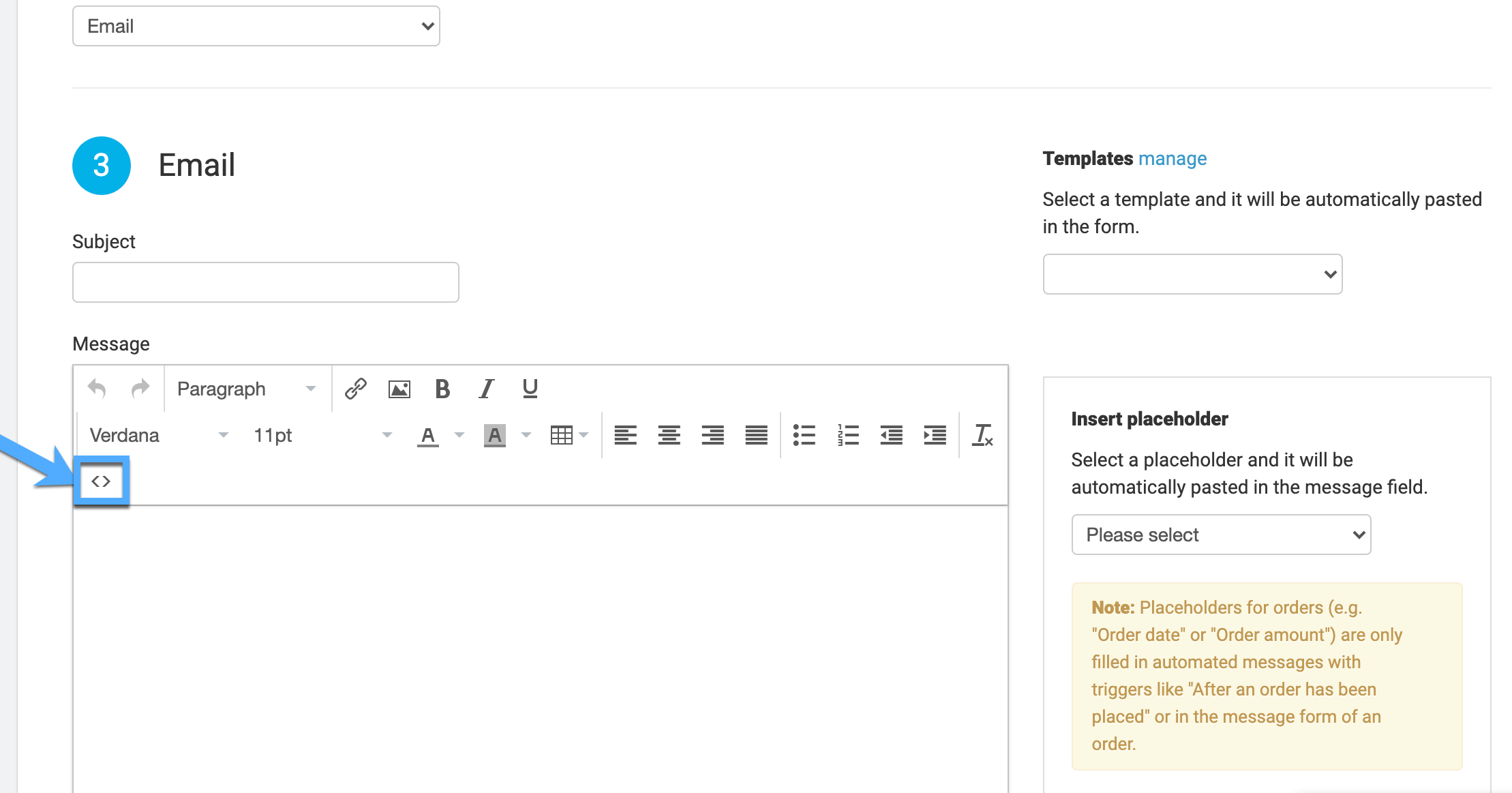
- Paste the CTA source code you copied from the other campaign into your email HTML.
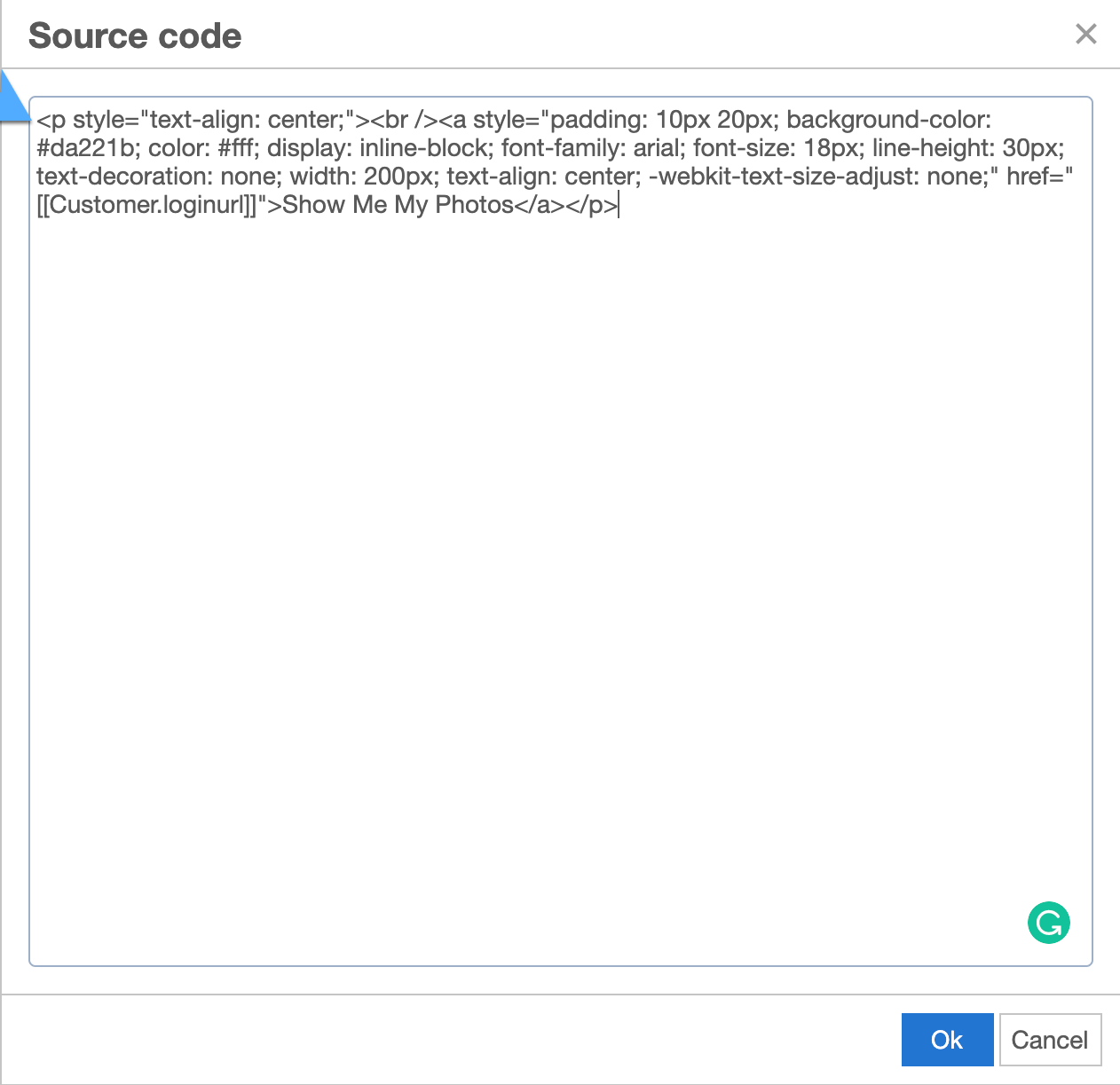
- Optional — Advanced: Customize the CTA styles and content directly in the source code. You can change any of the following:
- Background color
- Font color
- Font size
- Destination link (placeholder URL)
- Button text/wording
- Other inline styles consistent with your brand
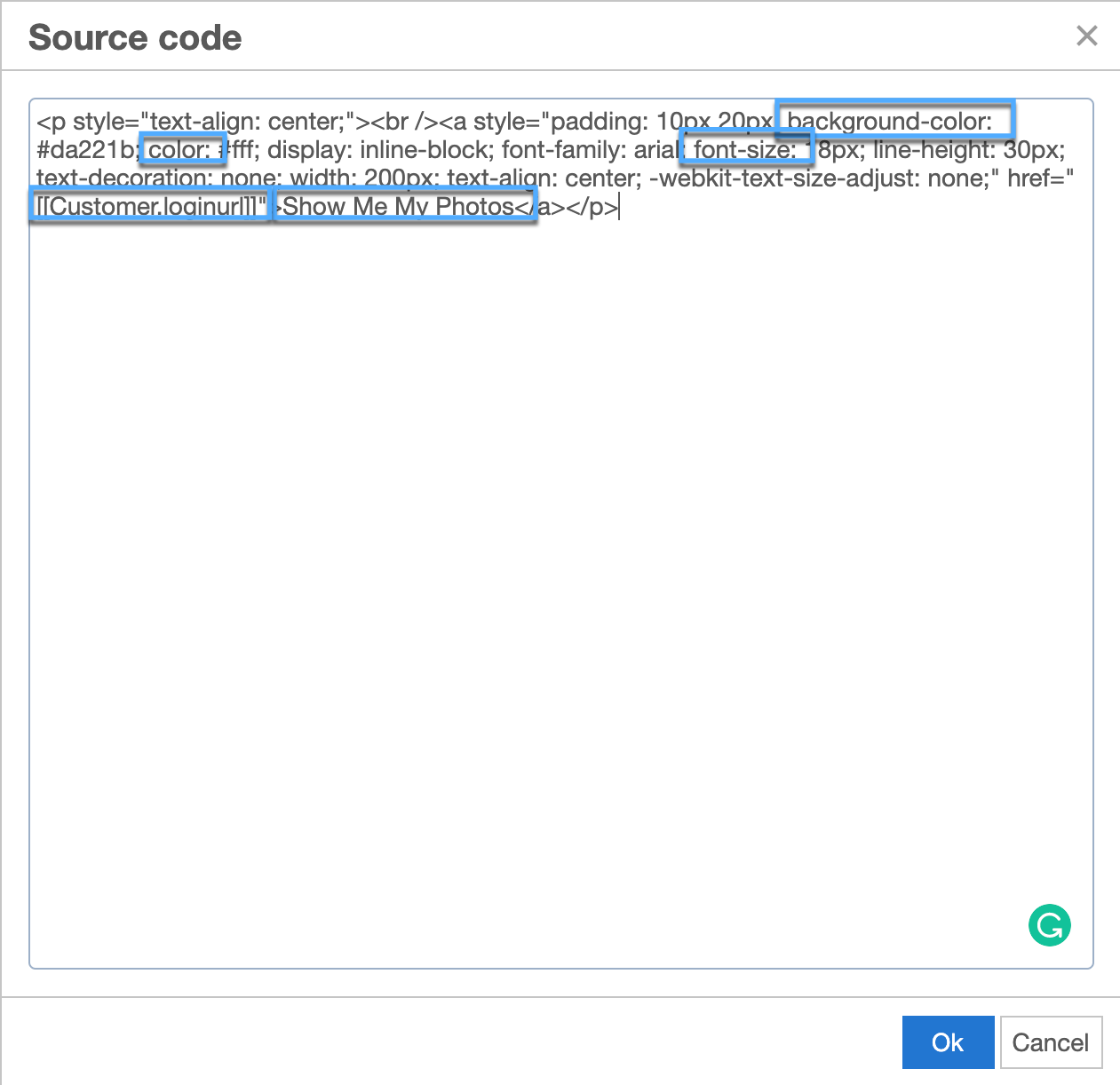
- Click OK to apply source edits, then Save the notification.
The takeaway
Adding a CTA button to your automated emails encourages recipients to take action directly from the notification. Once you have copied the CTA HTML from a preloaded automated campaign and pasted it into your own communication profile, you can tailor the styles and wording to match your brand.