
Table of contents
- Overview
- Benefits of marking photos as composites
- How to price and label composite photos
- FAQ
- Take away
Overview
GotPhoto allows you to mark specific images as composite photos, such as Memory Mates and collages. This helps streamline your sales workflow and apply different pricing to specialty items. In this guide, you'll learn how to mark photos as composites and manage pricing in your price lists.
Benefits of marking photos as composites
- Dynamic pricing: Set higher prices for composite images like Memory Mates or collages.
- Subject grouping: Upload all images for a subject—including composites—into the same album, so customers can view everything in one place.
- Sales packages: Combine composite photos with individual and group photos in packages.
- Prepay support: Composite photos can be sold in regular single-pose Prepay. The GotPhoto team activates the composite photo support on request for existing Prepay users.
[Limitation] The legacy Prepay+ workflow does not support Composite photos. - Supported by Next Gen and QMate (v1.04+). Composite photos are flagged automatically when ordered/created.
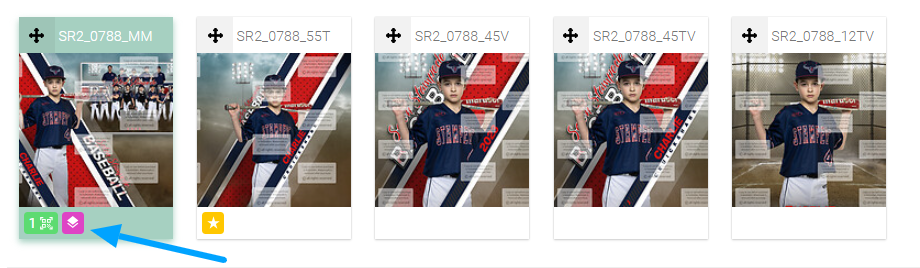
Photos by Sean Bass, Lake Photography
How to price and label composite photos
- Update your price list:
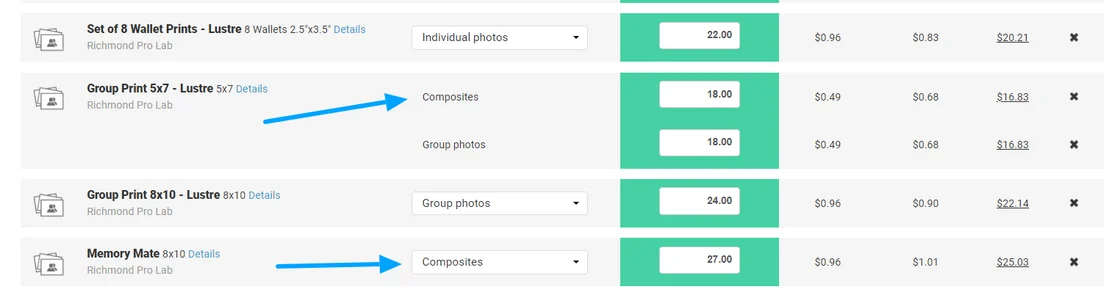
- Open your price list and select Group Photos & Composites. [Proofing only] In Prepay, a product set to Group Photos & Composites blocks the Prepay phase. For Prepay, set Composite products to Composites only.

- Click Set price for each category.

- Set your desired price for Composite Photos.
- Open your price list and select Group Photos & Composites. [Proofing only] In Prepay, a product set to Group Photos & Composites blocks the Prepay phase. For Prepay, set Composite products to Composites only.
- Label your composite photos: Choose one of two methods:
- Filename method: Add "_composite", "_MM", or "_collage" to the end of each composite photo filename before uploading.

- Manual method: After uploading and activating access codes, click on a photo and choose Tag as composite.
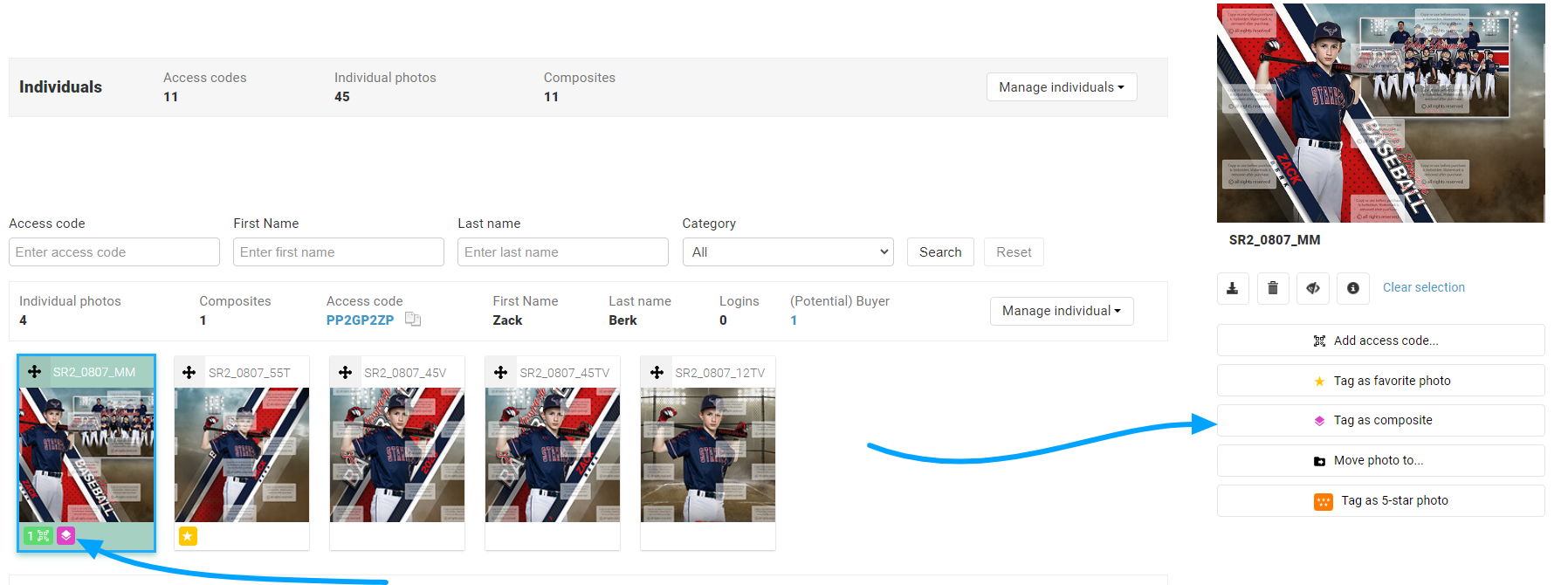
- Filename method: Add "_composite", "_MM", or "_collage" to the end of each composite photo filename before uploading.
Note: If you want to upsell composite photos as downloads, the only option is to choose “Sell all photos ordered in this package.”
FAQ
Is there a way to have individual and group images appear before the composites in the shop settings?
No, this is not possible. Images populate inside packages on the shop automatically based on the way they are sequenced in Photo Management. It is not possible to override this display to your clients in the shop.
Can I sell composite photos in Prepay?
Yes. Composite photos are now supported in regular single-pose Prepay. The GotPhoto team activates them on request. Set each Composite product's Available for option to Composites only. Products that combine Composite with Individual or Group photos block the Prepay phase.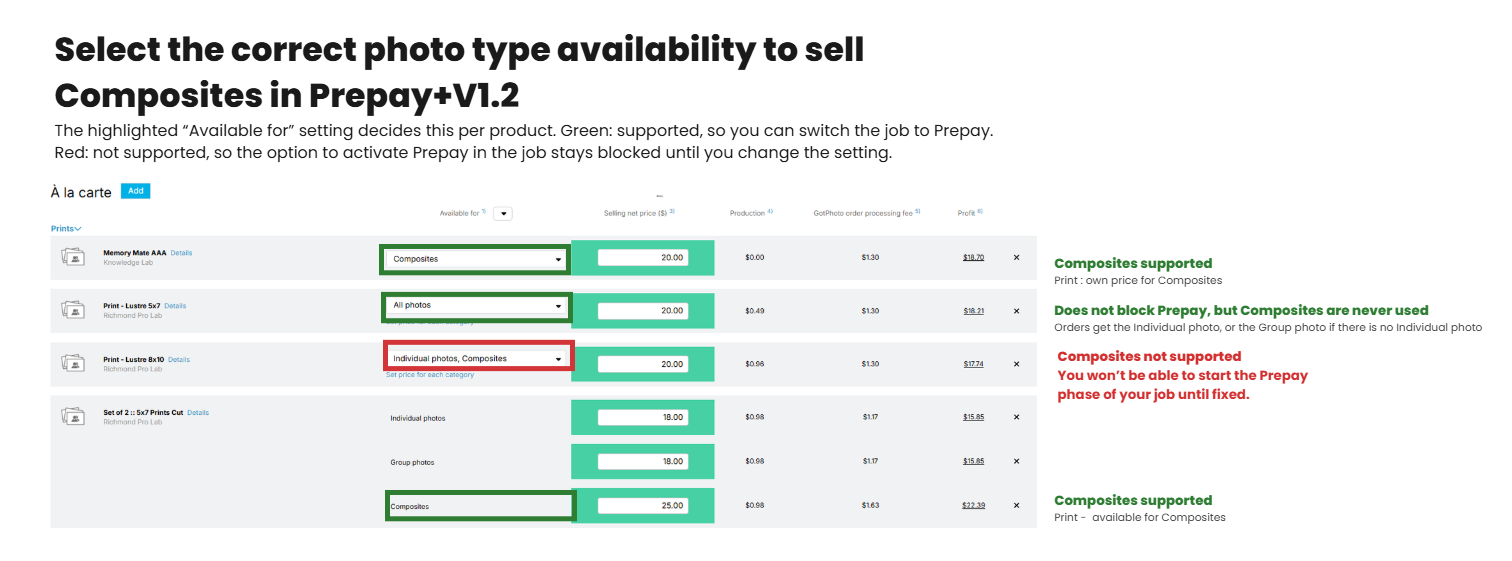
[Limitation] The legacy Prepay+ workflow does not support Composite photos.
The takeaway
Marking composite photos in GotPhoto helps you organize and price specialty images like Memory Mates. Use filenames or manual tags, set composite pricing in your price list, and take advantage of integration with Next Gen and QMate for streamlined workflows.