
Table of contents
Overview
When it’s time to do your accounting, all invoices issued to customers in your name are permanently stored in your GotPhoto account. This article shows how to export these invoices for your records or accounting system.
Exporting invoices
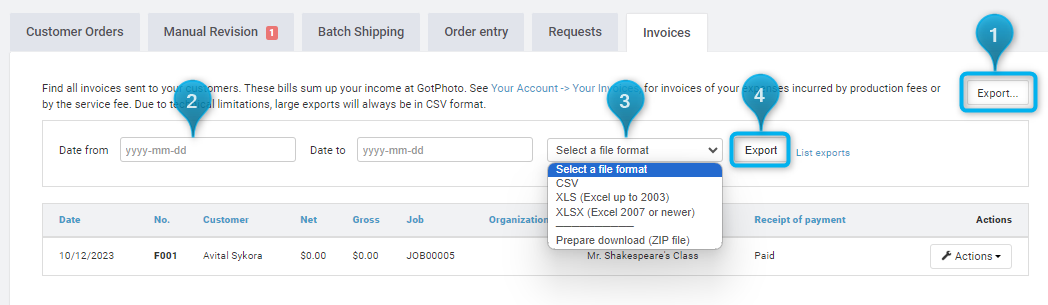
You can find invoices by navigating to Orders → Invoices. From there, you can export them as a data list or download all as a ZIP file for local storage.
- Click the Export... button.
- Enter the desired date range for the invoices you want to export.
- Select a file format:
- CSV or XLS: Share with your CPA or import into accounting software.
- ZIP: Download PDFs of all invoices.
- Click the Export button.
If you selected a ZIP file, it will be available for download on the next screen.
If you selected CSV or XLS, a download link will be emailed to you shortly.
FAQs
If I delete a job, will all customer invoices for that job also be deleted?
No, the invoices remain in the system. You can still download them even after the job has been deleted.
The takeaway
Make accounting easier by exporting your GotPhoto invoices in the format that best suits your needs. Whether for email delivery or instant download, your records are always accessible and organized.