---
title: Upload Photos via Lightroom Classic Plugin
description: Here, you can see the detailed steps to add the Lightroom Plugin to your Lightroom Plug-In Manager.
---
[Skip to content](https://help.gotphoto.com/en/support/upload-photos-via-lightroom-classic-plugin#main-content)
- [English](https://help.gotphoto.com/en/support/upload-photos-via-lightroom-classic-plugin)
- [Deutsch – Deutschland](https://help.gotphoto.com/de-de/support/fotos-hochladen-uber-adobe-lightroom)
English
Show submenu for translations

Open main navigation
Close main navigation
- - [English](https://help.gotphoto.com/en/support/upload-photos-via-lightroom-classic-plugin)
- [Deutsch – Deutschland](https://help.gotphoto.com/de-de/support/fotos-hochladen-uber-adobe-lightroom)
English
Show submenu for translations
Hello. How can we help you?
- There are no suggestions because the search field is empty.
1. [Help Center](https://help.gotphoto.com/en/support?hsLang=en)
2. [How-To's](https://help.gotphoto.com/en/support/how-tos?hsLang=en)
3. [Review Phase](https://help.gotphoto.com/en/support/how-tos?hsLang=en#review-phase)
October 19, 2026
# Upload Photos via Lightroom Classic Plugin
**Table of contents**
- [Overview](https://help.gotphoto.com/en/support/upload-photos-via-lightroom-classic-plugin#Overview)
- [Step 1: Download the GotPhoto Lightroom plugin](https://help.gotphoto.com/en/support/upload-photos-via-lightroom-classic-plugin#Step-1%3A-Download-the-GotPhoto-Lightroom-plugin)
- [Step 2: Add the plugin to Lightroom Classic](https://help.gotphoto.com/en/support/upload-photos-via-lightroom-classic-plugin#Step-2%3A-Add-the-plugin-to-Lightroom-Classic)
- [The takeaway](https://help.gotphoto.com/en/support/upload-photos-via-lightroom-classic-plugin#The-takeaway)
### **Overview**
This guide explains how to find, install, and use the GotPhoto Lightroom Classic plugin to export and upload photos directly to your GotPhoto account.
**Unique file names:** Make sure every image has a unique file name before you upload, so images aren't treated as duplicates and overwritten. Files with the same name but a different file extension, such as 123.jpg and 123.png, count as unique. If you shoot with multiple cameras, change the file naming scheme in each camera before Picture Day, or rename the files before you upload them.
---
**Step 1: Download the GotPhoto Lightroom plugin**
You can download the plugin in your Upload Methods area:
1. Go to Photo Jobs.
2. Open the relevant job.
3. Click the Photo Management tab.
4. Click *Photo Upload Methods* and access the Photo upload methods overview page. In the Lightroom section, press *More*. 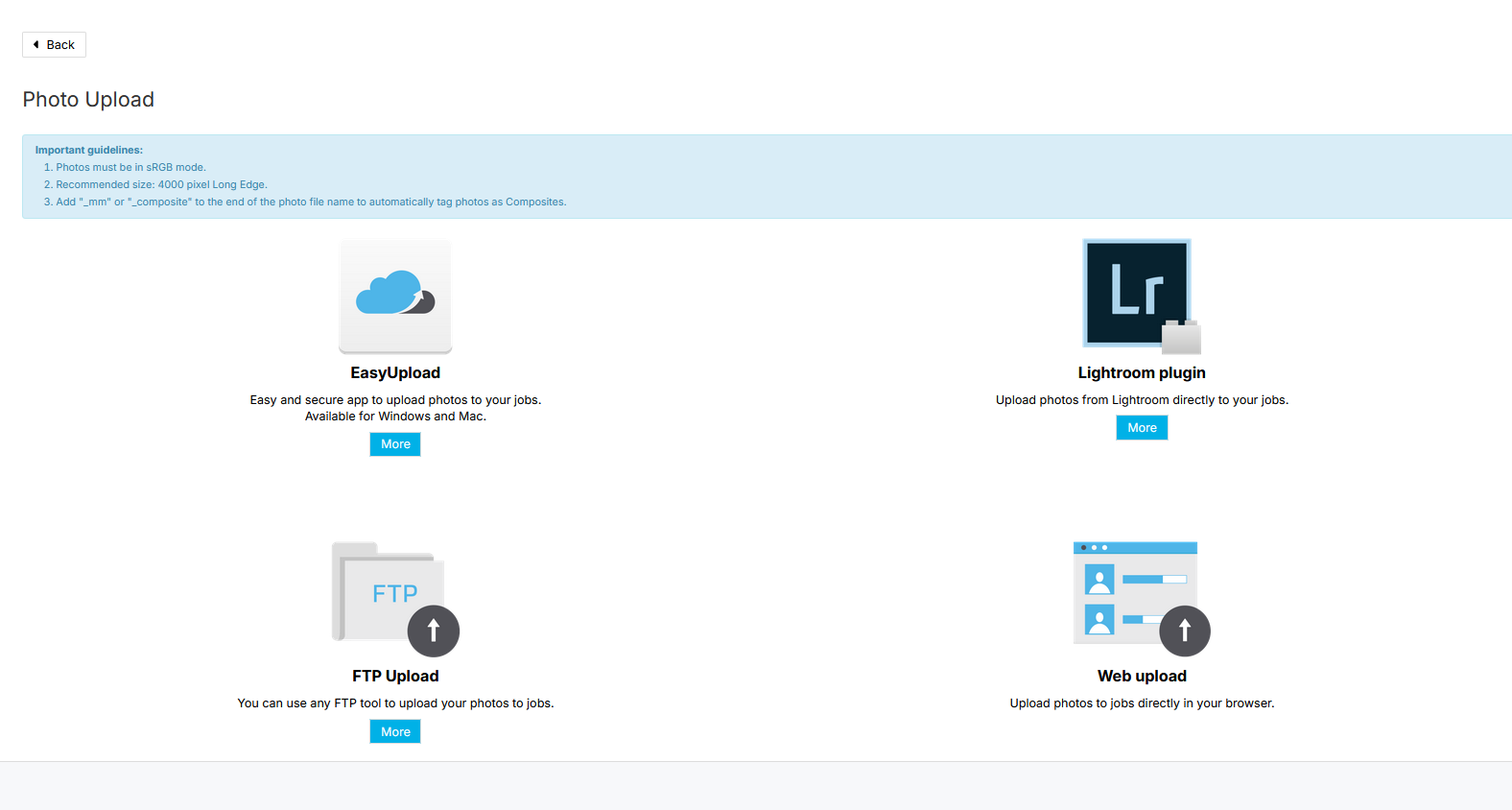
5. Download the Lightroom plugin.
6. Extract the ZIP file once downloaded.
For a detailed walkthrough, watch the video below or follow the steps above. \[September 8, 2025: We slightly enhanced the page design of the Photo Management page, but you will still be able to follow and apply the instructions.\]
### **Step 2: Add the plugin to Lightroom Classic**
1. Open your Lightroom Classic desktop app.
2. Click the File menu.
3. Select Plugin Manager.
4. Add the GotPhoto Upload plugin you previously downloaded.
**Step 3: Export photos from Lightroom to GotPhoto**
Follow these steps to export your photos:
1. Open Lightroom and select the photos you want to export.
2. Under Export to, choose the GotPhoto Upload plugin.
3. Log into your GotPhoto account using your credentials.
4. Select the target GotPhoto job and album, or enter a new album name (e.g., *Upload*).
5. Adjust the settings under File Settings, Image Sizing, and Output Sharpening as needed.
6. Click Done to begin the export. Your photos will upload to GotPhoto automatically.
Need help? Watch the tutorial below:
****
Please note: If you use **Entagged** and export your photos through Adobe Lightroom before uploading them to GotPhoto, make sure Lightroom preserves all metadata during export. Otherwise, the barcode information used for automatic tagging may be removed.
In the Lightroom export settings:
1. Go to **Metadata**.
2. Set **Include** to **All Metadata** rather than **Copyright Only**.
3. Make sure **Remove Person Info** is unchecked.
4. Make sure **Remove Location Info** is unchecked.
5. Export your images, and upload the exported files to GotPhoto.
If your uploaded images aren't being tagged, check whether the barcode is still present in the exported image's metadata. If it is missing, review your Lightroom metadata export settings before troubleshooting the GotPhoto upload itself.
**For Sony RAW workflows:** If the barcode is present in the RAW file but isn't available in the expected metadata field after export, the **[Entagged EXIF tool/workflow](https://help.gotphoto.com/en/support/keep-your-entagged-code-on-sony-cameras-after-editing?hsLang=en)** may also be required.
---
### **The takeaway**
The GotPhoto Lightroom plugin simplifies your workflow by integrating the photo export and upload process into one seamless step. It helps photographers save time and ensures an efficient transition from editing to delivery.
- [Getting Started](https://help.gotphoto.com/en/support/getting-started?hsLang=en#main-content)
- [One-Time Settings](https://help.gotphoto.com/en/support/getting-started?hsLang=en#one-time-settings)
- [Price Lists and Product Packages](https://help.gotphoto.com/en/support/getting-started?hsLang=en#price-lists-and-product-packages)
- [Your Online Shop](https://help.gotphoto.com/en/support/getting-started?hsLang=en#your-online-shop)
- [Communication With Customers](https://help.gotphoto.com/en/support/getting-started?hsLang=en#communication-with-customers)
- [Upselling Options](https://help.gotphoto.com/en/support/getting-started?hsLang=en#upselling-options)
- [Navigation](https://help.gotphoto.com/en/support/getting-started?hsLang=en#navigation)
- [How-To's](https://help.gotphoto.com/en/support/how-tos?hsLang=en#main-content)
- [Review Phase](https://help.gotphoto.com/en/support/how-tos?hsLang=en#review-phase)
- [Sales Phase](https://help.gotphoto.com/en/support/how-tos?hsLang=en#sales-phase)
- [Workflow Guides for Specific Scenarios](https://help.gotphoto.com/en/support/how-tos?hsLang=en#workflow-guides-for-specific-scenarios)
- [Planning Phase](https://help.gotphoto.com/en/support/how-tos?hsLang=en#planning-phase)
- [Picture Day Phase](https://help.gotphoto.com/en/support/how-tos?hsLang=en#picture-day-phase)
- [Manage your Account](https://help.gotphoto.com/en/support/how-tos?hsLang=en#manage-your-account)
- [GotPhoto's Editing Services](https://help.gotphoto.com/en/support/gotphotos-editing-services?hsLang=en#main-content)
- [GotPhoto's Editing Services](https://help.gotphoto.com/en/support/gotphotos-editing-services?hsLang=en#gotphotos-editing-services)
- [Sports Graphics Creation Service by Next Gen](https://help.gotphoto.com/en/support/sports-graphics-creation-service-by-next-gen?hsLang=en#main-content)
- [Next Gen](https://help.gotphoto.com/en/support/sports-graphics-creation-service-by-next-gen?hsLang=en#next-gen)
- [Entagged & GotPhoto Tagging App](https://help.gotphoto.com/en/support/entagged-gotphoto-tagging-app?hsLang=en#main-content)
- [Master Entagged with Comprehensive Tutorials.](https://help.gotphoto.com/en/support/entagged-gotphoto-tagging-app?hsLang=en#master-entagged-with-comprehensive-tutorials)
- [Entagged Troubleshooting](https://help.gotphoto.com/en/support/entagged-gotphoto-tagging-app?hsLang=en#entagged-troubleshooting)
- [GotPhoto Tagging App](https://help.gotphoto.com/en/support/entagged-gotphoto-tagging-app?hsLang=en#gotphoto-tagging-app)
- [Business & Growth](https://help.gotphoto.com/en/support/business-growth?hsLang=en#main-content)
- [Stripe & Accounting Resources](https://help.gotphoto.com/en/support/business-growth?hsLang=en#stripe-accounting-resources)
- [Best practices](https://help.gotphoto.com/en/support/business-growth?hsLang=en#best-practices)
- [Webinars](https://help.gotphoto.com/en/support/business-growth?hsLang=en#webinars)
- [Templates and Downloads](https://help.gotphoto.com/en/support/business-growth?hsLang=en#templates-and-downloads)
- [GotPhoto Referral Program](https://help.gotphoto.com/en/support/business-growth?hsLang=en#gotphoto-referral-program)
- [UK Materials](https://help.gotphoto.com/en/support/business-growth?hsLang=en#uk-materials)
- [Troubleshooting](https://help.gotphoto.com/en/support/troubleshooting?hsLang=en#main-content)
- [Uploading Photos](https://help.gotphoto.com/en/support/troubleshooting?hsLang=en#uploading-photos)
- [Customer-Facing Issues](https://help.gotphoto.com/en/support/troubleshooting?hsLang=en#customer-facing-issues)
- [Access Codes](https://help.gotphoto.com/en/support/troubleshooting?hsLang=en#access-codes)
- [Managing Names Lists](https://help.gotphoto.com/en/support/troubleshooting?hsLang=en#managing-names-lists)
- [Customer Outreach](https://help.gotphoto.com/en/support/troubleshooting?hsLang=en#customer-outreach)
- [Customizing Your Shop](https://help.gotphoto.com/en/support/troubleshooting?hsLang=en#customizing-your-shop)
- [Your Account](https://help.gotphoto.com/en/support/troubleshooting?hsLang=en#your-account)
- [Price Lists](https://help.gotphoto.com/en/support/troubleshooting?hsLang=en#price-lists)
- [Student Data Export](https://help.gotphoto.com/en/support/troubleshooting?hsLang=en#student-data-export)
- [DIY Sports Graphic Creation & Group Composites](https://help.gotphoto.com/en/support/diy-sports-graphic-creation-group-composites?hsLang=en#main-content)
- [Workflow Resources: QSuite, Pixnub & Team Photo Composite](https://help.gotphoto.com/en/support/diy-sports-graphic-creation-group-composites?hsLang=en#workflow-resources-qsuite-pixnub-team-photo-composite)
- [GotPhoto North America](https://www.gotphoto.com/)
- [T&Cs US](https://www.gotphoto.com/gtc-us/)
- [T&Cs Canada](https://www.gotphoto.com/gtc-ca/)
- [Privacy Policy US](https://www.gotphoto.com/data-privacy-policy-us/)
- [Privacy Policy Canada](https://www.gotphoto.com/data-privacy-policy-ca/)
- [DPA US](https://www.gotphoto.com/dpa-us/)
- [DPA Canada](https://www.gotphoto.com/dpa-ca/)
- [TOMs & sub-processors US](https://www.gotphoto.com/toms-and-sub-processors-us/)
- [TOMs & sub-processors Canada](https://www.gotphoto.com/toms-and-sub-processors-ca/)
- [GotPhoto UK](https://www.gotphoto.co.uk/)
- [T&C UK](https://www.gotphoto.co.uk/gtc/)
- [Privacy Policy UK](https://www.gotphoto.co.uk/data-privacy-policy/)
- [DPA UK](https://www.gotphoto.co.uk/dpa/)
- [TOMs & Sub-Processors UK](https://www.gotphoto.co.uk/toms-and-sub-processors/)
- [Cookie Declaration](https://app.gotphoto.com/cookie_declaration)
[](http://GotPhoto.com)
### GotPhoto North America
**Customer Care**
 +1 646-362-5100
 +1 365-809-1810
SupportUS@gotphoto.com
Support Hours:
Monday – Friday
9am – 7pm ET
### GotPhoto UK
**Customer Care**
+44 (0) 20 8068 8571
service@gotphoto.co.uk
Support Hours:
Monday – Friday
9am – 5pm GMT
Copyright © 2026, GotPhoto Inc.