---
title: Set up Stripe Express
description: Stripe Express is GotPhoto's payment processor. With Stripe Express you will be able to receive payment by credit/debit card, Apple Pay, and Google Pay.
---
[Skip to content](https://help.gotphoto.com/en/support/set-up-stripe-express#main-content)
- [English](https://help.gotphoto.com/en/support/set-up-stripe-express)
- [Deutsch – Deutschland](https://help.gotphoto.com/de-de/support/stripe-express-einrichten)
English
Show submenu for translations

Open main navigation
Close main navigation
- - [English](https://help.gotphoto.com/en/support/set-up-stripe-express)
- [Deutsch – Deutschland](https://help.gotphoto.com/de-de/support/stripe-express-einrichten)
English
Show submenu for translations
Hello. How can we help you?
- There are no suggestions because the search field is empty.
1. [Help Center](https://help.gotphoto.com/en/support?hsLang=en)
2. [Getting Started](https://help.gotphoto.com/en/support/getting-started?hsLang=en)
3. [One-Time Settings](https://help.gotphoto.com/en/support/getting-started?hsLang=en#one-time-settings)
September 1, 2026
# Set up Stripe Express
**Table of contents**
- [Overview](https://help.gotphoto.com/en/support/set-up-stripe-express#overview)
- [Setup instructions](https://help.gotphoto.com/en/support/set-up-stripe-express#setup)
- [Send a test payment](https://help.gotphoto.com/en/support/set-up-stripe-express#test-payment)
- [A note on transaction fees](https://help.gotphoto.com/en/support/set-up-stripe-express#transaction-fees)
- [The takeaway](https://help.gotphoto.com/en/support/set-up-stripe-express#takeaway)
---
### ***Overview***
Stripe Express is GotPhoto’s payment processor. With Stripe Express, you can accept payments via credit/debit card, Apple Pay, and Google Pay. Below are the steps to set up your Stripe Express account within GotPhoto. If you are looking for general information about our Stripe integrations such as payments methods and refund handling, please refer to this article: [Stripe Express](https://help.gotphoto.com/en/support/stripe-express?hsLang=en)
---
### ***Setup instructions***
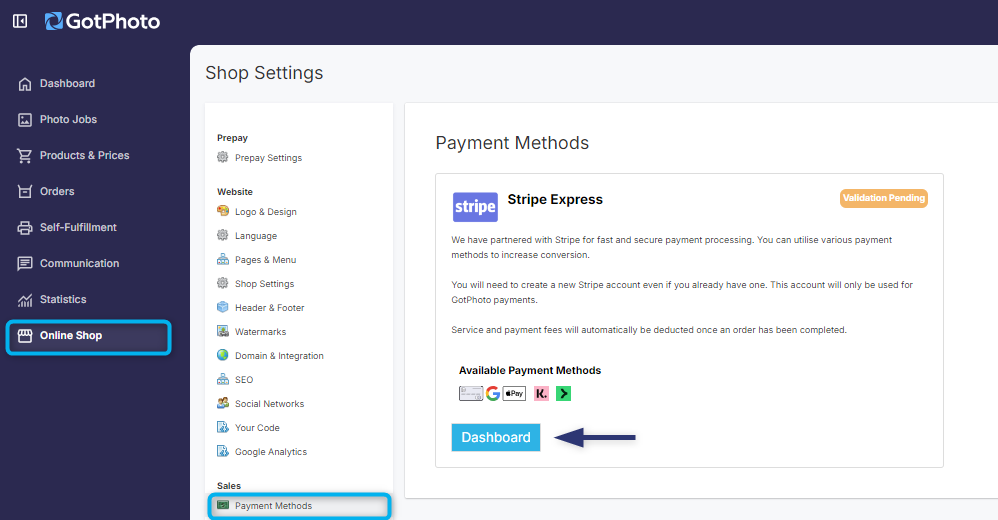
1. 1Navigate to the **Payment Methods** page:
- Click **Online Shop** → **Payment Methods** (under **Sale**) in the **Shop Settings** menu.
2. 2Then click the blue **Dashboard** button.
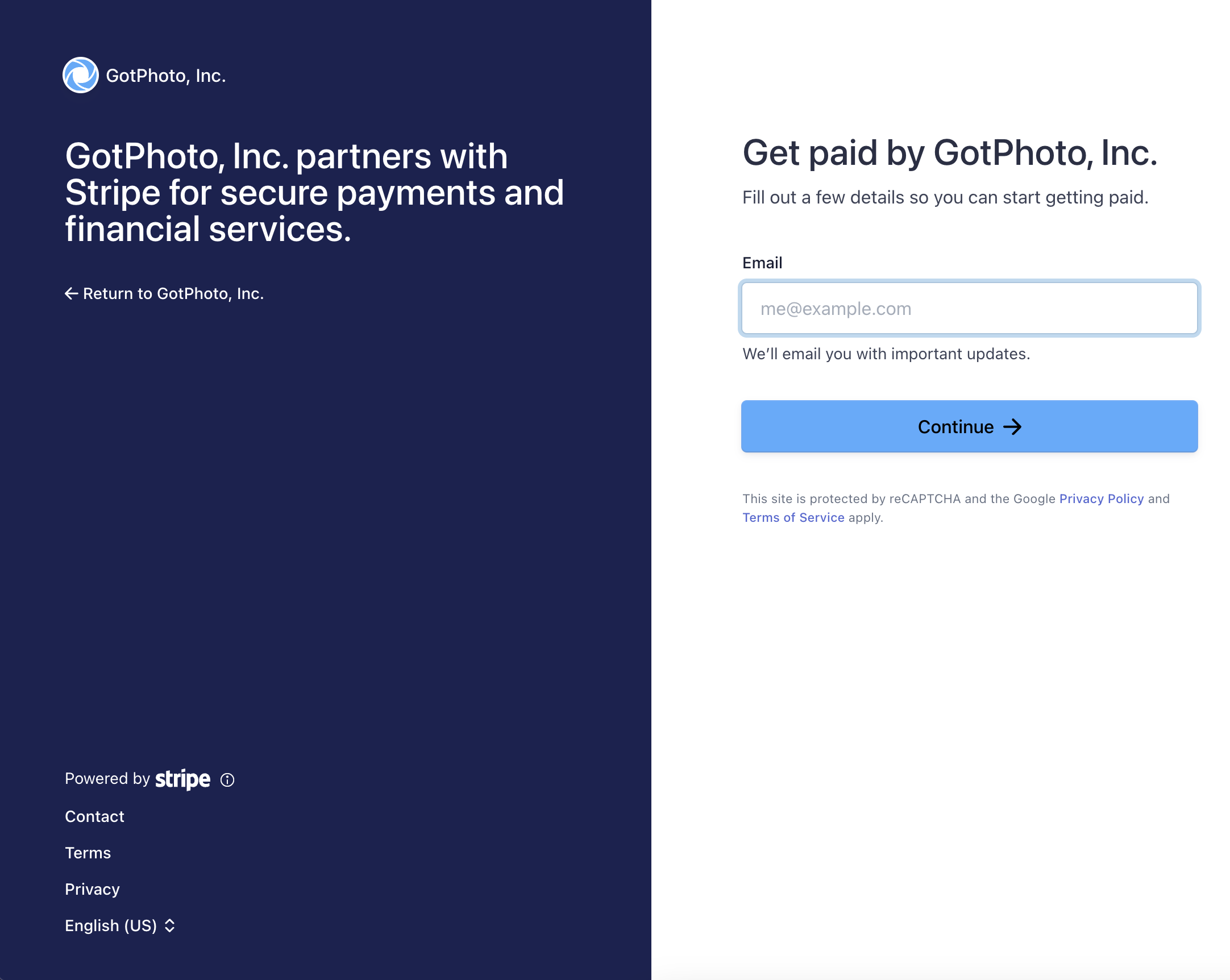
3. 3You’ll be redirected to Stripe. Even if you already have a Stripe account, a new one must be created for GotPhoto. Follow the prompts on-screen.
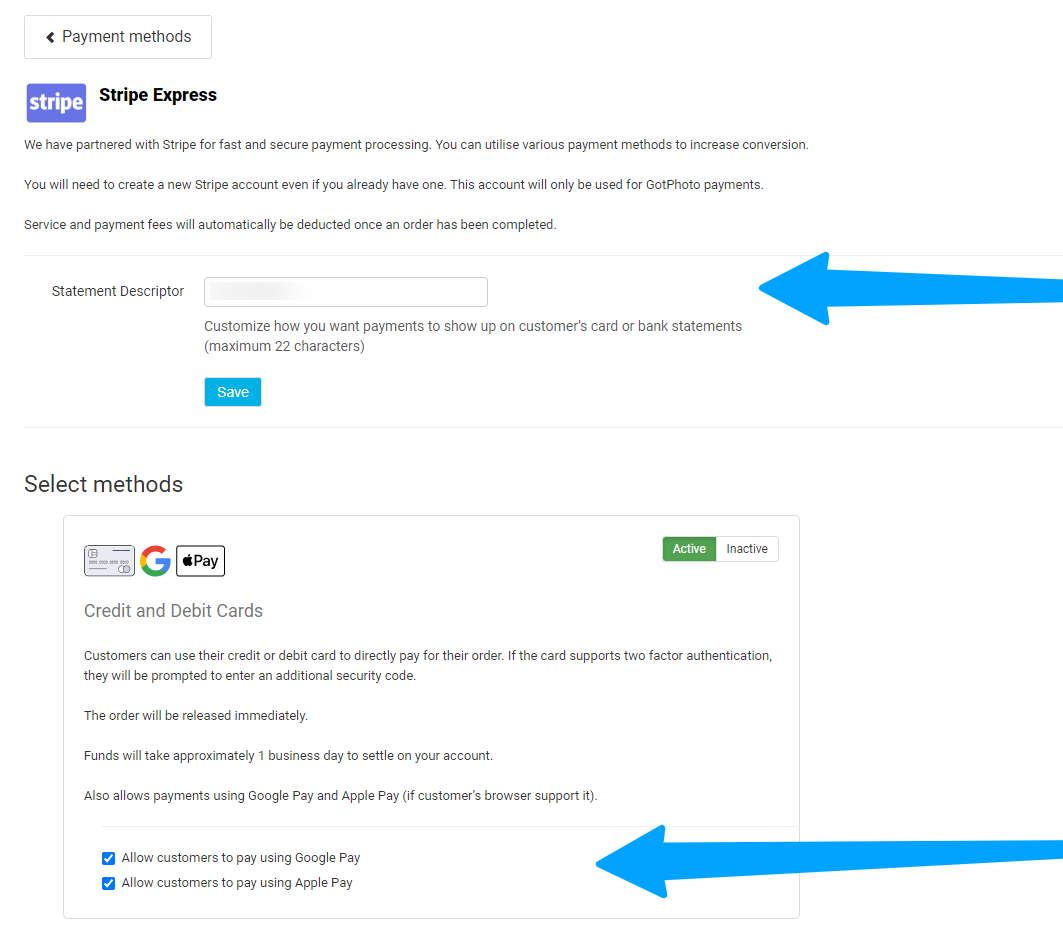
4. 4You’ll return to GotPhoto, and your Stripe account will now be connected.
- Click **Modify** to update the statement descriptor (the text on your customers’ billing statements).
- You can also enable or disable Apple Pay and Google Pay (recommended to leave them enabled).
5. 5*Customers must have a valid credit card in Apple/Google Pay, not be in incognito mode, and have appropriate browser settings enabled.*
---
### ***Send a test payment***
To verify your Stripe setup, follow these steps to complete a $1 test transaction:
1. 1[Create a new Price List](https://help.gotphoto.com/en/support/create-and-manage-price-lists?hsLang=en).
2. 2Add a $1 download product to the Price Profile.
3. 3Assign it to a demo job (e.g., “Demo Preschool”).
4. 4[Set the job to manual revision](https://help.gotphoto.com/en/support/advanced-job-settings?hsLang=en).
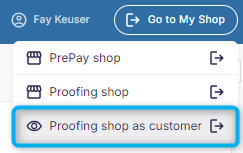
5. 5Visit your shop as a customer:
- Click **Go to My Shop** → **Proofing Shop as Customer**..
6. 6Enter access code: **TEST**.
7. 7Complete checkout using the download product.
8. 8Check the Order page to confirm payment success.
9. 9Click **Refund** on the order page and enter the full amount to initiate a refund.
10. 10Once processed, the payment will show as **Refunded**. The amount typically returns to your card within ~48 hours.
For more details, read [our Stripe integration help article](https://help.gotphoto.com/en/support/stripe-express?hsLang=en).
---
### ***A note on transaction fees***
Like all processors, Stripe charges a fee. This can't be passed directly to customers, but you can offset it by adjusting your [Price Lists](https://help.gotphoto.com/en/support/create-and-manage-price-lists?hsLang=en).
---
### ***The takeaway***
Easily integrate Stripe Express to securely accept payments via credit/debit cards, Apple Pay, and Google Pay. Setup is simple, testing is recommended, and settings can be tailored to fit your business needs.
**Related articles**
- **[Stripe Express](https://help.gotphoto.com/en/support/stripe-express?hsLang=en)**
- [Getting Started](https://help.gotphoto.com/en/support/getting-started?hsLang=en#main-content)
- [One-Time Settings](https://help.gotphoto.com/en/support/getting-started?hsLang=en#one-time-settings)
- [Price Lists and Product Packages](https://help.gotphoto.com/en/support/getting-started?hsLang=en#price-lists-and-product-packages)
- [Your Online Shop](https://help.gotphoto.com/en/support/getting-started?hsLang=en#your-online-shop)
- [Communication With Customers](https://help.gotphoto.com/en/support/getting-started?hsLang=en#communication-with-customers)
- [Upselling Options](https://help.gotphoto.com/en/support/getting-started?hsLang=en#upselling-options)
- [Navigation](https://help.gotphoto.com/en/support/getting-started?hsLang=en#navigation)
- [How-To's](https://help.gotphoto.com/en/support/how-tos?hsLang=en#main-content)
- [Review Phase](https://help.gotphoto.com/en/support/how-tos?hsLang=en#review-phase)
- [Sales Phase](https://help.gotphoto.com/en/support/how-tos?hsLang=en#sales-phase)
- [Workflow Guides for Specific Scenarios](https://help.gotphoto.com/en/support/how-tos?hsLang=en#workflow-guides-for-specific-scenarios)
- [Planning Phase](https://help.gotphoto.com/en/support/how-tos?hsLang=en#planning-phase)
- [Picture Day Phase](https://help.gotphoto.com/en/support/how-tos?hsLang=en#picture-day-phase)
- [Manage your Account](https://help.gotphoto.com/en/support/how-tos?hsLang=en#manage-your-account)
- [GotPhoto's Editing Services](https://help.gotphoto.com/en/support/gotphotos-editing-services?hsLang=en#main-content)
- [GotPhoto's Editing Services](https://help.gotphoto.com/en/support/gotphotos-editing-services?hsLang=en#gotphotos-editing-services)
- [Sports Graphics Creation Service by Next Gen](https://help.gotphoto.com/en/support/sports-graphics-creation-service-by-next-gen?hsLang=en#main-content)
- [Next Gen](https://help.gotphoto.com/en/support/sports-graphics-creation-service-by-next-gen?hsLang=en#next-gen)
- [Entagged & GotPhoto Tagging App](https://help.gotphoto.com/en/support/entagged-gotphoto-tagging-app?hsLang=en#main-content)
- [Master Entagged with Comprehensive Tutorials.](https://help.gotphoto.com/en/support/entagged-gotphoto-tagging-app?hsLang=en#master-entagged-with-comprehensive-tutorials)
- [Entagged Troubleshooting](https://help.gotphoto.com/en/support/entagged-gotphoto-tagging-app?hsLang=en#entagged-troubleshooting)
- [GotPhoto Tagging App](https://help.gotphoto.com/en/support/entagged-gotphoto-tagging-app?hsLang=en#gotphoto-tagging-app)
- [Business & Growth](https://help.gotphoto.com/en/support/business-growth?hsLang=en#main-content)
- [Stripe & Accounting Resources](https://help.gotphoto.com/en/support/business-growth?hsLang=en#stripe-accounting-resources)
- [Best practices](https://help.gotphoto.com/en/support/business-growth?hsLang=en#best-practices)
- [Webinars](https://help.gotphoto.com/en/support/business-growth?hsLang=en#webinars)
- [Templates and Downloads](https://help.gotphoto.com/en/support/business-growth?hsLang=en#templates-and-downloads)
- [GotPhoto Referral Program](https://help.gotphoto.com/en/support/business-growth?hsLang=en#gotphoto-referral-program)
- [UK Materials](https://help.gotphoto.com/en/support/business-growth?hsLang=en#uk-materials)
- [Troubleshooting](https://help.gotphoto.com/en/support/troubleshooting?hsLang=en#main-content)
- [Uploading Photos](https://help.gotphoto.com/en/support/troubleshooting?hsLang=en#uploading-photos)
- [Customer-Facing Issues](https://help.gotphoto.com/en/support/troubleshooting?hsLang=en#customer-facing-issues)
- [Access Codes](https://help.gotphoto.com/en/support/troubleshooting?hsLang=en#access-codes)
- [Managing Names Lists](https://help.gotphoto.com/en/support/troubleshooting?hsLang=en#managing-names-lists)
- [Customer Outreach](https://help.gotphoto.com/en/support/troubleshooting?hsLang=en#customer-outreach)
- [Customizing Your Shop](https://help.gotphoto.com/en/support/troubleshooting?hsLang=en#customizing-your-shop)
- [Your Account](https://help.gotphoto.com/en/support/troubleshooting?hsLang=en#your-account)
- [Price Lists](https://help.gotphoto.com/en/support/troubleshooting?hsLang=en#price-lists)
- [Student Data Export](https://help.gotphoto.com/en/support/troubleshooting?hsLang=en#student-data-export)
- [DIY Sports Graphic Creation & Group Composites](https://help.gotphoto.com/en/support/diy-sports-graphic-creation-group-composites?hsLang=en#main-content)
- [Workflow Resources: QSuite, Pixnub & Team Photo Composite](https://help.gotphoto.com/en/support/diy-sports-graphic-creation-group-composites?hsLang=en#workflow-resources-qsuite-pixnub-team-photo-composite)
- [GotPhoto North America](https://www.gotphoto.com/)
- [T&Cs US](https://www.gotphoto.com/gtc-us/)
- [T&Cs Canada](https://www.gotphoto.com/gtc-ca/)
- [Privacy Policy US](https://www.gotphoto.com/data-privacy-policy-us/)
- [Privacy Policy Canada](https://www.gotphoto.com/data-privacy-policy-ca/)
- [DPA US](https://www.gotphoto.com/dpa-us/)
- [DPA Canada](https://www.gotphoto.com/dpa-ca/)
- [TOMs & sub-processors US](https://www.gotphoto.com/toms-and-sub-processors-us/)
- [TOMs & sub-processors Canada](https://www.gotphoto.com/toms-and-sub-processors-ca/)
- [GotPhoto UK](https://www.gotphoto.co.uk/)
- [T&C UK](https://www.gotphoto.co.uk/gtc/)
- [Privacy Policy UK](https://www.gotphoto.co.uk/data-privacy-policy/)
- [DPA UK](https://www.gotphoto.co.uk/dpa/)
- [TOMs & Sub-Processors UK](https://www.gotphoto.co.uk/toms-and-sub-processors/)
- [Cookie Declaration](https://app.gotphoto.com/cookie_declaration)
[](http://GotPhoto.com)
### GotPhoto North America
**Customer Care**
 +1 646-362-5100
 +1 365-809-1810
SupportUS@gotphoto.com
Support Hours:
Monday – Friday
9am – 7pm ET
### GotPhoto UK
**Customer Care**
+44 (0) 20 8068 8571
service@gotphoto.co.uk
Support Hours:
Monday – Friday
9am – 5pm GMT
Copyright © 2026, GotPhoto Inc.