---
title: Set up automated campaigns in GotPhoto
description: GotPhoto’s automated campaigns are a fast and efficient way to market to your customers with very little effort!
---
[Skip to content](https://help.gotphoto.com/en/support/set-up-automated-campaigns-in-gotphoto#main-content)
- [English](https://help.gotphoto.com/en/support/set-up-automated-campaigns-in-gotphoto)
- [Deutsch – Deutschland](https://help.gotphoto.com/de-de/support/eine-automatisierte-kampagne-erstellen)
English
Show submenu for translations

Open main navigation
Close main navigation
- - [English](https://help.gotphoto.com/en/support/set-up-automated-campaigns-in-gotphoto)
- [Deutsch – Deutschland](https://help.gotphoto.com/de-de/support/eine-automatisierte-kampagne-erstellen)
English
Show submenu for translations
Hello. How can we help you?
- There are no suggestions because the search field is empty.
1. [Help Center](https://help.gotphoto.com/en/support?hsLang=en)
2. [Getting Started](https://help.gotphoto.com/en/support/getting-started?hsLang=en)
3. [Communication With Customers](https://help.gotphoto.com/en/support/getting-started?hsLang=en#communication-with-customers)
September 1, 2026
# Set up automated campaigns in GotPhoto
**Table of contents**
- [Overview](https://help.gotphoto.com/en/support/set-up-automated-campaigns-in-gotphoto#Overview)
- [Create a new automated campaign](https://help.gotphoto.com/en/support/set-up-automated-campaigns-in-gotphoto#Create-New-Campaign)
- [Copy and modify an existing automated campaign](https://help.gotphoto.com/en/support/set-up-automated-campaigns-in-gotphoto#Copy-Modify-Campaign)
- [FAQs](https://help.gotphoto.com/en/support/set-up-automated-campaigns-in-gotphoto#FAQs)
- [The takeaway](https://help.gotphoto.com/en/support/set-up-automated-campaigns-in-gotphoto#The-takeaway)
### **Overview**
GotPhoto's automated campaigns (communication profiles) are a fast and efficient way to market to your customers with very little effort. You can trigger communications at key points in the job lifecycle—like picture day reminders or promotions. Once created, a campaign can be reused across multiple photo jobs. [Learn more about monitoring the success of your automated email campaigns here.](https://help.gotphoto.com/en/support/campaign-performance-for-your-automated-email-campaigns?hsLang=en)
### **Create a new automated campaign**
You can start from scratch or use the standard campaigns in your GotPhoto account. These can be duplicated and customized as needed. Once set up, a campaign can be used repeatedly in different photo jobs. [Learn how to add a campaign to a photo job](https://help.gotphoto.com/en/support/add-an-automated-communication-campaign-to-a-photo-job?hsLang=en).
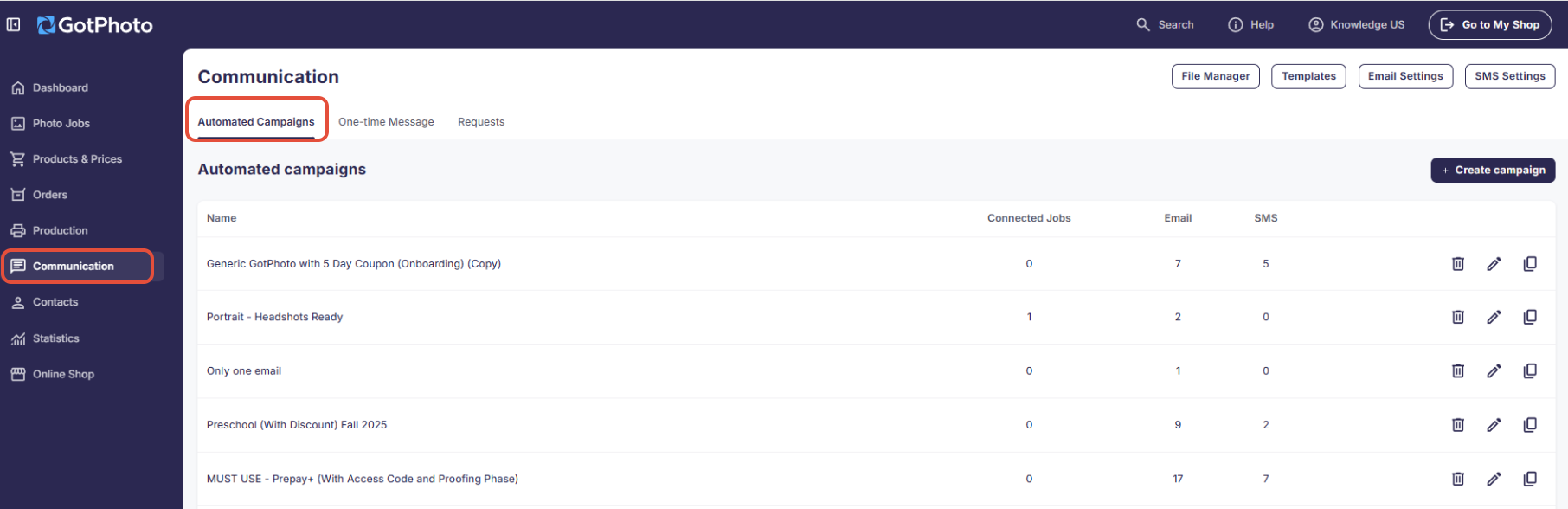
1. Click **Communication** in the left-hand menu, then select the **Automated Campaigns** tab.
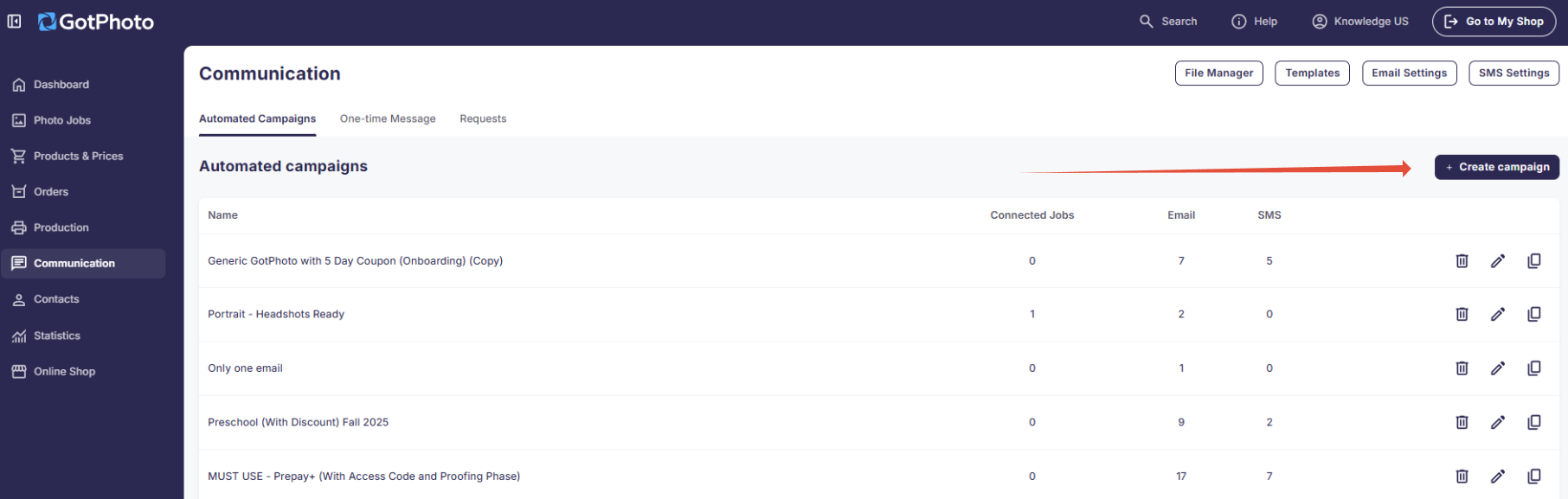
2. Click the blue **+ Create campaign** button.
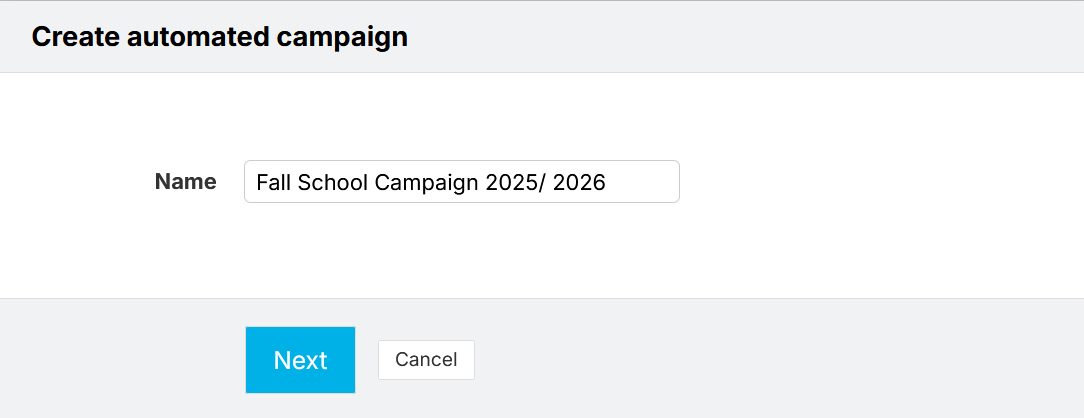
3. Name your campaign and click **Next**.
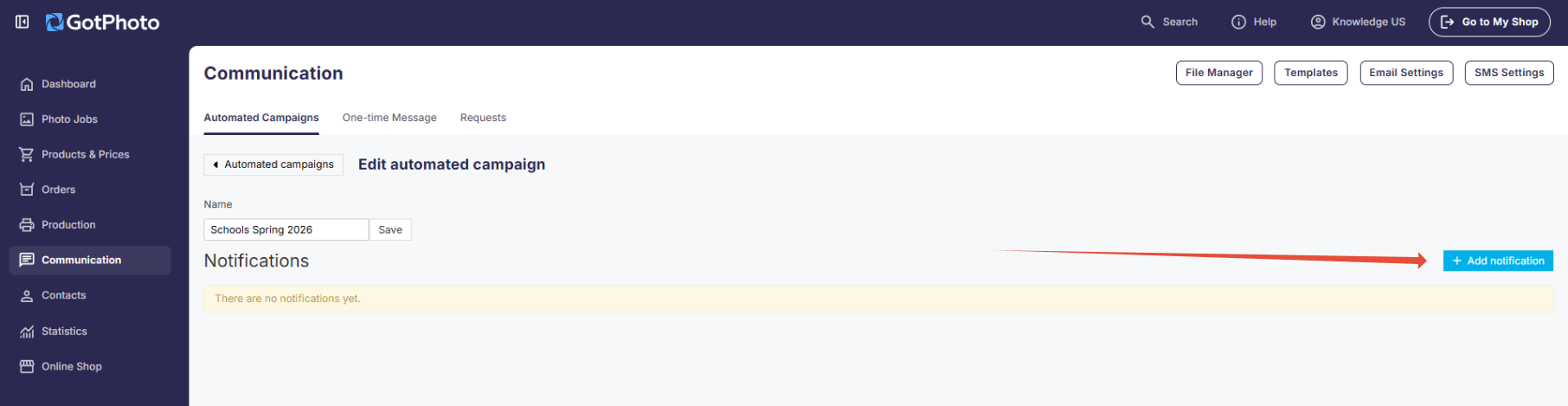
4. Add notifications to build your campaign.
5. [Learn how to craft messages for your campaign](https://help.gotphoto.com/en/support/add-a-message-to-an-automated-campaign?hsLang=en).
### **Copy and modify an existing automated campaign**
GotPhoto includes standard campaigns suitable for most segments. You can duplicate any of these and make your own adjustments.
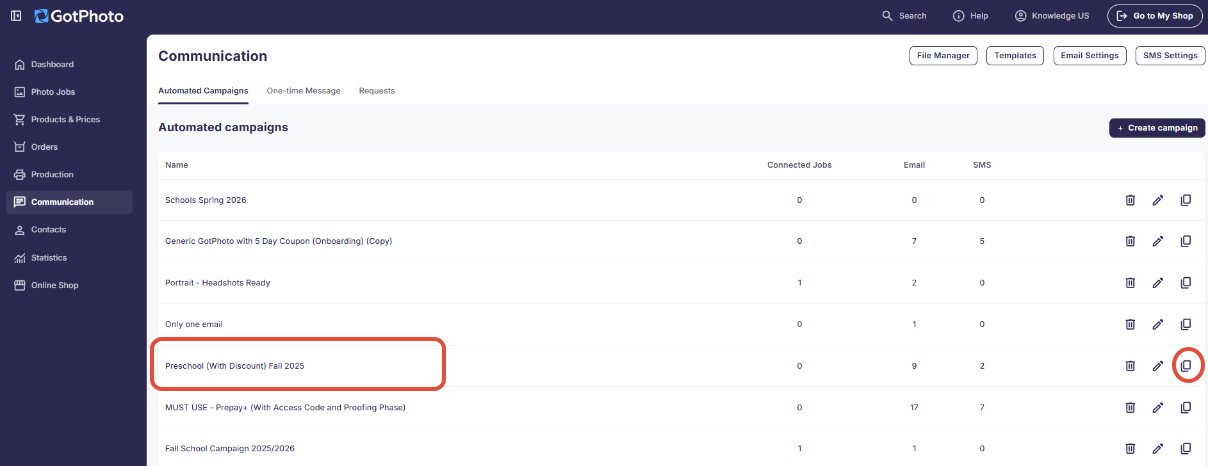
1. Click **Communication** in the lefthand menu, then go to **Automated Campaigns**.
Find the campaign you want to use.
2. In the list of campaigns, find the campaign you want to use.
In the same row as that campaign, move to the far right where the action icons appear.
Click the duplicate icon (the icon showing two overlapping squares).
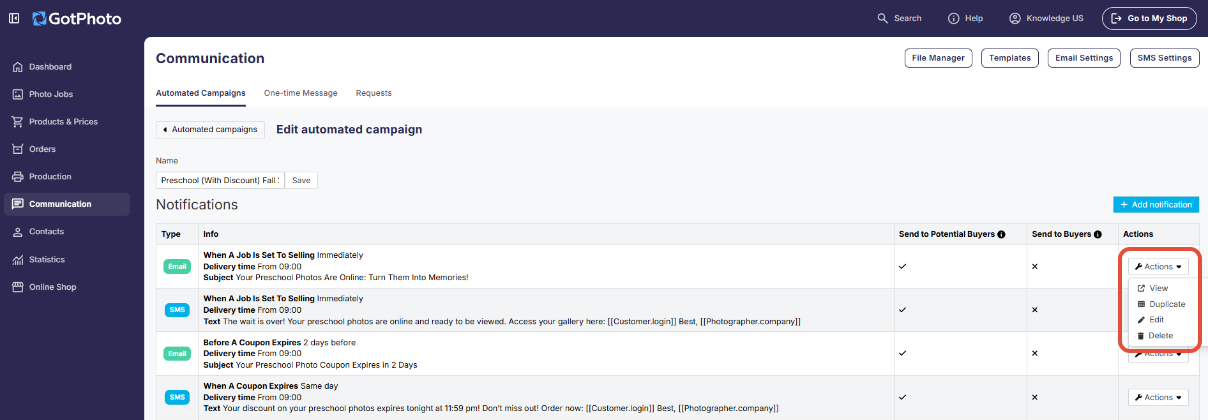
3. Rename your new campaign to make it easy to identify, then click **Save**.
4. In the Actions menu next to each notification, you can:
View – preview the message
Edit – make changes
Delete – remove the notification
#### Best practices: Creating new automated campaigns
Include the following in every campaign:
1. Include the picture day date using the \[Job.date\_shot\] placeholder.
2. Add key info like outfit guidelines, props, or reminders.
3. If doing yearbook photos, mention the selection deadline.
4. **For regular jobs:** Guide buyers on the shop login:
1. **Using individual access codes:** Add \[\[Customer.login\]\] for personalized login links \[North America\]. In the UK, use the placeholder \[\[Customer.email\]\]
**Note for dance jobs:** [Read how costume-specific access codes work](https://help.gotphoto.com/en/support/workflow-options-for-costume-changes-dance-photography?hsLang=en).
2. **Using one access code per job:** Share the job code in your message.
5. **For [prepay](https://help.gotphoto.com/en/support/set-up-a-prepay-photo-job?hsLang=en) jobs:**
1. Use \[Photographer.prepay\_link\] to insert the shop URL.
2. Use \[Job.prepay\_code\] for access code instructions.
3. Include \[Job.prepay\_deadline\] to show the order window close date.
4. If running [a Prepay+ job](https://help.gotphoto.com/en/support/set-up-a-prepay-job?hsLang=en), use the "MUST USE - Prepay+" campaign to allow photo selection.
### **FAQs**
**Are there certain times when automated campaign emails are not sent?**
If you switched the job to Selling between 9 PM and 9 AM, emails from your automated campaigns will not be sent during this time to avoid disturbing customers. Most campaign messages are sent at 9 AM. Expect a delay of 1–2 hours.
**Can I edit the system-generated messages that are sent automatically when an order is placed?**
No, it is not possible to edit the system-generated messages sent to customers. These are sent automatically by GotPhoto after certain system/shop events and notify your customers about order confirmations, order cancellations, request updates (formerly known as complaints), and other general order status changes. They cannot be edited or adjusted.
**Can I track the emails that are sent out via the automated campaign?**
Yes, to gain insights into how your automated emails are performing, explore our detailed guide on the [Communication Performance dashboard](https://help.gotphoto.com/en/support/campaign-performance-for-your-automated-email-campaigns?hsLang=en).
**Will the system send communications to students with access codes but no photos, or will it skip them?**
This depends on your automated campaign setup. Please review the specific communication profile triggers on your job to verify the intended recipients. GotPhoto automated communications are built around marketing the job to clients with images available, though it is possible to send email and SMS blasts to clients who don't have images available.
**Can I use an automated campaign that also includes coupon messages if I don't offer a coupon?**
Yes. If your selected automated campaign includes messages for triggers that don’t apply to your job, the system will simply skip those notifications.
**Can I delete the pre-loaded automated campaigns that GotPhoto added?**
At the moment, these campaigns can’t be deleted, but we’re working toward more flexibility down the line.
**If I change the delay or timing of a trigger - for example, sending a notification 3 days after picture day instead of 1 day after picture day - will the emails be rescheduled?**
Yes. As long as the trigger event is still more than 24 hours away, the system will adjust and reschedule the emails accordingly.
**Are emails sent through the system encrypted?**
Yes, emails are sent using transport-level encryption (TLS). End-to-end encryption is not used for automated emails. Automated emails are transmitted via TLS (Transport Layer Security), provided the recipient’s mail server supports it. End-to-end encryption (e.g., PGP) is not technically feasible for automated systems or marketing emails and is not an industry standard. Email delivery complies with the generally recognized state of the art for automated email communication.
Please note: We do not provide legal or data protection advice. This information describes only the technical implementation of our system and does not constitute a legally binding assessment.
### **The takeaway**
GotPhoto's automated campaigns make it easy to send timely, targeted messages to customers with minimal effort. Whether you're starting fresh or customizing existing templates, these campaigns can be reused and tailored to fit any photo job.
**Related articles**
- **[Campaign performance for your automated email campaigns](https://help.gotphoto.com/en/support/campaign-performance-for-your-automated-email-campaigns?hsLang=en)**
- **[Add a message to an automated campaign](https://help.gotphoto.com/en/support/add-a-message-to-an-automated-campaign?hsLang=en)**
- [**Troubleshooting automated campaigns**](https://help.gotphoto.com/en/support/troubleshooting-automated-campaigns?hsLang=en)
- [Getting Started](https://help.gotphoto.com/en/support/getting-started?hsLang=en#main-content)
- [One-Time Settings](https://help.gotphoto.com/en/support/getting-started?hsLang=en#one-time-settings)
- [Price Lists and Product Packages](https://help.gotphoto.com/en/support/getting-started?hsLang=en#price-lists-and-product-packages)
- [Your Online Shop](https://help.gotphoto.com/en/support/getting-started?hsLang=en#your-online-shop)
- [Communication With Customers](https://help.gotphoto.com/en/support/getting-started?hsLang=en#communication-with-customers)
- [Upselling Options](https://help.gotphoto.com/en/support/getting-started?hsLang=en#upselling-options)
- [Navigation](https://help.gotphoto.com/en/support/getting-started?hsLang=en#navigation)
- [How-To's](https://help.gotphoto.com/en/support/how-tos?hsLang=en#main-content)
- [Review Phase](https://help.gotphoto.com/en/support/how-tos?hsLang=en#review-phase)
- [Sales Phase](https://help.gotphoto.com/en/support/how-tos?hsLang=en#sales-phase)
- [Workflow Guides for Specific Scenarios](https://help.gotphoto.com/en/support/how-tos?hsLang=en#workflow-guides-for-specific-scenarios)
- [Planning Phase](https://help.gotphoto.com/en/support/how-tos?hsLang=en#planning-phase)
- [Picture Day Phase](https://help.gotphoto.com/en/support/how-tos?hsLang=en#picture-day-phase)
- [Manage your Account](https://help.gotphoto.com/en/support/how-tos?hsLang=en#manage-your-account)
- [GotPhoto's Editing Services](https://help.gotphoto.com/en/support/gotphotos-editing-services?hsLang=en#main-content)
- [GotPhoto's Editing Services](https://help.gotphoto.com/en/support/gotphotos-editing-services?hsLang=en#gotphotos-editing-services)
- [Sports Graphics Creation Service by Next Gen](https://help.gotphoto.com/en/support/sports-graphics-creation-service-by-next-gen?hsLang=en#main-content)
- [Next Gen](https://help.gotphoto.com/en/support/sports-graphics-creation-service-by-next-gen?hsLang=en#next-gen)
- [Entagged & GotPhoto Tagging App](https://help.gotphoto.com/en/support/entagged-gotphoto-tagging-app?hsLang=en#main-content)
- [Master Entagged with Comprehensive Tutorials.](https://help.gotphoto.com/en/support/entagged-gotphoto-tagging-app?hsLang=en#master-entagged-with-comprehensive-tutorials)
- [Entagged Troubleshooting](https://help.gotphoto.com/en/support/entagged-gotphoto-tagging-app?hsLang=en#entagged-troubleshooting)
- [GotPhoto Tagging App](https://help.gotphoto.com/en/support/entagged-gotphoto-tagging-app?hsLang=en#gotphoto-tagging-app)
- [Business & Growth](https://help.gotphoto.com/en/support/business-growth?hsLang=en#main-content)
- [Stripe & Accounting Resources](https://help.gotphoto.com/en/support/business-growth?hsLang=en#stripe-accounting-resources)
- [Best practices](https://help.gotphoto.com/en/support/business-growth?hsLang=en#best-practices)
- [Webinars](https://help.gotphoto.com/en/support/business-growth?hsLang=en#webinars)
- [Templates and Downloads](https://help.gotphoto.com/en/support/business-growth?hsLang=en#templates-and-downloads)
- [GotPhoto Referral Program](https://help.gotphoto.com/en/support/business-growth?hsLang=en#gotphoto-referral-program)
- [UK Materials](https://help.gotphoto.com/en/support/business-growth?hsLang=en#uk-materials)
- [Troubleshooting](https://help.gotphoto.com/en/support/troubleshooting?hsLang=en#main-content)
- [Uploading Photos](https://help.gotphoto.com/en/support/troubleshooting?hsLang=en#uploading-photos)
- [Customer-Facing Issues](https://help.gotphoto.com/en/support/troubleshooting?hsLang=en#customer-facing-issues)
- [Access Codes](https://help.gotphoto.com/en/support/troubleshooting?hsLang=en#access-codes)
- [Managing Names Lists](https://help.gotphoto.com/en/support/troubleshooting?hsLang=en#managing-names-lists)
- [Customer Outreach](https://help.gotphoto.com/en/support/troubleshooting?hsLang=en#customer-outreach)
- [Customizing Your Shop](https://help.gotphoto.com/en/support/troubleshooting?hsLang=en#customizing-your-shop)
- [Your Account](https://help.gotphoto.com/en/support/troubleshooting?hsLang=en#your-account)
- [Price Lists](https://help.gotphoto.com/en/support/troubleshooting?hsLang=en#price-lists)
- [Student Data Export](https://help.gotphoto.com/en/support/troubleshooting?hsLang=en#student-data-export)
- [DIY Sports Graphic Creation & Group Composites](https://help.gotphoto.com/en/support/diy-sports-graphic-creation-group-composites?hsLang=en#main-content)
- [Workflow Resources: QSuite, Pixnub & Team Photo Composite](https://help.gotphoto.com/en/support/diy-sports-graphic-creation-group-composites?hsLang=en#workflow-resources-qsuite-pixnub-team-photo-composite)
- [GotPhoto North America](https://www.gotphoto.com/)
- [T&Cs US](https://www.gotphoto.com/gtc-us/)
- [T&Cs Canada](https://www.gotphoto.com/gtc-ca/)
- [Privacy Policy US](https://www.gotphoto.com/data-privacy-policy-us/)
- [Privacy Policy Canada](https://www.gotphoto.com/data-privacy-policy-ca/)
- [DPA US](https://www.gotphoto.com/dpa-us/)
- [DPA Canada](https://www.gotphoto.com/dpa-ca/)
- [TOMs & sub-processors US](https://www.gotphoto.com/toms-and-sub-processors-us/)
- [TOMs & sub-processors Canada](https://www.gotphoto.com/toms-and-sub-processors-ca/)
- [GotPhoto UK](https://www.gotphoto.co.uk/)
- [T&C UK](https://www.gotphoto.co.uk/gtc/)
- [Privacy Policy UK](https://www.gotphoto.co.uk/data-privacy-policy/)
- [DPA UK](https://www.gotphoto.co.uk/dpa/)
- [TOMs & Sub-Processors UK](https://www.gotphoto.co.uk/toms-and-sub-processors/)
- [Cookie Declaration](https://app.gotphoto.com/cookie_declaration)
[](http://GotPhoto.com)
### GotPhoto North America
**Customer Care**
 +1 646-362-5100
 +1 365-809-1810
SupportUS@gotphoto.com
Support Hours:
Monday – Friday
9am – 7pm ET
### GotPhoto UK
**Customer Care**
+44 (0) 20 8068 8571
service@gotphoto.co.uk
Support Hours:
Monday – Friday
9am – 5pm GMT
Copyright © 2026, GotPhoto Inc.