---
title: Offer the Professional Retouching add-on in GotPhoto
description: Set up professional retouching in GotPhoto with AI automation or manual editing. Learn about retouching presets, pricing, review options, and workflows.
---
[Skip to content](https://help.gotphoto.com/en/support/offer-the-professional-retouching-add-on-in-gotphoto#main-content)
- [English](https://help.gotphoto.com/en/support/offer-the-professional-retouching-add-on-in-gotphoto)
- [Deutsch – Deutschland](https://help.gotphoto.com/de-de/support/die-retusche-funktion)
English
Show submenu for translations

Open main navigation
Close main navigation
- - [English](https://help.gotphoto.com/en/support/offer-the-professional-retouching-add-on-in-gotphoto)
- [Deutsch – Deutschland](https://help.gotphoto.com/de-de/support/die-retusche-funktion)
English
Show submenu for translations
Hello. How can we help you?
- There are no suggestions because the search field is empty.
1. [Help Center](https://help.gotphoto.com/en/support?hsLang=en)
2. [Getting Started](https://help.gotphoto.com/en/support/getting-started?hsLang=en)
3. [Price Lists and Product Packages](https://help.gotphoto.com/en/support/getting-started?hsLang=en#price-lists-and-product-packages)
September 1, 2026
# Offer the Professional Retouching add-on in GotPhoto
## Set up professional retouching in GotPhoto with AI automation or manual editing. Learn about retouching presets, pricing, review options, and workflows.
**Table of contents**
- [Overview](https://help.gotphoto.com/en/support/offer-the-professional-retouching-add-on-in-gotphoto#Overview)
- [Requirements](https://help.gotphoto.com/en/support/offer-the-professional-retouching-add-on-in-gotphoto#Requirements)
- [The customer experience in the shop](https://help.gotphoto.com/en/support/offer-the-professional-retouching-add-on-in-gotphoto#The-customer-experience-in-the-shop)
- [Setup](https://help.gotphoto.com/en/support/offer-the-professional-retouching-add-on-in-gotphoto#Setup)
- [Set up automation for AI retouching (saves time)](https://help.gotphoto.com/en/support/offer-the-professional-retouching-add-on-in-gotphoto#Set-up-automation-for-AI-retouching-saves-time)
- [Manual retouching (DIY approach)](https://help.gotphoto.com/en/support/offer-the-professional-retouching-add-on-in-gotphoto#Manual-retouching-DIY-approach)
- [FAQs](https://help.gotphoto.com/en/support/offer-the-professional-retouching-add-on-in-gotphoto#FAQs)
- [The takeaway](https://help.gotphoto.com/en/support/offer-the-professional-retouching-add-on-in-gotphoto#The-takeaway)
### **Overview**
Choose between AI‑powered automation or manual control for professional retouching in GotPhoto. This guide helps you configure the option that matches your workflow, whether you prioritize speed and scale or hands‑on quality.
### **Requirements**
- You must be on [a paid GotPhoto plan](https://help.gotphoto.com/en/support/start-a-free-trial-upgrade-and-manage-your-gotphoto-plan?hsLang=en).
### **The customer experience in the shop**
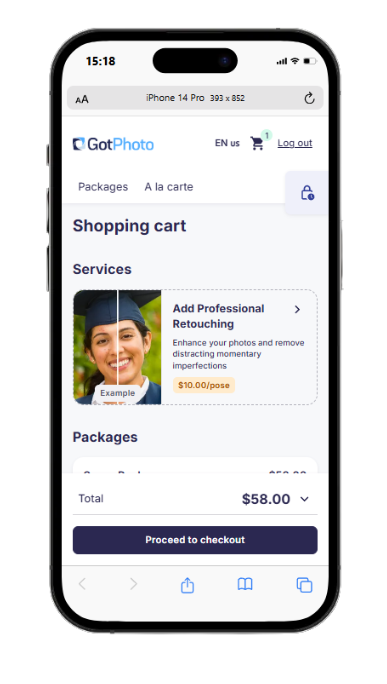
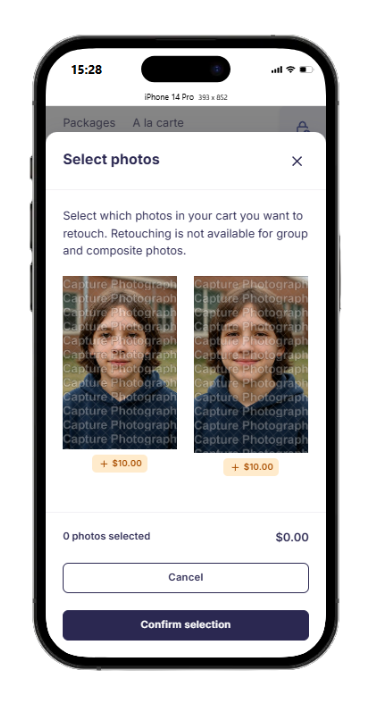
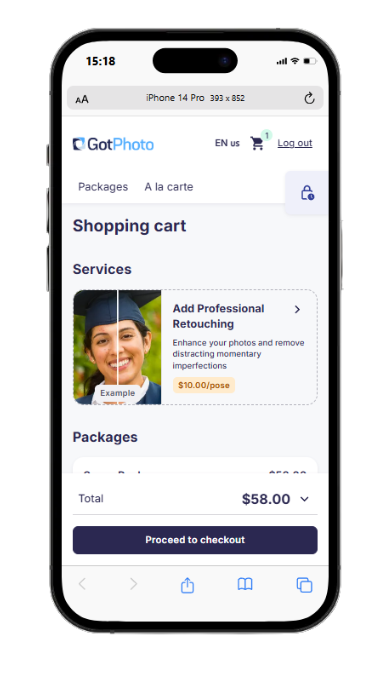
Customers are prompted to add **professional retouching** in their cart. They select images, confirm, and check out.
### **Setup**
Start by adding **professional retouching** to your Price List and setting per‑image pricing.
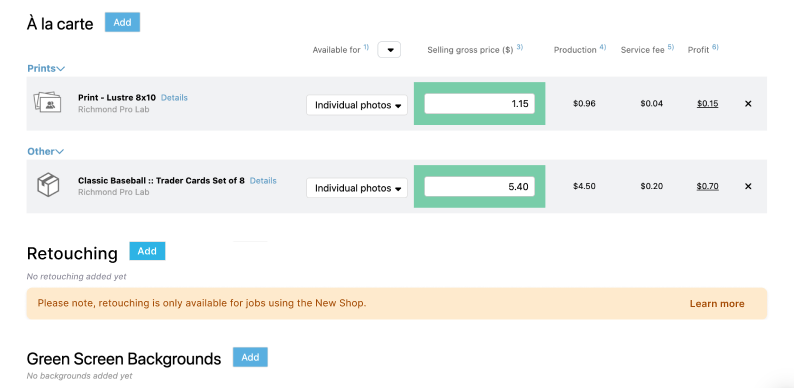
You can adjust these settings anytime.

### **Set up automation for AI retouching (saves time)**
This section walks you through enabling AI automation step-by-step.
### **A. Processing time and fees**
Photos are processed in about 30 seconds each. Launch pricing:
- 1 USD per image for U.S. users and \[Canadian users who joined before May 14, 2025\] - regular price 2 USD
- 1 CAD per image for Canadian users who joined on or after May 14, 2025 - regular price 2 CAD
- 1 GBP per image for U.K. users - regular price 2 GBP
### **B. Enabling the automation**
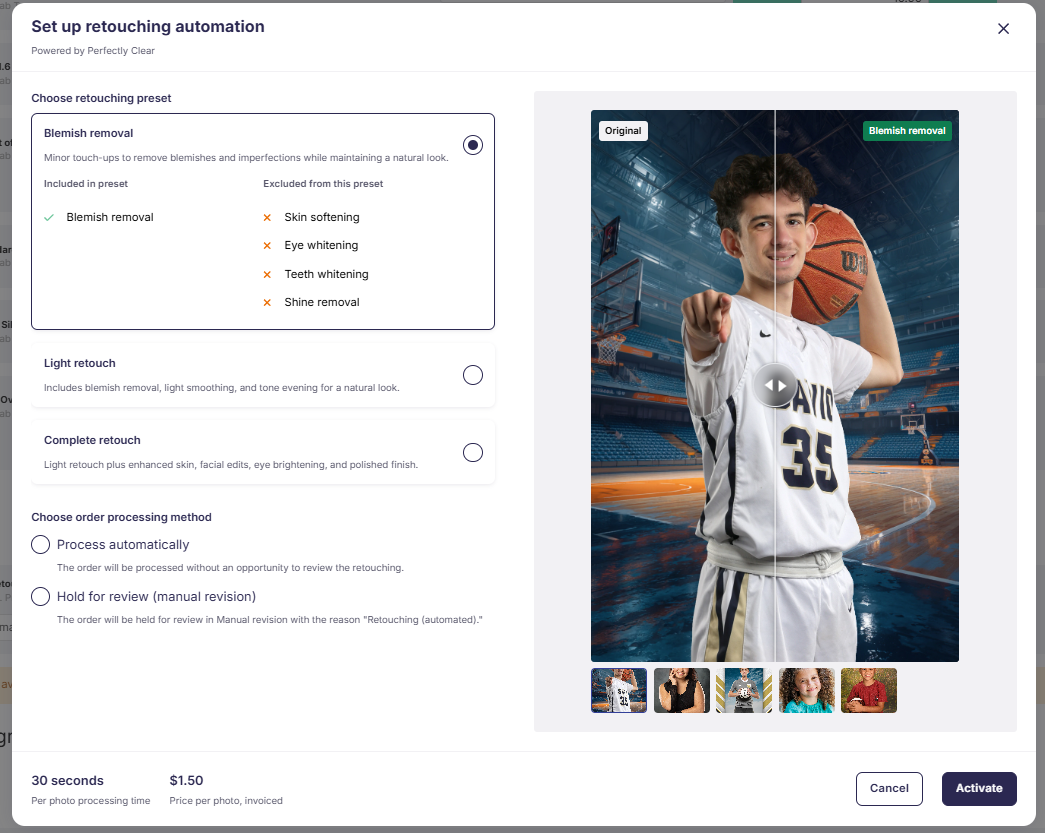
1. Click “Set up automation”.
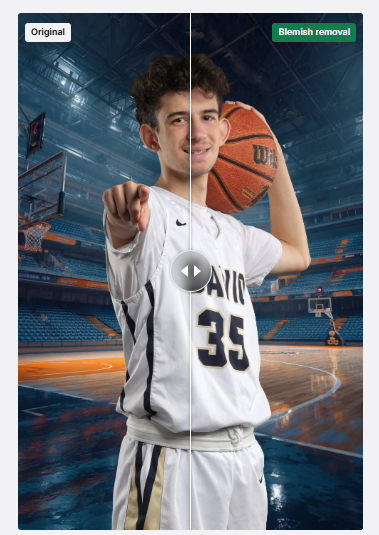
2. Select a retouching preset and preview results:
- **Blemish removal**: removes temporary imperfections only—no smoothing or whitening included.
\[Advanced\] Note: Use the image carousel to preview sample results.
- **Included:** blemish removal
- Excluded: skin softening, eye whitening, teeth whitening, shine removal
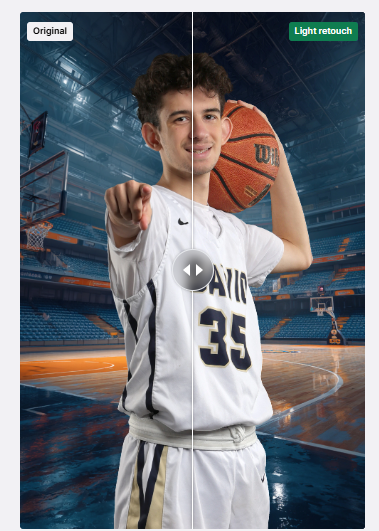
- **Light retouch**: minor smoothing and tone correction.
- **Included:** blemish removal, light skin softening, shine removal
- Excluded: eye whitening, teeth whitening
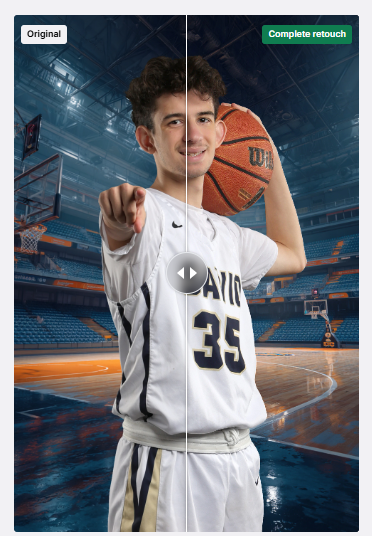
- **Complete retouch**: full face enhancement with all effects.
- **Included:** blemish removal, moderate skin softening, shine removal, eye whitening, teeth whitening
### **- Process automatically**
\[Optional\] The AI completes orders automatically with no further review.
### **- Hold for review**
Enable “Hold for review” so orders go to Manual Revision for your approval.
1. Click *Activate* to finalize automation settings.
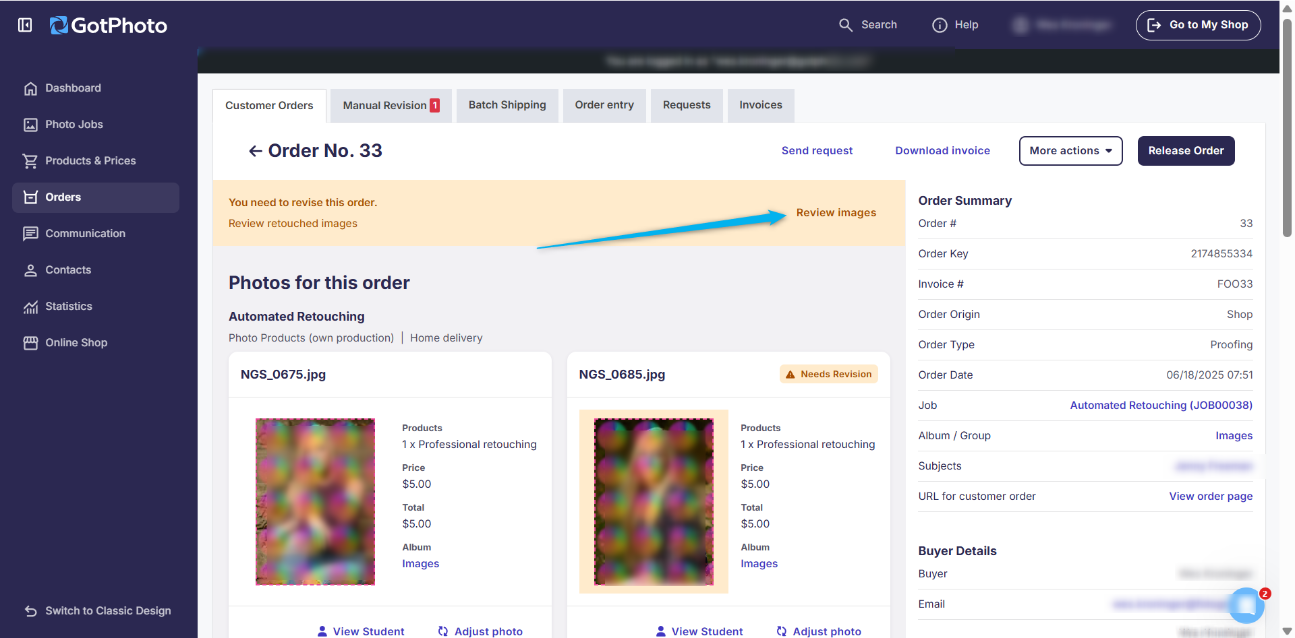
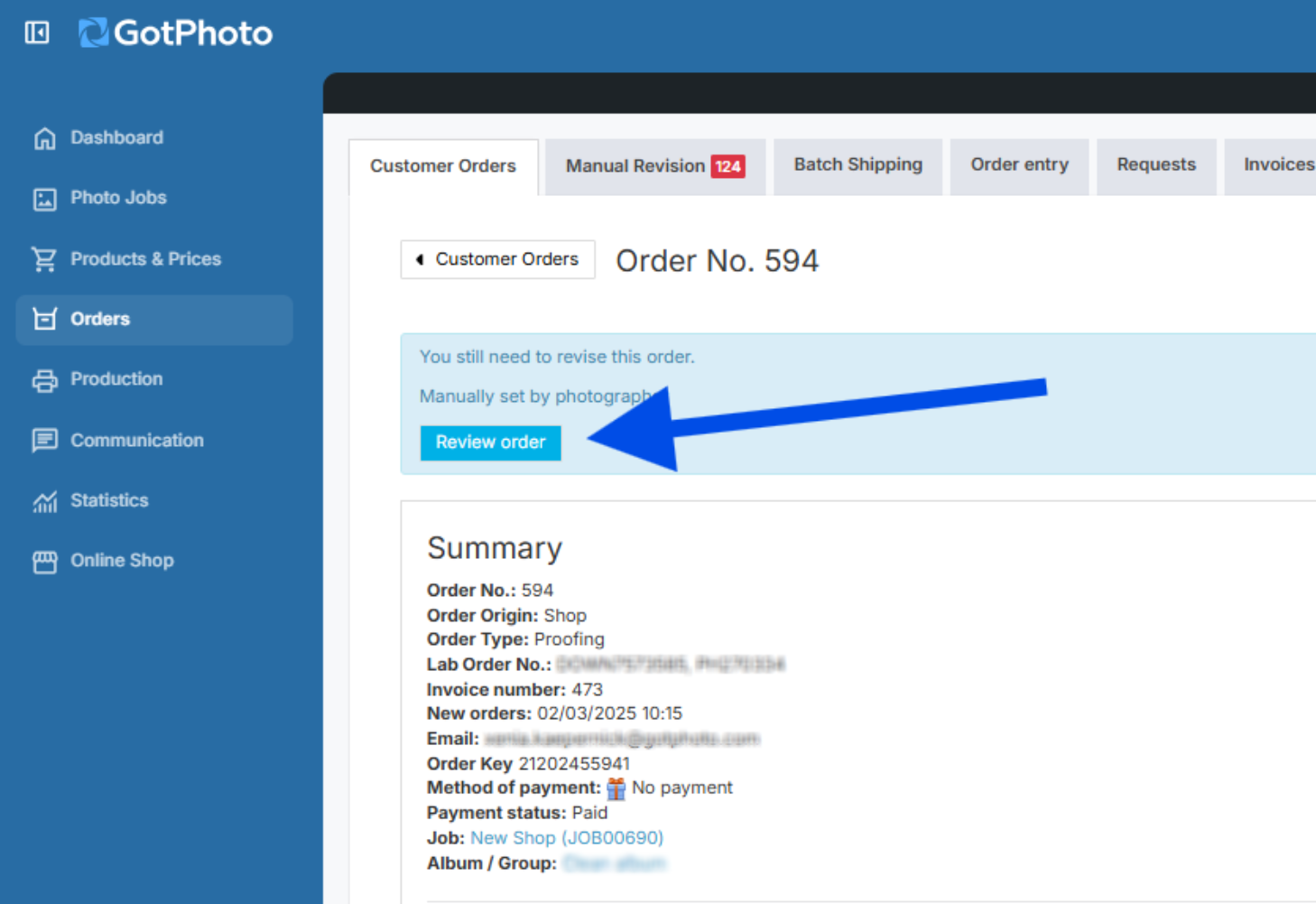
2. After checkout, if “Hold for review” is selected, retouched orders are sent to Manual Revision.
3. Open the order, click “Review images” to view AI results.
4. Review each image in the pop-up.
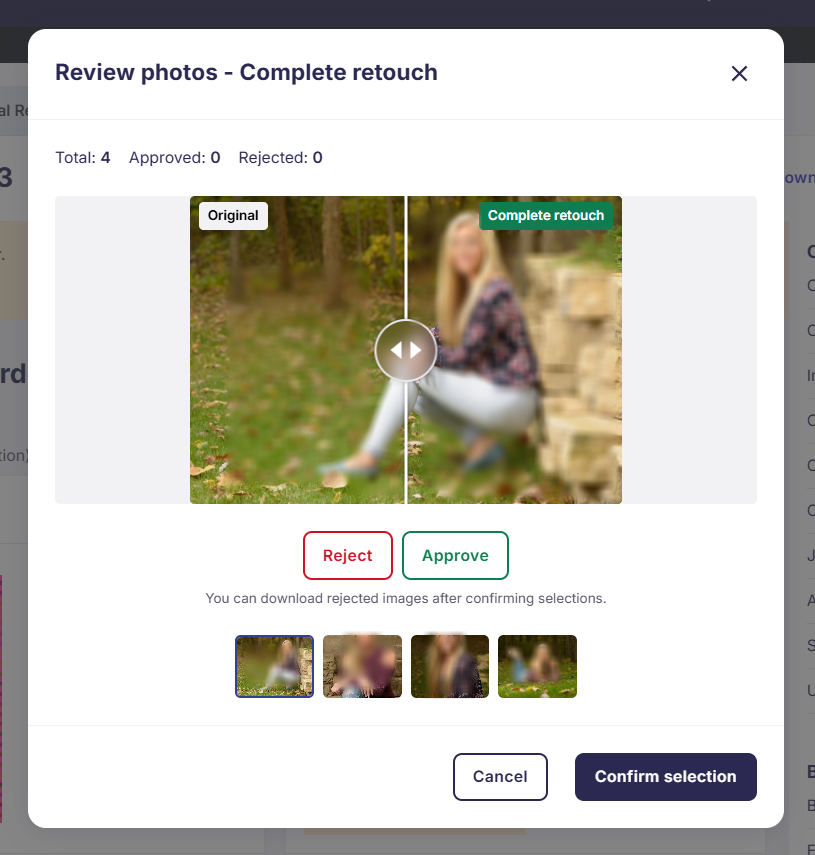
5. Finalize the review:
- If you approve all, click *'Confirm selection'* to move the order forward and replace the originals with edited versions in order and photo management.
- If some are rejected:
- Download them for manual retouching.
- Keep order in Manual Revision and upload your own edits.
### **Manual retouching (DIY approach)**
If automation is not enabled, follow these steps for manual retouching workflows.
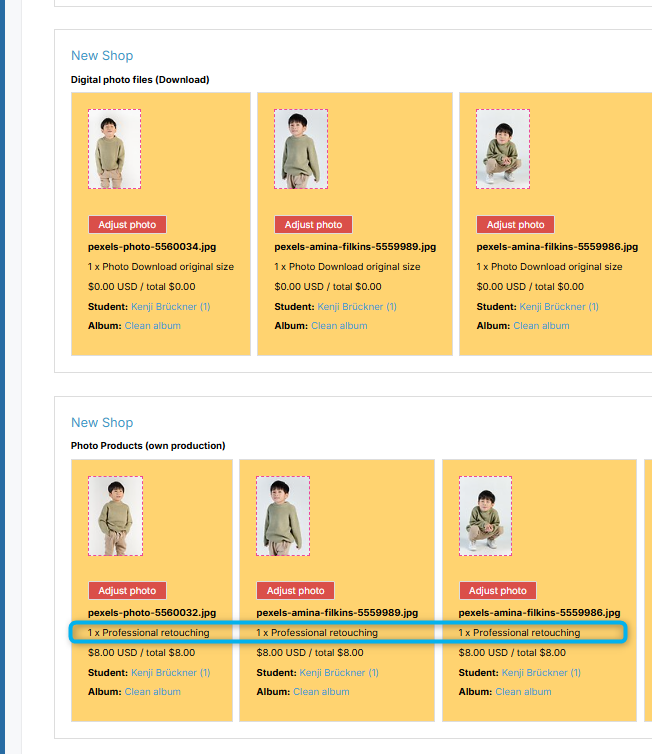
Customers still select professional retouching at checkout.
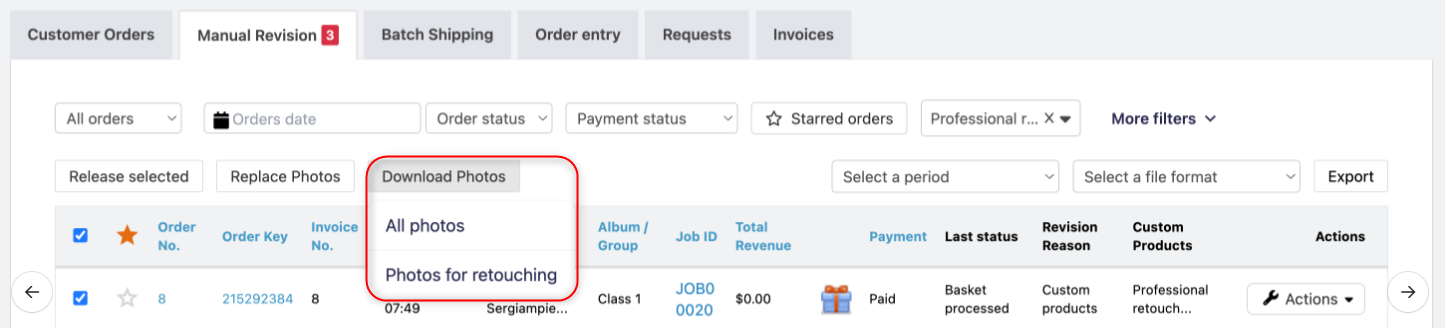
In the Manual Revision tab:
1. Filter by “Professional retouching product”.
2. Download all selected photos via \*\*Photos for retouching\*\* from the Download Photos dropdown.

3. After your edits, replace images using:
- **Review photos** — for bulk replacements without cropping.
- **Adjust photo** — for replacements with cropping changes (per product).
### **FAQs**
**Will the original image stay intact?**
After retouching (automatic or manual), the edited image replaces the original in both the order and Photo Management. Future orders will use the retouched version.
**Do I need to hold the images for review?**
You can temporarily enable “Hold for review” to verify edits before sending to the lab. Once you’re satisfied, switch to full automation for hands‑off processing.
**How will I be charged?**
Charges appear on your monthly GotPhoto invoice.
**Can I offer two or three different types of retouching with different price points in the shop?**
In its present form, the feature supports only a single retouching product and type. We aim to include additional options in upcoming versions-We'd love to hear your feedback, it helps us to constantly improve our product!
**Will shoppers preview retouching on their own photos?**
No. They will see sample images illustrating each option without watermarks to guide their selection.
**Will the retouching presets also cover spots on clothes?**
No, the preset only applies to skin, not clothing.
**Will I be notified if a customer orders the retouching product when I have enabled the automation that doesn't require me to review the images?**
Yes. After the service is complete, you’ll receive a notification that includes a copy of the retouched image and all relevant order information.
**Can I add the professional retouching product to my [Order Entry](https://help.gotphoto.com/en/support/manually-input-orders-via-order-entry?hsLang=en)price list?**
The professional retouching product was developed exclusively for the online shop.
It is technically possible to add the professional retouching product to an order. Doing so will automatically move the order into Manual Revision, where you can then apply the retouching. However, the automation (AI retouching) is not designed and supported for use within order entry.
### **The takeaway**
GotPhoto supports both AI‑powered automation and manual retouching workflows. Choose fast, scalable efficiency with AI or retain full manual control - your workflow, your choice.
- [Getting Started](https://help.gotphoto.com/en/support/getting-started?hsLang=en#main-content)
- [One-Time Settings](https://help.gotphoto.com/en/support/getting-started?hsLang=en#one-time-settings)
- [Price Lists and Product Packages](https://help.gotphoto.com/en/support/getting-started?hsLang=en#price-lists-and-product-packages)
- [Your Online Shop](https://help.gotphoto.com/en/support/getting-started?hsLang=en#your-online-shop)
- [Communication With Customers](https://help.gotphoto.com/en/support/getting-started?hsLang=en#communication-with-customers)
- [Upselling Options](https://help.gotphoto.com/en/support/getting-started?hsLang=en#upselling-options)
- [Navigation](https://help.gotphoto.com/en/support/getting-started?hsLang=en#navigation)
- [How-To's](https://help.gotphoto.com/en/support/how-tos?hsLang=en#main-content)
- [Review Phase](https://help.gotphoto.com/en/support/how-tos?hsLang=en#review-phase)
- [Sales Phase](https://help.gotphoto.com/en/support/how-tos?hsLang=en#sales-phase)
- [Workflow Guides for Specific Scenarios](https://help.gotphoto.com/en/support/how-tos?hsLang=en#workflow-guides-for-specific-scenarios)
- [Planning Phase](https://help.gotphoto.com/en/support/how-tos?hsLang=en#planning-phase)
- [Picture Day Phase](https://help.gotphoto.com/en/support/how-tos?hsLang=en#picture-day-phase)
- [Manage your Account](https://help.gotphoto.com/en/support/how-tos?hsLang=en#manage-your-account)
- [GotPhoto's Editing Services](https://help.gotphoto.com/en/support/gotphotos-editing-services?hsLang=en#main-content)
- [GotPhoto's Editing Services](https://help.gotphoto.com/en/support/gotphotos-editing-services?hsLang=en#gotphotos-editing-services)
- [Sports Graphics Creation Service by Next Gen](https://help.gotphoto.com/en/support/sports-graphics-creation-service-by-next-gen?hsLang=en#main-content)
- [Next Gen](https://help.gotphoto.com/en/support/sports-graphics-creation-service-by-next-gen?hsLang=en#next-gen)
- [Entagged & GotPhoto Tagging App](https://help.gotphoto.com/en/support/entagged-gotphoto-tagging-app?hsLang=en#main-content)
- [Master Entagged with Comprehensive Tutorials.](https://help.gotphoto.com/en/support/entagged-gotphoto-tagging-app?hsLang=en#master-entagged-with-comprehensive-tutorials)
- [Entagged Troubleshooting](https://help.gotphoto.com/en/support/entagged-gotphoto-tagging-app?hsLang=en#entagged-troubleshooting)
- [GotPhoto Tagging App](https://help.gotphoto.com/en/support/entagged-gotphoto-tagging-app?hsLang=en#gotphoto-tagging-app)
- [Business & Growth](https://help.gotphoto.com/en/support/business-growth?hsLang=en#main-content)
- [Stripe & Accounting Resources](https://help.gotphoto.com/en/support/business-growth?hsLang=en#stripe-accounting-resources)
- [Best practices](https://help.gotphoto.com/en/support/business-growth?hsLang=en#best-practices)
- [Webinars](https://help.gotphoto.com/en/support/business-growth?hsLang=en#webinars)
- [Templates and Downloads](https://help.gotphoto.com/en/support/business-growth?hsLang=en#templates-and-downloads)
- [GotPhoto Referral Program](https://help.gotphoto.com/en/support/business-growth?hsLang=en#gotphoto-referral-program)
- [UK Materials](https://help.gotphoto.com/en/support/business-growth?hsLang=en#uk-materials)
- [Troubleshooting](https://help.gotphoto.com/en/support/troubleshooting?hsLang=en#main-content)
- [Uploading Photos](https://help.gotphoto.com/en/support/troubleshooting?hsLang=en#uploading-photos)
- [Customer-Facing Issues](https://help.gotphoto.com/en/support/troubleshooting?hsLang=en#customer-facing-issues)
- [Access Codes](https://help.gotphoto.com/en/support/troubleshooting?hsLang=en#access-codes)
- [Managing Names Lists](https://help.gotphoto.com/en/support/troubleshooting?hsLang=en#managing-names-lists)
- [Customer Outreach](https://help.gotphoto.com/en/support/troubleshooting?hsLang=en#customer-outreach)
- [Customizing Your Shop](https://help.gotphoto.com/en/support/troubleshooting?hsLang=en#customizing-your-shop)
- [Your Account](https://help.gotphoto.com/en/support/troubleshooting?hsLang=en#your-account)
- [Price Lists](https://help.gotphoto.com/en/support/troubleshooting?hsLang=en#price-lists)
- [Student Data Export](https://help.gotphoto.com/en/support/troubleshooting?hsLang=en#student-data-export)
- [DIY Sports Graphic Creation & Group Composites](https://help.gotphoto.com/en/support/diy-sports-graphic-creation-group-composites?hsLang=en#main-content)
- [Workflow Resources: QSuite, Pixnub & Team Photo Composite](https://help.gotphoto.com/en/support/diy-sports-graphic-creation-group-composites?hsLang=en#workflow-resources-qsuite-pixnub-team-photo-composite)
- [GotPhoto North America](https://www.gotphoto.com/)
- [T&Cs US](https://www.gotphoto.com/gtc-us/)
- [T&Cs Canada](https://www.gotphoto.com/gtc-ca/)
- [Privacy Policy US](https://www.gotphoto.com/data-privacy-policy-us/)
- [Privacy Policy Canada](https://www.gotphoto.com/data-privacy-policy-ca/)
- [DPA US](https://www.gotphoto.com/dpa-us/)
- [DPA Canada](https://www.gotphoto.com/dpa-ca/)
- [TOMs & sub-processors US](https://www.gotphoto.com/toms-and-sub-processors-us/)
- [TOMs & sub-processors Canada](https://www.gotphoto.com/toms-and-sub-processors-ca/)
- [GotPhoto UK](https://www.gotphoto.co.uk/)
- [T&C UK](https://www.gotphoto.co.uk/gtc/)
- [Privacy Policy UK](https://www.gotphoto.co.uk/data-privacy-policy/)
- [DPA UK](https://www.gotphoto.co.uk/dpa/)
- [TOMs & Sub-Processors UK](https://www.gotphoto.co.uk/toms-and-sub-processors/)
- [Cookie Declaration](https://app.gotphoto.com/cookie_declaration)
[](http://GotPhoto.com)
### GotPhoto North America
**Customer Care**
 +1 646-362-5100
 +1 365-809-1810
SupportUS@gotphoto.com
Support Hours:
Monday – Friday
9am – 7pm ET
### GotPhoto UK
**Customer Care**
+44 (0) 20 8068 8571
service@gotphoto.co.uk
Support Hours:
Monday – Friday
9am – 5pm GMT
Copyright © 2026, GotPhoto Inc.