---
title: My Entagged isn't working and I'm in the middle of a shoot.
description: Help Center
---
[Skip to content](https://help.gotphoto.com/en/support/my-entagged-isnt-working-and-im-in-the-middle-of-a-shoot#main-content)
- [English](https://help.gotphoto.com/en/support/my-entagged-isnt-working-and-im-in-the-middle-of-a-shoot)
- [Deutsch – Deutschland](https://help.gotphoto.com/de-de/support/mein-entagged-funktioniert-nicht-und-ich-bin-mitten-in-einem-foto-shooting)
English
Show submenu for translations

Open main navigation
Close main navigation
- - [English](https://help.gotphoto.com/en/support/my-entagged-isnt-working-and-im-in-the-middle-of-a-shoot)
- [Deutsch – Deutschland](https://help.gotphoto.com/de-de/support/mein-entagged-funktioniert-nicht-und-ich-bin-mitten-in-einem-foto-shooting)
English
Show submenu for translations
Hello. How can we help you?
- There are no suggestions because the search field is empty.
1. [Help Center](https://help.gotphoto.com/en/support?hsLang=en)
2. [Entagged & GotPhoto Tagging App](https://help.gotphoto.com/en/support/entagged-gotphoto-tagging-app?hsLang=en)
3. [Entagged Troubleshooting](https://help.gotphoto.com/en/support/entagged-gotphoto-tagging-app?hsLang=en#entagged-troubleshooting)
September 1, 2026
# My Entagged isn't working and I'm in the middle of a shoot.
**Table of contents**
- [Overview](https://help.gotphoto.com/en/support/my-entagged-isnt-working-and-im-in-the-middle-of-a-shoot#Overview)
- [Step‑by‑step guide to generate QR cards](https://help.gotphoto.com/en/support/my-entagged-isnt-working-and-im-in-the-middle-of-a-shoot#Step%E2%80%91by%E2%80%91step%E2%80%91guide%E2%80%91to%E2%80%91generate%E2%80%91qr%E2%80%91cards)
- [Download and open the QR cards](https://help.gotphoto.com/en/support/my-entagged-isnt-working-and-im-in-the-middle-of-a-shoot#Download%E2%80%91and%E2%80%91open%E2%80%91the%E2%80%91qr%E2%80%91cards)
- [Using the QR cards to shoot](https://help.gotphoto.com/en/support/my-entagged-isnt-working-and-im-in-the-middle-of-a-shoot#Using%E2%80%91the%E2%80%91qr%E2%80%91cards%E2%80%91to%E2%80%91shoot)
- [The takeaway](https://help.gotphoto.com/en/support/my-entagged-isnt-working-and-im-in-the-middle-of-a-shoot#The%E2%80%91takeaway)
- [FAQs](https://help.gotphoto.com/en/support/my-entagged-isnt-working-and-im-in-the-middle-of-a-shoot#FAQs)
### **Overview**
If you're here, we know things haven’t gone as planned, and that’s frustrating. The Entagged method is designed to make things easier, so when technical difficulties get in the way, we’re here to help with a backup solution - quickly transitioning your tagging method to QR codes. This temporary fix will get you through the day, so you can keep shooting and make the most of your photo job. We will of course continue to help you get your Entagged device working for your next Photo Job. As GotPhoto user, you have access to our latest feature, the[**Name List QR Photo Job Workflow**](https://help.gotphoto.com/en/support/name-list-qr-in-entagged?hsLang=en). It enables you to access the job names list within your Entagged app and capture each subject's QR code directly from the app. We suggest utilizing this workflow as it is the most efficient option available.
The following guide discusses an alternative workflow in case you encounter a problem with the Entagged app itself.
### **Step‑by‑step guide to generate QR cards**
**Note:** This workflow assumes you already are using a list of names.
1. 1Make sure you're in an area with Internet access. This process can even be done on your phone!
2. 2In your camera settings, delete the last barcode that was saved in your camera.
3. 3Log into your GotPhoto account and open your Photo Job.
4. 4Click into the **Tagging** tab, then click on **Edit QR card layout**. 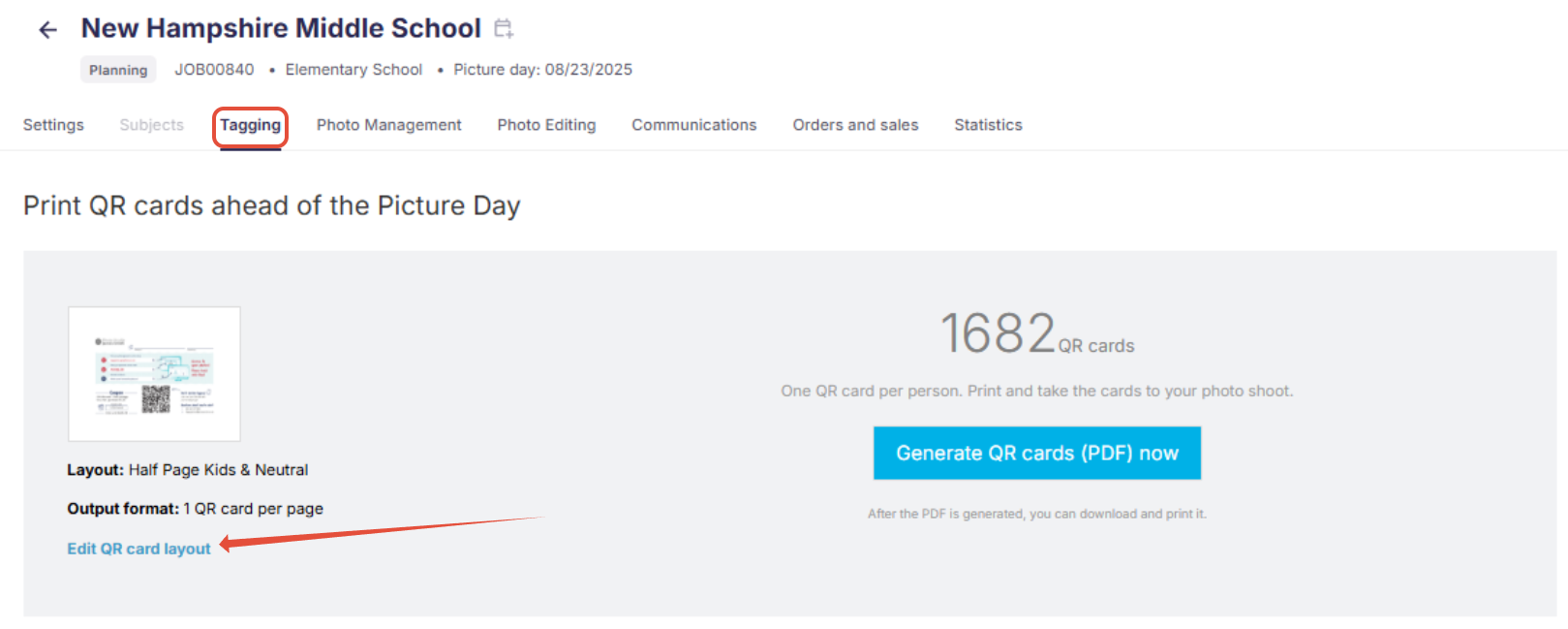
5. 5On the following page, select **Minimal Layout** under the design settings, and under **Advanced Settings** choose **Output Format: 1 QR card per page**. These settings will be easier to work with from your smartphone/tablet. Click **Save**. 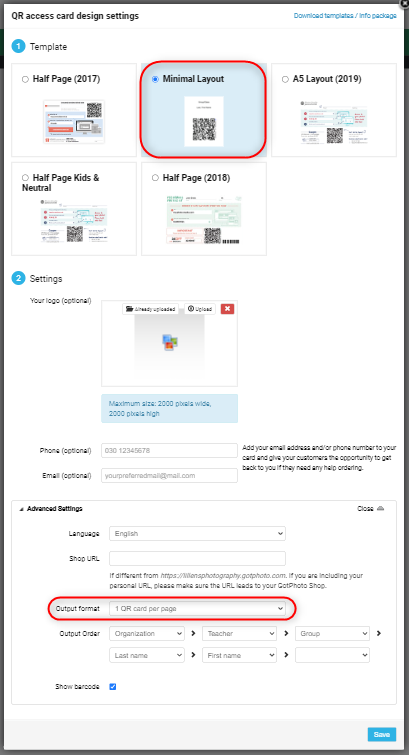
6. 6Click the blue **Generate QR Cards (PDF) Now** button. If you previously created any QR cards for this Photo Job, please delete them before generating the new cards. 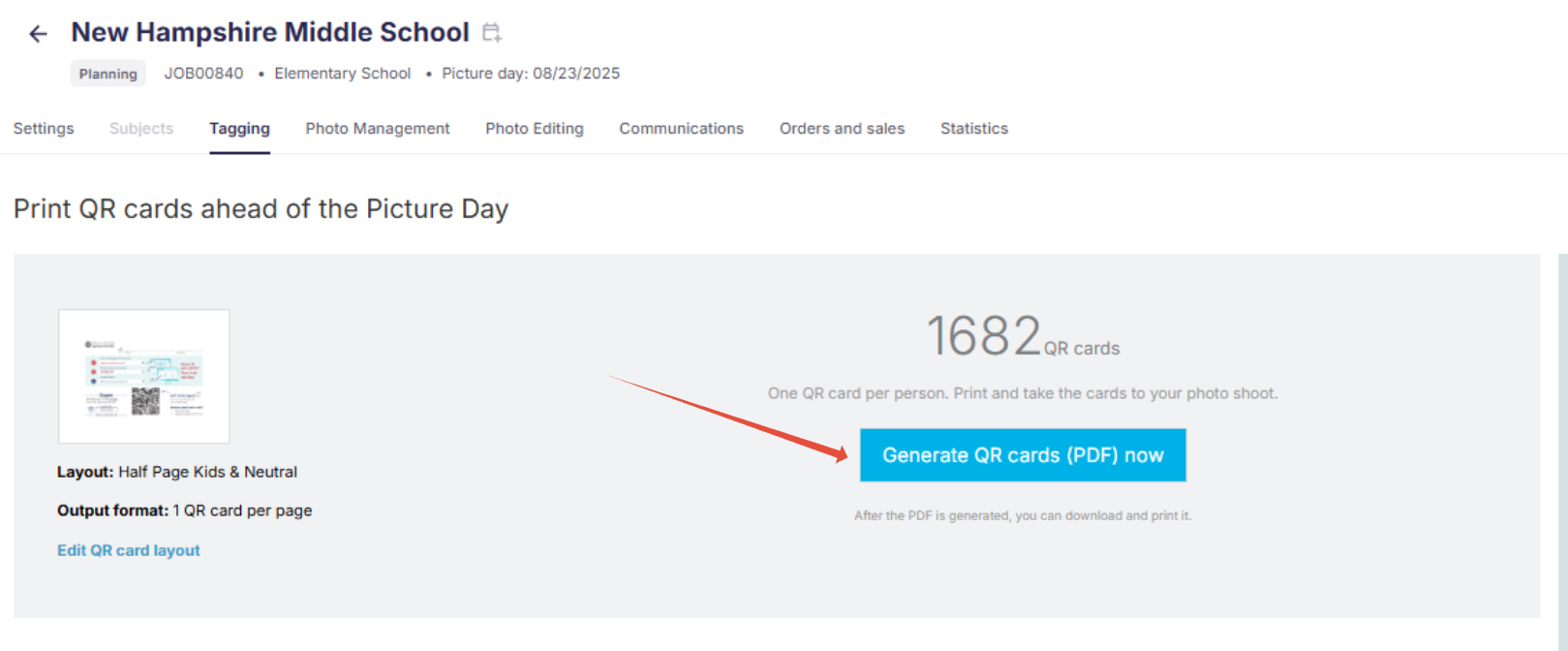
7. 7\[Optional\] At this point you can also create blank QR cards to be used as spares for unregistered subjects by clicking the **Generate Additional QR Cards** button. 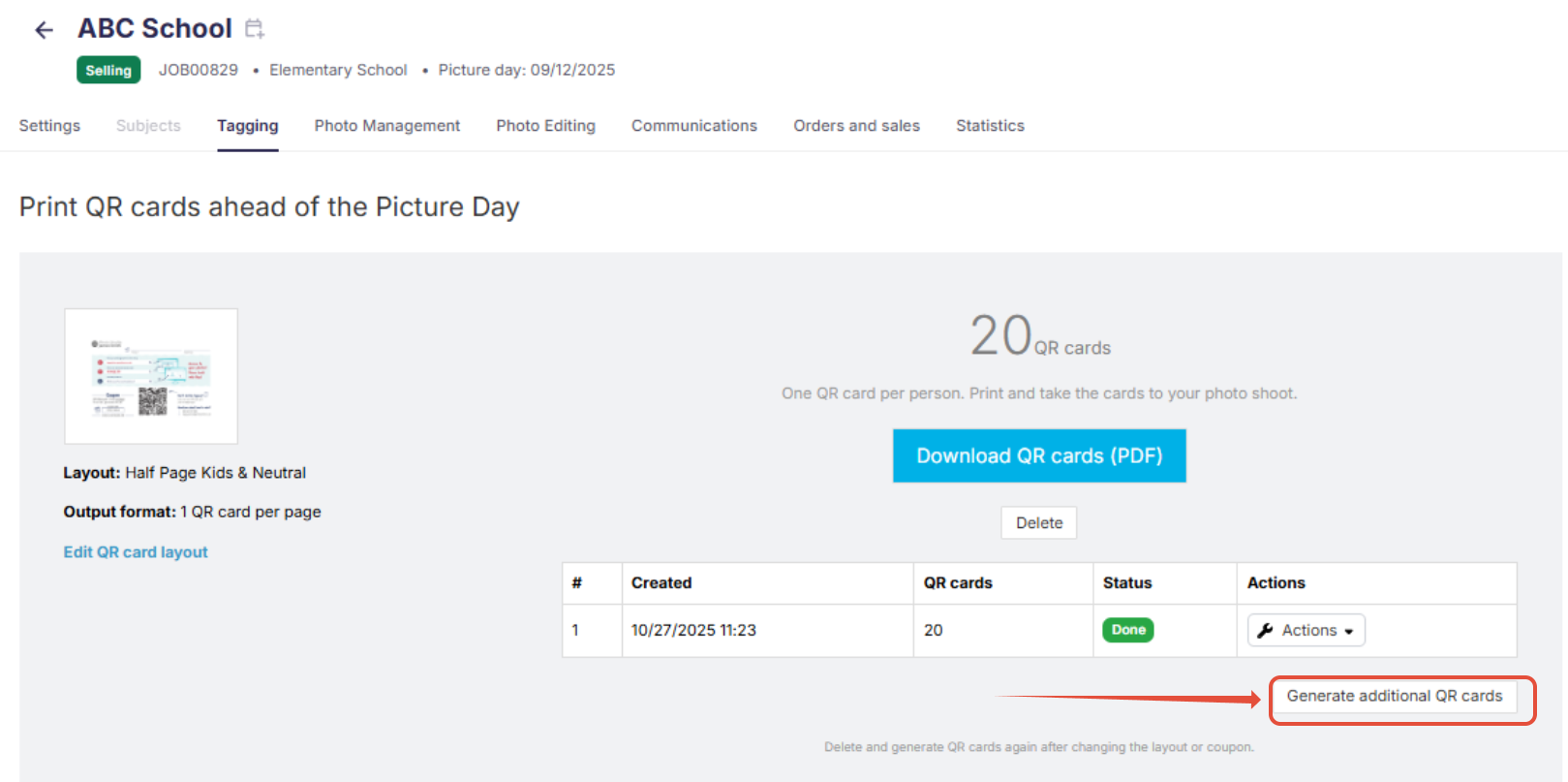
### **Download and open the QR cards**
1. 1Once the cards have been generated, click the blue **Download QR Cards (PDF)** button.
2. 2Open the downloaded PDF:
| **Apple Users:** | **Android Users:** |
| --- | --- |
| 1. Open the Files app (blue folder icon). 2. Tap **Browse** at the bottom, then select **Downloads**. 3. Tap the PDF file to open it. **Optional:** Tap the share icon to save it, share it, or open it with other apps. | 1. Open the **Files** app (may be named **My Files** or **File Manager**). 2. Tap **Downloads** or search “PDF” if needed. 3. Tap the PDF file to open it with a PDF viewer (like Google PDF Viewer or Adobe Acrobat). **Optional:** Tap the menu (three dots) to save, share, or move the file. |
### **Using the QR cards to shoot**
1. 1You now have a PDF file on your device with QR cards for your subjects. You are ready to go ahead and take pictures:
2. 2
- **Group Photos:** These photos will be accessible to all subjects in the group, so no QR cards are needed.
- **Individual Photos:**
1. Take a photo of the subject's QR card (Make sure that the full name, group, and QR code are visible). [View QR code shooting best practices](https://help.gotphoto.com/en/support/photograph-gotphoto-qr-codes-for-best-recognition?hsLang=en)
2. Take all of that subject's individual shots. All photos that come after the QR card (and before the next subject's QR card) will be automatically linked to that code.
3. Proceed to the next subject by taking a picture of their QR card.
### **The takeaway**
With these steps, you should be set to capture each shot without missing a beat, even with this workaround. We hope this gets you back on track so you can focus on the moments that matter most.
**Very important:** Make sure to upload the photos where you used QR cards into a separate album within the job after Picture Day to ensure all galleries are activated smoothly later on.
### **FAQs**
**Q: Do I need internet access during the shoot?**
A: Only while generating QR cards. You can shoot offline afterward.
**Q: Can I reuse old QR cards?**
A: No. Delete and regenerate to avoid confusion.
**Q: What if I forget to bring extras?**
A: \[Optional\] Print spare blank QR cards as a backup before Picture Day.
- [Getting Started](https://help.gotphoto.com/en/support/getting-started?hsLang=en#main-content)
- [One-Time Settings](https://help.gotphoto.com/en/support/getting-started?hsLang=en#one-time-settings)
- [Price Lists and Product Packages](https://help.gotphoto.com/en/support/getting-started?hsLang=en#price-lists-and-product-packages)
- [Your Online Shop](https://help.gotphoto.com/en/support/getting-started?hsLang=en#your-online-shop)
- [Communication With Customers](https://help.gotphoto.com/en/support/getting-started?hsLang=en#communication-with-customers)
- [Upselling Options](https://help.gotphoto.com/en/support/getting-started?hsLang=en#upselling-options)
- [Navigation](https://help.gotphoto.com/en/support/getting-started?hsLang=en#navigation)
- [How-To's](https://help.gotphoto.com/en/support/how-tos?hsLang=en#main-content)
- [Review Phase](https://help.gotphoto.com/en/support/how-tos?hsLang=en#review-phase)
- [Sales Phase](https://help.gotphoto.com/en/support/how-tos?hsLang=en#sales-phase)
- [Workflow Guides for Specific Scenarios](https://help.gotphoto.com/en/support/how-tos?hsLang=en#workflow-guides-for-specific-scenarios)
- [Planning Phase](https://help.gotphoto.com/en/support/how-tos?hsLang=en#planning-phase)
- [Picture Day Phase](https://help.gotphoto.com/en/support/how-tos?hsLang=en#picture-day-phase)
- [Manage your Account](https://help.gotphoto.com/en/support/how-tos?hsLang=en#manage-your-account)
- [GotPhoto's Editing Services](https://help.gotphoto.com/en/support/gotphotos-editing-services?hsLang=en#main-content)
- [GotPhoto's Editing Services](https://help.gotphoto.com/en/support/gotphotos-editing-services?hsLang=en#gotphotos-editing-services)
- [Sports Graphics Creation Service by Next Gen](https://help.gotphoto.com/en/support/sports-graphics-creation-service-by-next-gen?hsLang=en#main-content)
- [Next Gen](https://help.gotphoto.com/en/support/sports-graphics-creation-service-by-next-gen?hsLang=en#next-gen)
- [Entagged & GotPhoto Tagging App](https://help.gotphoto.com/en/support/entagged-gotphoto-tagging-app?hsLang=en#main-content)
- [Master Entagged with Comprehensive Tutorials.](https://help.gotphoto.com/en/support/entagged-gotphoto-tagging-app?hsLang=en#master-entagged-with-comprehensive-tutorials)
- [Entagged Troubleshooting](https://help.gotphoto.com/en/support/entagged-gotphoto-tagging-app?hsLang=en#entagged-troubleshooting)
- [GotPhoto Tagging App](https://help.gotphoto.com/en/support/entagged-gotphoto-tagging-app?hsLang=en#gotphoto-tagging-app)
- [Business & Growth](https://help.gotphoto.com/en/support/business-growth?hsLang=en#main-content)
- [Stripe & Accounting Resources](https://help.gotphoto.com/en/support/business-growth?hsLang=en#stripe-accounting-resources)
- [Best practices](https://help.gotphoto.com/en/support/business-growth?hsLang=en#best-practices)
- [Webinars](https://help.gotphoto.com/en/support/business-growth?hsLang=en#webinars)
- [Templates and Downloads](https://help.gotphoto.com/en/support/business-growth?hsLang=en#templates-and-downloads)
- [GotPhoto Referral Program](https://help.gotphoto.com/en/support/business-growth?hsLang=en#gotphoto-referral-program)
- [UK Materials](https://help.gotphoto.com/en/support/business-growth?hsLang=en#uk-materials)
- [Troubleshooting](https://help.gotphoto.com/en/support/troubleshooting?hsLang=en#main-content)
- [Uploading Photos](https://help.gotphoto.com/en/support/troubleshooting?hsLang=en#uploading-photos)
- [Customer-Facing Issues](https://help.gotphoto.com/en/support/troubleshooting?hsLang=en#customer-facing-issues)
- [Access Codes](https://help.gotphoto.com/en/support/troubleshooting?hsLang=en#access-codes)
- [Managing Names Lists](https://help.gotphoto.com/en/support/troubleshooting?hsLang=en#managing-names-lists)
- [Customer Outreach](https://help.gotphoto.com/en/support/troubleshooting?hsLang=en#customer-outreach)
- [Customizing Your Shop](https://help.gotphoto.com/en/support/troubleshooting?hsLang=en#customizing-your-shop)
- [Your Account](https://help.gotphoto.com/en/support/troubleshooting?hsLang=en#your-account)
- [Price Lists](https://help.gotphoto.com/en/support/troubleshooting?hsLang=en#price-lists)
- [Student Data Export](https://help.gotphoto.com/en/support/troubleshooting?hsLang=en#student-data-export)
- [DIY Sports Graphic Creation & Group Composites](https://help.gotphoto.com/en/support/diy-sports-graphic-creation-group-composites?hsLang=en#main-content)
- [Workflow Resources: QSuite, Pixnub & Team Photo Composite](https://help.gotphoto.com/en/support/diy-sports-graphic-creation-group-composites?hsLang=en#workflow-resources-qsuite-pixnub-team-photo-composite)
- [GotPhoto North America](https://www.gotphoto.com/)
- [T&Cs US](https://www.gotphoto.com/gtc-us/)
- [T&Cs Canada](https://www.gotphoto.com/gtc-ca/)
- [Privacy Policy US](https://www.gotphoto.com/data-privacy-policy-us/)
- [Privacy Policy Canada](https://www.gotphoto.com/data-privacy-policy-ca/)
- [DPA US](https://www.gotphoto.com/dpa-us/)
- [DPA Canada](https://www.gotphoto.com/dpa-ca/)
- [TOMs & sub-processors US](https://www.gotphoto.com/toms-and-sub-processors-us/)
- [TOMs & sub-processors Canada](https://www.gotphoto.com/toms-and-sub-processors-ca/)
- [GotPhoto UK](https://www.gotphoto.co.uk/)
- [T&C UK](https://www.gotphoto.co.uk/gtc/)
- [Privacy Policy UK](https://www.gotphoto.co.uk/data-privacy-policy/)
- [DPA UK](https://www.gotphoto.co.uk/dpa/)
- [TOMs & Sub-Processors UK](https://www.gotphoto.co.uk/toms-and-sub-processors/)
- [Cookie Declaration](https://app.gotphoto.com/cookie_declaration)
[](http://GotPhoto.com)
### GotPhoto North America
**Customer Care**
 +1 646-362-5100
 +1 365-809-1810
SupportUS@gotphoto.com
Support Hours:
Monday – Friday
9am – 7pm ET
### GotPhoto UK
**Customer Care**
+44 (0) 20 8068 8571
service@gotphoto.co.uk
Support Hours:
Monday – Friday
9am – 5pm GMT
Copyright © 2026, GotPhoto Inc.