---
title: How to create a product package for Prepay jobs
description: Product packages can include a variety of products bundled together at a discount, giving the best value to your customers and higher order value for you.
---
[Skip to content](https://help.gotphoto.com/en/support/how-to-create-a-product-package-for-prepay-jobs#main-content)
English
Show submenu for translations

Open main navigation
Close main navigation
- English
Show submenu for translations
Hello. How can we help you?
- There are no suggestions because the search field is empty.
1. [Help Center](https://help.gotphoto.com/en/support?hsLang=en)
2. [Getting Started](https://help.gotphoto.com/en/support/getting-started?hsLang=en)
3. [Price Lists and Product Packages](https://help.gotphoto.com/en/support/getting-started?hsLang=en#price-lists-and-product-packages)
September 1, 2026
# How to create a product package for Prepay jobs

**Table of contents**
- [Overview](https://help.gotphoto.com/en/support/how-to-create-a-product-package-for-prepay-jobs#Overview)
- [Setting up a product package](https://help.gotphoto.com/en/support/how-to-create-a-product-package-for-prepay-jobs#Setting-up-a-product-package)
- [The takeaway](https://help.gotphoto.com/en/support/how-to-create-a-product-package-for-prepay-jobs#The-takeaway)
### **Overview**
⚠ Please note: Prepay is not activated by default and is generally reserved for customers on higher-tier plans with specific business needs. If this applies to you, and you believe Prepay may be a good fit, reach out to your account manager. We’ve taken a step back from broadly offering Prepay to enhance and upgrade the experience. Prepay+ is only available to existing users who already have it enabled.
\[Prepay only\] Product packages can bundle prints, gifts, and digital products at a lower combined price than buying items individually. This gives customers great value, increases average order value, and simplifies selection.
If you are looking to create a product package for a proofing job instead,[view how to create a product package for proofing](https://help.gotphoto.com/en/support/create-a-product-package?hsLang=en).
Please also understand the difference between Prepay (tackled in this article) and Prepay+. [This article gives you a quick run-through.](https://help.gotphoto.com/en/support/understand-the-difference-between-prepay-and-prepay?hsLang=en)
### **Setting up a product package**
This section shows the recommended image setup for Prepay and the exact steps to create and configure your package.
### Before you start: use one individual and optional group photo
- An individual pose
- \[Optional\] A group pose
GotPhoto automatically uses the first individual image (after the QR card) and the first group image in the subject’s gallery to match items in the order. Set up your package accordingly so the right photos are matched.
### Create and configure your prepay package
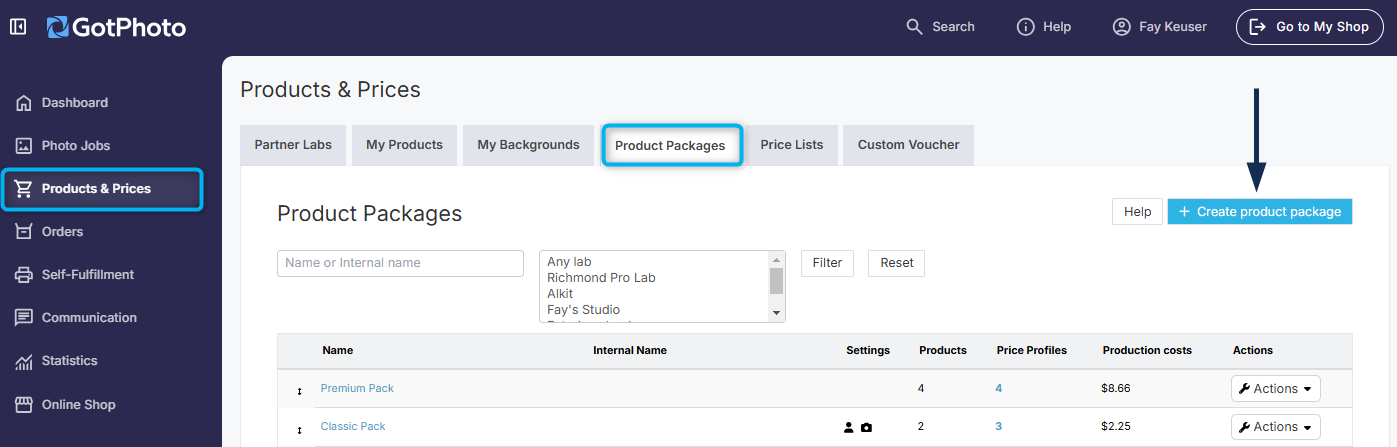
1. 1Open the product packages page: go to **Products & Prices** → **Product packages**.
2. 2Click the blue **+ Create product package** button.
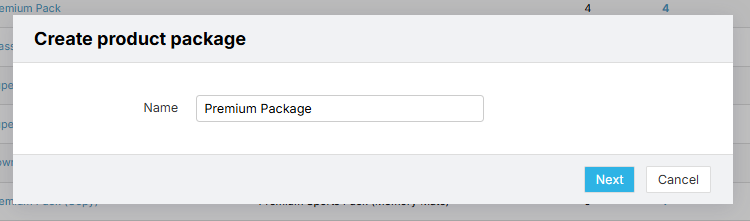
3. 3Name your package and click **Next**.
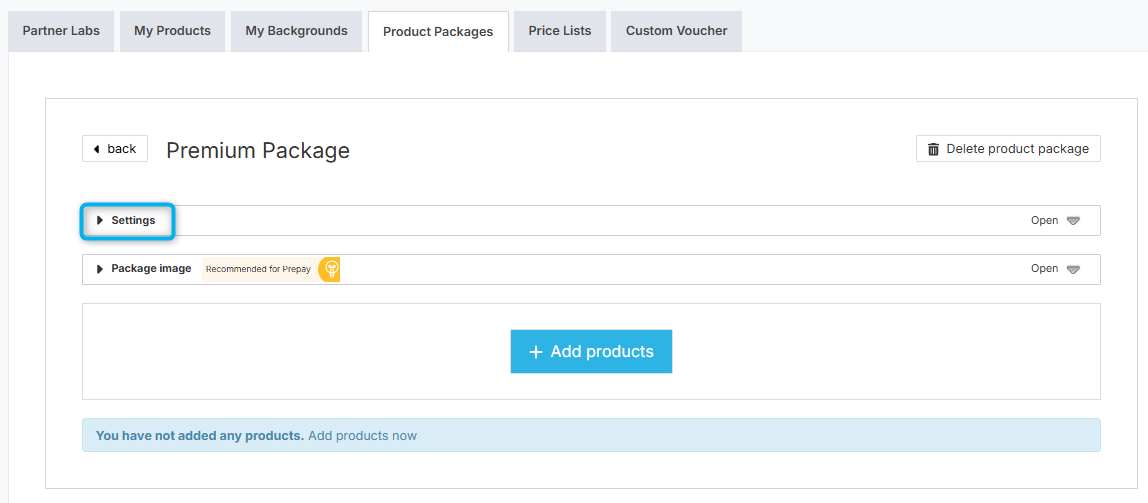
4. 4Click **Settings** to expand package options.
5. 5\[Optional\] Complete your settings:
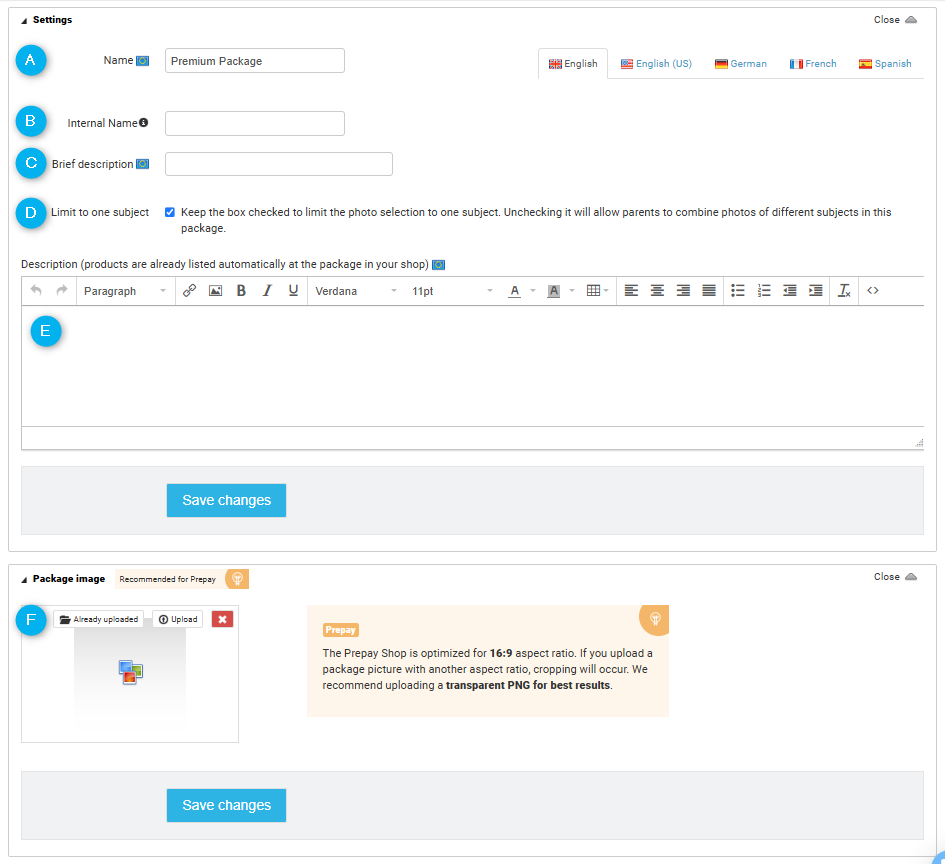
1. **Name:** The package name customers see.
2. **Internal name:** Not shown to customers.
3. **Brief description:** Short text under the package name in the shop.
4. **Limit to one access:** Prevents mixing photos from multiple access codes (e.g., siblings) in one package.
5. **Description:** Longer details shown in package details.
6. **Product image:** Upload in 16:9 aspect ratio (960 × 540 px). Visible in the shop view on desktop and mobile.
6. 6Click **Save changes** to save your package settings.
7. 7Click **+ Add products** to open your lab’s product catalog.
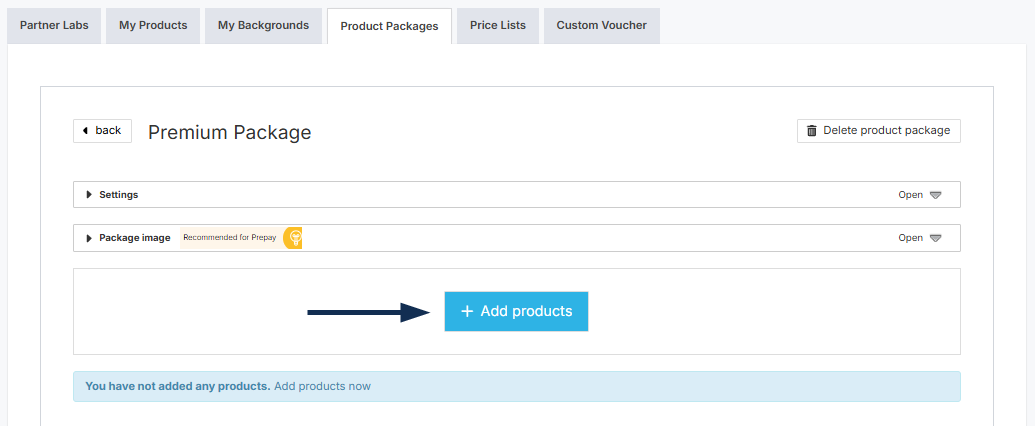
*Note:* Products depend on the selected lab. If you switch labs later, you must recreate packages.
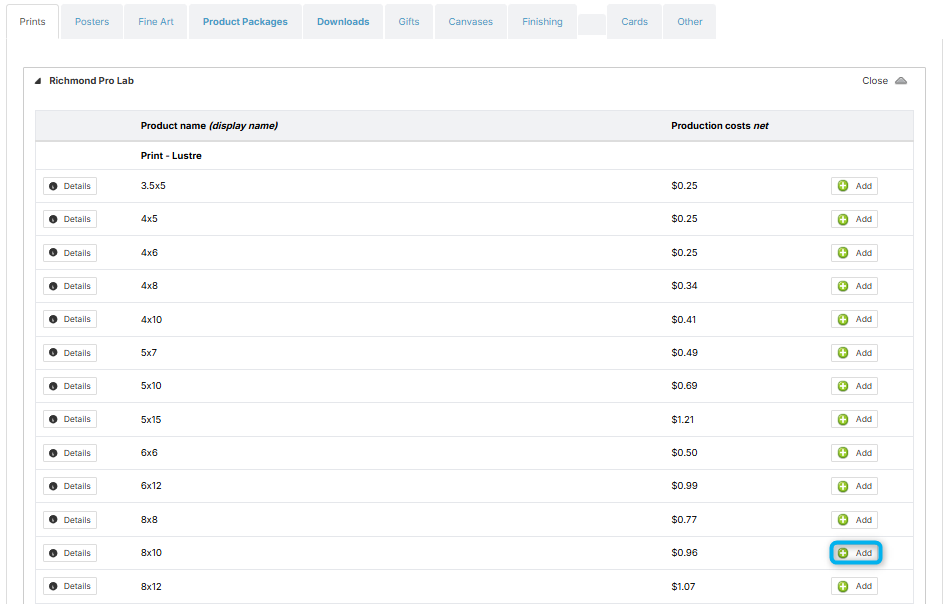
8. 8Select products: click **Add** to include, or **Remove** to exclude.
9. 9When finished, click the blue **\< Back to product packages** button at the top of the page.
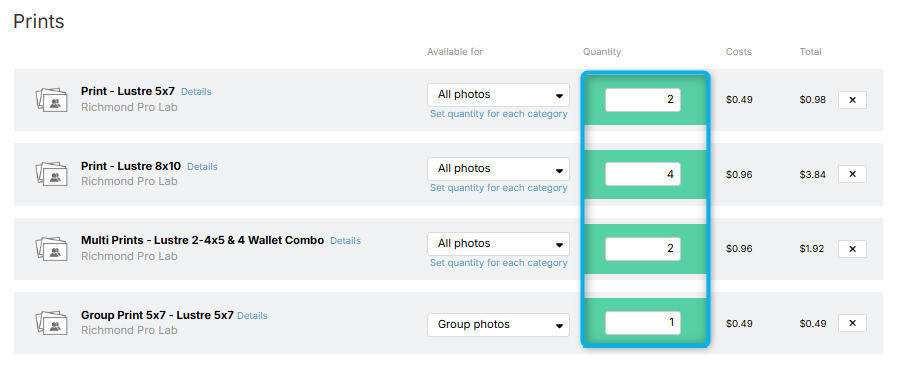
10. 10Update the **Quantity** column to set how many units of each item are included in the package.
11. 11**Set the *Available for* column for each item**to control which photos the product can be ordered for:
- Only individual photos
- Only group photos
12. 12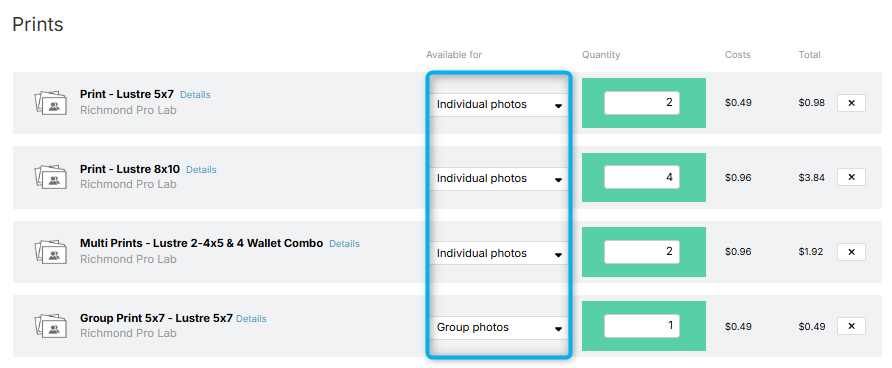
\[Prepay only\] Important: This step is required. GotPhoto uses these assignments to match items to the first individual or first group image for the subject. All changes save automatically.
Next, add the package to a price list to set the price, then link that price list to your Prepay job.
Note: The “Restriction” settings in the package do not apply to Prepay. All packages are single-pose / single-background. Even if restriction boxes are not ticked, only the first individual image will be pulled into the package, even when multiple individual images exist in a subject’s gallery.

### **The takeaway**
Prepay packages boost order value and simplify ordering. Keep galleries to one individual and an optional group photo, create the package, then assign each item’s *Available for* value to **individual** or **group**. Add the package to a price list and link it to your Prepay job for a smooth, accurate fulfillment workflow.
- [Getting Started](https://help.gotphoto.com/en/support/getting-started?hsLang=en#main-content)
- [One-Time Settings](https://help.gotphoto.com/en/support/getting-started?hsLang=en#one-time-settings)
- [Price Lists and Product Packages](https://help.gotphoto.com/en/support/getting-started?hsLang=en#price-lists-and-product-packages)
- [Your Online Shop](https://help.gotphoto.com/en/support/getting-started?hsLang=en#your-online-shop)
- [Communication With Customers](https://help.gotphoto.com/en/support/getting-started?hsLang=en#communication-with-customers)
- [Upselling Options](https://help.gotphoto.com/en/support/getting-started?hsLang=en#upselling-options)
- [Navigation](https://help.gotphoto.com/en/support/getting-started?hsLang=en#navigation)
- [How-To's](https://help.gotphoto.com/en/support/how-tos?hsLang=en#main-content)
- [Review Phase](https://help.gotphoto.com/en/support/how-tos?hsLang=en#review-phase)
- [Sales Phase](https://help.gotphoto.com/en/support/how-tos?hsLang=en#sales-phase)
- [Workflow Guides for Specific Scenarios](https://help.gotphoto.com/en/support/how-tos?hsLang=en#workflow-guides-for-specific-scenarios)
- [Planning Phase](https://help.gotphoto.com/en/support/how-tos?hsLang=en#planning-phase)
- [Picture Day Phase](https://help.gotphoto.com/en/support/how-tos?hsLang=en#picture-day-phase)
- [Manage your Account](https://help.gotphoto.com/en/support/how-tos?hsLang=en#manage-your-account)
- [GotPhoto's Editing Services](https://help.gotphoto.com/en/support/gotphotos-editing-services?hsLang=en#main-content)
- [GotPhoto's Editing Services](https://help.gotphoto.com/en/support/gotphotos-editing-services?hsLang=en#gotphotos-editing-services)
- [Sports Graphics Creation Service by Next Gen](https://help.gotphoto.com/en/support/sports-graphics-creation-service-by-next-gen?hsLang=en#main-content)
- [Next Gen](https://help.gotphoto.com/en/support/sports-graphics-creation-service-by-next-gen?hsLang=en#next-gen)
- [Entagged & GotPhoto Tagging App](https://help.gotphoto.com/en/support/entagged-gotphoto-tagging-app?hsLang=en#main-content)
- [Master Entagged with Comprehensive Tutorials.](https://help.gotphoto.com/en/support/entagged-gotphoto-tagging-app?hsLang=en#master-entagged-with-comprehensive-tutorials)
- [Entagged Troubleshooting](https://help.gotphoto.com/en/support/entagged-gotphoto-tagging-app?hsLang=en#entagged-troubleshooting)
- [GotPhoto Tagging App](https://help.gotphoto.com/en/support/entagged-gotphoto-tagging-app?hsLang=en#gotphoto-tagging-app)
- [Business & Growth](https://help.gotphoto.com/en/support/business-growth?hsLang=en#main-content)
- [Stripe & Accounting Resources](https://help.gotphoto.com/en/support/business-growth?hsLang=en#stripe-accounting-resources)
- [Best practices](https://help.gotphoto.com/en/support/business-growth?hsLang=en#best-practices)
- [Webinars](https://help.gotphoto.com/en/support/business-growth?hsLang=en#webinars)
- [Templates and Downloads](https://help.gotphoto.com/en/support/business-growth?hsLang=en#templates-and-downloads)
- [GotPhoto Referral Program](https://help.gotphoto.com/en/support/business-growth?hsLang=en#gotphoto-referral-program)
- [UK Materials](https://help.gotphoto.com/en/support/business-growth?hsLang=en#uk-materials)
- [Troubleshooting](https://help.gotphoto.com/en/support/troubleshooting?hsLang=en#main-content)
- [Uploading Photos](https://help.gotphoto.com/en/support/troubleshooting?hsLang=en#uploading-photos)
- [Customer-Facing Issues](https://help.gotphoto.com/en/support/troubleshooting?hsLang=en#customer-facing-issues)
- [Access Codes](https://help.gotphoto.com/en/support/troubleshooting?hsLang=en#access-codes)
- [Managing Names Lists](https://help.gotphoto.com/en/support/troubleshooting?hsLang=en#managing-names-lists)
- [Customer Outreach](https://help.gotphoto.com/en/support/troubleshooting?hsLang=en#customer-outreach)
- [Customizing Your Shop](https://help.gotphoto.com/en/support/troubleshooting?hsLang=en#customizing-your-shop)
- [Your Account](https://help.gotphoto.com/en/support/troubleshooting?hsLang=en#your-account)
- [Price Lists](https://help.gotphoto.com/en/support/troubleshooting?hsLang=en#price-lists)
- [Student Data Export](https://help.gotphoto.com/en/support/troubleshooting?hsLang=en#student-data-export)
- [DIY Sports Graphic Creation & Group Composites](https://help.gotphoto.com/en/support/diy-sports-graphic-creation-group-composites?hsLang=en#main-content)
- [Workflow Resources: QSuite, Pixnub & Team Photo Composite](https://help.gotphoto.com/en/support/diy-sports-graphic-creation-group-composites?hsLang=en#workflow-resources-qsuite-pixnub-team-photo-composite)
- [GotPhoto North America](https://www.gotphoto.com/)
- [T&Cs US](https://www.gotphoto.com/gtc-us/)
- [T&Cs Canada](https://www.gotphoto.com/gtc-ca/)
- [Privacy Policy US](https://www.gotphoto.com/data-privacy-policy-us/)
- [Privacy Policy Canada](https://www.gotphoto.com/data-privacy-policy-ca/)
- [DPA US](https://www.gotphoto.com/dpa-us/)
- [DPA Canada](https://www.gotphoto.com/dpa-ca/)
- [TOMs & sub-processors US](https://www.gotphoto.com/toms-and-sub-processors-us/)
- [TOMs & sub-processors Canada](https://www.gotphoto.com/toms-and-sub-processors-ca/)
- [GotPhoto UK](https://www.gotphoto.co.uk/)
- [T&C UK](https://www.gotphoto.co.uk/gtc/)
- [Privacy Policy UK](https://www.gotphoto.co.uk/data-privacy-policy/)
- [DPA UK](https://www.gotphoto.co.uk/dpa/)
- [TOMs & Sub-Processors UK](https://www.gotphoto.co.uk/toms-and-sub-processors/)
- [Cookie Declaration](https://app.gotphoto.com/cookie_declaration)
[](http://GotPhoto.com)
### GotPhoto North America
**Customer Care**
 +1 646-362-5100
 +1 365-809-1810
SupportUS@gotphoto.com
Support Hours:
Monday – Friday
9am – 7pm ET
### GotPhoto UK
**Customer Care**
+44 (0) 20 8068 8571
service@gotphoto.co.uk
Support Hours:
Monday – Friday
9am – 5pm GMT
Copyright © 2026, GotPhoto Inc.