---
title: Change the job status
description: The GotPhoto system utilizes different statuses in order to let you effectively manage your photo jobs.
---
[Skip to content](https://help.gotphoto.com/en/support/change-the-job-status#main-content)
- [English](https://help.gotphoto.com/en/support/change-the-job-status)
- [Deutsch – Deutschland](https://help.gotphoto.com/de-de/support/auftragsstatus-andern-und-verstehen)
English
Show submenu for translations

Open main navigation
Close main navigation
- - [English](https://help.gotphoto.com/en/support/change-the-job-status)
- [Deutsch – Deutschland](https://help.gotphoto.com/de-de/support/auftragsstatus-andern-und-verstehen)
English
Show submenu for translations
Hello. How can we help you?
- There are no suggestions because the search field is empty.
1. [Help Center](https://help.gotphoto.com/en/support?hsLang=en)
2. [How-To's](https://help.gotphoto.com/en/support/how-tos?hsLang=en)
3. [Review Phase](https://help.gotphoto.com/en/support/how-tos?hsLang=en#review-phase)
September 1, 2026
# Change the job status
**Table of contents**
- [Overview](https://help.gotphoto.com/en/support/change-the-job-status#Overview)
- [Change a job's status](https://help.gotphoto.com/en/support/change-the-job-status#Change)
- [Options in planning status](https://help.gotphoto.com/en/support/change-the-job-status#Planning)
- [View job status in the overview](https://help.gotphoto.com/en/support/change-the-job-status#OverviewPage)
- [Use the go-live checklist when switching to selling](https://help.gotphoto.com/en/support/change-the-job-status#GoLiveChecklist)
- [The takeaway](https://help.gotphoto.com/en/support/change-the-job-status#The-takeaway)
### **Overview**
The GotPhoto system uses different job statuses to help you manage photo jobs efficiently throughout their lifecycle.
Use statuses like **Planning**, **Selling**, and **Archived** to clearly track where each job stands and control what actions are available.
### **Change a job's status**
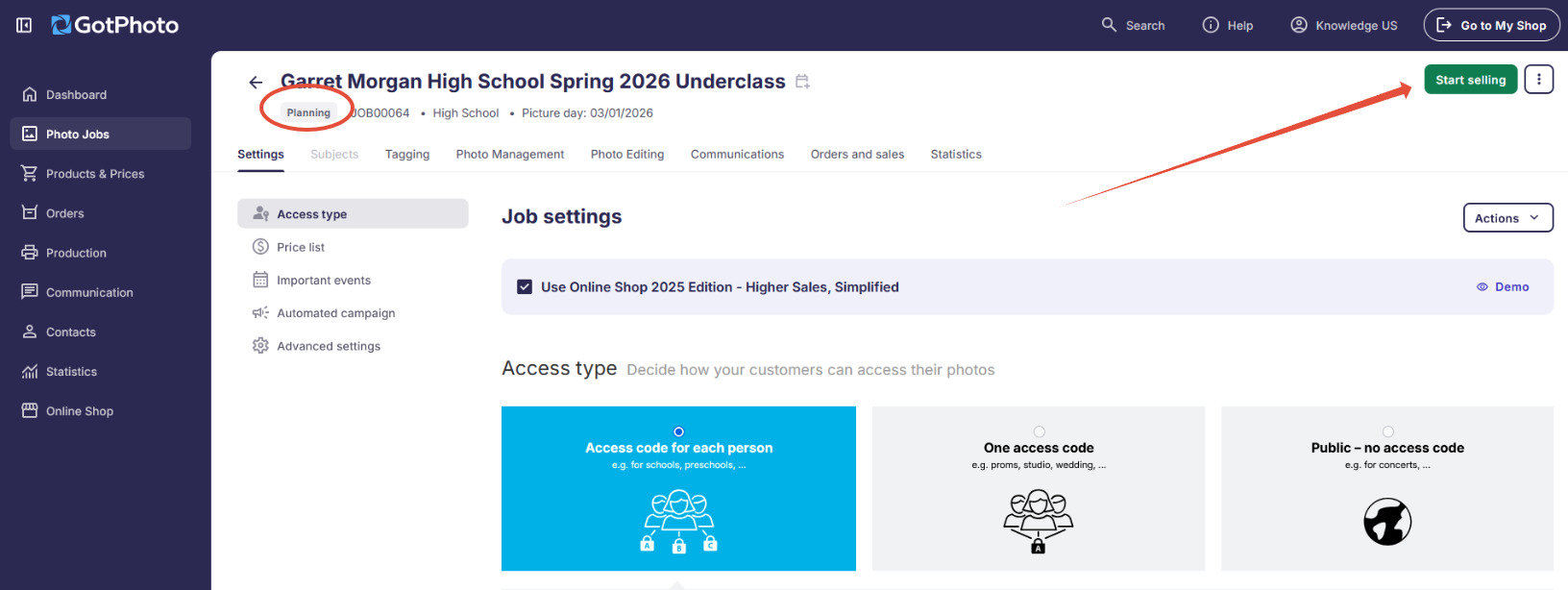
Update a job’s status directly from the top banner of the job settings page.
You can switch between **Planning**, **Selling**, or set the job to **Archived** in just a few clicks.
1. Open the [job’s Settings tab](https://help.gotphoto.com/en/support/the-photo-jobs-settings-page?hsLang=en).
2. Click the three-dot menu icon in the upper-right corner.
3. Select whether you want to move the job to **Planning** or **Archive**.
### **Options in planning status**
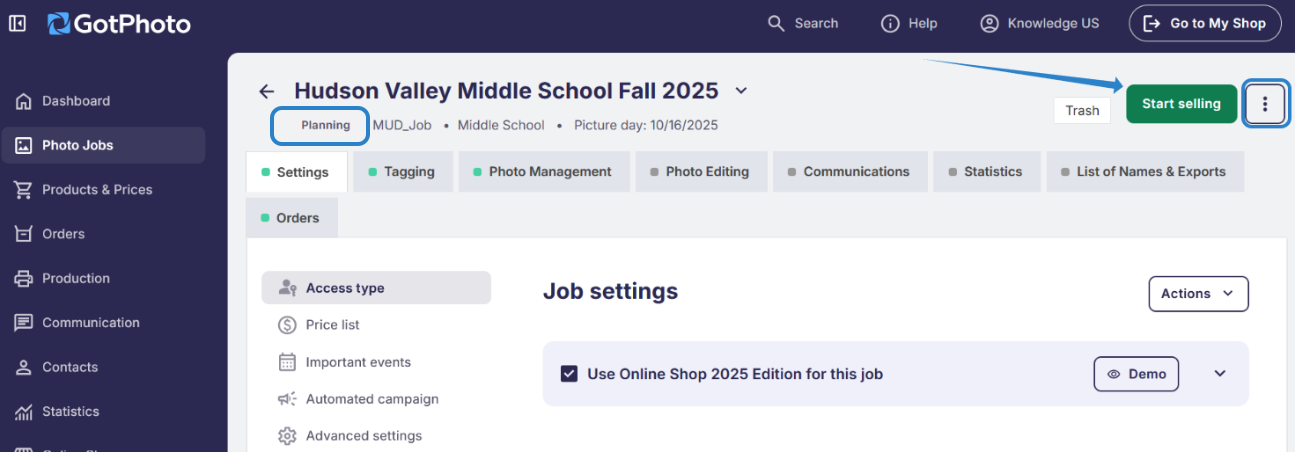
When a job is in **Planning** status, additional configuration options are available.
A green **Start Selling** button appears at the top right of the Settings page.
Click the three dots next to this button to:
- Archive the job
- **\[Prepay only\]** Switch the job to **Prepay** status if Prepay is enabled in your account. Learn more in the [Prepay feature guide](https://help.gotphoto.com/en/support/set-up-a-prepay-photo-job?hsLang=en).
### **View job status in the overview**
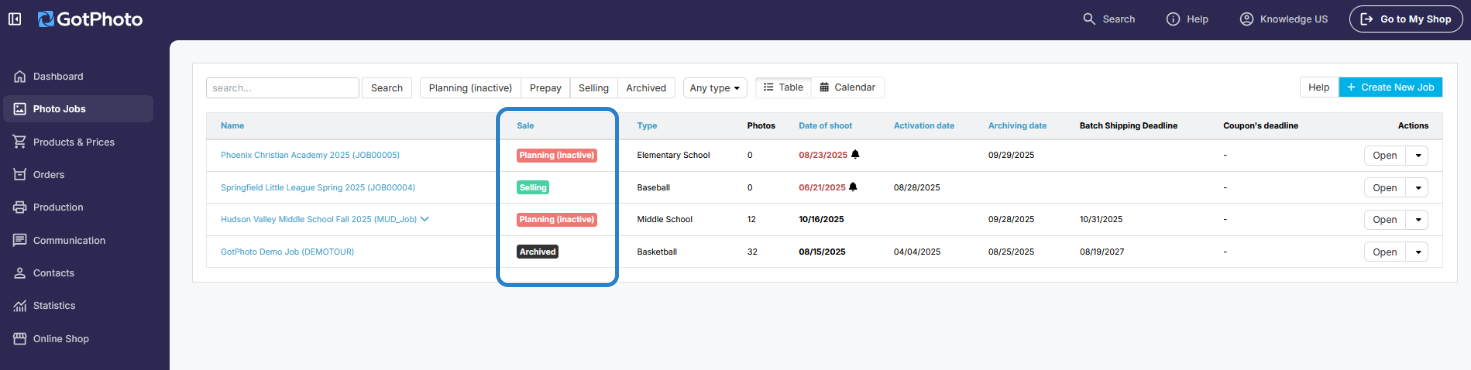
View the current job status directly from the main job overview page.
This allows you to quickly identify which jobs are in Planning, Selling, or Archived status without opening each job individually.
### **Use the go-live checklist when switching to selling**
When you change a proofing job to **Selling**, a Go-Live Checklist appears to help you review important settings.
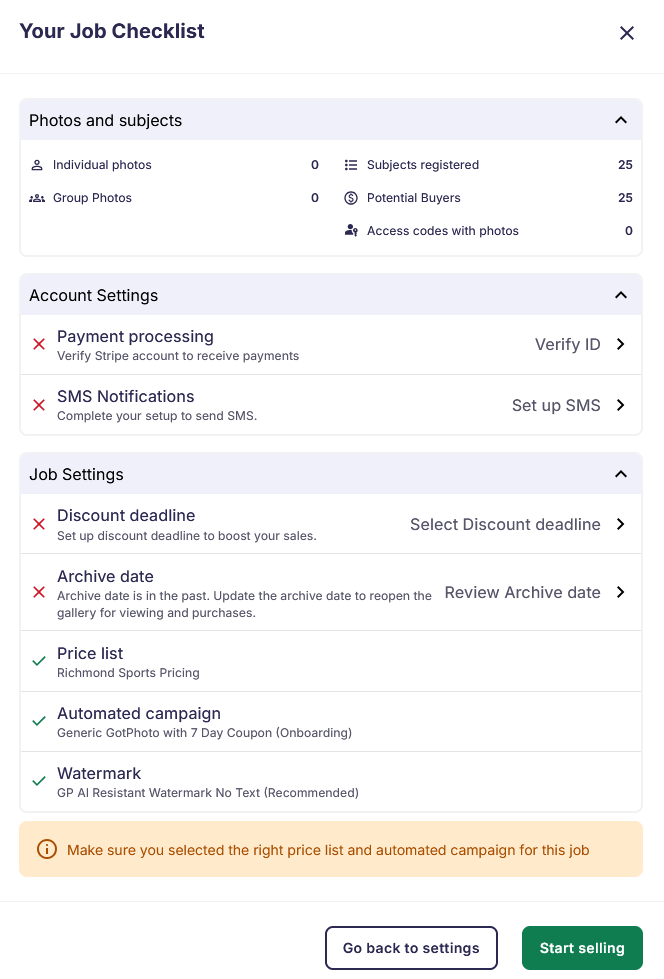
The Go-Live Checklist provides a clear, actionable overview of your setup to help ensure no important settings are overlooked before going live.
If a critical setting needs attention:
- Select **Cancel** to review and adjust your configuration.
- Select **Start selling** if the flagged items are not relevant to your workflow.
The checklist highlights incomplete configurations and recommends activating sales-boosting features such as:
- Price list
- Archive dates
- Automated campaigns
- Watermarks
- Coupons
The checklist appears each time you change a job’s status to **Selling**. It is a helpful guide, not a required step.
### **The takeaway**
Change a job’s status directly from the job banner to match your workflow stage.
Use **Planning** to prepare your setup, switch to **Selling** when you are ready to go live, and move jobs to **Archived** when they are complete.
**\[Prepay only\]** If enabled in your account, switch to **Prepay** from Planning to collect payments in advance.
The Go-Live Checklist helps you verify important configurations before going live, while keeping you fully in control of when to proceed.
- [Getting Started](https://help.gotphoto.com/en/support/getting-started?hsLang=en#main-content)
- [One-Time Settings](https://help.gotphoto.com/en/support/getting-started?hsLang=en#one-time-settings)
- [Price Lists and Product Packages](https://help.gotphoto.com/en/support/getting-started?hsLang=en#price-lists-and-product-packages)
- [Your Online Shop](https://help.gotphoto.com/en/support/getting-started?hsLang=en#your-online-shop)
- [Communication With Customers](https://help.gotphoto.com/en/support/getting-started?hsLang=en#communication-with-customers)
- [Upselling Options](https://help.gotphoto.com/en/support/getting-started?hsLang=en#upselling-options)
- [Navigation](https://help.gotphoto.com/en/support/getting-started?hsLang=en#navigation)
- [How-To's](https://help.gotphoto.com/en/support/how-tos?hsLang=en#main-content)
- [Review Phase](https://help.gotphoto.com/en/support/how-tos?hsLang=en#review-phase)
- [Sales Phase](https://help.gotphoto.com/en/support/how-tos?hsLang=en#sales-phase)
- [Workflow Guides for Specific Scenarios](https://help.gotphoto.com/en/support/how-tos?hsLang=en#workflow-guides-for-specific-scenarios)
- [Planning Phase](https://help.gotphoto.com/en/support/how-tos?hsLang=en#planning-phase)
- [Picture Day Phase](https://help.gotphoto.com/en/support/how-tos?hsLang=en#picture-day-phase)
- [Manage your Account](https://help.gotphoto.com/en/support/how-tos?hsLang=en#manage-your-account)
- [GotPhoto's Editing Services](https://help.gotphoto.com/en/support/gotphotos-editing-services?hsLang=en#main-content)
- [GotPhoto's Editing Services](https://help.gotphoto.com/en/support/gotphotos-editing-services?hsLang=en#gotphotos-editing-services)
- [Sports Graphics Creation Service by Next Gen](https://help.gotphoto.com/en/support/sports-graphics-creation-service-by-next-gen?hsLang=en#main-content)
- [Next Gen](https://help.gotphoto.com/en/support/sports-graphics-creation-service-by-next-gen?hsLang=en#next-gen)
- [Entagged & GotPhoto Tagging App](https://help.gotphoto.com/en/support/entagged-gotphoto-tagging-app?hsLang=en#main-content)
- [Master Entagged with Comprehensive Tutorials.](https://help.gotphoto.com/en/support/entagged-gotphoto-tagging-app?hsLang=en#master-entagged-with-comprehensive-tutorials)
- [Entagged Troubleshooting](https://help.gotphoto.com/en/support/entagged-gotphoto-tagging-app?hsLang=en#entagged-troubleshooting)
- [GotPhoto Tagging App](https://help.gotphoto.com/en/support/entagged-gotphoto-tagging-app?hsLang=en#gotphoto-tagging-app)
- [Business & Growth](https://help.gotphoto.com/en/support/business-growth?hsLang=en#main-content)
- [Stripe & Accounting Resources](https://help.gotphoto.com/en/support/business-growth?hsLang=en#stripe-accounting-resources)
- [Best practices](https://help.gotphoto.com/en/support/business-growth?hsLang=en#best-practices)
- [Webinars](https://help.gotphoto.com/en/support/business-growth?hsLang=en#webinars)
- [Templates and Downloads](https://help.gotphoto.com/en/support/business-growth?hsLang=en#templates-and-downloads)
- [GotPhoto Referral Program](https://help.gotphoto.com/en/support/business-growth?hsLang=en#gotphoto-referral-program)
- [UK Materials](https://help.gotphoto.com/en/support/business-growth?hsLang=en#uk-materials)
- [Troubleshooting](https://help.gotphoto.com/en/support/troubleshooting?hsLang=en#main-content)
- [Uploading Photos](https://help.gotphoto.com/en/support/troubleshooting?hsLang=en#uploading-photos)
- [Customer-Facing Issues](https://help.gotphoto.com/en/support/troubleshooting?hsLang=en#customer-facing-issues)
- [Access Codes](https://help.gotphoto.com/en/support/troubleshooting?hsLang=en#access-codes)
- [Managing Names Lists](https://help.gotphoto.com/en/support/troubleshooting?hsLang=en#managing-names-lists)
- [Customer Outreach](https://help.gotphoto.com/en/support/troubleshooting?hsLang=en#customer-outreach)
- [Customizing Your Shop](https://help.gotphoto.com/en/support/troubleshooting?hsLang=en#customizing-your-shop)
- [Your Account](https://help.gotphoto.com/en/support/troubleshooting?hsLang=en#your-account)
- [Price Lists](https://help.gotphoto.com/en/support/troubleshooting?hsLang=en#price-lists)
- [Student Data Export](https://help.gotphoto.com/en/support/troubleshooting?hsLang=en#student-data-export)
- [DIY Sports Graphic Creation & Group Composites](https://help.gotphoto.com/en/support/diy-sports-graphic-creation-group-composites?hsLang=en#main-content)
- [Workflow Resources: QSuite, Pixnub & Team Photo Composite](https://help.gotphoto.com/en/support/diy-sports-graphic-creation-group-composites?hsLang=en#workflow-resources-qsuite-pixnub-team-photo-composite)
- [GotPhoto North America](https://www.gotphoto.com/)
- [T&Cs US](https://www.gotphoto.com/gtc-us/)
- [T&Cs Canada](https://www.gotphoto.com/gtc-ca/)
- [Privacy Policy US](https://www.gotphoto.com/data-privacy-policy-us/)
- [Privacy Policy Canada](https://www.gotphoto.com/data-privacy-policy-ca/)
- [DPA US](https://www.gotphoto.com/dpa-us/)
- [DPA Canada](https://www.gotphoto.com/dpa-ca/)
- [TOMs & sub-processors US](https://www.gotphoto.com/toms-and-sub-processors-us/)
- [TOMs & sub-processors Canada](https://www.gotphoto.com/toms-and-sub-processors-ca/)
- [GotPhoto UK](https://www.gotphoto.co.uk/)
- [T&C UK](https://www.gotphoto.co.uk/gtc/)
- [Privacy Policy UK](https://www.gotphoto.co.uk/data-privacy-policy/)
- [DPA UK](https://www.gotphoto.co.uk/dpa/)
- [TOMs & Sub-Processors UK](https://www.gotphoto.co.uk/toms-and-sub-processors/)
- [Cookie Declaration](https://app.gotphoto.com/cookie_declaration)
[](http://GotPhoto.com)
### GotPhoto North America
**Customer Care**
 +1 646-362-5100
 +1 365-809-1810
SupportUS@gotphoto.com
Support Hours:
Monday – Friday
9am – 7pm ET
### GotPhoto UK
**Customer Care**
+44 (0) 20 8068 8571
service@gotphoto.co.uk
Support Hours:
Monday – Friday
9am – 5pm GMT
Copyright © 2026, GotPhoto Inc.